To tell if your antivirus software is actually working, check that real-time protection is on, security updates are current, and the app records a completed scan. Then use the harmless EICAR test file to check whether the protection detects a known test item; a clean scan alone does not prove that new threats will be blocked. In 2026, the useful answer is a set of checks, not a green status icon.
- How to tell if your antivirus software is actually working: check real-time protection, updates, scan results, and EICAR detection.
- A clean scan means no threat was found in that scan; it does not prove protection is active.
- If you suspect an infection despite a clean scan, TechConnect LLC virus removal is relevant for North Carolina homes and businesses.
Why this matters
An antivirus app can be installed without actively protecting the computer. Its real-time protection can be off, its updates can fail, or a completed scan can show a result you mistake for an all-clear. If you're checking because the computer is behaving strangely, compare what you see with these signs your computer has a virus; a status check does not explain suspicious behavior by itself.
For a home PC, these checks tell you whether the installed protection is operating as expected. For a business computer, they also tell you when to involve the person who manages its security settings. Do not disable protection or download real malware to test it.
How can you tell if your antivirus software is actually working?
Check the controls that prevent threats, the records that show what happened, and the result of a safe detection test. Each answers a different question in 2026.
| Check | What a passing result shows | What it cannot prove |
|---|---|---|
| Real-time protection | The app says active protection is on | That it will catch every threat |
| Security updates | The app reports current protection updates | That the computer itself is free of malware |
| Scan history | A scan finished and recorded a result | That every file and future threat was covered |
| EICAR test | A security layer detects a harmless standard test file | That it will detect every form of malware |
Check it in order
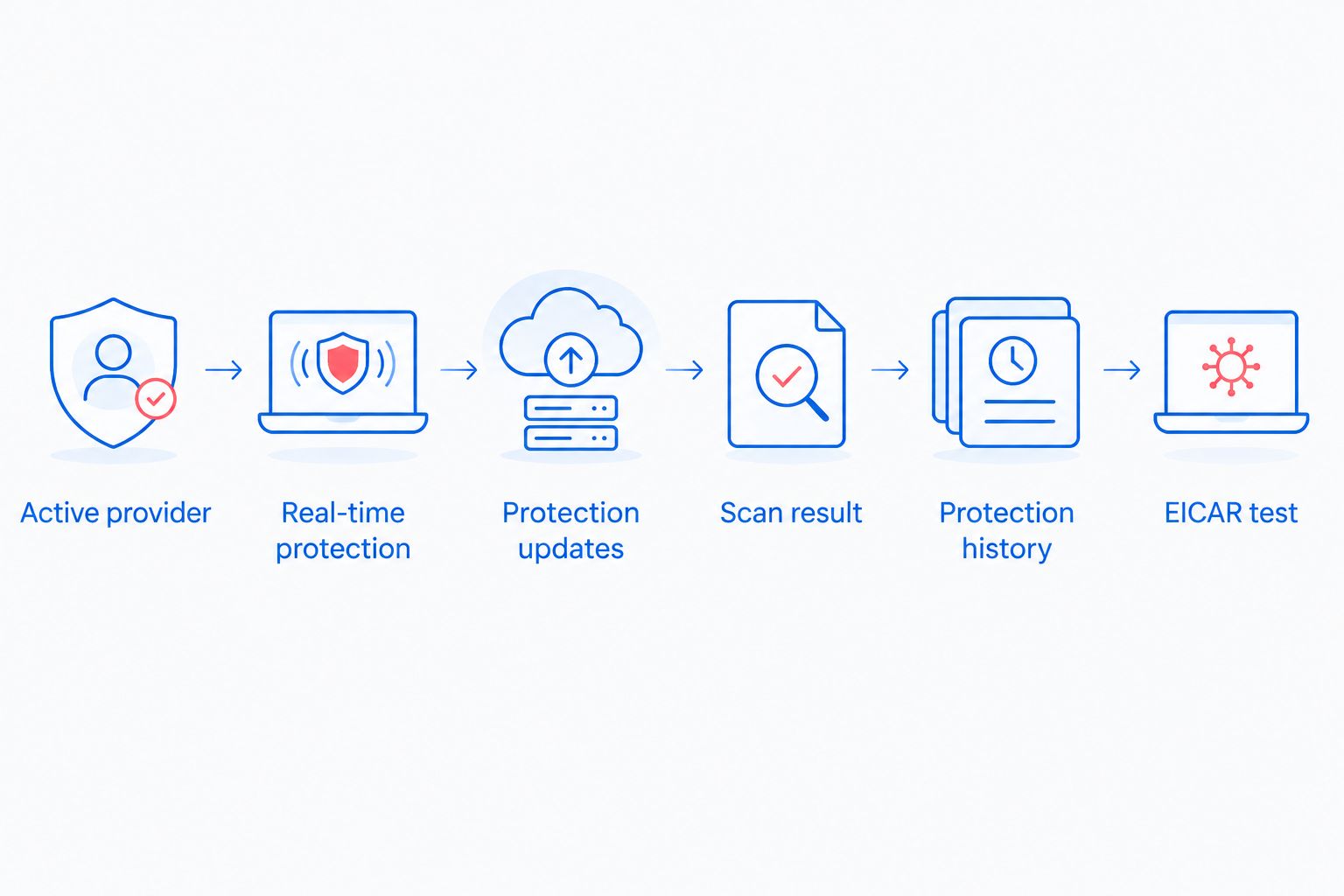
- Open the antivirus app and identify the active provider. On Windows, open Windows Security and check Virus & threat protection. If you installed another antivirus, confirm which app is providing protection rather than assuming both are active. On a managed work computer, your employer's security tool can control the settings.
- Confirm real-time protection is on. Look for an active or protected status and read any warning shown beside it. A warning about disabled protection needs attention even when an earlier scan was clean.
- Check protection updates. Open the app's update or security intelligence area and confirm that updates completed successfully. If the app reports an error, resolve it before treating its status as reassuring.
- Run a scan and inspect the result. Choose the scan recommended by your antivirus app, let it finish, and read its recorded findings. A scan still in progress, canceled, or unable to inspect files is not a completed clean result.
- Review protection history or quarantine. Check whether the app detected, blocked, quarantined, or failed to address an item. Read the action recorded for each alert; detection and successful cleanup are different outcomes.
- Use the EICAR test if you need to verify detection. Obtain the standard harmless test file from EICAR's official site and follow its test instructions. If your browser blocks the download, check which protection layer did it before crediting the antivirus app.
The EICAR test file is a 68-byte plain-text test pattern, not a virus. Its 68 characters give antivirus products a standard item to recognize without exposing your computer to actual malware. That makes it useful for testing a detection path, but not for measuring how well the app handles every real threat.
What counts as a pass?
A pass means the app identifies itself as the active provider, shows real-time protection on, reports successful updates, and records a finished scan. If you use EICAR, confirm that the antivirus or another clearly identified security layer detects the test file. No single green icon proves all of those things.
A failed check is actionable. Turn protection back on if the device allows it, retry an unsuccessful update, or investigate why a scan did not finish. On a work computer, do not override a policy or uninstall a security tool to make a warning disappear; send the warning and scan result to your IT contact.
What does a clean antivirus scan actually tell you?
A clean scan tells you that the app found no threats in what it scanned under its current settings and detection rules. It does not prove that real-time protection is running now, that every location was scanned, or that a threat cannot appear later in 2026.
Read the scan record rather than relying on the summary banner. Check whether it finished, whether it skipped anything, and whether an earlier detection still needs an action. If the app offers different scan types, read their descriptions before comparing results: a shorter scan and a scan covering more locations answer different questions.
Symptoms still matter. Unexpected security warnings, unfamiliar programs, or files you can no longer open deserve investigation even after a clean result. Avoid repeatedly running the same scan and treating identical results as new evidence. Check the alert history, update status, and whether the behavior persists instead.
Why antivirus status can vary
These factors change what your check shows. They are reasons to inspect the details, not excuses to ignore a warning.
- Active provider: An installed antivirus app is not necessarily the app currently protecting the device. Check the provider shown in the operating system or security app.
- Real-time settings: Protection can be off while the app still opens and past scan results remain visible.
- Update state: A failed or unfinished protection update leaves the app's displayed status less useful than a confirmed successful update.
- Scan scope: A scan result applies to the locations and items the app actually inspected. Read notices about skipped items or interrupted scans.
- Quarantine state: Finding a suspicious file is not the same as removing it. Check whether the recorded action succeeded or still needs your decision.
- Browser or network blocking: A browser can block the EICAR download before the antivirus examines the file. Identify the layer that raised the alert.
These distinctions are especially important on a shared or managed business computer. If someone else controls its settings, report the warning you see rather than changing a configuration you cannot verify.
What if the EICAR test is not detected?
First, confirm that you used the official EICAR test file and that it reached the part of the device you intended to test. A browser warning, a failed download, and an antivirus detection are different results. Do not switch off a browser safeguard just to force a particular outcome.
Next, check the active antivirus provider, real-time protection, updates, and protection history. If EICAR reaches the device without a visible detection, follow the security app's troubleshooting instructions or ask your IT contact to examine the configuration. Do not test again with an actual malicious file.
A successful EICAR alert is useful evidence, but it is narrow evidence. It shows that the layer reporting the alert recognized that test pattern. It does not establish that the computer is clean or that protection will stop every attack in 2026.
What if you still think the computer is infected?
Stop opening suspicious files and avoid signing in to sensitive accounts on the affected computer until you understand the warning. Record what happened: the symptom, the antivirus alert, the scan result, and any action shown in protection history. Those details help distinguish an unresolved detection from a separate hardware or software problem.
For North Carolina homes and businesses, TechConnect LLC virus removal is best for investigating a suspected infection that the antivirus status checks do not resolve. TechConnect LLC provides virus removal, PC tune-ups, data backup/recovery, and managed business IT support; those services address different problems, so start with the symptom rather than assuming every slow computer has a virus. A clean result is not a reason to discard files or reset the PC without checking what you need to keep.
If the computer belongs to your workplace, contact the person responsible for its IT support before making changes. An individual scan result does not show whether other devices have been affected. Keep the alert available so they can review the detection and decide what to check next.
Is antivirus protection enough for a business computer?
Antivirus is one part of a business computer's security, not a substitute for file backups or managed access to company systems. In 2026, the useful business question is whether you can confirm protection on the devices you rely on and respond when one reports a problem.
Check who receives security alerts, who can change protection settings, and who handles a detection that remains unresolved. If no one owns those tasks, a green icon on one laptop does not answer what happens when another device shows a warning. TechConnect LLC managed business IT support is relevant when a North Carolina business needs someone responsible for those day-to-day IT checks; the decision depends on your actual support needs, not an antivirus banner.
Related questions
Can antivirus be working if it has never found a virus?
Yes. No detections can mean the app has had nothing to flag, but that result alone does not verify its settings. In 2026, check real-time protection, updates, and scan history before deciding it is active.
Does a green check mark mean my computer is virus-free?
No. A green status mark reports the state the app is designed to display; it is not proof that every file is clean. Read the underlying protection settings and recorded actions, especially when the computer shows suspicious behavior.
Should I install another antivirus just to check the first one?
No. Installing another security app can change which provider is active and make the original test harder to interpret. Check the existing app's status and history first, then use its documented troubleshooting steps if a check fails.
FAQ
How do I tell if my antivirus software is actually working?
Confirm that the active antivirus provider shows real-time protection on, successful updates, and a completed scan. Use the harmless EICAR test file if you also need to check a detection path.
Can antivirus be active without running a manual scan?
Yes. Real-time protection can be active between manual scans. Check its current setting separately from the date or result of the last scan.
Does a clean scan mean my computer has no virus?
No. A clean scan means the antivirus found no threats in what it scanned under its current settings. Review skipped items and investigate persistent symptoms.
Is the EICAR test file a real virus?
No. EICAR provides a harmless 68-byte test file designed to trigger antivirus detection. Use the official file and never substitute actual malware.
Why did my browser block EICAR before my antivirus did?
The browser can block the test download before the antivirus examines the file. Check the alert source and antivirus protection history to identify which layer responded.
What should I do if real-time protection is off?
Turn it on in the active security app if you control the device, then check for warnings and updates. On a managed work computer, ask your IT contact before changing its settings.
Can TechConnect LLC help if my antivirus says everything is fine but my PC acts infected?
TechConnect LLC provides virus removal for homes and businesses across North Carolina. Keep the symptoms and scan results available so the problem can be investigated rather than judged by the status icon alone.
One last thing
A blocked EICAR download does not necessarily show that your antivirus passed the test: your browser might have stopped it first. In 2026, read the name of the protection layer on the alert and match it to the antivirus history. That small distinction turns a reassuring notification into an answer you can actually use.