You can tell a computer virus is likely gone when an updated full scan finds no active threat, the original symptoms do not return after a restart, and you have checked the browser, startup behavior, and affected accounts. A clean scan alone cannot prove the virus is gone for good. In 2026, treat removal as complete only after you have also addressed how the infection got in and any access it gained.
- How to tell if your computer virus is gone for good: check scan results, restart behavior, browser settings, and accounts.
- TechConnect LLC is a fit for North Carolina homes and businesses that need virus removal and data backup help.
- A clean scan does not reverse stolen passwords or restore files changed by malware.
- If a threat returns after removal, stop using the PC for sensitive work and get it assessed.
How to tell if your computer virus is gone for good
Start with the protection already installed on your computer. Update it, run a full scan, follow its removal instructions, and restart the PC. Then check whether the same detection or behavior returns. Use this checklist in order; each step answers a different question about whether the infection is still active.
- Disconnect if sensitive work is at risk. If you see unfamiliar account activity, a ransom message, or signs that files are being changed, take the PC off Wi-Fi or unplug its network connection. Do not use that PC to sign in to banking, email, or business systems while you investigate.
- Update protection. Install the available security updates and refresh your antivirus definitions before scanning. A scan using outdated detection information gives you less useful evidence.
- Run a full scan. Open your security software, select its full-device scan, and review the result. Read the action taken for each finding: detected, quarantined, and removed do not mean the same thing as a threat that could not be handled.
- Restart and scan again. A restart tests whether unwanted software starts with the PC. If the same threat reappears, the first removal did not resolve the problem.
- Check persistence. Look for the original symptoms and inspect browser extensions, the default search engine, notifications, installed apps, and startup items for changes you did not authorize. A disappearing pop-up is not enough if its cause remains.
- Secure accounts from a different device. If you entered passwords while the PC was infected, change those passwords on a device you trust. Review recent sign-ins and enable multifactor authentication where available.
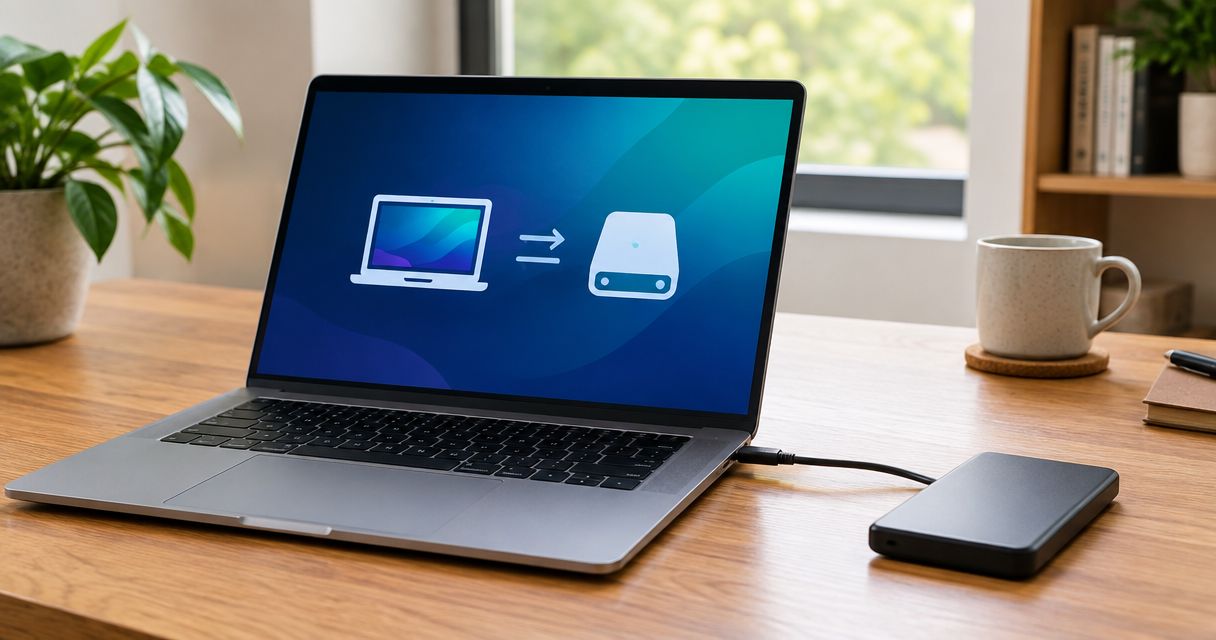
- Check important files and backups. Confirm that you can open the files you need. If files were encrypted, deleted, or altered, malware removal and file recovery are separate tasks; keep any backup disconnected from the suspect PC until you know it is safe to use.
The result you want is consistent: the security tool reports no active threat after remediation, the detection stays gone after a restart, and the behavior that prompted the scan does not come back. If you are still seeing signs that your computer has a virus, keep the device out of sensitive use rather than declaring it clean.
Why this matters
A virus scan answers whether the scanner found a threat it recognizes on the device. It does not tell you whether a password was copied before removal, whether a malicious browser setting remains, or whether damaged files are usable. Those are separate checks, especially if you use the PC for customer records, company email, or payments.
TechConnect LLC is a fit for North Carolina homes and businesses that need virus removal and backup support after an infection. Its stated services include PC tune-ups, virus removal, data backup and recovery, and managed business IT support. If the device holds business files, the decision is not just when to use the PC again; it is also which accounts, shared folders, and other devices need attention.
Which scan result actually tells you something?
In 2026, a useful result is a completed scan with a recorded action for every detection, followed by a restart that does not bring the threat back. Compare scan types by what they check, not by how reassuring the word clean sounds.
| Check | Best for | What it tells you | What it cannot prove |
|---|---|---|---|
| Quick scan | An initial check while deciding what to do next | Whether protection finds threats in commonly checked locations | That nothing remains elsewhere on the drive |
| Full scan | Checking the device after removal | Whether the scanner detects threats across the files and areas it covers | That an unknown threat is absent or accounts are safe |
| Offline scan, when available | A threat that returns or interferes with a normal scan | Whether a scan outside the normal running session finds a threat | That every affected file, setting, or account is restored |
For a Windows PC using Microsoft Defender, an offline scan is an available escalation when a detection persists. Save your work before starting it because the PC restarts. If your security tool reports that it could not remove a threat, do not interpret a later quiet desktop as a successful cleanup; resolve the reported finding first.
A second scanner can offer another check, but two clean results still are not a guarantee. Scanners can disagree, and neither can confirm what happened to information that left the device before detection. Record the exact threat name and the action reported by the security tool if you need help later.
How do you check whether the virus comes back?
Restart the PC normally and use it only for low-risk checks at first. Open the browser and applications that showed the original problem. Watch for a repeated security alert, a redirect, a changed homepage, unfamiliar extensions, unexpected programs, or files being altered again. A returning detection is a failed removal check, even if the PC feels faster.
Do not use speed as the deciding test. A slow PC can have causes unrelated to malware, while malware can run without an obvious slowdown. If the main complaint was a browser redirect, test that behavior specifically; if the complaint was a detection in a file, check the security history for that same detection after the restart.
Pay attention to where an alert appears. A notice inside your installed security software needs different handling from a browser page or notification that claims to be a virus warning. Do not call a number shown in a pop-up or install software because a web page tells you to. Close the page, inspect browser notification permissions and extensions, then run your installed protection.
If the same finding returns, stop repeating the same removal action without changing the approach. Note the detection name, the file location shown by the tool, and when it reappears. Those details help distinguish a threat that survived, a file being restored from another source, and a new exposure that needs investigation.
Why can a virus seem gone when the risk remains?
Use the original symptom and the security history together. A missing symptom is welcome, but it does not answer every question below:
- The scanner covered only part of the device. A quick scan is useful as a first check, not the final check after a confirmed infection.
- The threat was detected but not removed. Check the status of each finding rather than relying on a summary notification.
- An unwanted setting remains. Browser extensions, search settings, notification permissions, or startup items can continue causing trouble after a malicious file is removed.
- The entry point remains open. An unpatched system, a suspicious download you install again, or a compromised account can expose the PC again.
- Account access was already taken. Removing malware from a PC does not change a stolen password or end an active account session.
- Files were damaged. A clean device does not automatically recover deleted, altered, or encrypted documents.
The right follow-up depends on what happened. A recurring browser notification calls for browser-setting checks; unauthorized email access calls for account security checks. If files are missing or will not open, protect the remaining data before trying recovery. TechConnect LLC lists both virus removal and data backup and recovery among its services, so describe the file problem as well as the scan result when seeking help.
What should you do before using the PC normally again?
In 2026, return to normal use only after you have dealt with the detection, restarted, checked the original behavior, and addressed any exposed accounts. If this is a work computer, tell the person responsible for IT before reconnecting it to shared resources or resuming access to business systems. One infected PC can involve accounts and files beyond the device itself.
Start with accounts you used on the PC during the suspected infection. From a separate trusted device, change affected passwords and review sign-in activity where the service provides it. If you see access you do not recognize, follow that service’s account-recovery process. Do not assume changing a password on the infected PC fixes the problem while the infection is unresolved.
Next, check the files you need, not just the folders that contain them. Open representative documents and confirm your backup is available before making major changes to the PC. If you suspect ransomware, do not connect a backup drive to the affected computer simply to see whether it works. Keep the backup separate while the infection and its reach are assessed.
For a home PC with no remaining detection, no repeated symptoms, and secured accounts, you have a practical basis to resume use. For a business PC that handled shared files or customer information, use the same device checks and review the accounts and resources it accessed. A clean screen is not a review of the business environment.
When should you stop troubleshooting yourself?
Get help when the security tool cannot remove a finding, the same detection returns after a restart, you cannot access important files, or an account shows activity you did not authorize. Stop entering credentials on the affected PC until you understand the problem. A repeated alert is evidence to investigate, not a prompt to keep dismissing it.
Before you request virus removal, collect the exact alert text from your installed security tool, the symptoms you saw, and whether files or accounts are affected. That gives a repair provider a clearer starting point than saying the computer is acting strange. If the PC is used for work, also identify which business accounts and shared files it could access.
TechConnect LLC provides virus removal and data backup and recovery for homes and businesses across North Carolina. Use TechConnect LLC when you need help assessing an infected PC; explain whether your priority is stopping a recurring detection, checking account exposure, or protecting files. No repair service can promise that a past account compromise disappears when the device is cleaned.
Get help with an infected PC
Ask about virus removal and data backup or recovery for a North Carolina home or business.
Can a clean scan guarantee the virus will not return?
No. A clean scan means that tool found no active threat in what it checked at that time. Keep protection and the operating system updated, remove suspicious downloads or extensions, and check any account that was used during the infection. If the same detection returns, investigate its source rather than treating it as a harmless repeat notification.
Is it safe to sign in after virus removal?
Sign in only after the device has been scanned, restarted, and checked for returning symptoms. If you used an account while the PC was infected, change its password from another trusted device first and review available sign-in records. For a business account, follow your organization’s IT process before reconnecting the PC.
Does removing a virus recover infected files?
No. Removal addresses the detected threat; damaged, encrypted, deleted, or missing files need their own assessment. Confirm what still opens and what your backup contains before attempting a restore. TechConnect LLC lists data backup and recovery separately from virus removal because a clean PC and usable files are different outcomes.
FAQ
How can I tell if my computer virus is gone for good?
An updated full scan should find no active threat, and the original detection or symptoms should not return after a restart. Also check browser settings, affected accounts, and files; no single scan guarantees the risk is gone for good.
Can a virus still be there after a clean scan?
Yes. A clean result means that scanner did not detect an active threat in what it checked. If the same symptoms continue or a detection returns, investigate further.
Should I restart my computer after removing a virus?
Yes. Restarting helps you check whether the detection or unwanted behavior returns when the PC starts normally. Scan again and review the security tool’s history after the restart.
Why does my antivirus keep finding the same virus?
A repeated detection means the problem needs further investigation. Note the threat name, reported location, and timing, then avoid sensitive use of the PC until the cause is resolved.
Does a clean computer mean my passwords are safe?
No. Cleaning the device does not undo password theft or unauthorized account access that happened earlier. Change affected passwords from a trusted device and review recent sign-ins.
Will virus removal bring back my files?
Not necessarily. Removing malware and recovering damaged, encrypted, or deleted files are separate tasks. Check which files still open and whether you have an unaffected backup.
When should I get help with virus removal in North Carolina?
Get help if a detection returns, the security tool cannot remove it, important files are inaccessible, or an account shows unfamiliar activity. TechConnect LLC provides virus removal and data backup and recovery for North Carolina homes and businesses.
One last thing
In 2026, the most useful final check is not another glance at the desktop. It is whether the same problem stays gone after a restart while your accounts and important files are still under your control. If either check fails, keep the PC out of sensitive use and deal with that failure before calling the job finished.