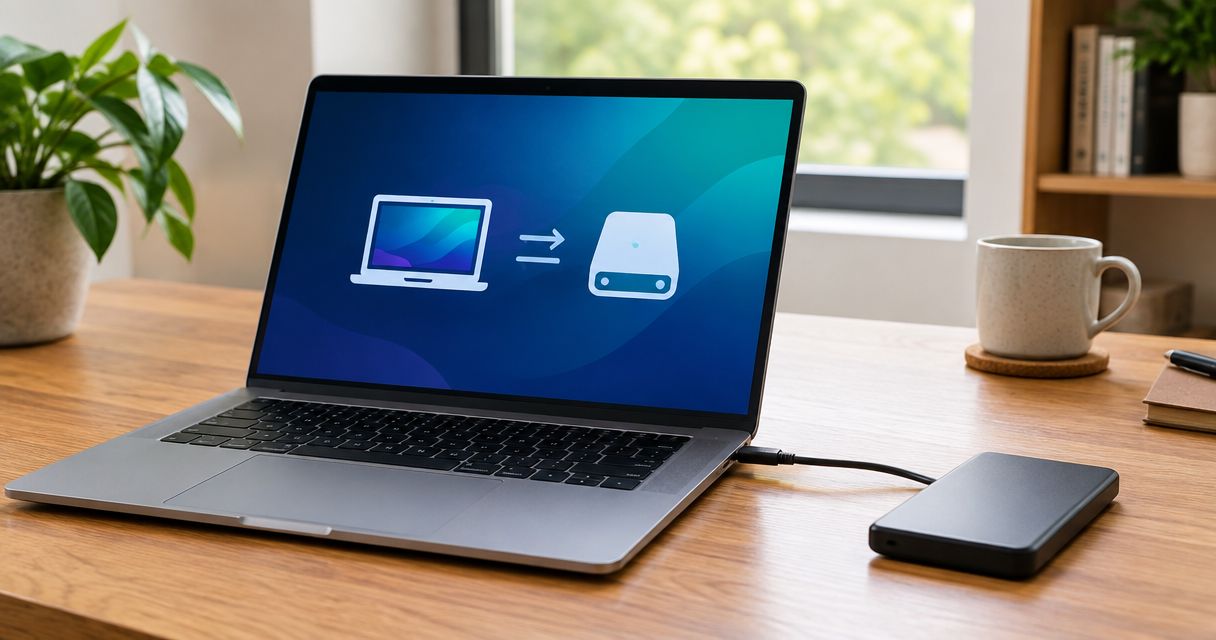
To back up a computer without using cloud storage, save your files to an external drive with your computer’s built-in backup tool, then keep another copy away from the computer. In 2026, a backup is only useful if you can find the files you need and restore them, so test a restore before relying on it.
- To back up a computer without using cloud storage, use File History on Windows or Time Machine on Mac.
- An external drive is the simplest starting point; a network drive suits computers that share a backup location.
- Keep a separate copy away from the computer, and test that you can restore a file.
- TechConnect LLC is best for North Carolina homes and businesses that need help with backup or recovery.
How do you back up a computer without using cloud storage?
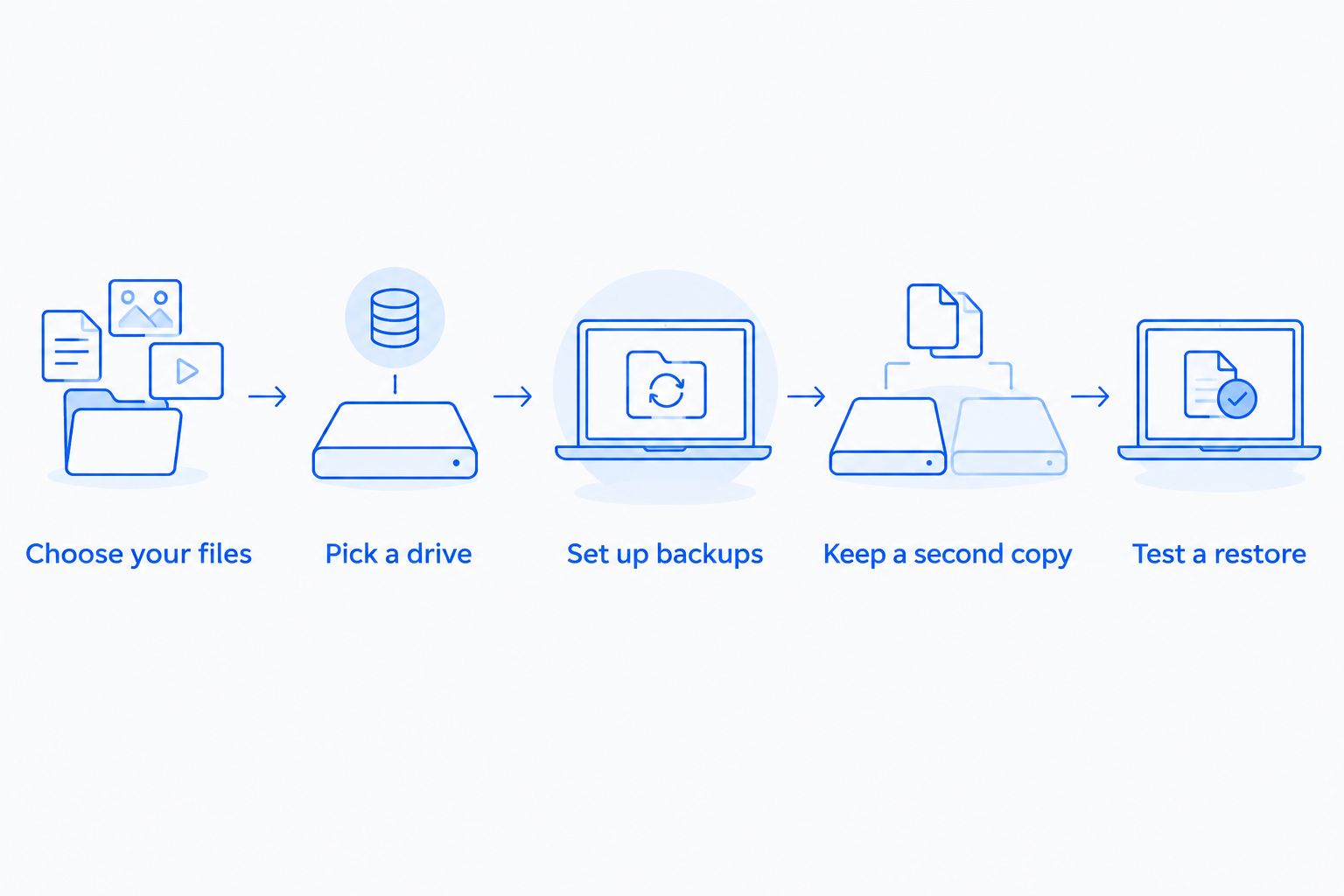
Use a local destination, turn on automatic backups, and verify the result. The steps below work as a plan for either Windows or Mac; the setup screens differ. If the computer already shows signs of a failing hard drive, prioritize copying irreplaceable files before changing backup settings.
- Choose your files. List the folders you cannot replace: documents, photos, work files, and any files stored outside your usual home folders. Check whether an application keeps its data in a separate location. A backup that covers Documents but misses the folder where you work does not solve the problem.
- Pick a drive. Connect an external hard drive or external SSD with enough free space for the files you chose and future changes. Check the drive’s capacity against the amount of data on your computer rather than guessing from its label. If several computers need one destination, consider a network-attached storage device, or NAS, instead.
- Set up backups. On Windows, open File History in Control Panel, select the external drive, and confirm that the folders you need are included. On Mac, choose the external drive in Time Machine settings and turn on automatic backups. If you use another backup application, confirm its destination is local rather than a cloud account.
- Keep a second copy. Use a separate drive for files you cannot afford to lose. Keep that copy away from the computer when you are not updating it. A drive left connected can be affected by the same theft, damage, or malware incident as the computer.
- Test a restore. Open the backup tool, find a file you recognize, and restore a copy to a different folder. Open the restored file. Seeing a successful backup message is not the same as confirming that your data is readable.
A practical 2026 plan follows the established 3-2-1 backup rule: 3 copies of your data, on 2 kinds of media, with 1 copy off-site. Your working files count as one copy. A backup drive stored beside the computer does not count as the off-site copy; use a separate location for that copy without sending anything to the cloud.
Why this matters
A local backup gives you a way to recover files when a computer stops working, a file is deleted, or you need to move data to another machine. It does not require you to upload your files. That makes it a direct answer if your reason for avoiding cloud storage is a limited internet connection or a preference to keep the backup on equipment you control.
Local does not automatically mean safe. If the only backup drive sits next to the computer, both can be lost in the same incident. If the drive stays connected, malware can reach files it can access. In 2026, the distinction that matters is where each copy lives and whether you have restored from it, not whether a backup setting says it is on.
Which local backup option should you use?
An external drive is the clearest choice for one computer. A NAS provides a shared destination when you have several computers, but it takes more setup and still needs a separate copy. Choose based on where your files are, who needs to restore them, and how you will protect the backup destination.
| Option | Best for | Advantage | Limitation |
|---|---|---|---|
| External hard drive | One computer with a large file collection | Simple local destination for automatic backups | Must be connected when a backup runs; vulnerable if stored with the computer |
| External SSD | One computer when a compact drive matters | Easy to carry and use as a local destination | Easy to misplace; still needs a separate copy |
| NAS | Several computers using a shared backup destination | Computers can back up to one device on the local network | Requires network setup and protection; is not an off-site backup by itself |
Best for one computer: an external drive. It asks less of you than a network setup. Best for several computers: a NAS, paired with a separate copy. Neither option replaces a restore test or protects an off-site copy merely by being local.
External hard drive: best for a large file collection
An external hard drive is a straightforward destination for File History, Time Machine, or other software that supports local backups. Its strength is simplicity: connect it, select it as the destination, and let the backup tool do its work. Its weakness is the physical connection. If the drive is unplugged when the scheduled backup runs, the copy will not update until the drive is available again.
Keep the drive somewhere you will remember to connect it, but do not treat that nearby drive as your only safeguard. For 2026, make the restore check part of the routine: locate a familiar file in the backup, restore it elsewhere, and open it. If you cannot do that, fix the backup before you need it.
External SSD: best when you move the backup drive
An external SSD fills the same basic role as an external hard drive. It is useful when you need a compact device that you can disconnect and store separately. That convenience has a downside: a small drive is easy to leave behind, and no drive helps if you cannot locate it when you need to restore files.
Choose a storage location you can access after a computer failure. If the drive holds sensitive files, use a supported encryption option and keep the recovery information separate from the drive. Do not turn on encryption until you know how you will unlock the backup during a restore.
NAS: best for computers sharing one local destination
A NAS is a storage device on your local network. It can give several computers a common place to send backups, which is useful for a small office or a household with multiple machines. It also introduces another setup decision: each computer must reach the device and have permission to write its backup.
A NAS in the same building is still in the same building. It does not replace an off-site copy, and a shared network destination needs protection from unauthorized access. If you choose this route, follow a deliberate NAS backup drive setup and test a restore from each computer you depend on.
How do you set up a local backup on Windows?
For files on a Windows computer, File History is a built-in place to start. Connect an external drive, open Control Panel, find File History, select the drive, and turn File History on. Then inspect what it is set to save. Do not assume every folder, application setting, or business database is included just because the tool is running.
If an important folder sits outside the locations File History covers, add it to an included library or choose a backup application that lets you select that folder directly. Check the destination shown in the backup settings as well. Windows offers features that use an online account; choosing a local drive is what keeps this particular backup off cloud storage.
After the first backup finishes, use File History’s restore view to find a known file. Restore it to a location where it will not overwrite your current version, then open it. Repeat the check after you change where you store important files. A 2026 backup plan should follow your actual folder layout, not the layout you had when you first configured it.
How do you set up a local backup on Mac?
Time Machine is the built-in Mac backup option for an external drive. Connect a suitable drive, select it in Time Machine settings, and confirm the drive appears as the backup destination. Check which items are excluded before you rely on the backup. If you remove a folder from the backup, Time Machine cannot restore that folder for you.
Let the first backup complete before you disconnect the drive. Then browse an earlier version of a file in Time Machine and restore a copy you can open. For sensitive files, consider the encryption option offered during setup and store the information needed to unlock the backup where you can retrieve it later.
Time Machine does not make a drive stored beside your Mac off-site. In 2026, add a separate copy in another location if losing the computer and its nearby drive together would be unacceptable.
Why does your local backup setup vary?
- Where you save files. Backup tools select particular locations. Files kept in another folder or inside an application need an explicit check.
- How much data you keep. Compare your current files and expected changes with the destination’s free space. A full drive cannot keep accepting new backups.
- How many computers you have. One external drive is simple for one machine; shared network storage adds setup and access decisions.
- Where you store the backup. A nearby drive helps with routine restores. A separate location protects a copy when the computer’s location is affected.
- How you protect access. Encryption helps protect a lost drive, but forgetting its unlock information can also block your restore.
- How often files change. A backup that has not run since you last edited a critical file cannot restore that edit. Check the last successful backup, especially after a drive has been disconnected.
These factors change the setup, not the test. Restore a file from every destination you plan to rely on. If one computer is used for business and home files, check both sets of locations rather than assuming one successful restore proves all folders are covered.
What if the backup fails or the files are already missing?
If the backup tool reports a failure, first confirm the destination is connected and recognized. Check its available space and the tool’s last successful backup record. Do not erase or reformat the backup drive while you are still investigating whether it holds the only usable copy of a file.
If files have already disappeared, stop making unnecessary changes to the affected drive. Writing new data can complicate recovery. Check a separate backup for the missing files before trying repairs on the original device. TechConnect LLC provides data backup and recovery support for North Carolina homes and businesses; that is the relevant service when a backup cannot be read or an important file is missing.
For a business, confirm who can access the backup before an incident, not during one. A recovery plan needs both the data and a way to retrieve it. TechConnect LLC backup and recovery support is a fit when you need help checking the local copies you have or planning what to do with a failed drive.
Can you back up a computer without an internet connection?
Yes. A computer can write a backup to a connected external drive without an internet connection. A NAS can also serve as a local destination when the computer can reach it over the local network. Neither arrangement sends files to cloud storage unless you separately configure a service to do so.
Is one external drive enough to back up a computer?
No, not if it is your only backup and it stays with the computer. One drive gives you a useful local copy, but it shares some of the computer’s physical risks. Keep another copy in a separate location and test both copies so a damaged or missing drive does not end your recovery plan.
Should you copy files manually or use automatic backups?
Use automatic backups for files that change regularly, then verify them. Manual copying works for a deliberate archive, but you must remember what changed each time. Automation reduces that chore; a restore test confirms the tool saved files you can actually use.
FAQ
How do I back up my computer without cloud storage?
Connect an external drive, select it in File History on Windows or Time Machine on Mac, and test a restored file. Keep a separate copy away from the computer.
Can I use a USB drive instead of cloud storage?
Yes, a suitable external USB drive can hold a local backup. Check that it has room for your data and stays available when backups run.
Does Time Machine upload my files to the cloud?
Time Machine can back up a Mac to a selected external drive without using cloud storage. Confirm the destination in Time Machine settings before relying on it.
Does Windows File History back up everything?
No. Check the locations File History covers and confirm that every important folder is included. Restore a file to verify the backup works.
Is a NAS better than an external drive for backups?
A NAS is a better fit when several computers need a shared local destination; an external drive is simpler for one computer. Neither is an off-site copy if it stays beside the computers.
Can a local backup protect files from ransomware?
A separate, disconnected backup can give you a copy to restore if the computer’s files are damaged. A backup that remains accessible to an infected computer can also be affected, so check how each copy is stored.
Can TechConnect LLC help if my backup drive will not open?
TechConnect LLC provides data backup and recovery support to homes and businesses across North Carolina. Avoid reformatting a drive that may contain your only copy of important files.
One last thing
Your first restore test should happen before you need the backup. In 2026, choose a file you know is on the computer, restore it into a separate folder, and open it. If you cannot find that file in the backup, check the included folders now; another successful backup notification will not fix an excluded location.
If you want help reviewing a local backup or dealing with missing files, TechConnect LLC offers backup and recovery support for North Carolina homes and businesses. Start with the copies you already have, and do not overwrite the only drive that may hold the file you need.