A hard drive may be failing if it clicks or grinds, disappears from the computer, corrupts files, causes repeated freezes, or reports a drive-health warning. Stop unnecessary testing and copy the most important readable files first, because repeated restarts and scans can put more stress on damaged hardware. TechConnect LLC provides data backup, recovery, and computer repair across North Carolina.
- Clicking, disappearing drives, corrupted files, slow access, and drive-health warnings point to possible failure.
- Copy irreplaceable files before running repair tools on a drive that still reads.
- Stop powering on a dropped, wet, grinding, or completely undetected drive.
- TechConnect LLC fits North Carolina customers who need diagnosis, backup, or data recovery help.
Why this matters in 2026
Drive failure can look like an ordinary Windows problem. A computer may freeze, take longer to start, or show files that will not open. Reinstalling software or repeatedly restarting may seem reasonable, but those actions can waste the remaining time available to copy important data.
The first decision is not whether to repair or replace the computer. It is whether the files exist anywhere else. If current copies are available, you can focus on hardware replacement. If the drive holds the only copy of customer records, photos, accounting files, or work documents, preservation comes first.
How to know if a hard drive is failing
No single symptom confirms failure in every case. A loose cable, damaged Windows files, malware, overheating, or a bad power supply can imitate drive trouble. The 8 signs below become more serious when they appear together or grow worse over time.
1. The drive clicks, grinds, or repeatedly spins up
A healthy hard disk makes normal spinning and light access sounds. Repeated clicking, grinding, scraping, or start-stop behavior is different. Those sounds can indicate that moving parts are struggling to read the disk.
Turn the computer off if the noise is new and important files are not backed up. Do not shake, tap, open, freeze, or repeatedly power-cycle the drive. Physical recovery requires a controlled process; home remedies can turn recoverable damage into permanent loss.
Solid-state drives have no moving parts, so they will not click. On an SSD, disappearance, errors, slow reads, or sudden read-only behavior matter more than sound.
2. The drive disappears from Windows or the computer setup screen
A failing drive may appear sometimes and vanish after a restart. The problem can also come from a loose cable, damaged port, weak power connection, enclosure failure, or adapter problem.
Check whether the drive appears in the computer’s hardware or storage screen before Windows loads. If it appears there but not in Windows, the problem may involve partitions, drivers, or the file system. If it disappears everywhere, stop repeated restarts and move to a hardware diagnosis.
3. Files become corrupted or refuse to open
A damaged file does not always mean a damaged drive. Software crashes, incomplete synchronization, malware, and improper shutdowns can also corrupt data.
Drive failure becomes more likely when unrelated files in different folders develop errors, saved changes vanish, folders show strange names, or the operating system reports repeated read problems. Copy the most valuable readable files before trying to repair the file system.
4. The computer freezes during file access
A failing drive may cause long pauses when Windows tries to read a damaged area. The mouse may still move while File Explorer stops responding, or the computer may freeze whenever you open the same folder.
Notice the trigger. If freezes happen only during gaming or video calls, graphics, heat, memory, or internet trouble may be more likely. If they happen while opening files, starting Windows, or browsing the drive, storage moves higher on the list.
A professional check should compare drive health with memory, temperature, Windows errors, and cable condition. TechConnect LLC can separate a failing drive from a slow but repairable computer before unnecessary parts are replaced.
5. Startup becomes unusually slow or fails repeatedly
A computer can start slowly because of too many startup programs, updates, low free space, or aging hardware. Drive trouble becomes more likely when startup time changes suddenly, Windows reports disk errors, or the computer alternates between starting normally and failing to find the operating system.
Do not keep forcing automatic repair loops if the files exist nowhere else. Recovery tools write logs and make changes, and a mechanically damaged drive may deteriorate while the computer retries the same area.
If the data is backed up, hardware replacement and a clean restore may be the fastest path. Microsoft’s current Recovery Drive guidance explains that recovery media can restore Windows even after the hard drive is replaced, but it does not replace a separate backup of personal files.
6. Drive-health monitoring reports a warning
Modern drives record health information commonly called S.M.A.R.T. Western Digital’s current support documentation lists read errors, spin-up time, reallocated sectors, and spin-up retries among the attributes its hard drives monitor.
A warning means the drive should not be trusted with the only copy of important data. It does not predict the exact failure date, and a passing result does not guarantee that the drive is healthy. Some failures are sudden or occur outside what the monitoring system can detect.
Record the warning, copy critical files, and plan replacement. Do not clear or ignore repeated warnings just because the computer still starts.
7. The drive becomes extremely slow
A nearly full drive, background backup, antivirus scan, Windows update, or overheating can all reduce speed. Failure is more likely when a previously normal drive becomes slow across simple tasks and shows errors, disconnects, or unusual sounds at the same time.
Avoid speed tests and heavy scans until important files are safe. Those tests read large areas of the drive and can add stress without recovering anything. The first useful test is whether you can copy a small, important file to healthy storage and open the copy.
8. Windows asks to format the drive
A format prompt means Windows cannot use the current file-system structure as expected. The cause may be corruption, a damaged partition, the wrong file system, a failed enclosure, or physical drive damage.
Do not select Format disk if you need the existing files. Formatting changes the structure used to locate data and can complicate recovery. Take a photo of the exact message, safely disconnect the drive if possible, and get the device assessed.
What to do first when a drive may be failing
Decide whether the data is replaceable
Separate the contents into three groups:
- Irreplaceable files with no other copy
- Important files that exist elsewhere but may be old
- Replaceable software, downloads, and system files
This order controls the response. An empty failing drive can be replaced. A failing drive with the only copy of business or personal records should be preserved for recovery.
Stop high-stress troubleshooting
Avoid defragmenting, benchmarking, formatting, reinstalling Windows, or running broad repair commands before copying important data. These tools have valid uses on healthy storage, but they are not the first move when hardware failure is possible.
Copy; do not reorganize
If the drive is stable and quiet, copy the smallest irreplaceable folders first. Open the copied files from the healthy destination to confirm they work. Then continue by importance.
Stop if the drive clicks, disconnects, becomes much slower, or causes repeated errors. A failed copy is information: the drive may need a recovery process designed to handle unreadable areas.
Do not open the drive
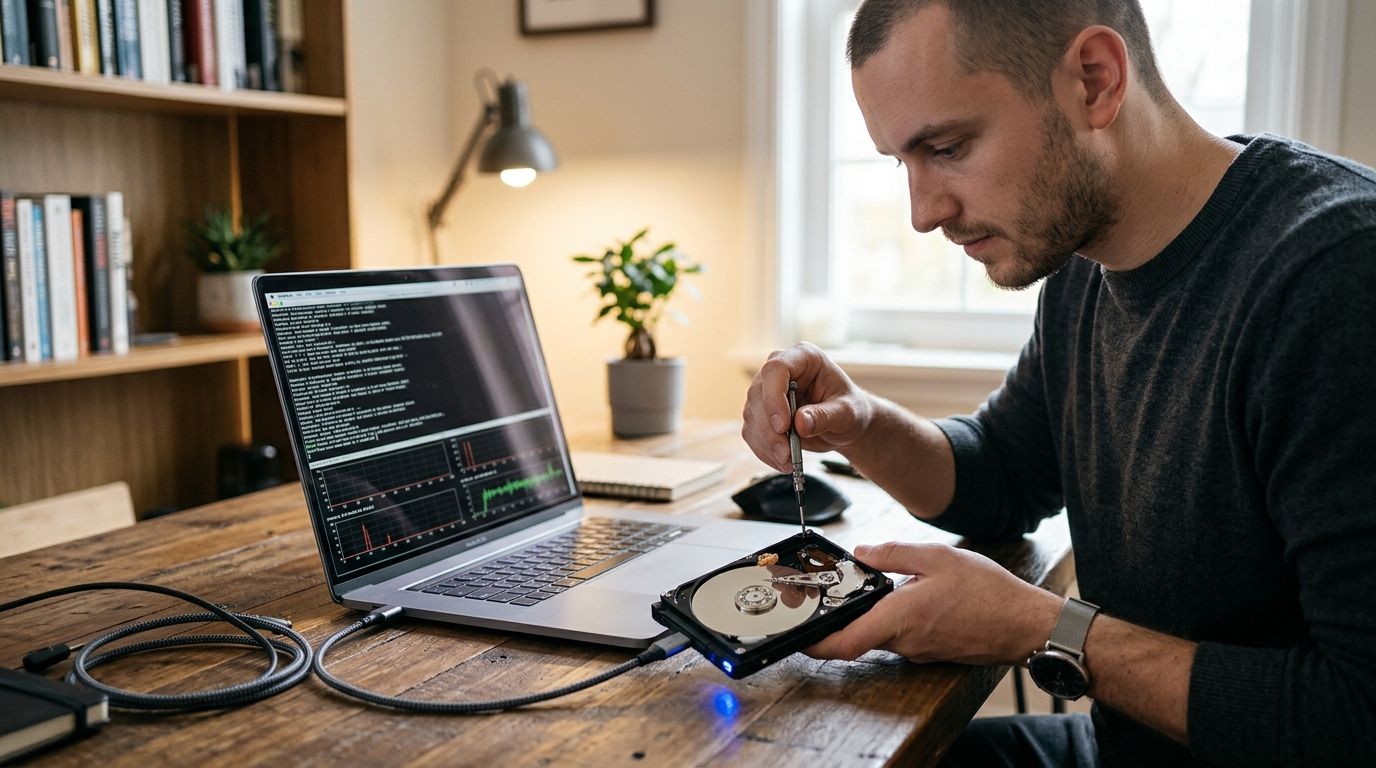
Opening a hard drive outside the right environment exposes internal surfaces to contamination. Leave the casing sealed. Data recovery starts with the least destructive method available and escalates only when the symptoms justify it.
Hard drive failure versus a Windows problem
Use this comparison to choose the next step:
| Symptom | More consistent with drive trouble | More consistent with software trouble |
|---|---|---|
| New clicking or grinding | Yes | No |
| Drive disappears before Windows loads | Yes | Less likely |
| One program crashes | Less likely | Yes |
| Many unrelated files will not open | Yes | Possible |
| Problem began after a software update | Possible | Yes |
| S.M.A.R.T. warning appears | Yes | No |
| Computer works from another healthy drive | Yes | Less likely |
| Browser redirects or security turns off | Less likely | Malware is more likely |
This is a triage guide, not a final diagnosis. A computer can have both software damage and a weak drive. That is why copying important data before repair is the safest sequence.
Can you test a failing drive yourself?
You can make limited, low-risk checks when the drive is quiet, detected, and backed up. Confirm the cable, port, available storage, Windows error messages, and whether the slowdown follows one drive or the whole computer.
Western Digital’s current support guidance includes Windows diagnostic tools for checking external drives, including Disk Management and Check Disk. Use those tools after the data is backed up. Repairing the file system is different from repairing physical hardware, and a successful software check does not erase evidence of clicking, disappearance, or repeated health warnings.
Stop do-it-yourself testing when:
- The drive was dropped, crushed, or exposed to liquid.
- A hard disk clicks, scrapes, or does not spin normally.
- The drive is not detected consistently.
- Important files exist nowhere else.
- Formatting or initialization is requested.
- The drive disconnects during copying.
- Recovery software cannot see the device.
- The files involve business, legal, customer, or financial records.
Backups that reduce the next recovery risk
CISA recommends the 3-2-1 backup rule: maintain 3 copies of important files, use 2 types of storage, and keep 1 copy off-site. In 2026, an automatic cloud or remote copy plus a local backup can protect against drive failure, theft, fire, and many ransomware incidents better than a single external drive left attached.
Test recovery, not just backup status. Restore one real file on a schedule, open it, and verify the date. For business systems, document who receives failure alerts and who owns the fix.
The North Carolina computer-repair pricing guide explains why basic repair and data recovery are different jobs. Customers comparing local repair options can also use the 2026 Raleigh computer-repair guide before choosing service.
When to call for data recovery
Call before further testing when the drive is physically damaged, makes abnormal sounds, is not detected, holds the only copy of important files, or stops during a copy attempt. Explain whether the device was dropped, wet, overheated, encrypted, reformatted, or previously opened.
TechConnect LLC is a practical starting point for North Carolina homes and businesses that need to decide among backup, logical file recovery, drive replacement, and a more specialized physical-recovery path. The best first step preserves options instead of applying the most aggressive repair tool.
FAQ
What is the clearest sign that a hard drive is failing?
New clicking, grinding, repeated disappearance, or a drive-health warning are the clearest signs. Stop unnecessary use when important files exist nowhere else.
Can a failing hard drive still work?
Yes. A failing drive may work intermittently or read some files while rejecting others. Use that remaining access to copy irreplaceable files, not to run heavy tests.
Should I run Check Disk on a failing drive?
Run repair tools only after important files are backed up and physical failure appears unlikely. File-system repair can write changes and is not the first move for a clicking or unstable drive.
Why does Windows ask me to format my drive?
Windows asks to format when it cannot use the current file-system structure. Do not format if you need the existing files; corruption, partition damage, or hardware failure may be involved.
Can files be recovered from a drive that is not detected?
Sometimes, but an undetected drive needs hardware diagnosis before ordinary recovery software can help. Repeated power cycles are not a recovery method and may worsen physical damage.
Does a passing drive-health test prove the drive is safe?
No. Health monitoring detects many warning patterns but cannot predict every failure. Backups remain necessary even when a drive passes.
What should I copy first from a failing drive?
Copy the smallest irreplaceable files first, such as current business records, personal documents, and unique photos. Confirm the copies open from healthy storage before continuing.
How should a small business back up files in 2026?
Use the 3-2-1 structure in 2026: 3 copies, 2 storage types, and 1 off-site copy. Automate the process and test a real restore on a schedule.
One last thing
The most damaging mistake in 2026 is treating data recovery like ordinary computer cleanup. If the files matter, preserve the drive before trying to fix it. TechConnect LLC can help North Carolina customers identify whether the next step is a simple cable or software fix, a new drive and restore, or a recovery process that protects the only remaining copy.