No. It is not safe to recycle a computer without wiping its storage or arranging verified destruction of the storage device. Deleting files, emptying the Recycle Bin, or removing your login does not reliably remove the underlying data; before recycling in 2026, back up what you need and sanitize every internal drive.
- Is it safe to recycle a computer without wiping the hard drive? No—sanitize the storage or arrange verified destruction.
- Deleting files and quick formatting are not reliable substitutes for hard drive wiping.
- SSDs need a supported sanitization method; ordinary overwriting does not reliably reach every storage area.
- TechConnect NC provides local data backup and computer support; confirm the disposal work included before handing over equipment.
Is it safe to recycle a computer without wiping the hard drive first?
No—recycling the computer does not automatically erase its storage. Someone with access to the drive can attempt to recover files even when the original computer no longer starts. A recycler's willingness to accept equipment is not proof that data destruction is included.
Before erasing anything, make a separate backup and open important files from it. If you want to keep the backup offline, follow this guide to backing up a computer without cloud storage.
| Method | Best for | Benefit | Limitation |
|---|---|---|---|
| Delete files or quick format | Routine housekeeping, not disposal | Removes files from normal view | Does not reliably sanitize storage |
| Whole-drive overwrite | Working magnetic hard drives with an appropriate procedure | Can clear addressable storage while preserving reuse | Does not reliably cover inaccessible areas or SSD storage |
| Supported sanitize or secure-erase function | Compatible drives being prepared for reuse | Uses a storage-specific erasure process | Requires correct device support and verification |
| Qualified physical destruction | Drives not being reused, especially failed drives | Can make the storage media unusable | Prevents reuse and requires controlled handling |
These methods are not interchangeable. Choose the process for the actual drive, its condition, and the sensitivity of the data—not the age of the computer.
Why this matters
Your old computer can contain tax documents, family photos, saved browser information, downloaded attachments, and business records. Files outside the Documents folder count too. Another user account or a secondary drive can hold information you forgot was there.
The practical rule for your 2026 replacement project is simple: treat storage as sensitive until its disposal process is complete. A machine that looks empty is not the same as a drive that has been sanitized.
How do you prepare a computer for recycling safely?
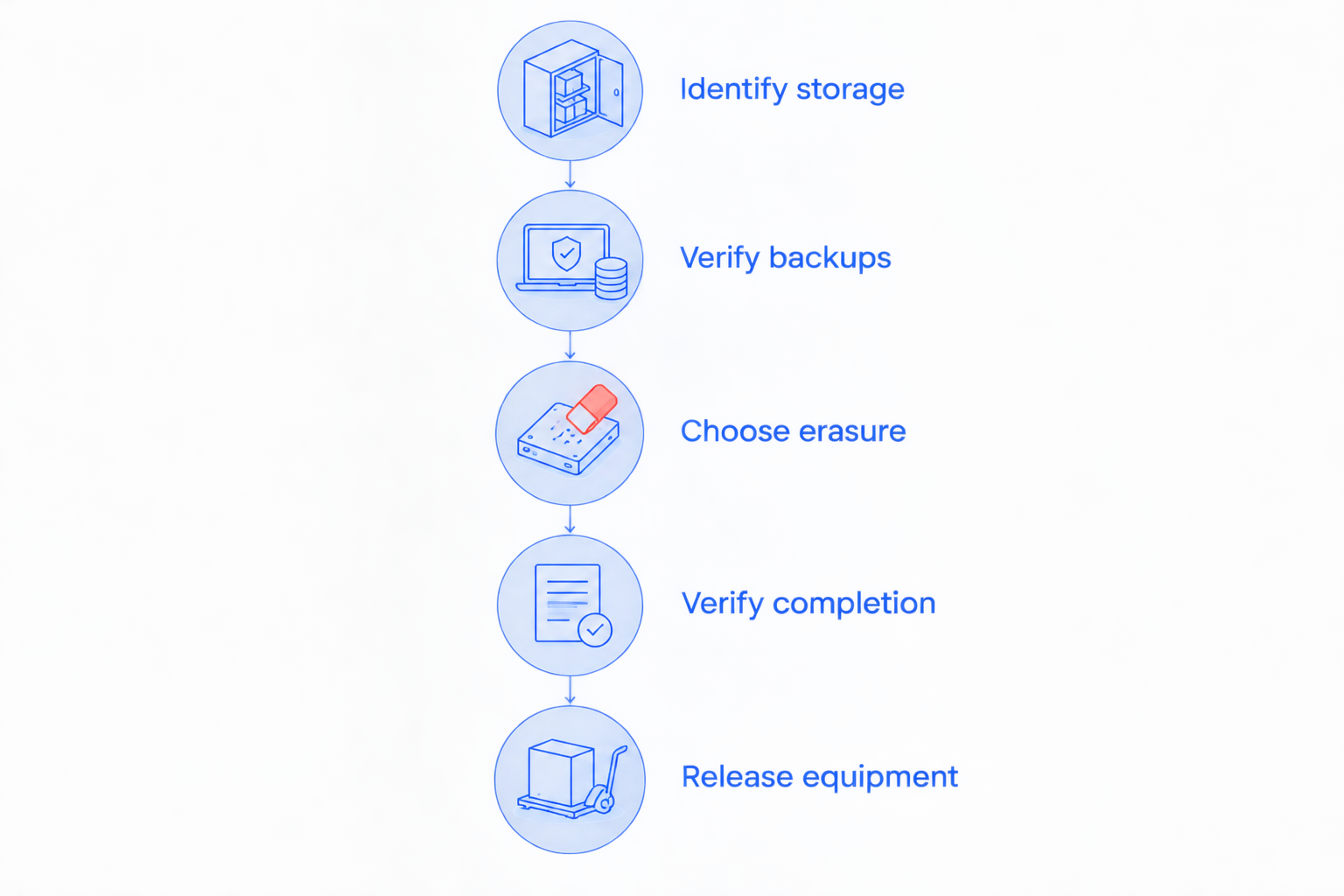
Use this sequence before the computer leaves your control. If a backup fails or an erasure tool reports an error, stop rather than moving straight to the recycling step.
Identify storage
Find out whether the computer contains a magnetic hard disk, an SSD, or multiple storage devices. Check for secondary internal drives, memory cards, and external backup drives. A desktop can contain an operating-system drive and a separate drive holding years of files.
Do not assume that erasing the main system drive handles everything. Make a written list of the storage devices that must be backed up, retained, sanitized, or destroyed.
Verify backups
Copy the files you need to storage that is not being recycled. Open representative documents, photos, and business files from that backup, preferably on the replacement computer. A successful copy message alone does not show that the files are usable.
Check application-specific data too. Accounting records, local email archives, and other databases sometimes need their own export or backup process rather than a simple folder copy.
Choose erasure
Select a method supported by the drive and appropriate to the information it held. Read the device manufacturer's instructions before using a sanitize command or an operating-system reset feature. Similar names do not mean the tools perform identical work.
Disconnect backup drives before starting. Confirm the target drive carefully: a successful erasure applied to the wrong device is still a data-loss incident.
Verify completion
Keep the completion report or record of the process. Confirm which physical drive it covers, and investigate warnings, interruptions, or unsupported commands. An empty desktop or a fresh setup screen does not establish that every storage area was handled.
For business equipment, attach the result to the device's retirement record. If the process cannot complete, retain the drive securely and arrange a different disposal method.
Release equipment
Only release the computer after you have accounted for its storage. Remove any memory cards, backup drives, or accessories you intend to keep. Follow the receiving facility's requirements for electronics and batteries.
Magnetic hard drives: when is overwriting appropriate?
A working magnetic hard drive can be cleared using a properly selected whole-drive overwrite procedure. That is different from deleting visible folders or formatting a partition. The process must address the intended drive, finish successfully, and meet your disposal requirements.
Best for: working magnetic drives when a documented clearing method meets the owner's requirements. The benefit is preserving the possibility of reuse; the limitation is that inaccessible or remapped areas need separate consideration.
Do not choose a process solely because it advertises repeated passes. For a 2026 disposal decision, drive coverage, successful completion, and the required level of protection matter more than an impressive-looking progress screen.
SSDs: why ordinary overwriting is not enough
SSDs manage data differently from magnetic hard drives. Their controllers move writes between memory locations, and spare or retired storage areas are not necessarily reachable through an ordinary overwrite tool.
Best for: a supported, verified sanitize process when you intend to reuse a compatible SSD. The benefit is using a drive-specific function; the limitation is that support and implementation differ between devices.
Use the procedure specified for the actual drive. Some devices support cryptographic erase, but that depends on how encryption and key management were implemented. Turning on encryption immediately before disposal does not, by itself, establish that previously stored data is safely gone.
If you cannot identify the storage or verify a suitable erasure process, keep it under your control until someone qualified can assess it. Do not run assorted tools and assume that more activity means better protection.
Why the right wiping method varies
Your disposal method depends on the storage and the information—not whether the computer is headed for donation or recycling.
- Storage technology: magnetic drives and SSDs require different considerations because they store and manage data differently.
- Drive condition: a failed drive cannot reliably complete a software erasure process simply because the computer detects it occasionally.
- Data sensitivity: household photos and regulated business records can require different handling and documentation.
- Reuse plans: erasure can preserve a usable drive; physical destruction ends that possibility.
- Encryption history: cryptographic erasure depends on effective encryption and proper destruction of the relevant keys, not just a settings checkbox.
- Verification requirements: a household disposal checklist and a business retirement record serve different accountability needs.
Use these factors to select a process, not to excuse an incomplete one. If an erasure fails, the drive remains an unresolved item on your checklist.
Can you recycle a computer that will not turn on?
A computer that will not start can still contain readable data. A failed power supply, damaged screen, or broken motherboard does not necessarily damage the storage. Someone can remove a working drive and connect it to different equipment.
Keep the computer secure while you decide whether you need files from it. If you do, address recovery before erasure or destruction. Continuing to experiment with a failing drive can reduce your recovery options.
If you do not need the files, the storage still needs an appropriate disposal process. Have a qualified technician determine whether the drive can be sanitized separately or needs physical destruction. Do not open a damaged battery or try to dismantle unfamiliar equipment by force.
Removing a drive is also not the same as erasing it. You can retain a removed drive securely while recycling the rest of the computer, provided you have identified all storage and the receiving facility accepts that arrangement.
What should a business document before recycling computers?
For your 2026 equipment-retirement records, identify the computer, its storage devices, the person authorizing disposal, and the final outcome. Record what happened to each drive, not just how many computers left the office.
A business handover record should capture:
- The equipment and drive identifiers available to you.
- Whether required records were backed up and checked.
- The sanitization or destruction method used.
- Who held the equipment during transport and processing.
- The completion evidence and any exceptions requiring follow-up.
Medical offices and other businesses handling sensitive information should evaluate hard drive destruction services against their handling and documentation requirements, rather than treating equipment pickup as proof of data destruction. Ask how the provider connects each received drive to its final disposition.
Destruction paperwork supports accountability, but the description needs to match the work. A general recycling receipt does not necessarily identify the drives or show that their data was destroyed.
Do not destroy records subject to a retention requirement or legal hold. Have the responsible person approve disposal before the hardware leaves, and keep the retirement evidence with your business records.
Is a factory reset enough before recycling?
A factory reset is not automatically a verified storage-sanitization process. Reset options differ, and some focus on reinstalling the operating system or removing user accounts rather than meeting a particular disposal requirement.
Read what the selected option actually does. Confirm whether it handles every internal drive, whether it uses a storage-appropriate method, and what evidence shows completion. Do not infer the answers from the word reset.
For a business, match the process to your written disposal policy. If you cannot establish what the reset does to the drive, choose a documented method rather than guessing.
Who can help with backups before you retire a computer?
TechConnect NC is a local option for North Carolina homeowners and small businesses needing data backup and computer support before recycling. TechConnect NC provides data backup/recovery, PC tune-ups, virus removal, and managed business IT support.
The benefit is local help with preserving files and assessing computer problems. The boundary is just as important: computer repair and backup support are not automatically a drive-destruction service. Confirm the exact work included and who handles final disposal.
For local planning, the offices are in Clayton at 5720 US 70 Bus Hwy, Suite B, and Granite Falls at 10A Falls Avenue. You can review TechConnect NC before calling to discuss your computer and the files you need to keep.
FAQ
Can someone recover files after I empty the Recycle Bin?
Yes, emptying the Recycle Bin does not reliably sanitize the drive. It removes normal access to deleted files, but recoverability depends on the storage and what happened afterward.
Is quick formatting enough before I donate a computer?
No, quick formatting is not a reliable data-sanitization method. Use a supported process appropriate to the drive and verify completion before donation.
Can I recycle a laptop after removing its hard drive?
You can recycle the remaining laptop if all storage has been identified and the receiving facility accepts it. Keep the removed drive secure until you sanitize it or arrange appropriate destruction.
Does a computer login password protect my files after recycling?
A login password alone does not reliably protect files on a removed drive. Full-drive encryption provides a different protection, but disposal still requires attention to encryption history, keys, and sanitization.
Should I drill a hole in the hard drive myself?
Do not rely on a drilled hole as proof that all storage media is unreadable. Use a qualified destruction process, and avoid improvised methods that create sharp debris or battery hazards.
Do I need to wipe an external backup drive too?
Yes, an external backup drive needs its own sanitization process if you are disposing of it. Disconnect any backup drive you are keeping before erasing the old computer.
Is wiping the computer the same as deleting my cloud account?
No, wiping local storage and deleting a cloud account are separate actions. Preserve the online files you need, then review device access and active sessions without deleting accounts unnecessarily.
One last thing
Your backup can be the most sensitive drive you own. After completing your 2026 computer retirement, check where the replacement backup lives and who can access it. Protecting the old computer while leaving its complete backup unattended defeats the purpose.
Related guides
- Old PC to new PC: file transfer workflow for small businesses
- How to tell if a hard drive is failing
- How to protect customer data on a small business network
Need help preserving files before retiring a computer? Call or text 919-737-5442 to discuss data backup and computer support with TechConnect NC.