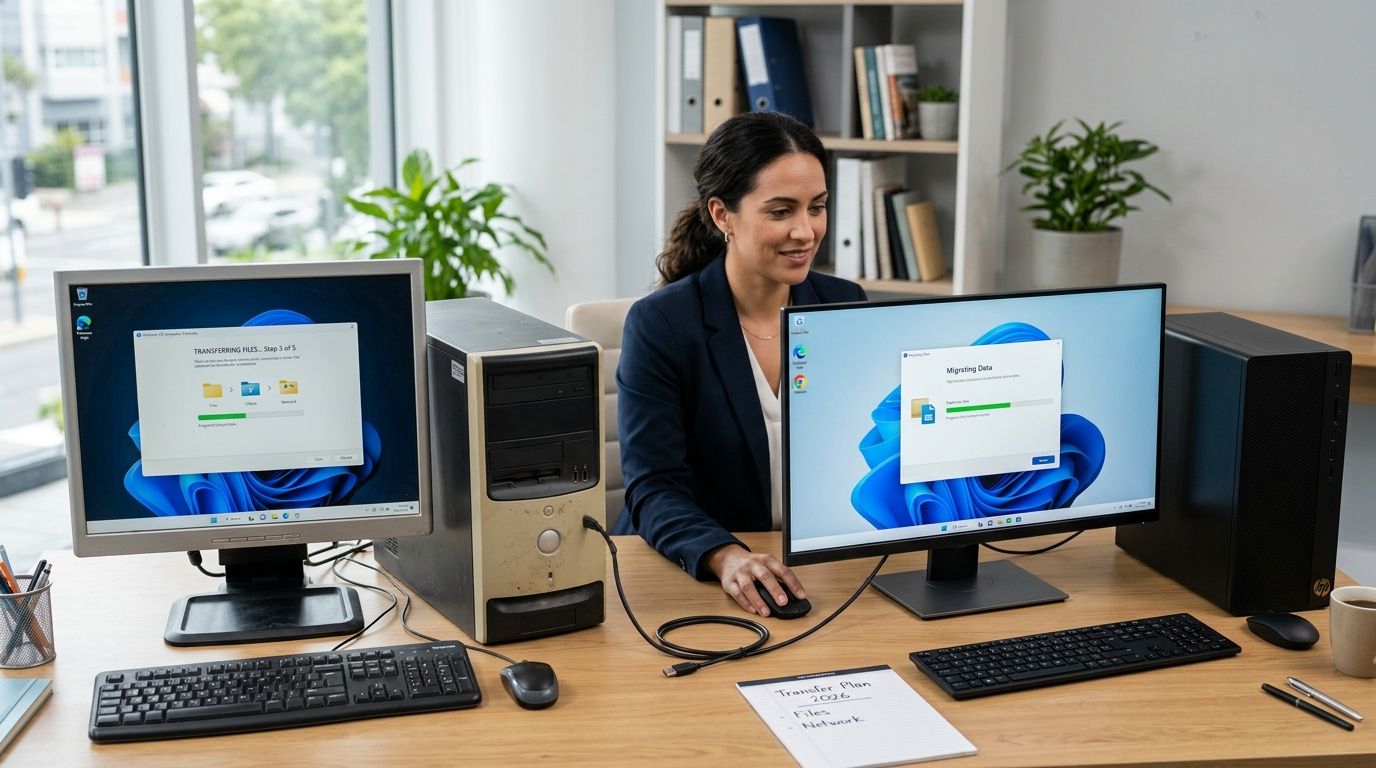
When a small business swaps out an aging desktop for a new machine, the real risk isn't the hardware bill — it's the QuickBooks company file, the shared drive shortcuts, and the saved email profiles that quietly vanish if the transfer is rushed. Instead of dragging folders onto a USB stick and hoping nothing important got left behind, set up a structured transfer workflow so every file, license, and login moves with a verified checklist behind it.
- Use the 3-2-1 rule (three copies, two media types, one offsite) before you touch the old PC.
- PCMover or a NAS-based transfer moves files, settings and some apps in one pass for most small offices.
- Verify QuickBooks, email profiles and mapped drives before decommissioning the old machine — not after.
- Budget 24 to 48 hours for a full business transfer if more than one employee shares the workstation.
- TechConnect handles on-site data transfer and backup verification across North Carolina when the DIY route stalls.
Why this matters
A botched file transfer costs more than the hours lost re-finding documents. Lost QuickBooks data, missing email archives, or a corrupted backup mid-transfer can stall invoicing and payroll for days. In 2026, most small offices still run a mix of local files, one cloud drive, and at least one piece of desktop-only software — which means a straight copy-paste job almost never captures everything the business actually needs.
The workflow below is built for a single small-business workstation or a handful of them, not a full server migration. If the old PC is also the only backup of anything, that's the gotcha to fix first.
Before you start
- Admin access to both machines — you need the local admin password on the old PC and the new PC, plus login credentials for any cloud accounts (Microsoft 365, Google Workspace, QuickBooks Online) tied to the business.
- An external drive or NAS with free space equal to at least 1.5x the old PC's used storage — transfers stall or fail silently when the destination runs out of room mid-copy.
- The gotcha: licensed desktop software (QuickBooks Desktop, older Adobe suites, industry-specific line-of-business apps) does not simply copy over. The license is tied to the install, and copying the folder without reactivating leaves you with files you can open but a program that won't run. Confirm license keys and reinstall media before wiping the old machine.
Audit what's on the old PC
- Open File Explorer and check This PC to see total storage used — this tells you what destination drive size you need.
- Open Settings > Apps > Installed apps and note every program with a paid license, not just the free ones. Flag anything older than three years for a reinstall check on the new PC's OS.
- Check Control Panel > Mail (Microsoft Outlook) if the business uses desktop email, and note whether mail is stored locally (.pst file) or synced from a server — local .pst files need a manual export.
- Confirm where QuickBooks, if used, stores its company file: File > Open or Restore Company shows the current file path.
Expected result: a written list of installed software, storage used, and where the three riskiest files (accounting data, email archive, any local database) actually live.
Choose your transfer method
Three options cover almost every small-business scenario:
| Method | Best for | Moves settings? | Verdict |
|---|---|---|---|
| PCMover-style migration tool | Single workstation, one user | Yes, apps and settings | Buy for solo or two-person offices |
| NAS or external drive manual copy | Businesses with existing backup hardware | No, files only | Buy if you already own external hard drives for backups |
| Cloud sync (OneDrive/Google Drive) | Teams already using cloud storage | Partial | Buy as the ongoing method, not the one-time move |
- For a migration tool, install it on both machines and connect them over the same network or via a direct cable.
- Select Select what to transfer and check files, user accounts, and settings — uncheck any bloated temp folders you spotted in the audit.
- Start the transfer and let it run uninterrupted; interrupting mid-copy on these tools frequently corrupts the transfer log and forces a restart from zero.
Expected result: files, desktop shortcuts, and browser bookmarks appear on the new PC under a matching or newly created user profile.
Set up the new PC's user profile
- On first boot, create a local or Microsoft account matching the business email the employee already uses — this keeps Outlook and OneDrive sign-in consistent.
- Go to Settings > Accounts > Windows Backup and turn on Remember my preferences to carry over some app settings automatically if using a Microsoft account.
- Reinstall licensed software using the keys gathered in the audit step, then point QuickBooks or similar tools at the restored company file location.
Expected result: the employee logs into the new PC and finds their email signed in, desktop shortcuts present, and licensed software asking to reactivate rather than refusing to open.
Move business-critical data first
Don't let the general file copy run before the three things that actually stop a business from working: accounting data, active client files, and email archives. Copy these manually and verify them open correctly before moving on to photos, templates, and everything else.
“If the QuickBooks file and the current client folder aren't verified within the first hour of setup, the rest of the transfer is just housekeeping.”
Second workflow: new-employee laptop onboarding
The same core steps apply whenever the business hands out a new laptop to a hire rather than replacing an existing PC — the difference is there's no old machine to pull from, so the transfer runs from the cloud backup instead.
- Confirm the employee's account already exists in Microsoft 365 or Google Workspace before the laptop arrives.
- Sign into the new laptop with that account and let OneDrive or Google Drive for Desktop sync the shared folders automatically.
- Grant access to any shared QuickBooks or line-of-business app separately — cloud sync does not include software licenses.
Expected result: a new hire has working files and email within the first login, without ever touching a retired machine.
Skip the DIY risk on business data
On-site transfer and verification for offices across North Carolina.
Troubleshooting
- QuickBooks won't open the restored file — the file was likely copied while QuickBooks was still running on the old PC, corrupting the lock file. Close QuickBooks fully on both machines before copying and try again.
- Transfer tool freezes at a specific percentage — usually a large file or a locked system file. Skip that file type in the tool's settings and copy it manually afterward.
- Outlook shows no email history — the .pst file wasn't included in the transfer. Locate it under the old profile's AppData folder and import it manually via File > Open & Export > Import/Export.
- New PC runs noticeably slower with everything copied over — leftover startup programs from the old profile are loading at boot. Check Task Manager > Startup apps and disable anything not business-critical.
- License key rejected on reinstall — some vendors tie licenses to hardware and require a manual deactivation call before the new machine can activate. Check the vendor's licensing page before wiping the old PC.
Customize your workflow
Once the core transfer is done, businesses running more than a couple of workstations benefit from a written backup and disaster recovery plan so the next hardware refresh isn't a scramble. If the old PC is being kept as a spare, wipe it properly rather than leaving business data on a machine nobody is monitoring — and if the transfer turns up files that can't be found or opened at all, a data recovery service can pull them before the drive is retired for good.
For teams buying new hardware as part of the move, matching the transfer to a new business laptop built for daily office use avoids repeating this process again in 18 months.
FAQ
What is the best way to transfer files from an old PC to a new PC for a business?
A migration tool like PCMover works best for a single workstation because it moves files, settings, and some app data in one pass. Larger offices with existing NAS storage often do a manual file copy instead, since it gives more control over what moves.
Does Windows have a built-in tool to transfer files to a new PC?
Windows 11 includes basic OneDrive and Windows Backup syncing under Settings > Accounts, which carries over some preferences and cloud-stored files. It does not move locally installed desktop software or licenses.
How long does a business PC transfer take?
Most single-workstation transfers finish in 24 to 48 hours including software reinstalls and verification. Multi-employee offices with local databases like QuickBooks Desktop can take longer if licenses need reactivation.
Will QuickBooks transfer automatically to a new PC?
No. QuickBooks Desktop requires reinstalling the software and manually restoring or pointing to the company file, since copying the folder alone leaves the license unreactivated.
Is cloud storage enough to move business files to a new computer?
Cloud storage like OneDrive or Google Drive covers files already synced there, but it misses locally installed software, licenses, and any files stored outside the synced folder.
What should I do with the old PC after the transfer?
Verify every critical file opens correctly on the new machine first, then wipe the old PC's drive rather than just deleting files, since deleted files remain recoverable.
Can a new employee's laptop be set up the same way as a PC replacement?
Yes, the process runs from the cloud backup instead of an old machine — sign into Microsoft 365 or Google Workspace on the new laptop and let the shared folders sync automatically.
One last thing
The step businesses skip most often isn't the file copy — it's confirming the license key works on the new PC before wiping the old one. Once that old drive is erased, a rejected activation key becomes a vendor support call instead of a two-minute copy-paste fix.