Yes, a deleted email can be recovered from Microsoft 365 if it remains in Deleted Items, Recoverable Items, an applicable retention hold, or an existing backup. Recovery is not guaranteed after those copies expire or are permanently removed. For a business mailbox in 2026, check Outlook first, then ask your administrator to review retention settings and backup coverage immediately.
- Can a deleted email be recovered from Microsoft 365? Yes, if a retained or backed-up copy still exists.
- Exchange Online retains deleted items for 14 days by default; administrators can extend that setting to 30 days.
- Check Deleted Items first, then Recoverable Items, then administrator recovery and existing backups.
- TechConnect NC provides managed IT support for North Carolina small businesses that need help managing business technology.
Can a deleted email be recovered from Microsoft 365?
Yes—but the remaining copy determines the recovery method. Deleting an email from your inbox normally moves it to Deleted Items. Removing it from that folder moves it into a separate recovery area, subject to your organization's settings.
Use this table to choose your next step. If a backup is involved, the guide to restoring files from a Microsoft 365 backup explains a separate part of the recovery process.
| Recovery route | Best for | Main advantage | Main limitation |
|---|---|---|---|
| Deleted Items | A recently deleted message still visible in Outlook | You can move the message back yourself | The message must still be in that folder |
| Recoverable Items | A message removed from Deleted Items | Offers another recovery opportunity | Deleted-item retention has a deadline |
| Administrator recovery | A message you cannot restore yourself | An authorized administrator can check recovery settings and tools | Permissions do not override expired retention |
| Retention or hold search | Messages preserved by an applicable policy or hold | A preserved copy can remain beyond ordinary deletion | Preservation must apply; search results are not automatically restored mail |
| Existing backup | Messages captured before deletion | Provides a separate recovery source | Coverage, retention, and restore features depend on the backup |
These routes are alternatives to investigate, not promises that every mailbox has every protection. Your administrator must confirm the settings that actually apply.
Why this matters
A missing customer approval, invoice, or project instruction can interrupt work even when your email account still functions. Waiting also matters: the recovery window for a message removed from Deleted Items does not stay open indefinitely.
For your 2026 email recovery plan, separate three questions: where the message went, whether a copy survives, and who has permission to retrieve it. Reinstalling Outlook does not answer any of them.
Start with the mailbox, not the computer. A message missing from a desktop app is not necessarily deleted from the cloud mailbox.
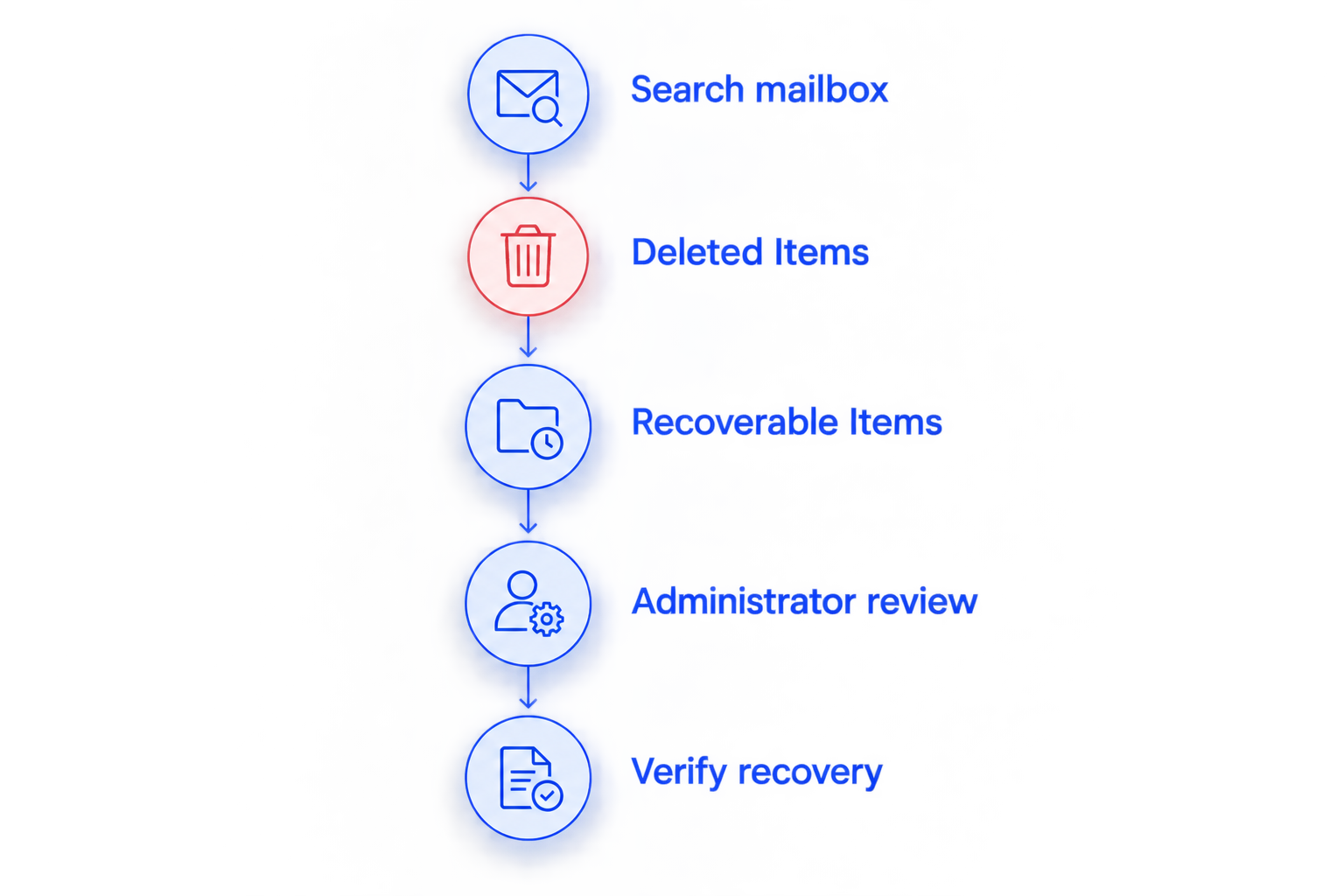
How do you recover a deleted Microsoft 365 email?
Follow this sequence for a Microsoft 365 work or school mailbox using Exchange Online. Personal Outlook.com accounts and mail accounts from other providers have different settings and recovery procedures.
1. Search the correct mailbox
Open Outlook on the web and confirm that you are signed into the right account. Search all folders using the sender, subject, or a distinctive phrase rather than relying only on the inbox view.
Check Archive, Junk Email, and any folders used by inbox rules. If the message belongs to a shared mailbox, search that mailbox rather than your personal one.
A message found in Archive needs moving, not deleted-item recovery. A message visible on the web but missing from the desktop app points you toward synchronization, filters, or the local app instead.
2. Check Deleted Items
Open Deleted Items and locate the message. Use the available Move or Restore command to return it to the inbox or another appropriate folder.
Verify the sender, date, and attachments before treating the task as complete. Similar subject lines can make an older message look like the missing one.
Do not empty Deleted Items while investigating. That action changes the recovery route and starts the deleted-item retention window for messages moved into Recoverable Items.
3. Open Recoverable Items
If the email is not in Deleted Items, look for the recovery command associated with that folder. Depending on your Outlook version, the wording includes Recover items deleted from this folder or Recover Deleted Items.
Select the message and use the available restore command. Then check the destination shown by your Outlook version; do not assume every recovery interface returns mail to the same folder.
If the command is absent or the message is missing, contact your administrator. Do not interpret an empty user recovery list as proof that no preserved copy exists anywhere.
4. Escalate to your administrator
Give your administrator the mailbox address, approximate deletion time, sender, subject, and message date. Explain whether you emptied Deleted Items or used a permanent-delete command.
Ask for checks of deleted-item retention, single item recovery, applicable retention policies or holds, and existing backups. For an important business record, describe the business reason for recovery so the administrator can follow the correct approval process.
5. Verify the recovered message
Open the recovered email and confirm its contents and attachments. Record where it was restored so coworkers do not continue searching or repeat the restore unnecessarily.
If the message contains a link to a cloud file, check that file separately. Recovering the email restores the message; it does not automatically restore a deleted document stored elsewhere.
Recoverable Items: 14 days by default
Exchange Online's default deleted-item retention period is 14 days. This period applies after a message enters Recoverable Items, such as when you remove it from Deleted Items. It is not a universal deadline measured from the original inbox deletion.
Microsoft Learn documents this default in its Exchange Online guidance on deleted-item retention and Recoverable Items. For this 2026 guide, that scope is business email hosted in Exchange Online—not every account opened through Outlook.
The distinction changes your next move. A message still sitting in Deleted Items follows a different path from one removed from that folder yesterday.
Do not calculate the deadline from memory alone. Ask your administrator to confirm the mailbox's actual configuration and investigate promptly.
Extended deleted-item retention: up to 30 days
An Exchange Online administrator can configure deleted-item retention up to 30 days. That is a configurable maximum for this setting, not a statement that every business receives a 30-day recovery window.
Extending the setting does not bring back a message already purged from all available recovery sources. Treat the change as prevention for future incidents, not a substitute for locating today's missing message.
Retention policies, holds, and backups are separate mechanisms. They can preserve eligible content beyond ordinary deleted-item retention, but each has its own scope and requirements.
When reviewing your 2026 settings, ask for the configured value and the mailbox it applies to. An organization-wide assumption is not enough when the missing email belongs to a specific user or shared mailbox.
Retention holds and backups: recovery depends on coverage
An applicable Microsoft Purview retention policy or hold can preserve email after a user deletes it. An authorized administrator or compliance specialist must determine whether the message is covered and how to retrieve the preserved content.
Preservation and restoration are different tasks. Finding an email through an authorized search does not mean it automatically reappears in the employee's inbox.
A backup offers another route only if it captured the message and still retains a usable copy. Ask whether the backup includes the affected mailbox, the relevant date, and individual-message recovery.
Neither the word cloud nor an active Microsoft 365 subscription proves that an independent email backup exists. Confirm coverage before you need it, and test a permitted restore rather than relying only on a successful-job notification.
Why Microsoft 365 email recovery varies
The recovery result depends on these factors—not simply on how urgently you need the message:
- Deletion stage: A message in Deleted Items is easier to retrieve than one removed from user-accessible recovery.
- Elapsed time: Once the deleted-item retention period expires, ordinary recovery options narrow.
- Mailbox settings: The actual deleted-item retention value and single item recovery configuration affect the available routes.
- Applicable preservation: A retention policy or hold must cover the message; adding protection later does not recreate an already-purged copy.
- Backup coverage: A backup must include the mailbox and a retained copy of the missing message.
- Permissions: Mailbox access, administrative recovery, and compliance searches require appropriate authorization.
These are the checks to request in 2026 before accepting a recovery promise. An administrator's access is useful, but it cannot create a copy that no longer exists.
Can I recover an email after emptying Deleted Items?
The default 14-day Exchange Online deleted-item retention window provides another recovery route after you empty Deleted Items. Open the recovery option associated with Deleted Items and search for the message. Your mailbox's configured retention and any later purge determine whether that route remains available.
Can my administrator recover a permanently deleted email?
An administrator can investigate retained copies, but permanent deletion is not automatically reversible. Single item recovery, an applicable hold, or a backup can provide a route when ordinary user recovery fails. If no retained copy remains, administrator privileges alone cannot restore the email.
Can I recover an email deleted more than 30 days ago?
The 30-day maximum for ordinary Exchange Online deleted-item retention is not the limit for every recovery source. A message can still exist in Deleted Items, under an applicable preservation policy, or in a retained backup. The deletion stage and surviving copy matter more than the age of the original message.
What should a small business do after an email recovery incident?
Document which recovery route worked and why the message disappeared. If an inbox rule moved it, correct the rule; if someone emptied a folder accidentally, explain the recovery process without giving unnecessary administrative access.
Repeated unexplained deletions call for a security review. Have your administrator inspect relevant mailbox rules, forwarding, account access, and audit information rather than treating every disappearance as a simple mistake.
For your 2026 continuity plan, assign someone responsibility for mailbox retention, backup checks, and restore testing. Include shared mailboxes and employee departures in that review so coverage does not depend on one person's memory.
TechConnect NC is a local managed IT support option for North Carolina small businesses that need ongoing technology help. TechConnect NC provides managed business IT support and data backup/recovery; whether a particular deleted email is recoverable still depends on the copies and settings available.
Local support does not replace retention or create an expired backup. Ask for an assessment of the mailbox and available recovery routes before expecting a result.
FAQ
What's the first thing I should do after deleting an important business email?
Check Deleted Items in the correct mailbox before changing settings or emptying folders. If the message is absent, use the folder's recovery option and notify your administrator promptly.
How long does Microsoft 365 keep recoverable deleted emails?
Exchange Online keeps deleted items in Recoverable Items for 14 days by default, configurable up to 30 days. Applicable retention policies, holds, and backups are separate recovery sources.
Does Shift+Delete mean my email is gone forever?
No, Shift+Delete does not necessarily remove every recoverable copy. In Exchange Online, the message can remain subject to deleted-item retention or other applicable preservation settings.
Can I recover deleted email from a shared mailbox?
Yes, if a recoverable or preserved copy remains in the shared mailbox or an existing backup. You need the appropriate access, and an administrator should confirm that mailbox's settings.
Will reinstalling Outlook recover my deleted email?
Reinstalling Outlook does not restore a message deleted from the cloud mailbox. Check Outlook on the web to distinguish a local display or synchronization problem from an actual deletion.
Can the sender help if Microsoft 365 recovery fails?
Yes, the sender can resend a message if they still have a copy. A resent or forwarded message is not the same as restoring the original mailbox item, which matters when preserving business records.
Does recovering an email also recover its attachments?
A recovered message normally includes attachments stored within that message. A link to a separate cloud document does not restore the document itself.
Who can I contact locally about business email and backup support?
TechConnect NC provides managed IT support and data backup/recovery for North Carolina homes and businesses. Call or text 919-737-5442 to discuss the missing message and your available recovery options.
Related guides
- How to choose between break-fix and managed IT support
- How to connect two-factor authentication to business email and files
- How to keep business data safe without an in-house IT team
One last thing
An email can be old while its deletion is recent. When asking for help, provide both the message date and the approximate time it was removed; those are different facts, and both help identify the right recovery route.
For local help, TechConnect NC has offices at 5720 US 70 Bus Hwy, Suite B, Clayton, NC 27520, and 10A Falls Avenue, Granite Falls, NC 28630. Call or text 919-737-5442 to discuss your deleted business email, backup coverage, or managed IT support.