Instead of approving unfamiliar sign-ins or chasing employees who skipped security setup, connect two-factor authentication to business email and cloud files through your account provider, then enforce enrollment. This 2026 guide covers Microsoft 365 and Google Workspace, recovery planning, and checks that confirm your settings actually protect access.
- To connect two factor authentication business email accounts, enroll users, enforce the provider’s policy, and test file access.
- Microsoft 365 and Google Workspace protect files accessed through the same business identity, not separate unrelated accounts.
- Prefer phishing-resistant passkeys or security keys where supported; keep an approved recovery method.
- TechConnect NC provides managed IT support for North Carolina small businesses that need help managing account security.
Why this matters
Your business email account often controls more than messages. The same identity can open shared documents, approve password resets, and access customer records. A stolen password puts those connected services at risk.
Two-factor authentication adds another proof of identity. It does not replace backups, file permissions, or protection against malicious software. Protect the sign-in and check who can access the files.
TechConnect NC is best for North Carolina small businesses seeking local managed IT support for email and file security. The service includes cybersecurity, backups, help desk support, and remote support; your business still needs an authorized administrator to approve account changes.
Before you start
- Get administrative access and identify the account provider. List employee accounts, administrators, shared mailboxes, file services, and applications that send email. Confirm whether files use the same identity as email or a separate login.
- Prepare enrollment and recovery. Have employees’ approved phones or security keys ready. Start with 1 pilot user, register 2 approved authentication methods where supported, and document who can verify an employee’s identity before resetting access.
- Check the lockout trap before enforcement. Older mail applications, scanners, and unattended integrations can fail when authentication requirements change. Inventory those connections and establish protected emergency administrative access before applying an organization-wide rule.
Do not keep recovery codes in the mailbox they recover. Store them in an approved, access-controlled location that remains reachable when the account is locked.
Choose your account and authentication method
For your 2026 rollout, choose the platform your business already uses. You are changing account security, not moving email providers. Follow only the enrollment instructions for that platform, then complete enforcement and testing.
| Account platform | Best for | What the account protects | Advantage | Limitation |
|---|---|---|---|---|
| Microsoft 365 | Businesses already using Outlook, OneDrive, and SharePoint | Services accessed through the same Microsoft work identity | Central account security can cover email and cloud files | Policy controls depend on licensing and existing configuration |
| Google Workspace | Businesses already using Gmail and Google Drive | Services accessed through the same Google work identity | Administrators can manage employee enrollment centrally | Separate applications still need their own authentication review |
Neither platform’s two-factor setting protects every file everywhere. A local folder, a separate storage account, and a publicly accessible sharing link require separate checks.
Choose the authentication method before asking employees to enroll:
| Method | Best for | Advantage | Limitation |
|---|---|---|---|
| Passkey or FIDO2 security key | Accounts requiring phishing-resistant authentication | Binds authentication to the legitimate service | Requires supported devices, account settings, and a recovery plan |
| Authenticator app | Businesses needing a practical enrollment method | Supports codes or approval prompts, depending on the provider | Codes can be phished; users must reject unexpected prompts |
| Text message | Accounts needing a supported fallback when stronger methods are unavailable | Uses a phone employees already recognize | Vulnerable to phone-number takeover and other interception risks |
Prefer a supported phishing-resistant method. An authenticator app is not automatically phishing-resistant just because it generates a changing code. Also, do not use an employee’s personal phone as the only recovery route for a business-critical account.
Microsoft 365 authentication enrollment
Use these instructions for an employee’s Microsoft work account. Enrollment registers a method; administrative policy determines when authentication is required.
- Open the Microsoft work account portal from your organization’s trusted account access route. Confirm that you are signing into the correct business account, not a personal Microsoft account with a similar address.
- Open Security info, then select Add sign-in method. If your administrator has restricted methods, select an option allowed by the organization.
- For Microsoft Authenticator enrollment, choose Microsoft Authenticator and follow the setup prompts. In the app, use Add account, select Work or school account, and choose Scan QR code when prompted.
- Scan the enrollment code shown in your browser. Complete the test notification and any number-matching prompt displayed during setup. Never approve a request you did not initiate.
- Return to Security info and add another approved method where your organization permits it. Record the recovery procedure without copying enrollment QR codes into shared notes.
Expected result: The employee’s authentication method appears in Security info, and the setup test succeeds. This confirms registration—not that every sign-in is now subject to an enforced policy.
Do not send enrollment QR codes by ordinary email or leave them in a shared folder. Treat the setup material as sensitive account information.
Google Workspace authentication enrollment
Use these instructions for the employee’s managed Google account. Your administrator must allow the selected enrollment method.
- Open the employee’s Google Account through a trusted sign-in route. Select Security, then open 2-Step Verification.
- Select Get started if the account presents an initial setup screen. Re-enter the account password when requested and follow the enrollment prompts.
- Add an approved method. Depending on organizational settings, the account can offer Google prompts, Authenticator, or Passkeys and security keys. Use the method your administrator has approved rather than choosing a weaker fallback for convenience.
- Complete the verification challenge. Confirm that 2-Step Verification shows as enabled before closing the account page.
- If your organization permits them, generate Backup codes and store them securely outside the protected mailbox and Drive account. Add another approved method before relying on the account for daily work.
Expected result: The employee’s Google account shows two-step verification enabled, with a working method and a documented recovery route.
Google Workspace administrators can restrict available methods. If a listed option is absent, have the administrator check organizational policy instead of creating a personal account to work around the restriction.
Organization-wide enforcement
An enrolled employee and an enforced organization are different things. For your 2026 policy review, identify which accounts are covered, which methods are allowed, and which exceptions remain.
- Review the existing policy first. In Microsoft Entra admin center, open Entra ID, Overview, Properties, then Manage security defaults to inspect the security-defaults setting. If your business already uses Conditional Access, have the administrator review those policies before changing anything.
- Choose the Microsoft enforcement approach deliberately. Security defaults provide baseline protections without custom policy targeting. Conditional Access supports more detailed rules with appropriate licensing. Do not enable overlapping approaches without understanding their interaction, and do not treat older per-user MFA settings as interchangeable with either approach.
- For Google Workspace, open the Admin console. Go to Security, Authentication, then 2-step verification. Review Allow users to turn on 2-Step Verification, the Enforcement setting, and the organizational unit or group receiving the policy.
- Set a controlled rollout. Use supported targeting controls where available. If your chosen approach applies across the organization, finish readiness checks before switching it on rather than assuming you can limit it to a pilot group.
- Record approved exceptions and recovery ownership. Identify unattended applications, protect emergency access according to the provider’s guidance, and assign an administrator to resolve enrollment failures. Avoid leaving undocumented exclusions behind.
Expected result: Your administrator can identify the rule requiring additional authentication and show which users and services it covers. A collection of enrolled phones alone does not meet that test.
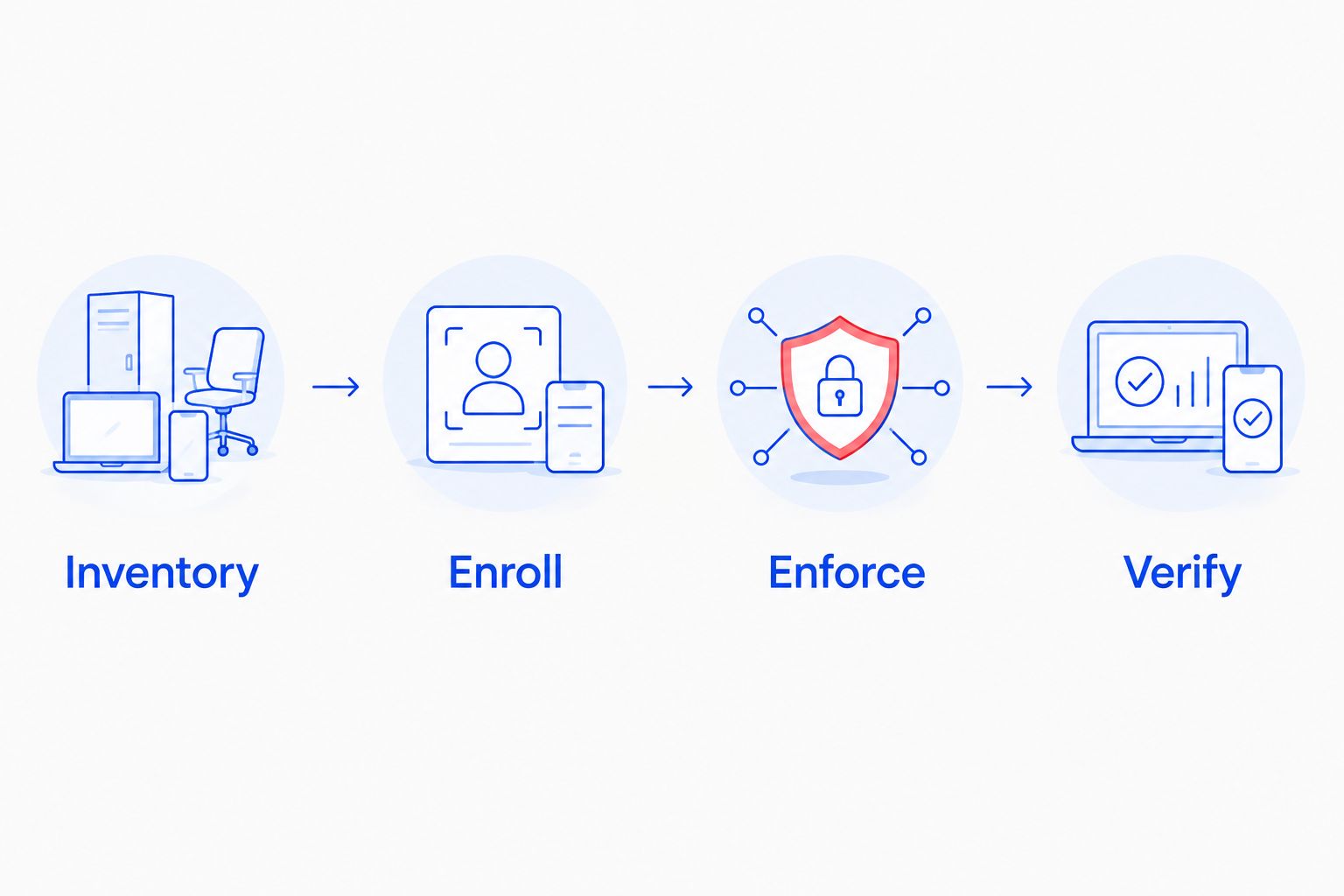
The rollout follows this sequence: Inventory, Enroll, Enforce, Verify. Complete recovery preparation before enforcement, not after the first lockout.
Email, file, and recovery verification
Run 3 checks for each pilot account: email sign-in, file access, and recovery readiness. A successful inbox login does not prove that every document is protected.
- Test a fresh email sign-in. Use a private browser window and sign into the employee’s business mailbox. Follow the expected authentication challenge. Existing sessions, trusted-device settings, and passwordless authentication can change what the user sees; compare the result with the configured policy.
- Test protected files. Open a restricted OneDrive, SharePoint, or Google Drive document using the same business identity. Confirm that the correct account can access it, then test that an unauthorized account cannot. Review public and external sharing separately.
- Test recovery readiness. Confirm the employee can reach an approved backup method. Have the administrator explain the identity-verification and reset process without disabling protection merely to demonstrate recovery.
- Review sign-in records. Check the provider’s administrative sign-in or login records for the test account. Confirm the relevant authentication or policy result rather than relying only on a screenshot from the employee.
Expected result: Email and restricted files follow the intended account policy, unauthorized access fails, and the employee has a usable recovery route.
Repeat this check when changing authentication policies in 2026. Do not assume a policy edit immediately invalidates every existing session; review session-revocation controls when an incident requires immediate action.
Require verification when an employee changes phones
A replacement phone is a second workflow, not a reason to turn off two-factor authentication. Add the new method while the old method still works whenever possible.
- Before replacement: Have the employee register and test the new approved method. Confirm access to business email and restricted files before removing the old method.
- After loss or theft: Verify the employee’s identity through the documented process. Remove the lost device’s authentication method and review account sessions and device access.
- During onboarding: Make enrollment and recovery preparation part of account setup before handing over routine access.
- During offboarding: Disable the employee’s access through the provider’s administrative process. Removing an authenticator entry alone is not a complete offboarding procedure.
For shared mailboxes, use authorized access through individual employee accounts where the platform supports it. Do not make the office manager’s phone the shared second factor for everyone.
Troubleshooting
The sign-in does not ask for a code
An existing session, a passkey, or the applicable policy can explain the missing prompt. Test in a private browser window, confirm the account identity, and inspect sign-in records before declaring the protection broken.
The authenticator code is rejected
Confirm that the app entry matches the business account. For time-based codes, check automatic date and time settings on the phone and enter a fresh code. An entry for another account will not work, even if the display names look similar.
A scanner or older mail app stops sending
The device or application can be using an authentication method blocked by the new policy. Update it to a supported modern authentication connection or have the administrator configure an approved sending method. Do not disable MFA across the business to restore one device.
An employee gets unexpected approval requests
Deny the requests and report them. Have the administrator review sign-ins, reset exposed credentials when indicated, and revoke suspicious sessions. Repeated prompts are not something employees should approve to make them stop.
Email is protected but a file opens without signing in
Check whether the document has a public sharing link or belongs to a separate storage account. Restrict the sharing link and review that service’s authentication settings. MFA cannot require a sign-in for a resource deliberately shared without one.
Customize your workflow
For your 2026 access checklist, connect account enrollment with device setup, employee departures, and backup reviews. Keep the responsible administrator and recovery procedure documented where an account lockout cannot hide them.
Use the new employee laptop, email, and file-sharing workflow to make authentication part of onboarding rather than an optional follow-up. TechConnect NC managed IT support is a local option for businesses needing help coordinating these responsibilities; service scope and administrative access need to be agreed before changes begin.
FAQ
How do I connect two-factor authentication to business email?
Register an approved authentication method with your email account provider, then have your administrator enforce the appropriate policy. Test a fresh sign-in and confirm recovery access before expanding the rollout.
Does two-factor authentication protect my business files too?
It protects authentication to files accessed through the same covered business identity. Public sharing links, local files, and separate storage accounts need their own access review.
Is an authenticator app better than a text message?
An authenticator app avoids phone-number delivery risks associated with text messages, but codes and approval prompts still have phishing risks. Prefer supported phishing-resistant passkeys or security keys when practical.
Will employees need a code every time they open email?
No, the sign-in experience depends on policy, existing sessions, device status, and authentication method. A passkey can satisfy the configured requirement without asking for a separate typed code.
Can I use the same authentication policy for Outlook and OneDrive?
Yes, a Microsoft work identity can be covered by policies that apply to both email and cloud files. Your administrator must verify the policy’s actual scope and any exclusions.
What happens if an employee loses their authentication phone?
Use an approved backup method or the administrator’s documented recovery process. Verify the employee’s identity, remove the lost method, and review sessions and device access.
Can a small business set up two-factor authentication without an IT department?
Yes, an authorized administrator can configure the provider’s supported enrollment and enforcement controls. Get support when existing integrations, shared access, or recovery requirements make the rollout difficult to manage safely.
One last thing
Two-factor authentication cannot protect a document that anyone can open without signing in. Before calling your 2026 rollout complete, inspect the sharing settings on a sensitive document and remove unnecessary public access. That check closes a gap another authentication prompt cannot fix.
Related guides
- How to protect customer data on a small business network
- How to connect employee smartphones to company email securely
- How to choose between break-fix and managed IT support
Need help protecting business email and shared files? Call or text 919-737-5442 to discuss managed IT support with TechConnect NC. The local offices are in Clayton at 5720 US 70 Bus Hwy, Suite B, Clayton, NC 27520, and Granite Falls at 10A Falls Avenue, Granite Falls, NC 28630.