Instead of manually forwarding work messages to personal inboxes, connect employee smartphones through an approved mail app with multifactor authentication and enforceable access controls. This 2026 guide explains how to connect smartphone to company email securely, test the connection, and remove access when a phone is lost or an employee leaves.
- To connect smartphone to company email securely, require multifactor authentication, an approved mail app, and tested access removal.
- TechConnect NC is a local managed IT support option for North Carolina small businesses.
- Personal phones need clear privacy boundaries; company-owned phones support broader device management.
- Test both successful email delivery and blocked access before enrolling the rest of your staff.
Why this matters
A working inbox does not prove a secure setup. A phone can send email while still exposing message previews, allowing attachments into personal storage, or retaining downloaded messages after account access ends.
TechConnect NC provides managed IT support for North Carolina small businesses. For a 2026 rollout, assign someone responsibility for account security, phone requirements, and employee departures before distributing setup instructions.
Keep the distinction clear: multifactor authentication protects sign-in, device management controls the phone, and app protection controls supported business apps. These controls address different problems. Requiring an authentication code does not automatically stop someone from copying a customer attachment into a personal account.
Your goal is a repeatable workflow: approve the phone, protect the account, connect the mailbox, and verify that access can be withdrawn. Employees should not need to improvise security settings to read work email.
Before you start
- Accounts and access: Have an active company mailbox, administrator access to your email platform, and the employee available to complete authentication. Confirm that your subscriptions include any device-management, app-protection, or conditional-access features you intend to enforce.
- Phone and policy: Identify the phone's owner, operating-system version, approved mail app, and recovery contact. Write down the rules for screen locking, updates, work attachments, lost devices, and employee departures. Require a PIN of at least 6 digits as your business baseline, or a stronger credential where your policy requires it.
- The setup gotcha: Some access policies require device enrollment or app registration before email sign-in succeeds. Prepare that enrollment path first, and keep an approved recovery method that does not depend solely on the phone being configured. Do not weaken a company-wide policy just to get one handset connected.
Choose the phone-management approach
For your 2026 phone policy, decide what the business needs to control before choosing the enrollment method. Personal-phone privacy and company-data protection belong in the same decision.
| Approach | Best for | Benefit | Limitation |
|---|---|---|---|
| Personal phone with supported app protection | Employees using their own phones for work email | Can restrict supported work apps without managing the entire phone | Controls depend on platform, app, and subscription support |
| Company-owned phone with device management | Roles needing broader business control | Supports centrally enforced device settings and managed deployment | Requires administration and clear employee-use rules |
Choose app protection for personal phones only when its supported controls meet your requirements. Choose managed company phones when your business needs broader control than employees should grant over personal devices.
Neither approach eliminates the need for staff training. An employee can still disclose information through an inappropriate message or approve an unexpected authentication request.
Account access configuration
Use these steps with your email administrator. The account-security labels below refer to Microsoft 365; another email platform requires its own corresponding controls, not an imitation of Microsoft menus.
- Confirm the mailbox. Verify that the employee can sign in to company email through the provider's normal browser sign-in. Resolve disabled accounts, incorrect usernames, or missing mailbox assignments before troubleshooting the phone.
- Require multifactor authentication. In Microsoft Entra, Authentication methods controls available methods. Use your organization's selected enforcement approach, such as Security defaults or an appropriately configured Conditional Access policy. Do not assume enabling a method also requires its use.
- Register recovery access. Have the employee complete the approved authentication registration. Add a permitted recovery method that remains useful if the phone is unavailable; keep recovery codes private wherever the provider supplies them.
- Review older sign-in methods. Remove unnecessary legacy authentication paths through the provider's supported controls. Do not create an app password or enable older authentication merely to make an outdated mail app work.
Expected result: The employee can authenticate through the approved method, and the administrator can identify the policy requiring it. An existing signed-in session might not prompt again immediately, so verify enforcement through policy evaluation and sign-in records rather than counting prompts.
Phone and app protection configuration
Start with 1 pilot phone before changing access for the whole staff. A small pilot reveals enrollment and privacy problems without disrupting everyone's inbox.
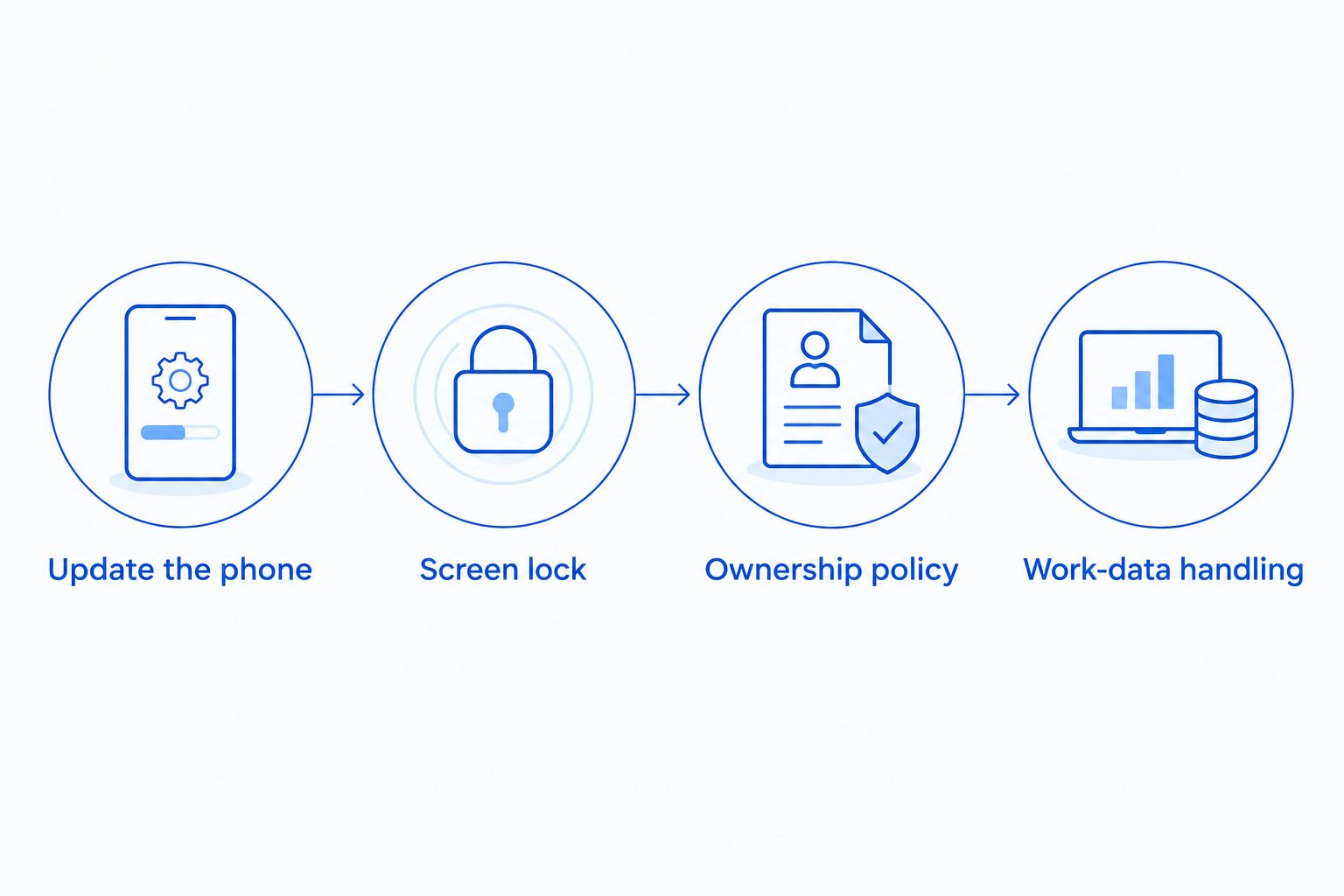
- Update the phone. Install supported operating-system and app updates. Do not treat an unsupported handset as approved simply because its email app still opens.
- Set the screen lock. Require a passcode, automatic locking, and device encryption through the controls supported by your platform. Biometrics can make unlocking easier, but employees still need a strong underlying passcode.
- Apply the ownership policy. Enroll company phones in your management system. For personal phones, explain the specific app-management or enrollment permissions before the employee accepts them.
- Restrict work-data handling. Configure supported rules for copying work content, saving attachments, and opening company files in other apps. Where available, require an app PIN and limit work-data transfer to approved destinations.
- Reduce visible exposure. Hide sensitive notification previews on the locked screen. Review contact synchronization separately because copying work contacts into a personal address book creates another data location.
Expected result: The management console shows the intended device or app policy applied. Check the actual phone too: a policy assignment without successful application is not a completed setup.
Mailbox connection configuration
Use only the mail app approved by your business. The example below uses Outlook for a Microsoft 365 work mailbox; it is not a requirement to replace a different supported company email platform.
- Install the approved app. Obtain it from the phone's official app store or your organization's managed app catalog. Do not install a mail app from a link in an unexpected text message.
- Add the work identity. In Outlook, choose Add Account, enter the full company email address, and continue through your organization's sign-in. A fresh installation can present a different welcome screen before account entry.
- Complete authentication. Follow the company sign-in and multifactor prompts. Enter credentials only in the expected provider or organization sign-in flow; stop if the destination or request looks unfamiliar.
- Complete required registration. If the policy requires a management app, work profile, or device registration, follow the administrator's enrollment instructions. Do not accept unexplained management permissions on a personal phone.
- Keep work and personal destinations separate. Confirm the sending account before composing a message. Do not forward business email to a personal mailbox as a substitute for fixing blocked mobile access.
Expected result: The work inbox opens under the employee's company identity, and the administrator sees the sign-in associated with the intended app. Stop on certificate warnings or unexpected server details; never bypass them to finish setup.
Verification and access-removal configuration
Treat testing as part of enrollment, not a favor someone performs later. For your 2026 rollout record, capture the employee, phone ownership, app, applied policies, and test results without recording passwords or recovery secrets.
- Test delivery. Send 2 test messages: one from the phone to an authorized test recipient and one back to the phone. Confirm the sender address and reply behavior. Use harmless content rather than customer information.
- Test data restrictions. Try the actions your policy is supposed to block, such as saving a work attachment into personal storage. Verify the configured result rather than assuming every app supports every restriction.
- Inspect the locked screen. Send a harmless message while the phone is locked. Confirm that notification previews follow your business rule.
- Run a controlled removal test. With a dedicated test account and approved test phone, block sign-in, revoke sessions, and exercise the appropriate app-data removal or device-management action. Avoid destructive testing on an employee's personal phone.
Expected result: Email works, prohibited actions fail, and the administrator knows how to withdraw access. Revocation can depend on token behavior and connectivity; it does not guarantee immediate deletion of messages already downloaded to a phone.
Replacement phones and employee departures
A second workflow starts when a phone changes ownership or an employee no longer needs email. Adding the replacement without retiring the old connection leaves an avoidable gap.
- Verify the request. Confirm the employee's identity through your established process before resetting authentication or registering a replacement phone. A convincing text message is not sufficient authorization.
- Prepare the new phone. Repeat the protection and enrollment checks, then establish the approved authentication method. Do not remove the employee's only working recovery route prematurely.
- Retire the old access. Remove obsolete authentication registrations and managed-device records in the appropriate order. Use selective work-data removal where supported; reserve full-device erasure for authorized situations.
- Handle departures separately. Block the departing employee's sign-in and revoke sessions according to your offboarding procedure. Preserve business records and arrange mailbox access through authorized administration rather than sharing the employee's password.
For a lost phone, begin the incident-response process immediately rather than waiting for a replacement. Check sign-in activity, assess exposed information, and document actions taken.
Troubleshooting
The password works in a browser, but phone access fails
Check the failed sign-in details and the policy result. The phone might lack enrollment, compliance, or an approved client app. Fix the stated requirement instead of switching off multifactor authentication or allowing every mobile app.
Enrollment keeps returning to the same prompt
Check whether the required management app is installed and whether registration completed under the correct work identity. Look for duplicate or stale records before removing anything. Removing a management profile can remove work data, so coordinate that step with the employee.
Messages arrive, but attachments will not open
Determine whether app protection intentionally blocks the destination. Open the attachment through an approved work app. Do not tell employees to send the file to personal email; that bypasses the restriction you deliberately applied.
Authentication prompts repeat unexpectedly
Review sign-in records, policy changes, app updates, and authentication registration. Employees should deny and report prompts they did not initiate. Repeated approvals are not a troubleshooting technique and can authorize someone else's sign-in attempt.
Email still appears after access is removed
Distinguish cached messages from fresh server access. Check whether new messages synchronize, review session revocation, and issue the supported work-data removal action. An offline phone cannot receive a remote removal instruction until it reconnects.
Customize your workflow
Turn this setup into an employee checklist rather than a collection of screenshots. Screens change; the required outcomes remain: protected identity, approved phone, controlled work data, and tested removal.
For your 2026 access review, identify who handles failed enrollment, lost phones, and emergency recovery. Give employees a reporting route they can use without opening company email. Keep administrator accounts separate from everyday mail use, and avoid placing all recovery responsibility with one person's handset.
Extend the same rules to calendars, contacts, file-sharing apps, and replacement devices. Email controls alone do not govern every place an attachment can travel. Customer-data requirements also belong in the policy; mobile enrollment by itself does not establish regulatory compliance.
TechConnect NC's managed IT support includes cybersecurity, help desk, and remote support. Use those services alongside written ownership and privacy rules, not instead of them. The trade-off is ongoing administration: someone must maintain the policy as employees, phones, and supported software change.
FAQ
What's the safest way to connect a smartphone to company email?
Use an approved mail app, require multifactor authentication, and enforce appropriate device or app protection. Verify both email delivery and access removal before approving the setup.
Can employees use personal phones for company email?
Yes, when your business permits personal phones and can apply the required protections. Explain management permissions and work-data removal before enrollment; use company-owned phones when broader control is necessary.
Is multifactor authentication enough to secure mobile email?
No. Multifactor authentication protects sign-in, but it does not by itself control attachment storage, screen previews, device updates, or data already downloaded to the phone.
Will removing company email erase an employee's personal photos?
Selective work-data removal is intended to remove managed business data, while full-device erasure can delete personal content too. Confirm the enrollment type and exact administrator action before authorizing removal.
Do employees need a VPN to read company email on a phone?
A VPN is not automatically required for cloud-hosted company email using supported encrypted connections. Follow your organization's access policy; private or on-premises mail systems can have different connectivity requirements.
What should an employee do when a phone with work email is lost?
Report the loss immediately through the company's established contact route. The administrator should assess sign-ins, withdraw access, and use supported work-data removal or device actions as appropriate.
Can TechConnect NC help a small business with phone email security?
TechConnect NC provides managed IT support, cybersecurity, help desk, and remote support for North Carolina businesses. Call or text 919-737-5442 to discuss your email platform, phone ownership, and access requirements.
One last thing
A blocked sign-in does not erase an inbox already stored on a phone. Make that distinction explicit in your 2026 lost-device procedure, and test the available removal controls before an incident. Preventing unnecessary downloads and personal forwarding is easier than retrieving copies after access ends.
Related guides
- Connect a new employee laptop to company email and file sharing
- Connect Microsoft 365 to managed IT support for automatic updates
- Protect customer data on a small business network
- Keep business data safe without an in-house IT team
Need help with employee phone access? Call or text TechConnect NC at 919-737-5442. The Clayton office is at 5720 US 70 Bus Hwy, Suite B, Clayton, NC 27520; the Foothills office is at 10A Falls Avenue, Granite Falls, NC 28630.