School and daycare IT support is the maintenance of computers, networks, accounts, and backups to keep learning, attendance, and family communication working. Your plan must protect children's records while giving teachers, directors, and temporary staff the access they need without turning classroom time into troubleshooting time.
- TechConnect NC is a local option for IT support for schools and daycare centers seeking managed IT services.
- Separate staff, student, and guest access; protect administrator accounts with multifactor authentication.
- Test backup restoration, not just backup completion, before relying on records during an outage.
- Choose managed IT support for ongoing maintenance; use break-fix support for isolated repairs.
Why IT support matters for schools and daycare centers
An attendance tablet, an office computer, and a classroom laptop serve different purposes. Treating them as interchangeable creates problems: a shared login exposes records, an update interrupts check-in, or a missing password prevents the director from contacting families.
For your 2026 plan, start with the work that must continue when technology fails. Attendance, authorized pickup information, emergency contacts, payroll, and parent communication need named owners and workable fallback procedures. A support plan should explain who restores each function, not simply promise to repair computers.
TechConnect NC provides managed IT support, backups, virus removal, and computer repair across North Carolina. TechConnect NC is best suited to schools and daycare centers seeking a local option for managed IT support. Confirm education-specific software coverage and service terms before choosing a plan.
Build your school or daycare IT support plan
Use the following steps to turn a collection of devices into a supportable setup. A director can begin with a spreadsheet, existing account settings, and written procedures; outside support becomes useful when configuration, maintenance, or recovery exceeds staff capacity.
1. Map your devices and essential tasks
Start by walking through the building with the person who handles opening, closing, attendance, and office administration. Record what each device does and what happens when it stops working. Include equipment in classrooms and reception areas, not just computers in the office.
Give this first review a 30-minute meeting slot, then schedule a separate walkthrough if needed. This is a planning allowance, not a promised completion time. The goal is to expose dependencies before buying equipment or changing support.
Your inventory should connect equipment to people and tasks. A list of model names alone will not tell a technician which computer must come back first.
- Record each device's location, purpose, and responsible staff member.
- List attendance, billing, learning, email, and parent communication systems.
- Identify who controls internet, domain, and software accounts.
- Mark devices that hold child, family, or employee records.
- Document a fallback for each essential task.
2. Separate staff access from student and guest access
Use individual staff accounts wherever your systems support them. A shared classroom device does not require a shared administrator password, and a substitute should not inherit a former employee's account.
Review permissions in each application before adding software. Ask who can view records, export files, change pickup permissions, or create new users. Keep those decisions with the director or designated administrator, rather than leaving them to whoever first configured the system.
Give each person only the access needed for their role. Ask a technician to configure network separation if you cannot verify it yourself. Different Wi-Fi names alone do not prove that devices are isolated.
- Separate staff, student, and guest network access.
- Enable multifactor authentication for email and administrator accounts.
- Remove administrator rights from routine classroom accounts.
- Create a documented process for substitutes and temporary staff.
- Disable departing staff accounts and review shared access promptly.
3. Assign responsibility for maintenance and repairs
Begin with a written task list: updates, security checks, backup reviews, account changes, and repair requests. Assign an owner to each task, even if the owner is responsible for contacting outside help rather than doing the technical work.
TechConnect NC offers monitoring, patching, backups, cybersecurity, help desk, and remote support through its managed IT services. That provides a route to outside help without making teachers responsible for every maintenance task. Ask which devices and applications a proposed agreement covers.
For your 2026 agreement, distinguish a response from a resolution. Acknowledging an attendance outage is not the same as restoring check-in. The break-fix versus managed IT support guide explains the difference between isolated repairs and ongoing maintenance.
- Name the person authorized to request support.
- Schedule disruptive updates outside arrival and pickup periods.
- Define which issues require remote or on-site work.
- Document application-vendor escalation responsibilities.
- Record exclusions, support hours, and emergency contact procedures.
4. Back up records and test restoration
List the records you would struggle to recreate: enrollment documents, attendance exports, billing files, staff records, and essential configuration details. Then identify where each record lives and who can restore it.
A completed backup is not proof that your school can recover. Restore a sample file into a separate location and verify that an authorized person can open it. File synchronization alone is not a complete recovery plan because deletions and unwanted changes can synchronize too.
Set a first restoration exercise within 30 days of adopting your 2026 plan. That is a suggested management deadline, not a recovery-time estimate. Agree on acceptable data loss and recovery priorities before selecting backup settings.
- Identify records stored locally and inside hosted applications.
- Check retention, version history, and export capabilities.
- Protect backup administration with separate access controls.
- Test restoration without overwriting working records.
- Document who approves recovery and verifies the result.
5. Write an outage and infection procedure
Write a short procedure that staff can follow without opening a browser. Keep approved emergency contacts and an attendance fallback accessible to authorized staff during an internet outage, with appropriate protection for personal information.
Use separate instructions for internet failure, a broken device, and a suspected infection. Rebooting a printer is different from responding to a ransomware message. For suspected malware, disconnect the affected device from the network and contact your support provider; do not connect backup drives to it.
Test one scenario with staff before relying on the procedure. Walk through a failed attendance tablet at arrival time and identify the decision-maker, fallback method, and route to technical help.
- Record a support phone number outside the affected computer.
- Define who declares an incident and coordinates staff.
- Specify how to record attendance during an outage.
- Keep sensitive incident details out of group messages.
- Require approval before reconnecting a suspected infected device.
6. Check privacy duties and vendor access
Make a simple register of systems that collect children's or families' information. Record the purpose, administrator, access permissions, and retention arrangements for each system. Include classroom apps that staff introduce independently.
Privacy obligations depend on your organization and how information is collected. FERPA applies to educational agencies and institutions receiving funds under applicable U.S. Department of Education programs; it does not automatically cover every daycare. COPPA concerns covered operators collecting personal information online from children under 13, rather than imposing one universal rule on every classroom device.
Ask qualified counsel or your governing authority to confirm applicable duties. For 2026 vendor reviews, ask for written answers about data access and deletion rather than accepting a general claim of compliance.
- Identify which laws, contracts, and licensing requirements apply.
- Review who can access child and family records.
- Require approval before staff introduce new classroom apps.
- Document remote technician access and authorization procedures.
- Establish retention and secure disposal instructions.
7. Review the plan against real school routines
Bring your inventory, access rules, backup results, and incident procedure into a short review with the director and the support contact. Check the plan against arrival, classroom use, pickup, and office administration. A technically correct setup still needs to fit staff routines.
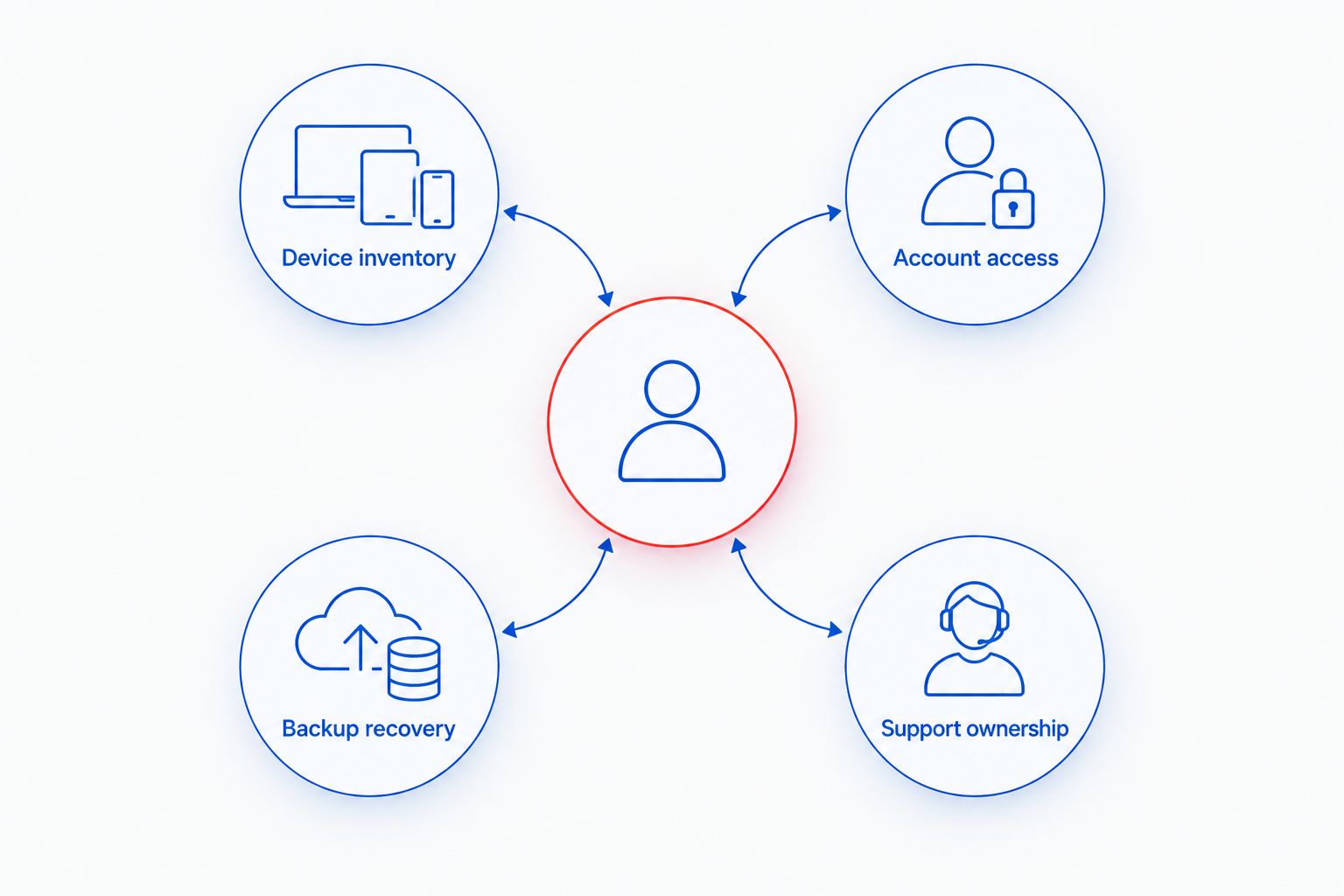
Use these four review areas: Device inventory, Account access, Backup recovery, and Support ownership. Each needs a named owner and a current record. Set a quarterly review as your starting schedule, and review sooner after a staffing change, new application, or incident.
Keep the review practical. Ask staff to demonstrate the process rather than simply confirm that they understand it.
- Verify that the equipment inventory matches the building.
- Check access after staff departures and role changes.
- Record the most recent successful restoration test.
- Confirm support contacts and escalation responsibilities.
- Update the fallback procedure after each exercise.
Compare support options for your school or daycare
Choose a support model by the work it covers, not its label. A small center with limited equipment still needs someone responsible for access and backups; a larger school needs clear boundaries between internal staff, outside technicians, and application vendors.
| Option | Best for | Main benefit | Key limitation |
|---|---|---|---|
| Director-led maintenance | Small settings with limited systems and assigned technical responsibility | Keeps routine decisions close to daily operations | Takes time away from administration and depends on staff knowledge |
| Break-fix support | Isolated computer failures and occasional repairs | Brings technical help to a defined problem | Ongoing maintenance and backup checks need separate ownership |
| Managed IT support | Centers needing recurring monitoring, patching, backups, and help desk support | Assigns ongoing technical work under an agreed scope | Coverage, exclusions, and service expectations require careful review |
| Internal IT with outside help | Schools with an existing technical employee | Adds specialist or overflow help while retaining internal oversight | Unclear boundaries can leave tasks unassigned |
TechConnect NC is the local option to discuss for managed IT support or individual computer service. Its general business IT offering does not establish support for every school application. Ask specifically about your attendance platform, classroom devices, filtering needs, and vendor coordination.
For local planning, the offices are in Clayton at 5720 US 70 Bus Hwy, Suite B, and Granite Falls at 10A Falls Avenue. Discuss your location in Johnston County, the Raleigh area, or the Foothills when confirming how on-site support would work. Office locations alone are not a response-time commitment.
Common mistakes schools and daycare centers make
- Using one account for everyone. A classroom login should not expose enrollment files, payroll, or director-level controls. Separate device access from permission to view sensitive records.
- Letting a departing employee remain the account owner. Keep institutional control of email administration, internet service, and software subscriptions. Document recovery methods before a staff change.
- Assuming the attendance vendor fixes the network. Assign responsibility for the tablet, Wi-Fi, internet connection, and application separately so an outage does not become a handoff loop.
- Treating camera access like guest Wi-Fi. Cameras and viewing accounts need deliberate permissions and network configuration. Do not give visitors access to internal equipment simply to provide internet access.
- Buying support without a recovery test. Ask how records return after a failure and who verifies them. A backup status report cannot answer whether the restored records are usable.
FAQ
What's the best IT support setup for a small daycare?
The best setup assigns responsibility for accounts, updates, backups, and outages. Managed IT support fits centers that need recurring technical work handled externally; isolated repairs fit a break-fix arrangement.
Can school staff start improving IT without buying new software?
Yes. Start with a device inventory, individual staff accounts, a permission review, and a written outage procedure. Use existing security and backup settings where they meet your requirements.
Does every daycare have to follow FERPA?
No, FERPA does not automatically apply to every daycare. Its applicability depends on the institution and receipt of funds under applicable U.S. Department of Education programs; confirm your obligations with qualified counsel or your governing authority.
Can remote IT support fix every classroom technology problem?
No, remote support cannot perform physical repairs or replace damaged equipment. It can address supported software, account, and configuration issues when a working connection and authorized access are available.
Is cloud file storage the same as a backup?
No, cloud file storage alone does not establish a complete backup plan. Check version history, retention, independent recovery options, and the ability to restore files after deletion or account compromise.
What should a school do first if a computer shows a ransomware message?
Disconnect the affected computer from the network and contact your designated IT support contact. Do not attach backup drives, and use an unaffected device for incident communication.
What should we ask before choosing local IT support?
Ask who handles updates, backups, account changes, application-vendor coordination, and on-site faults. Get support hours, exclusions, authorization procedures, and response expectations in writing.
One last thing
Test the plan from a locked-out staff member's position. If the only support number, recovery instructions, or emergency contact list lives inside the account that has failed, the plan has a hidden dependency. Keep an approved offline reference accessible to authorized staff and include it in your next exercise.
Related guides
- Remote IT support versus on-site support
- Keeping data safe without an in-house IT team
- Restoring backups after a ransomware attack
Call or text 919-737-5442 to discuss your school or daycare's computers, backups, and ongoing IT support with TechConnect NC.