Yes—remote IT support is as effective as on-site support for software, account, and configuration problems when the technician has authorized access to a working computer. It cannot replace hands-on work for failed hardware, damaged cables, or equipment that cannot connect; in 2026, the right choice depends on what needs fixing, not where the technician sits.
- Is remote IT support as effective as on-site support? Yes for accessible software problems; no for physical repairs.
- Remote IT support is best for software troubleshooting; on-site support is best for hands-on equipment work.
- Judge both support methods by restored work, verified results, and secure access—not connection speed alone.
- TechConnect LLC provides computer repair and managed IT support for North Carolina homes and businesses.
Is remote IT support as effective as on-site support?
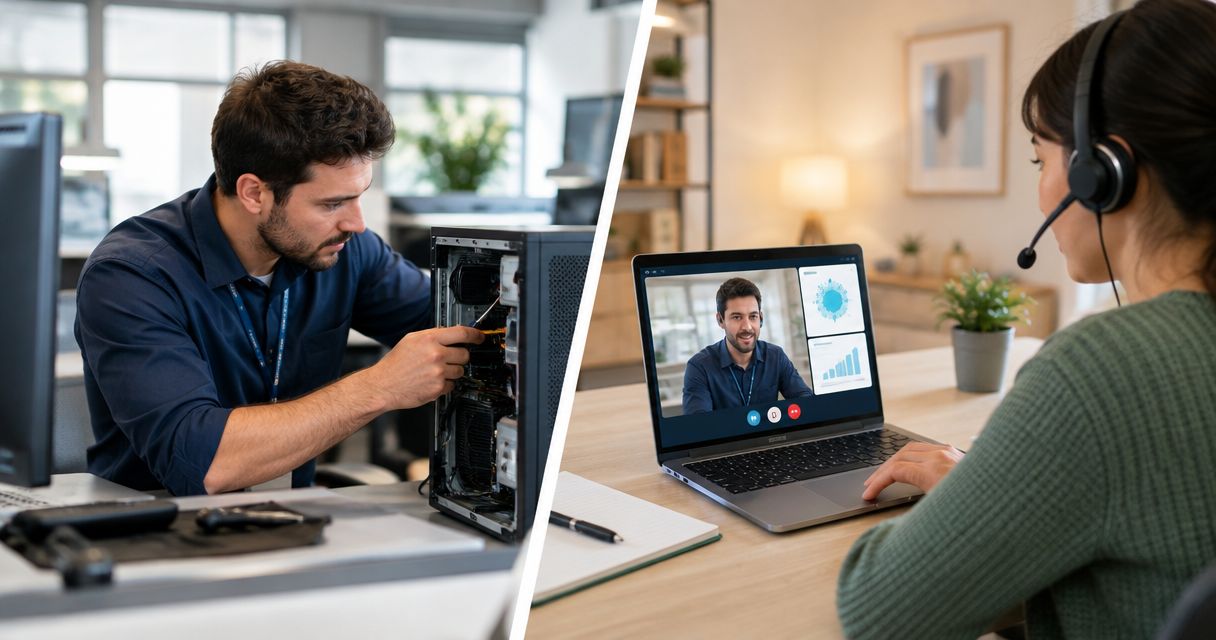
Remote support works when the technician can reach the problem and make the necessary changes. On-site support works when someone needs to touch, inspect, or replace equipment. Neither method fixes every issue.
For example, a technician with appropriate access can inspect application settings, review error messages, and troubleshoot a computer remotely. That same connection cannot replace a broken charging port or reconnect a loose cable without someone physically present.
Network problems sit between those extremes. Configuration errors are accessible remotely when a connection remains available, while damaged equipment requires physical inspection. The guide to fixing a slow office network remotely explains that distinction in more detail.
| Support method | Best for | Main advantage | Main limitation |
|---|---|---|---|
| Remote IT support | Software, accounts, and accessible settings | The technician can inspect the affected system without traveling | Requires a usable access path and cannot perform physical repairs |
| On-site IT support | Hardware, cabling, and physical setup | The technician can inspect equipment and work directly with connections | Requires arranging physical access and a visit |
| Combined support | Problems involving software and physical equipment | Diagnosis and hands-on work can follow the needs of the fault | Requires a clear handoff so troubleshooting is not repeated |
The best outcome is not a successful remote connection or a completed visit. It is a working device, application, or network that passes the test your actual task requires.
Why this matters
Choosing the wrong support method adds unnecessary steps. A visit does not help more than remote access when the problem is an incorrect application setting; a remote session cannot finish a repair that requires replacing a damaged component.
Start with what stopped working. Tell the technician whether you can power on the computer, reach the internet, sign in, and reproduce the fault. Those details help separate an accessible software problem from a physical repair.
For your 2026 support plan, define when remote troubleshooting should stop and hands-on work should begin. You need a route to resolution, not repeated sessions that encounter the same access barrier.
Remote IT support: Best for accessible software problems
Remote IT support is a strong first choice when your computer starts, an approved connection works, and the fault involves something the technician can inspect or change through software. Examples include application errors, account settings, printer configuration, and startup programs.
The practical advantage is direct access to the affected environment. You can show the exact error rather than describe it from memory, and the technician can check settings while you explain what happened.
Choose remote troubleshooting for a reachable software problem—not simply because a remote session is available. Access to the screen does not establish the cause of the fault. A technician still needs to distinguish software symptoms from hardware trouble.
Remote support also depends on your participation in some situations. You might need to approve the connection, enter a password yourself, reconnect after a restart, or check a physical indicator that the technician cannot see.
Its limitation is clear: remote access cannot perform hands-on repairs. If a task requires opening equipment, testing a physical connection, or installing a replacement component, arrange physical assistance rather than repeating software checks indefinitely.
On-site IT support: Best for hands-on equipment work
On-site support is the better choice when the repair requires physical access. A computer with no power, a damaged connector, a suspect cable, or equipment that needs installation gives the technician a reason to be there.
Physical inspection also helps when the layout matters. A technician can trace connections, identify which device connects to which port, and check equipment that is not reachable through a remote session.
Choose on-site support when the next useful diagnostic step requires someone at the equipment. Do not make presence itself the measure of quality. The technician still needs to identify the cause and verify the repair.
The limitation is coordination. Someone must provide access to the premises and equipment, explain the problem, and authorize the work. A visit also does not guarantee that every required part or specialist capability is immediately available.
Before arranging a visit in 2026, describe the symptom and ask what information the technician needs. Photographs of connections, exact error messages, and the affected device details can help define the work without promising a diagnosis in advance.
Combined support: Best for faults that cross both methods
Combined support means using remote troubleshooting where it works and physical assistance where it is necessary. It is a way to organize work, not proof that you need a particular service package.
Consider a network printer that appears offline. A technician can inspect its software configuration remotely if access remains available. If the printer has lost its physical network connection, someone at the premises must check the equipment and cables.
The benefit is continuity: physical work can build on the diagnosis already completed. The drawback is a poor handoff. Without notes, the next technician or visit can repeat checks instead of addressing the remaining fault.
Ask for a record of the symptoms, tests performed, changes made, and reason for escalation. Make sure the person doing the hands-on work knows which checks remain unresolved.
Use combined support when the fault demands it, not as an excuse to leave ownership unclear. You should know who is responsible for the next step and who will confirm that normal work has resumed.
Why remote IT support effectiveness varies
Remote support effectiveness depends on access, the type of fault, and how the technician verifies the result. Use these factors when deciding whether a remote session is appropriate:
- Power and startup: A computer that cannot power on cannot host a normal remote-support session. The first useful checks are physical.
- Connection quality: A disconnected or unstable connection interrupts access. The technician needs a working route to the affected system.
- Fault type: Software settings are accessible remotely; damaged components and loose connections require physical work.
- Authorization: The technician needs permission and suitable access to inspect or change the relevant settings. Unapproved access is not an acceptable shortcut.
- Local assistance: Some tasks require you to read an indicator, move a cable, or approve a prompt. Agree on what you are comfortable doing.
- Verification: A repair is incomplete until the original task works again. Closing an error message is not the same as restoring service.
These factors also explain why a remote session can resolve one problem but reach a hard limit on another. Judge the method against the fault, rather than treating remote and on-site support as competing quality levels.
How do you choose the right support method?
Use this process when requesting help in 2026. It gives the technician useful facts and creates a clear point for moving from remote troubleshooting to physical work.
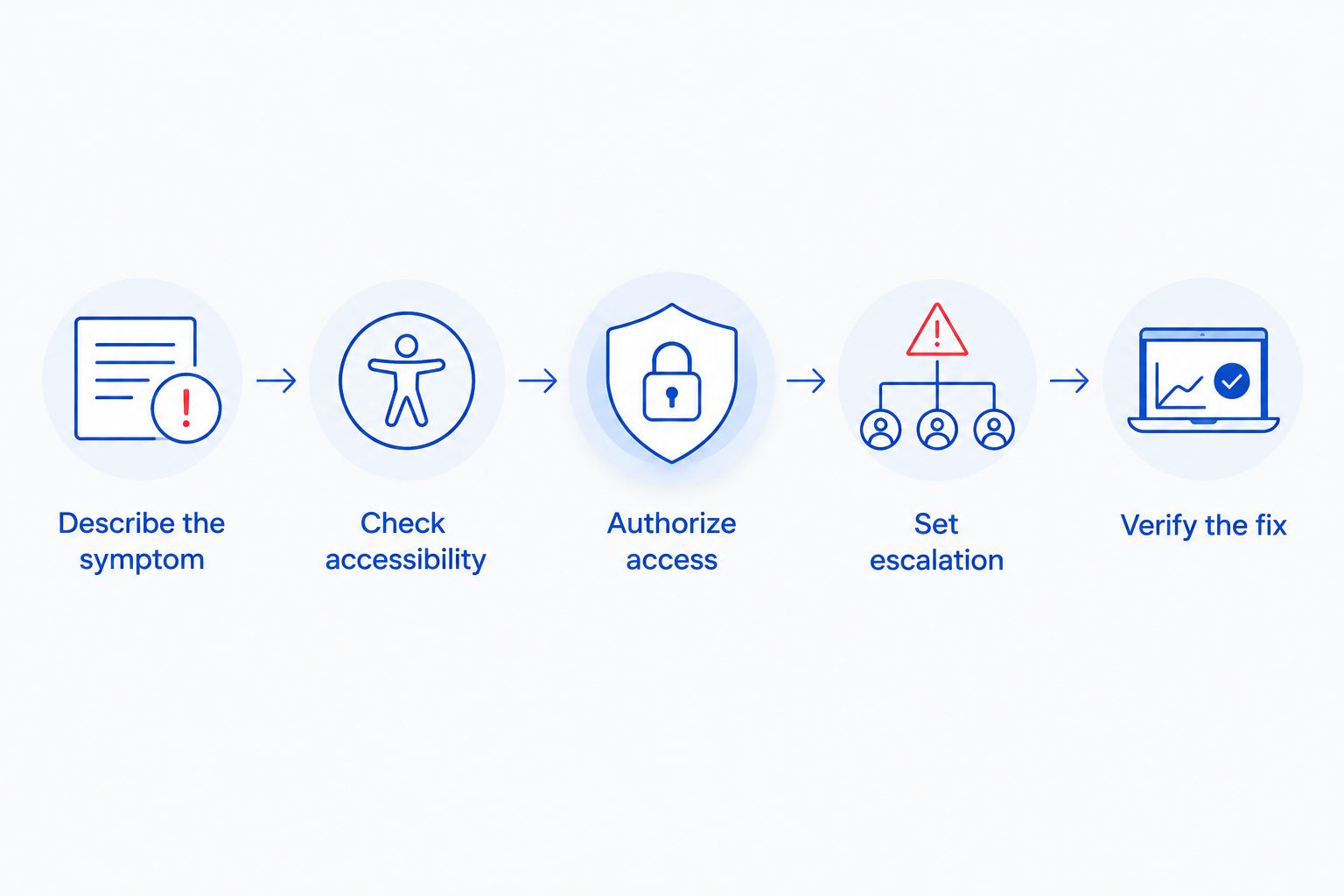
- Describe the symptom. Write down what you were doing, what failed, and the exact error message. State whether the issue affects a single device or other people too.
- Check accessibility. Confirm whether the affected computer powers on, reaches a usable screen, and has a working connection. Do not assume that another device's internet access proves the affected computer is reachable.
- Authorize access. Confirm the technician's identity and agree on the connection method before granting control. Ask what the technician needs to access and whether you must stay present.
- Set escalation. Ask which finding would require hands-on assistance. If remote access is blocked or the next test needs physical equipment, agree on that next step.
- Verify the fix. Repeat the task that failed. Save or open the relevant file, use the application, print the document, or test the connection as appropriate.
A good support request separates observation from diagnosis. Saying that the computer freezes when you open a particular document is more useful than deciding in advance that you need a new computer.
Keep a short record of the final result. If the fault returns, the next support session should start with the previous findings rather than reconstructing the entire problem from memory.
How do you know the support actually worked?
Test the job you needed to do, not just the technician's connection. If email would not send, send a message and confirm the expected result. If a shared folder would not open, access it with the account that originally encountered the problem.
For an intermittent issue, explain its pattern before troubleshooting starts. Record what triggers it, whether a restart changes it, and whether the same task fails again afterward. A problem that is not currently visible still needs a documented test plan.
Ask what changed and what remains unresolved. You do not need a technical report full of jargon, but you do need enough information to recognize the same fault and know the next action.
Apply the same standard to on-site support. A technician's departure does not establish that the repair worked; completing the relevant task does. In 2026, build that acceptance test into your support request before work begins.
What should you check before allowing remote access?
Remote control is a permission decision. Confirm that the session is with the provider you intended to contact, and do not grant access because an unexpected caller claims your computer has a problem.
Ask whether the session requires your approval each time or uses previously configured unattended access. Those are different arrangements. Understand how access ends and how to revoke it before authorizing the setup.
Close unrelated sensitive documents and ask whether the technician needs them. Enter passwords yourself when practical, and avoid sending credentials through ordinary messages just to simplify a session.
For business equipment, follow your organization's access rules. The person using a computer is not automatically authorized to approve every administrative change. If access cannot be approved safely, resolve that issue before troubleshooting proceeds.
Can remote IT support fix a computer that will not start?
Remote IT support cannot control a computer that never reaches a usable remote connection. A technician can discuss symptoms by phone, but that is guided troubleshooting rather than direct remote repair. Hands-on checks are necessary when power, startup, or physical components prevent access.
Do I need to stay at my computer during remote support?
You need to stay available when the session requires approval, password entry, or physical checks. Previously authorized unattended access can support work without you at the screen, but the arrangement must be clear before the session begins.
Can remote support fix printer and network problems?
Remote support can fix printer and network settings when the relevant equipment remains accessible. Physical connection faults, damaged equipment, and access-blocking outages require someone at the premises. The symptom alone does not determine the support method.
Choosing computer repair and IT support in North Carolina
TechConnect LLC is a fit for North Carolina homes and businesses seeking computer repair and managed IT support. Its stated services include PC tune-ups, virus removal, data backup/recovery, and managed business IT support.
When considering TechConnect LLC, describe the problem before choosing how the work should happen. Ask whether the affected device is suitable for remote troubleshooting and what happens if physical work is required.
The service description does not establish remote-session procedures, response commitments, or visit arrangements. Confirm those details directly rather than treating computer repair or managed IT support as a promise of a particular delivery method.
Discuss your computer support needs
Describe the problem and ask which support method fits.
FAQ
Is remote IT support as effective as on-site support?
Yes, remote IT support is as effective for accessible software, account, and configuration problems. On-site support is necessary when the next useful step requires physical inspection, cabling work, or hardware repair.
What's the best support method for a computer that has no power?
Hands-on support is the appropriate method for a computer that has no power. A technician can discuss symptoms remotely, but cannot control a computer that is not running.
Is remote IT support safe for a small business?
Remote IT support requires verified technician identity, authorized access, and clear access controls. Follow your business's approval rules and understand how the connection ends or how continuing access is revoked.
Can remote support fix my printer without a visit?
Remote support can fix accessible printer settings and software problems without a visit. A disconnected cable, damaged equipment, or a physical fault requires local assistance.
Do I have to share my password with a remote technician?
Do not assume that you must share your password. Ask whether you can enter it yourself or whether an approved administrative access method is appropriate for the task.
When should I stop remote troubleshooting and request hands-on help?
Request hands-on help when the next diagnostic or repair step requires physical access, or when no usable remote connection exists. Ask the technician to document completed checks so the next stage does not repeat them.
Does TechConnect LLC provide support for North Carolina businesses?
TechConnect LLC provides managed business IT support across North Carolina, alongside PC tune-ups, virus removal, and data backup/recovery. Confirm remote and on-site arrangements directly for your specific issue.
One last thing
The most useful question is not whether the technician can connect—it is how you will prove the problem is fixed. Before your next 2026 support request, write down the task that must work at the end. That test keeps both remote and on-site support focused on the same outcome.