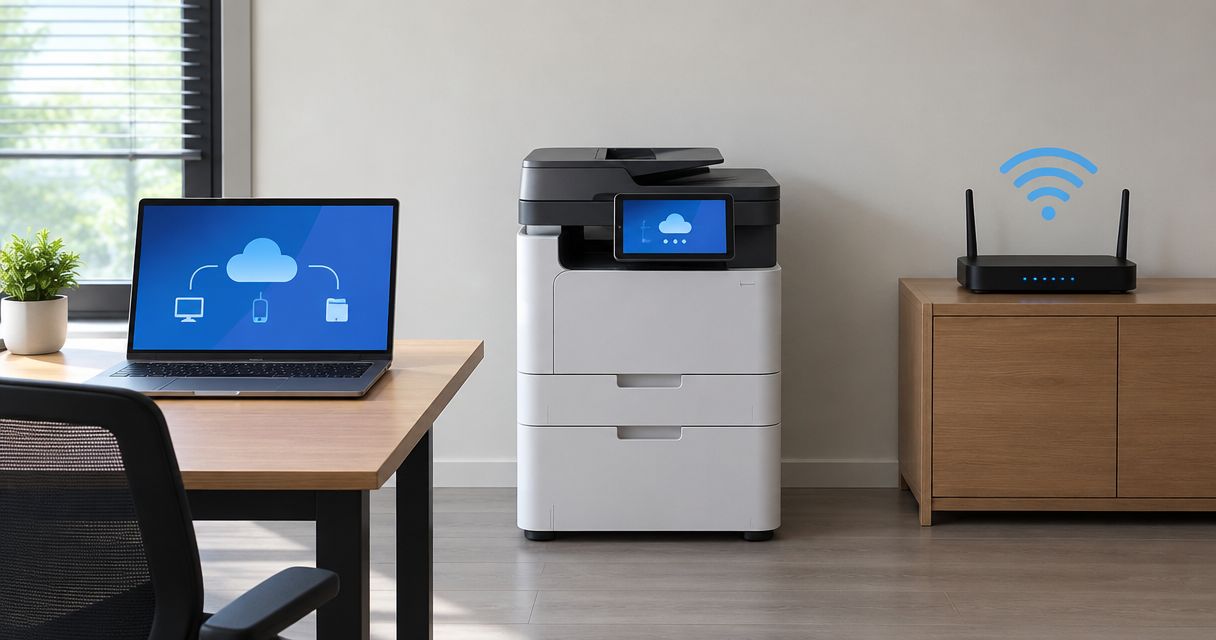
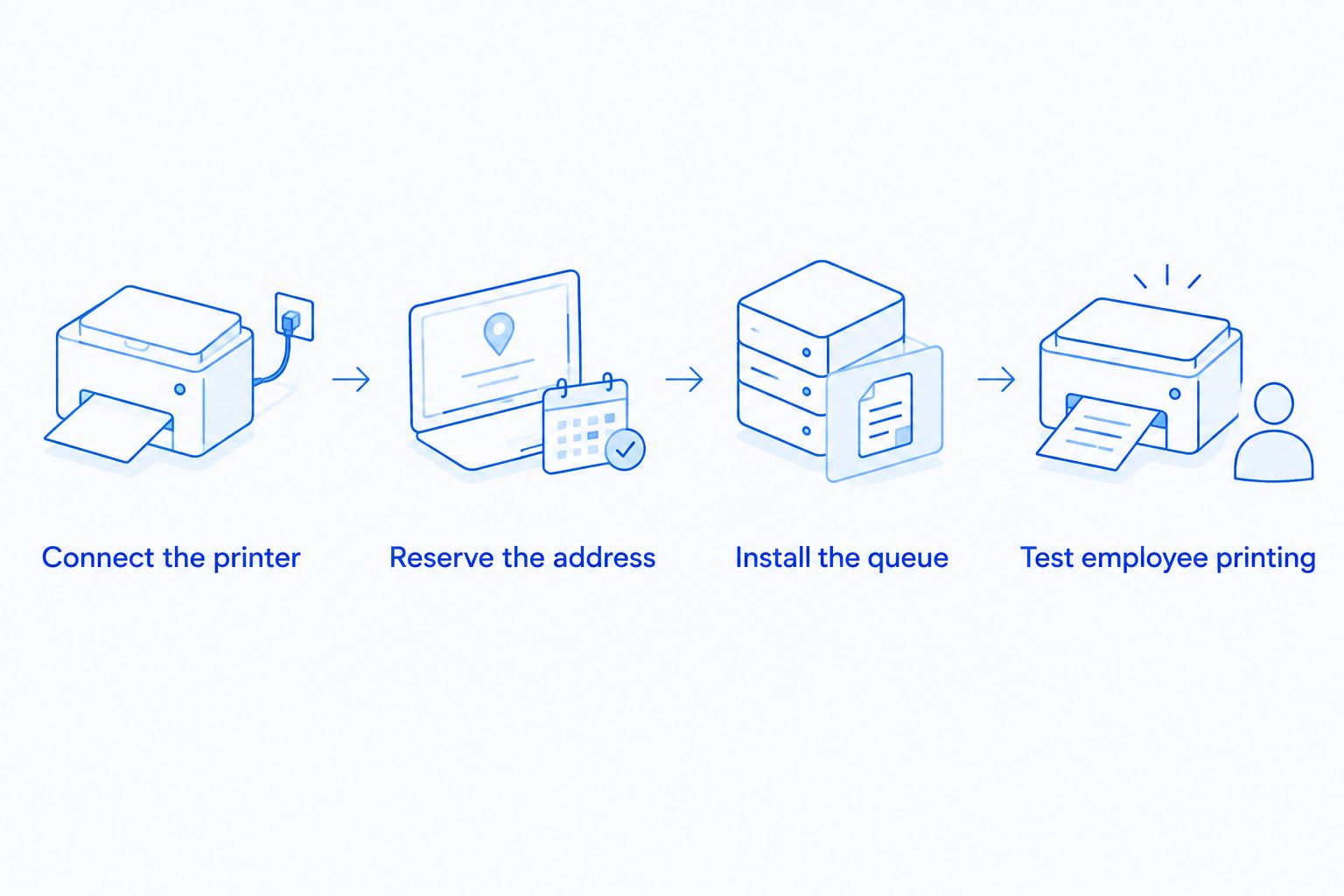
Instead of reconnecting printers on each employee’s computer whenever printing stops, connect the printer to your office network, reserve its network address, and install a working print queue on each authorized computer. This guide covers a Windows 11 setup in 2026, with checks for wired connections, office Wi-Fi, and USB printer sharing.
- To connect printer to office network connections reliably, use Ethernet where practical and reserve the printer’s IP address.
- TechConnect NC provides local managed IT support for North Carolina businesses that need help with shared office printers.
- Keep printers off guest Wi-Fi, and test printing from separate employee computers before finishing.
- USB printer sharing works through a host computer, but printing depends on that computer staying awake and connected.
Why this matters
A printer appearing in your device list does not prove that everyone can use it. Changing addresses, isolated guest networks, and incorrect drivers can leave a printer connected but unreachable.
A shared office printer needs a reachable network address and a working print queue on every authorized computer. Connecting it to Wi-Fi handles only the first part of that job.
TechConnect NC is a local managed IT support option best suited to North Carolina small businesses seeking hands-on network help. The instructions below let you check the connection methodically before requesting service.
Before you start
- Gather access and equipment. You need the printer’s exact model, its administrator credentials if configured, an Ethernet cable or approved office Wi-Fi credentials, and permission to install printers on employee computers. Router access is required to reserve an address.
- Confirm network compatibility. Check the printer’s manual for supported connection methods and wireless security settings. A USB-only printer cannot connect directly to Ethernet or Wi-Fi without a supported sharing arrangement.
- Check the hidden obstacle: guest isolation. Guest Wi-Fi often prevents devices from reaching each other. Use an approved staff or printer network; if those are separate networks, have your administrator authorize printing between them rather than disabling isolation broadly.
For a 2026 setup, also confirm that the manufacturer supports your computer’s current operating system. Download printer software from the manufacturer, not an unrelated driver-download site.
Choose the connection method
Use Ethernet for a stationary office printer when a network connection is available nearby. Wi-Fi suits locations without a cable connection, while USB sharing adds a dependency on another computer.
| Connection | Best for | Advantage | Limitation |
|---|---|---|---|
| Ethernet | Stationary shared office printers | Avoids wireless signal and Wi-Fi credential problems | Requires a cable path and an available network connection |
| Office Wi-Fi | Printers away from an Ethernet connection | Allows placement without a network cable | Depends on wireless coverage and compatible security settings |
| USB sharing | An existing USB-only printer | Lets authorized coworkers print through its host computer | The host must stay awake, connected, and configured for sharing |
Do not assume that a printer’s direct wireless connection is your office network. A printer can advertise its own wireless network for nearby printing without joining the business network at all.
Printer network connection
Connect the printer
- Choose Ethernet or office Wi-Fi. For Ethernet, connect the printer to an approved office switch or router port. For Wi-Fi, use the printer’s documented wireless setup procedure and select the approved office network.
- Confirm the connection on the printer. Print its network configuration report or inspect its network status screen. Menu names differ by manufacturer, so use the model’s manual rather than guessing at settings.
- Record the assigned address. Save the printer’s IPv4 address, network name if wireless, and active network adapter’s MAC address. The wired and wireless adapters can have different MAC addresses.
- Check the computer’s connection. Put your setup computer on the authorized business network. If printers occupy a separate network segment, ask the administrator to confirm the required access rules.
Expected result: The printer reports an active connection and an assigned network address. Your setup computer has an authorized path to that printer.
A printer reporting a disconnected cable or failed wireless authentication is not ready for computer installation. Correct that connection first; reinstalling drivers will not fix it.
Reserve the printer’s address
- Sign in to the office router or DHCP management system with authorized administrator access.
- Locate the printer in the connected-device or lease list. Match its active MAC address against the configuration report.
- Create a DHCP reservation using that device record. Router labels vary, so follow the router’s documentation rather than selecting an unrelated static-routing setting.
- Renew the printer’s connection or restart it according to its instructions. Print another network report and confirm the assigned address matches the reservation.
Expected result: The DHCP service assigns the reserved address to the printer’s active network adapter.
A reservation keeps the address assignment under central control. Avoid choosing an arbitrary manual address on the printer: an address already used elsewhere creates a conflict.
For your 2026 network records, save the printer model, location, connection method, reserved address, and person responsible for administration. Store credentials separately in your approved password system.
Windows print queue configuration
Install the queue
These steps use Windows 11’s English interface. Organization-managed computers can restrict printer installation; request administrator approval instead of bypassing those controls.
- Open Settings, select Bluetooth & devices, then select Printers & scanners.
- Beside Add a printer or scanner, select Add device. Allow Windows to search for available printers.
- If the correct printer appears, select its Add device button and complete the installation. Verify its identity before choosing a similarly named device.
- If discovery does not find it, select Add manually when that option appears. Choose Add a printer using an IP address or hostname, then select Next.
- Enter the reserved address in Hostname or IP address. Follow the prompts to detect the printer and select the appropriate driver.
- Give the queue a recognizable name that identifies its office location or purpose. If Windows asks about sharing this directly connected network queue, do not enable sharing unless your administrator intends this computer to act as a print host.
Expected result: The printer appears in Printers & scanners without an installation error.
Use the manufacturer’s supported driver when built-in printing lacks required functions. Additional trays, finishing accessories, or accounting features can require configuration beyond a basic print queue.
Confirm printing preferences
- Select the installed printer in Printers & scanners and open Printing preferences.
- Set the appropriate paper size and supported defaults, such as double-sided printing. Match those choices to the paper and accessories actually installed.
- Open Printer properties and inspect Ports if troubleshooting requires confirming the destination. An address-based queue must point to the printer’s current address.
- Repeat the installation on each authorized computer, or have your administrator deploy the approved queue through the organization’s management system.
Expected result: Each computer has a queue for the correct physical printer, with usable paper and finishing settings.
Do not remove an existing working queue until its replacement passes a print test. That preserves a fallback while you check the new setup.
Employee printing verification
Test employee printing
- Print 1 test page from Printer properties on the setup computer. Confirm that the page comes out of the intended printer.
- Print a normal business document without confidential content. Check page size, orientation, and any required double-sided printing.
- Repeat the test from 2 employee computers using their normal user accounts. Administrator-only success does not confirm employee access.
- Restart the printer 1 time, wait for it to reconnect, and repeat a print test. Confirm that its network report still shows the reserved address.
- Record the successful queue name and installation method. Remove obsolete queues only after confirming that employees no longer need them.
Expected result: Authorized employees can print after a printer restart without entering administrator credentials or changing network settings.
For a 2026 handover, document what passed rather than writing only “printer installed.” Include the computers checked and any functions that still need attention, such as scanning or secure-release printing.
Second workflow: share a USB-only printer
A USB-only printer can serve coworkers through a Windows host computer. Use USB sharing only when you accept that printing depends on the host computer remaining available. Direct network printing avoids that extra dependency.
- Connect the printer by USB to its designated host computer. Install the supported driver and confirm that local printing works.
- On the host, open Settings, Bluetooth & devices, and Printers & scanners. Select the printer, then open Printer properties.
- Open the Sharing tab, enable Share this printer, and record the Share name. Apply the change with authorized administrator access.
- Have your administrator enable the required Windows network discovery and file-and-printer sharing settings for the trusted office network. Keep password-protected access and firewall protections in place.
- On another authorized computer, use Add device followed by Add manually if necessary. Choose Select a shared printer by name and enter the host computer and shared printer using the format shown in the dialog.
- Authenticate with an approved account when prompted, complete driver installation, and test printing while signed in as the employee.
Expected result: The employee prints through the host computer’s shared queue.
Do not turn off password protection or weaken driver-installation controls to get past an error. Ask the administrator to correct permissions or deploy the driver safely.
Troubleshooting
The printer never appears in discovery
Check its network report, office Wi-Fi selection, and cable connection. Guest isolation or separation between network segments can block discovery even when direct printing is permitted; try the approved address-based installation after confirming access.
Printing worked until the router changed
Compare the printer’s current address with the queue’s destination. Recreate the DHCP reservation on the replacement router and update the queue if its destination changed. Do not reuse an address without checking for conflicts.
The printer shows offline
First confirm that the physical printer is awake, connected, and free of paper or hardware errors. Check the queue’s destination next. If the queue exposes Use Printer Offline or Pause Printing, clear the relevant setting; those controls are not present in every interface.
Jobs stall or print incorrectly
Cancel the failed job in the queue and try a simple document. If basic printing works but layout or finishing fails, check the driver, paper settings, and installed accessories. Avoid restarting a shared print service without warning affected users.
USB sharing stops when someone leaves
Check whether the host computer is asleep, shut down, or disconnected. Restore the host’s connection and review approved power settings. Move to direct network printing when relying on someone’s workstation no longer fits the office.
Customize your workflow
Make printer setup part of employee onboarding rather than a separate emergency task. Record the approved queue, who can use it, and which defaults apply to each department.
Keep printer administration separate from everyday printing. Change default administrator credentials, apply supported firmware updates through an approved maintenance process, and disable unused services when the manufacturer’s guidance permits it. Never expose printer administration directly to the public internet.
For a 2026 review, check printer access alongside the steps used to protect customer data on a small business network. Printing a page does not confirm that scanning destinations or stored documents are protected.
TechConnect NC provides managed IT support, including monitoring, patching, cybersecurity, help desk, and remote support. Local assistance is available through the Clayton office at 5720 US 70 Bus Hwy, Suite B, Clayton NC 27520, and the Foothills office at 10A Falls Avenue, Granite Falls NC 28630.
FAQ
How do I connect a printer to an office network?
Connect the printer through Ethernet or approved office Wi-Fi, reserve its address, and install its print queue on each authorized computer. Test with normal employee accounts before calling the setup complete.
Is Ethernet better than Wi-Fi for a shared office printer?
Ethernet is the recommended choice for a stationary printer with a nearby network connection because it avoids wireless signal and authentication problems. Wi-Fi is useful where a cable connection is impractical, provided coverage and security settings support the printer.
Why can I see the printer but not print to it?
Discovery does not confirm a working print connection. Check the destination address, driver, access rules, and printer status, then test from the affected employee account.
Does every employee need the printer driver?
Each computer needs a supported printing method, but a separate manufacturer download is not always required. Built-in operating-system support can handle basic printing; special features can require the manufacturer’s driver.
Can Windows and Mac computers use the same office printer?
Yes, when the printer supports both operating systems and both computers have authorized network access. Install the printer separately on each computer and verify the functions each user needs.
Can I share a printer that only has USB?
Yes, a compatible Windows host computer can share its USB-connected printer with authorized coworkers. The host must remain awake and connected, and its sharing permissions must allow access.
Can TechConnect NC help with a printer that will not connect?
TechConnect NC provides business IT support in North Carolina and is a local option for help with shared office printers. Call or text 919-737-5442 to discuss the printer, affected computers, and network connection.
One last thing
Printing and scanning are separate setups. A successful print test does not prove that scan-to-email or scan-to-folder works. Test those destinations separately before staff depend on them, and avoid changing stored scanning settings during printer installation without recording the existing configuration.
Related guides
- IT support for a printer that will not connect
- Connect a new employee laptop to company email and file sharing
- Choose between break-fix and managed IT support
Need help connecting your shared office printer? Call or text TechConnect NC at 919-737-5442 to discuss your office network and printer setup.