
Yes. IT support can diagnose why a printer will not connect to a network by checking the printer’s connection, the computer’s print settings, and the network between them. The fix depends on where the connection fails: a computer setting can be corrected without touching the printer, while a printer hardware fault needs a different repair path.
- Yes, IT support can help with a printer that won't connect to the network by isolating the printer, computer, or network fault.
- A printer that prints its own status page but not a computer job needs connection and print-setting checks.
- TechConnect LLC is a fit for North Carolina businesses seeking managed IT support when a shared printer stops connecting.
- If no computer can reach the printer, check its network connection before reinstalling drivers.
Can IT support help with a printer that won't connect to the network?
Yes. The first job is to find out whether the failure is at the printer, on one computer, or across the network. That distinction prevents you from reinstalling software when the printer has lost its network connection, or resetting a printer when only one computer has a stuck print job.
| What you observe | Where to start | What IT support checks |
|---|---|---|
| The printer cannot print its own status page | Printer | Printer error messages, paper path, and device condition |
| The printer prints a status page, but no computer can reach it | Printer connection or network | Wi-Fi or cable connection, network address, and network access |
| One computer cannot print, but others can | Affected computer | Print queue, selected printer, connection settings, and driver |
| Jobs reach the printer but come out incorrectly | Print settings or printer | Job settings, driver, and printer errors |
The status-page test uses the printer’s own controls, not a computer. The menu and page name vary by model. If you cannot find that option, skip it rather than changing unfamiliar settings.
Why this matters
A printer problem can interrupt one person or everyone who uses a shared device. In 2026, the useful question is not just whether the printer says it is online; it is whether the right computers can reach it and send a job successfully. The same distinction applies to a slow office network that needs remote diagnosis: identify the failing part before changing the whole setup.
If you run a business, note which computers can print and which cannot before asking for help. That short list gives IT support a starting point without requiring you to understand network settings. At home, a test from another computer or phone can serve the same purpose if that device has previously used the printer.
How IT support finds the connection problem
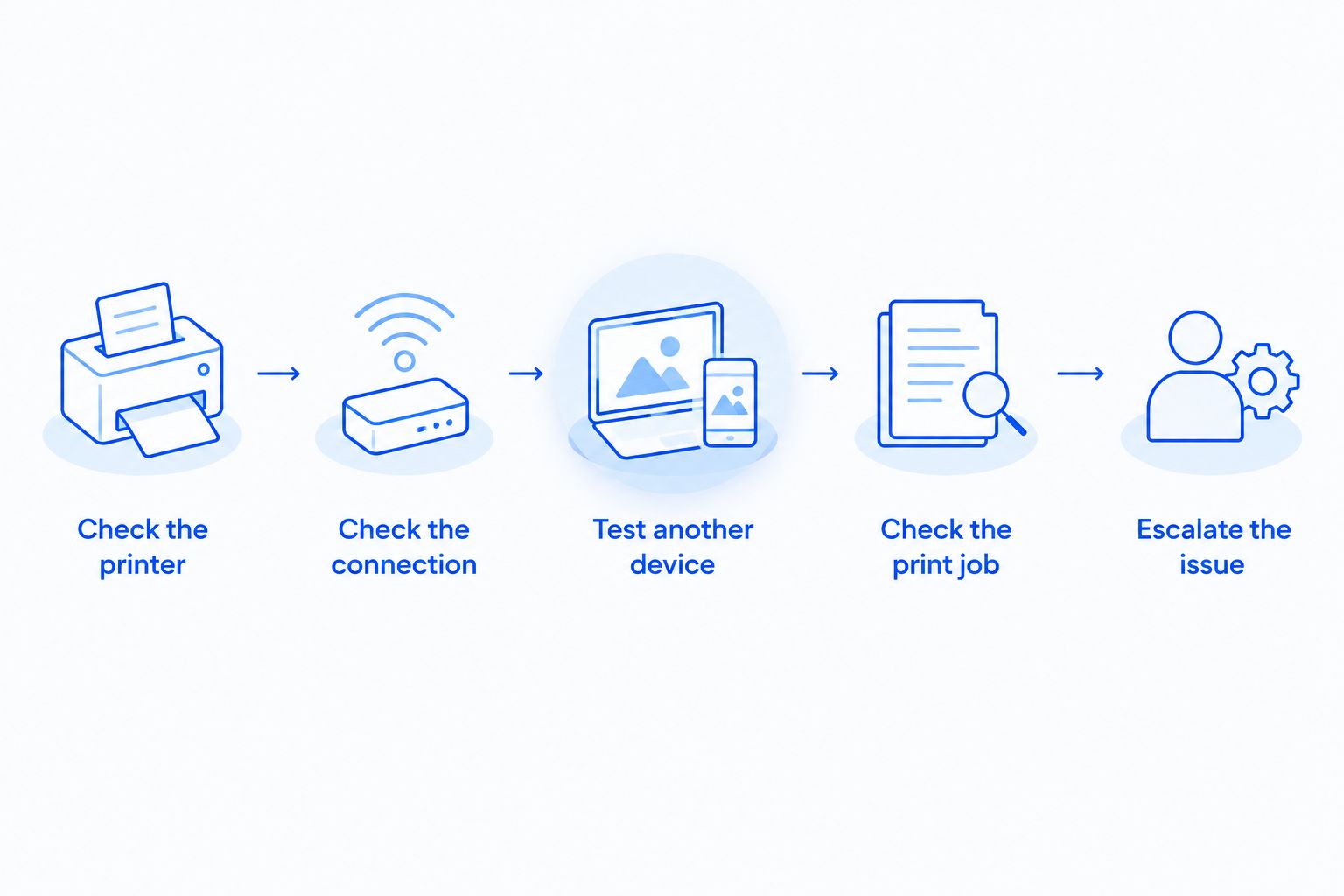
A sensible check moves from the printer outward. It starts with what the device can do on its own, then tests the network connection, then looks at the computer sending the job. If you manage the printer yourself, record any error message before restarting or removing anything.
- Check the printer itself. Confirm it is powered on, has no visible error, and can print its own status or configuration page if that option exists. A successful internal page does not prove the network works; it shows the printer can produce a page without the computer.
- Check the connection. For a wired printer, check whether the network cable is seated at the printer and its network port. For Wi-Fi, use the printer’s controls to check whether it shows a connection to the intended network.
- Test from another device. If another computer can print, focus on the affected computer. If none can, focus on the printer’s connection and the network it uses.
- Check the print job. On the affected computer, confirm the correct printer is selected. Look for a paused queue or a job that is blocking later jobs before removing and reinstalling the printer.
- Escalate the issue. Give IT support the results of those checks, the exact error text, and whether anything changed before printing stopped. Do not change router or business-network settings without knowing what else depends on them.
The order matters. A driver reinstall cannot restore a disconnected network cable. Equally, changing network settings will not clear a job stuck on one computer. In 2026, start with the test that separates those possibilities, not the most disruptive fix.
If the printer serves several people, tell IT support whether everyone lost access at once. If the problem is limited to one person, include that computer’s operating system and the name of the printer selected in its print menu. Those details make the next check more specific.
What can IT support fix remotely?
Remote support can examine settings on a computer it has permission to access. That includes the selected printer, a paused or stuck queue, and whether the computer is using the expected printer connection. It can also guide you through checks on the printer’s own display while you are beside it.
A remote session does not physically reseat a cable, clear a paper jam, or repair a failed printer component. It also cannot confirm every part of a network from a computer that has no access to that network. Best for a one-computer failure: start with remote checks of that computer’s queue and printer settings. The limitation is clear: those checks will not fix a printer that cannot connect at all.
If you are concerned about access to your computer, agree on the support method before a remote session starts. You can ask what the technician needs to inspect and stay available to describe what the printer displays. For more context, see whether IT support can access your computer without you being there.
When does a network printer need an on-site check?
An on-site check is the practical next step when the remaining question requires someone to inspect the physical setup: the printer’s cable, its connection to network equipment, or an error on the device itself. It also helps when nobody present can follow the printer’s controls with remote guidance. That is a reason to discuss a visit, not proof that the printer needs replacement.
Best for an all-device failure: check the printer’s connection and network path before changing every computer. The downside is that a site visit alone will not solve a separate print-queue problem on a computer that was not tested. Tell the technician which devices failed so the check covers the actual scope.
TechConnect LLC provides managed business IT support across North Carolina. For a business with a shared printer, TechConnect LLC is a fit for investigating how the printer connects to the computers and network it depends on. Printer hardware repair is not among the services stated here, so ask about the scope of support before booking work on a broken printer.
Discuss your printer connection issue
Explain which devices can print and what the printer displays.
Why printer connection problems vary
A printer that will not connect is a symptom, not a single diagnosis. These factors determine where the checks should start:
- Number of affected devices. One failing computer points toward its settings or queue; an all-device failure shifts attention toward the printer and network.
- Connection type. A wired printer has a cable and network port to check. A Wi-Fi printer needs to be connected to the intended wireless network.
- Printer status. An error on the device or a failed internal page changes the task from network diagnosis to a printer check.
- Network access. A computer and printer connected to different or separated networks cannot necessarily communicate, even when each has internet access.
- Recent changes. A replaced router, a changed Wi-Fi name, or a computer update gives IT support a specific point to investigate; it does not establish the cause by itself.
- How the printer was added. A computer can retain an old printer connection after the device’s network connection changes. Confirm what the computer is trying to reach before adding another printer entry.
Wireless frequency can be another useful check, but it is model-dependent. A printer that supports only 2.4 GHz Wi-Fi cannot join a 5 GHz-only network. Check the printer’s documentation rather than assuming which bands it supports. Those figures describe wireless frequency bands, not a measure of printer speed.
Is the printer or the computer causing the problem?
The simplest split is to test the printer alone, then test it from another device. If its internal page fails, investigate the printer’s displayed error first. If that page works and another computer prints, inspect the original computer’s queue, printer selection, and connection settings.
If the internal page works but no computer prints, the printer may still be disconnected from the network. Check what network the printer reports and whether the computers are on a network permitted to reach it. Avoid deleting working printer setups from every computer while that question remains unanswered.
For a shared business device in 2026, write down the result of each test. An account such as “the printer’s internal page works; neither office computer can print” is more actionable than “the printer is offline.” It tells support where to start without claiming to identify the failed component.
Should you restart the printer or reinstall the driver?
Restart the printer only after you have recorded its error and connection status; reinstall a driver only when the evidence points to a computer-specific issue. Restarting can clear a temporary device state, but it can also erase a message that explains the fault. Reinstalling a driver on every computer wastes time if none can reach the printer.
If one computer fails while another succeeds, clear or cancel a stuck job if you have permission, verify the selected printer, and then review that computer’s printer setup. If every computer fails, first confirm that the printer is connected to the intended network. For a business, check with whoever manages the network before resetting the printer or router; other devices can depend on those settings.
Can IT support restore printing without replacing the printer?
Yes, when the cause is a correctable connection, queue, or computer setting. A printer that produces an internal page has shown it can print without a computer, but that test does not rule out every device fault. Diagnosis still determines whether the next action is a setting change, network work, or printer repair.
This is where service scope matters. TechConnect LLC offers managed business IT support, which fits an investigation of a shared printer’s network connection. It is not a promise that TechConnect LLC repairs printer hardware or that every connection issue can be resolved remotely. In 2026, describe the tests you have already done when you request help so the discussion starts at the unresolved fault.
FAQ
Can IT support help with a printer that won't connect to the network?
Yes. IT support can check the printer’s connection, the network path, and the computer’s print settings to isolate the failure. Printer hardware repair is a separate question.
Why does my printer show offline when it is turned on?
Powered on does not mean connected to the network or reachable from your computer. Check the printer’s connection status, then confirm the computer is using the intended printer.
Why can one computer print while another cannot?
The failing computer is the first place to check when another computer prints successfully. Inspect its selected printer, queue, and connection settings before changing the shared printer.
Can a network printer problem be fixed remotely?
Yes, if the cause can be found and corrected through computer settings or guided checks at the printer. A disconnected cable or a physical printer fault needs someone at the device.
Should I reset my router when the printer stops connecting?
No, not as a first step. Test whether other devices can print and check the printer’s reported connection before changing network equipment.
Does a successful printer status page mean the network works?
No. A page printed from the printer’s own controls confirms that it can produce a page without a computer; it does not confirm that computers can reach it over the network.
Do I need managed IT support for one shared printer?
Not necessarily. A one-time connection fault and recurring interruptions call for different support discussions; start by identifying the failure and how often it affects work.
One last thing
Before asking anyone to reinstall the printer, try the device’s own status page. It is a small test with a clear purpose: it separates the printer’s ability to produce a page from its ability to receive a job over the network. If a North Carolina business keeps losing access to a shared printer, TechConnect LLC’s managed IT support is a relevant place to discuss the network side of the problem, with the repair scope confirmed before work begins.