A new hire's first day stalls fast when the laptop can't reach company email or the shared drive. Instead of walking a new employee through five different logins one at a time, set up the account structure once — email, file sharing, password manager, endpoint protection — so every future hire is provisioned in under an hour.
- Set up new employee laptop company email in a fixed order: identity account first, then mail client, then file sharing, then security tools.
- Microsoft 365 or Google Workspace should provision email and file sharing from the same admin console to avoid duplicate logins.
- A password manager and multi-factor authentication belong in the first hour, not week two, per TechConnect LLC's onboarding checklist.
- Endpoint protection installs before the laptop touches the company network, not after.
- Budget 45-60 minutes for a standard onboarding when accounts are pre-created.
Why this matters
A laptop that reaches email but not the shared drive creates a support ticket on day one. A laptop that reaches everything but skips endpoint protection creates a security incident by week three. The order you set things up in determines which of those two problems you get.
Most small offices in North Carolina hand a new laptop to IT (or to whoever plays that role) with a verbal list: "get them into email and the shared folder." That works until the fifth hire, when someone forgets multi-factor authentication or installs the wrong sync client. A repeatable sequence removes the guesswork, and it's the same sequence TechConnect LLC's managed IT support clients use for every new employee laptop across the state.
Before you start
- Admin access to your identity provider — Microsoft 365 admin center or Google Workspace admin console. Without this, nothing else in this guide works.
- The employee's license assignment already purchased — you cannot create a mailbox on an unlicensed account, and buying a license mid-setup adds a 15-30 minute provisioning delay in both Microsoft 365 and Google Workspace.
- The gotcha: if the laptop was previously used by another employee or came pre-loaded with a personal Microsoft account, Windows will try to sign in with that old account first. Remove any existing Microsoft account under Settings > Accounts before creating the new work profile, or the mail client will sync the wrong mailbox.
Set up the email account
- In the admin console (Microsoft 365 admin center or Google Workspace admin), create the user and assign the correct license — Business Standard, Business Premium, or your organization's equivalent tier.
- Set a temporary password and check Require password change at next sign-in.
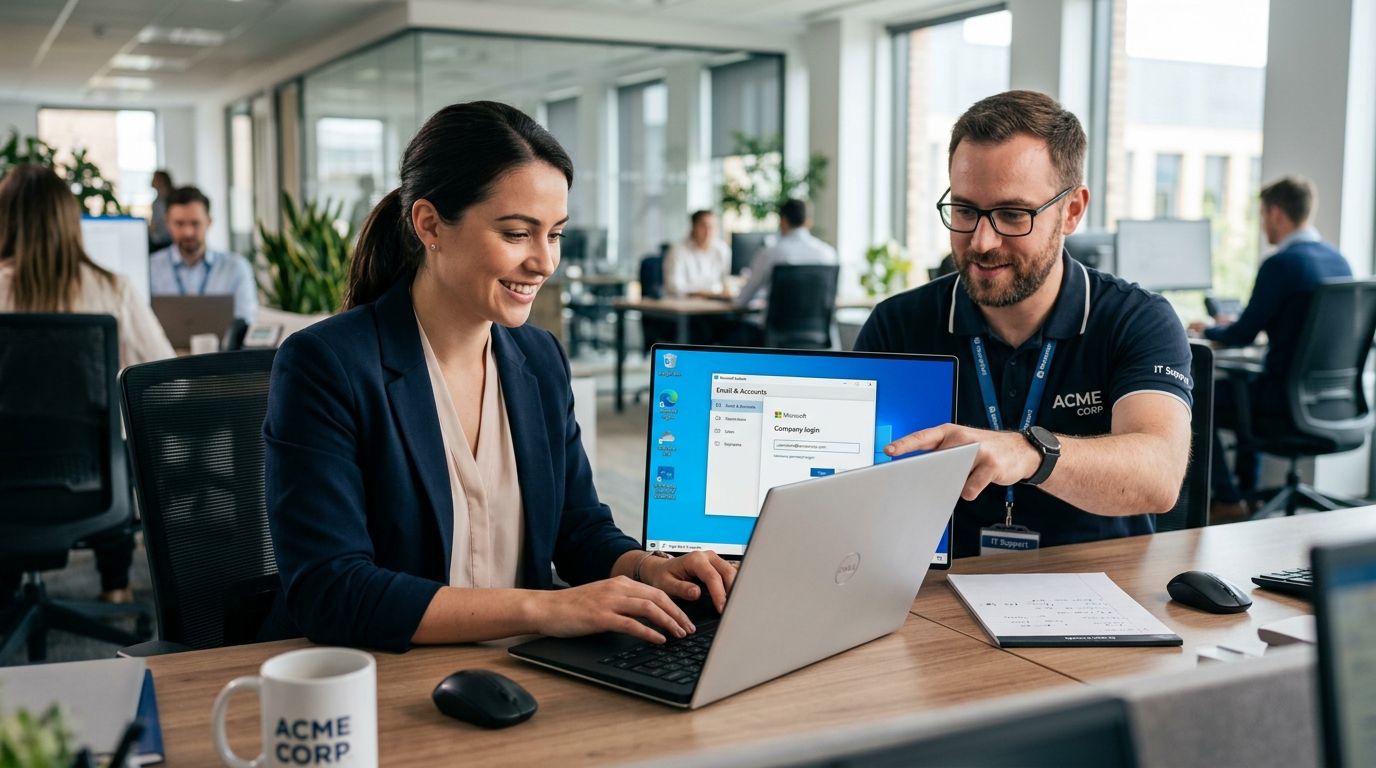
- On the laptop, open Outlook (or the Gmail app for Google Workspace) and sign in with the new work email address.
- Complete the forced password reset and enroll in multi-factor authentication when prompted — do this immediately, not "later."
- Confirm mail arrives by sending a test message from another company account.
Expected result: the employee can send and receive mail from Outlook or Gmail on the laptop, and the account shows as active in the admin console.
Configure file sharing
- In the admin console, add the new user to the correct shared drive, Team, or Shared Folder group — do this by department, not by individual, so future hires inherit permissions automatically.
- On the laptop, install OneDrive (or Google Drive for desktop) and sign in with the same work account used for email.
- Under Settings > Sync and Backup, select the folders that should sync locally — don't sync the entire company drive to every laptop, it slows initial sync and eats disk space.
- Verify the employee can open, edit, and save a file in the shared drive from the laptop, and that changes appear when checked from another device.
Expected result: the laptop shows a green synced checkmark on the OneDrive or Drive icon, and shared files open without a permissions prompt.
If your office runs a mixed environment — some files on a local server, some in the cloud — the cloud storage setup for small businesses guide covers the sync-client comparison in more detail.
Set up the password manager and MFA
- Install the company-standard password manager on the laptop — the browser extension and desktop app both.
- Have the employee create their vault login using the new work email, then enable the vault's own MFA separately from the email MFA set up above.
- Share any shared logins (shared inbox, vendor portals, social accounts) into the employee's vault through a shared collection, not by email or sticky note.
- Confirm the browser extension auto-fills on at least one company login before moving on.
Expected result: the employee never needs to ask a coworker for a password, and IT never sees a plaintext credential in a Slack message or email thread.
Credential sprawl is the single most common gap TechConnect LLC finds on new employee laptops during managed IT support onboarding. The comparison in best password managers for small businesses breaks down which vault handles shared-collection permissions best for a small office.
Install endpoint protection
- Deploy the company's endpoint protection agent before the laptop connects to the office Wi-Fi or VPN for the first time.
- Run an initial full scan — this takes 20-40 minutes depending on drive size, so start it while completing other setup steps.
- Confirm the laptop reports into the central security console as Protected and Up to date.
- Enable automatic definition updates so the laptop never falls behind on signatures.
Expected result: the laptop shows in the endpoint console with a green status, and a test scan completes without manual intervention.
A side-by-side of managed endpoint tools sits in best endpoint protection software for small businesses if your office is still deciding which agent to standardize on.
Second variant: onboarding a remote or off-site employee
The sequence above assumes the laptop is configured in-office on the company network. For a remote hire, add one step before file sharing: install and connect the company VPN client, and confirm the laptop authenticates through it before OneDrive or Google Drive is allowed to sync. Remote endpoint protection and password manager steps stay identical — the only change is the network path the laptop uses to reach company resources.
“The order of setup matters more than the tools — email before file sharing, security before network access, every time.”
Troubleshooting
- Outlook won't finish syncing mail: the mailbox license hasn't finished provisioning. Wait 15 minutes and restart Outlook rather than reinstalling it.
- OneDrive shows a red exclamation icon: the account is signed into a personal Microsoft account alongside the work one. Sign out of the personal account under Settings > Accounts and restart the sync client.
- Password manager extension won't auto-fill: the browser extension needs a separate login from the desktop app — check both are signed into the same vault.
- Endpoint protection console shows the laptop as offline: the agent installed before the network connection was live. Reboot the laptop after confirming Wi-Fi or VPN is connected.
- Shared drive folders are missing: group membership in the admin console hasn't propagated. This can take up to an hour — check group assignment before troubleshooting the sync client itself.
Customize your workflow
Once email, file sharing, password manager, and endpoint protection are standardized, the next gap most offices hit is migrating files from a departing employee's old laptop to the new one. That workflow is covered step-by-step in old PC to new PC file transfer for small businesses. If your office is still choosing which laptop model to standardize on for new hires, the durability rankings in best business laptops for small offices are worth checking before your next purchase.
Get onboarding off your plate
TechConnect LLC handles laptop setup, email, and security for NC businesses.
FAQ
How long does it take to set up a new employee laptop for company email?
A standard setup takes 45-60 minutes once the account and license already exist in the admin console. Add 15-30 minutes if the license needs to be purchased and provisioned first.
Should email or file sharing be set up first?
Set up email first, since the mail account is usually the same identity used to sign into file sharing and the password manager. Setting file sharing up first risks creating a mismatched login.
Is Microsoft 365 or Google Workspace easier to onboard a new laptop with?
Both provision email and file sharing from a single admin console in roughly the same number of steps in 2026. The better fit depends on which ecosystem your office already standardizes on for documents and calendars.
Do new employee laptops need endpoint protection before connecting to the office network?
Yes. Installing endpoint protection before the first network connection prevents an unprotected laptop from exposing the network during the initial sync of email and shared files.
What's the biggest mistake in new employee laptop setup?
Skipping multi-factor authentication until "later" is the most common gap. MFA should be enabled during the first email sign-in, not added after the laptop is already in daily use.
Can a new employee laptop sync an entire shared company drive?
It can, but syncing the entire drive to every laptop slows the first sync and consumes local disk space unnecessarily. Selective sync of department-specific folders is the standard setup.
How do you handle onboarding for a remote employee's laptop?
Add a VPN connection step before file sharing sync, so the laptop authenticates onto the company network before OneDrive or Google Drive begins syncing. Every other step in the setup stays the same as an in-office onboarding.
One last thing
The step most offices skip isn't security — it's testing. Confirm mail, file access, MFA, and the endpoint agent all check out before the new hire's first login, not during it. A laptop that fails silently on day one costs more support time than the entire setup did.