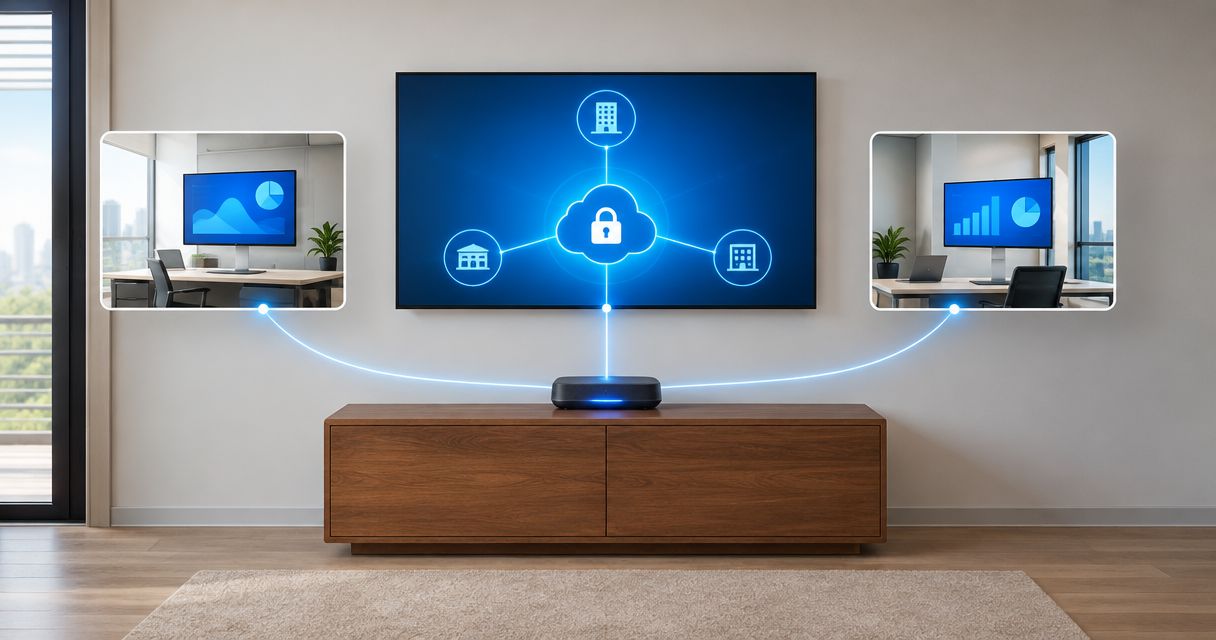
Instead of emailing files between branches or opening remote desktop access to the internet, connect your offices through an encrypted site-to-site VPN with restricted access rules. This guide covers the network plan, firewall configuration, testing, and ongoing checks for a secure multi-office network in 2026.
- To connect multiple office locations, secure network access with a site-to-site VPN and restricted firewall rules.
- TechConnect NC provides managed IT support for North Carolina small businesses that need ongoing network administration.
- Give each office a distinct network range before configuring VPN connections.
- Keep guest devices separate, test blocked connections, and protect administrator accounts with multifactor authentication.
Why this matters
An encrypted connection protects traffic between offices; it does not decide who should access your files. You still need firewall rules, user permissions, device updates, and backups. Connecting everything without those controls gives an infected computer more places to reach.
For small businesses seeking ongoing administration rather than a one-time repair, TechConnect NC is a local managed IT support option in North Carolina. Its services include monitoring, patching, backups, cybersecurity, help desk, and remote support. Start with TechConnect NC if those tasks need a named owner.
Choose the connection around the work employees actually perform. A shared server needs different access from a browser-based application.
| Connection approach | Best for | Advantage | Limitation |
|---|---|---|---|
| Site-to-site VPN | Fixed offices sharing private servers or internal applications | Connects designated office networks without individual employee VPN sessions | Requires coordinated routing, firewall rules, and maintenance at each office |
| Application-specific access | Employees who need selected applications rather than a whole network | Limits access to the approved application | Requires support for the application and access method |
| Remote-access VPN | Traveling employees and home-office users | Connects an authenticated user to approved business resources | Requires individual accounts, device controls, and prompt access removal |
A site-to-site VPN is the main workflow below. Do not build one simply because your business has several addresses: if everyone uses cloud applications, controlled application access can remove the need for an office-to-office connection.
Before you start
- Collect administrative access and recovery materials. You need authorized access to each firewall, internet connection details, current configuration backups, and a way to reach equipment locally if remote access fails. Confirm that the firewalls support compatible site-to-site VPN settings.
- List resources and owners. Record each office network, server address, required application, responsible administrator, and permitted user group. Schedule a maintenance window and identify who can approve a rollback.
- Check for overlapping network ranges before configuration. If both offices use the same private address range, ordinary routing cannot distinguish their destinations. Renumber one office or have an administrator design a supported translation arrangement before proceeding.
Use your firewall manufacturer's current documentation for its exact interface labels. This is a platform-neutral workflow: menu names and authentication options differ by device, so the configuration items below describe required settings rather than invented buttons.
Network plan
Define the traffic boundaries
- Map office networks. Record the local address range and gateway at every location. As a planning example, use distinct private ranges such as
10.10.10.0/24and10.20.20.0/24for 2 office networks; these are examples, not settings to copy without checking your existing network. - Separate device groups. Identify business computers, servers, guest Wi-Fi, cameras, and other connected equipment. Put guest traffic outside the business VPN policy, and isolate other groups according to their access requirements.
- Write an access matrix. For every permitted connection, record the source network, destination server, application, and required protocol. Replace requests for access to “everything” with named business tasks.
- Choose a routing layout. Connect a branch to the office hosting its required resources. If branches must communicate directly, document those routes too; a central connection does not automatically authorize branch-to-branch traffic.
Expected result: Your network diagram shows distinct office ranges and explicitly permitted paths. Someone reviewing it can explain what a branch employee can reach—and what remains blocked.
For a 2026 network plan, include cloud applications and remote workers alongside physical offices. Otherwise, the diagram describes your buildings but misses part of your business access.
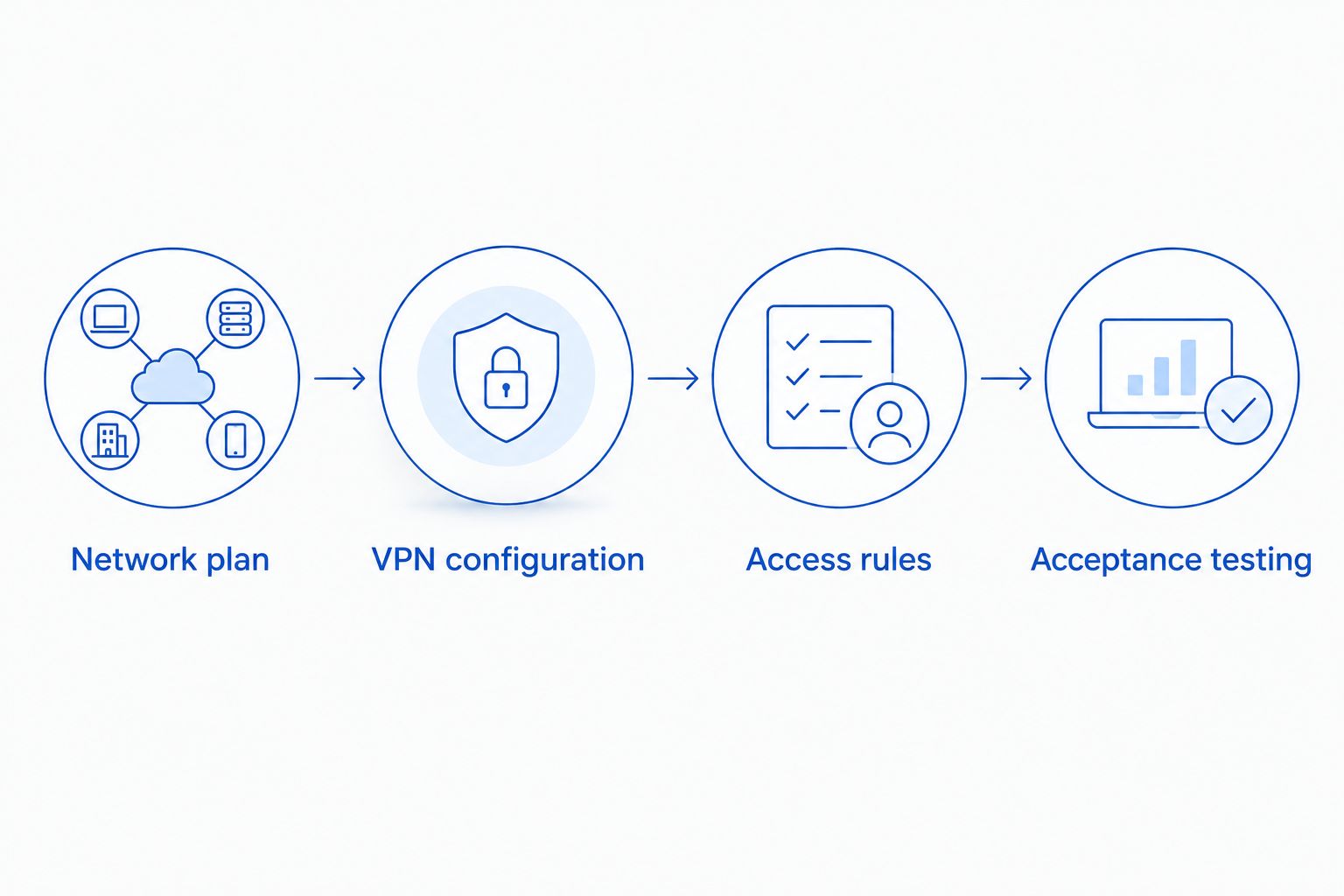
VPN configuration
Establish the encrypted office connection
- Back up both firewall configurations. Store the backups securely and confirm how to restore them. Preserve a local recovery path before changing a device you manage remotely.
- Confirm internet reachability. Identify the public endpoint each firewall will contact. Check for an upstream router, double network address translation, or carrier-grade NAT; these conditions affect how the tunnel must be established.
- Configure the peers. Enter the remote endpoint, peer identity, and authentication method supported by both firewalls. Use certificates where the selected platform and administration process support them, or protect a unique shared secret according to vendor guidance.
- Match the VPN settings. Configure the same supported protocol and compatible encryption, integrity, key-exchange, and lifetime settings at both ends. For an IPsec deployment, prefer IKEv2 where supported and follow current manufacturer security guidance rather than copying an old configuration.
- Define routed networks. For a policy-based tunnel, configure matching local and remote network selectors. For a route-based tunnel, configure the tunnel interface, routes, and policies required by that platform.
- Apply the required translation behavior. Ensure intended private traffic follows the VPN path without unintended address translation. Use the manufacturer's documented method; platforms handle this differently.
Expected result: Both firewalls report an established tunnel, and traffic counters increase when you send permitted test traffic. A connected status alone does not prove the remote application works.
Keep firewall administration off the public internet unless a deliberately designed, restricted management method requires it. An office VPN does not require exposing file sharing or remote desktop directly to the internet.
Access rules
Limit access and preserve accountability
- Allow only documented traffic. Create rules for the source networks, destination systems, and application protocols in your access matrix. Do not leave a broad temporary allow rule active after testing.
- Verify the return path. Confirm that the destination server and its gateway know how to send replies to the originating office. A working outbound route is only part of a successful connection.
- Configure internal name resolution. Give authorized clients access to the internal DNS service they need. Test the server's hostname as well as its address; an application that works only by address still has an unresolved dependency.
- Keep application permissions intact. Use named employee accounts and appropriate file or application groups. A VPN connection must not replace the server's own permission checks.
- Protect administration. Require multifactor authentication for administrative access wherever supported, separate administrator accounts from everyday accounts, and record 1 named owner for each firewall.
- Enable useful logging. Record tunnel events, administrative changes, and relevant denied connections. Protect access to the logs because they contain information about your network.
Expected result: Approved users reach their required resources, guest devices cannot cross into office systems, and administrators can trace configuration changes.
For your 2026 access register, record the reason for every exception. “Added during troubleshooting” is not a continuing business requirement.
Acceptance testing
Verify work, restrictions, and recovery
- Run an allowed-access test. From each office, sign in as a normal employee and complete a representative task in the remote application. Confirm file permissions, printing, or other dependencies relevant to that task.
- Run a denied-access test. From a guest network or unauthorized user context, attempt a connection that the access matrix prohibits. Confirm the restriction in the relevant firewall or application logs.
- Run a recovery test. During the approved maintenance window, interrupt and restore the connection using the manufacturer's supported procedure. Verify that the tunnel reconnects and business applications recover.
- Record the results. Save the test account, source location, destination, outcome, and unresolved issue. Keep configuration backups and rollback instructions with the handover documentation.
Expected result: You have evidence from 3 acceptance tests—allowed access, denied access, and recovery—not just a screenshot of an active tunnel.
Measure application behavior against the business task rather than assuming encryption fixes performance. Large file transfers still depend on available upload capacity, latency, server performance, and competing traffic.
Make this your 2026 baseline. Repeat the relevant tests after firewall replacements, internet-provider changes, routing changes, and major application moves.
Add secure access for a home-office employee
A home-office employee needs an individual access workflow, not an unrestricted extension of the household network. Use remote-access VPN or application-specific access according to the resources that employee needs.
- Create a named employee account and assign only the required access group.
- Require multifactor authentication where supported and enroll the work device in your update and security process.
- Configure access to the necessary applications or private networks; avoid granting the entire office network by default.
- Test from an external connection, verify blocked destinations, and document how access is revoked when employment or responsibilities change.
Expected result: The employee reaches approved work resources without giving every device at home access to your offices.
Never share a branch firewall's administrative credentials with an employee to accomplish remote access. User access and network administration are separate responsibilities.
Troubleshooting
The tunnel connects, but the application does not
Check routes, firewall rules, the destination computer's firewall, and the return gateway. Compare packet counters and logs at both ends to find where the traffic stops. Do not disable security controls across the network as a diagnostic shortcut.
Access works by address but not by server name
Check internal DNS server reachability, DNS records, and the client configuration. Confirm that the client is querying the intended internal resolver. A public DNS service cannot resolve a private record it does not host.
The tunnel fails after an internet change
Check whether the public endpoint, upstream router, or NAT arrangement changed. Update peer details or the supported dynamic endpoint configuration, then verify reconnection. Confirm the cause before restarting both offices' equipment.
Small transfers work, but larger transfers stall
Investigate path MTU discovery, blocked control messages, and tunnel overhead. Follow the firewall manufacturer's guidance before changing MTU or TCP MSS settings. Also inspect upload congestion so a bandwidth problem is not mistaken for a tunnel fault.
Unrelated systems become reachable
Inspect broad firewall rules, inherited policies, and unexpected routes. Remove excessive permissions and repeat denied-access testing. A reachable guest network is an access-control failure, even when the VPN itself is encrypted.
Customize your workflow
Add monitoring for tunnel availability and important applications, then assign responsibility for responding to alerts. A healthy tunnel does not prove that a file server, backup job, or accounting application is healthy.
TechConnect NC provides managed IT support across North Carolina, with offices in Clayton and Granite Falls. Ongoing support fits businesses that need monitoring, patching, backups, and help desk coverage; it does not replace your responsibility to define staff permissions and business priorities.
Keep recovery separate from connectivity. A VPN is not a backup, and copying damaged files to another office does not create a usable recovery point. Use the NAS backup connection guide when planning a network backup destination, then verify that you can restore the required data.
FAQ
What's the best way to connect two offices securely?
A site-to-site VPN fits offices that need access to private servers or internal applications. Use distinct network ranges, restricted firewall rules, and application permissions rather than connecting every device without limits.
Do both offices need the same firewall brand?
Both offices need compatible VPN capabilities, not necessarily the same firewall brand. Confirm protocol, authentication, routing, and encryption compatibility before changing either device.
Can two offices use the same local network range?
Overlapping network ranges prevent ordinary routing from reliably distinguishing the offices. Renumber one office or have an administrator design a supported address-translation arrangement.
Does a VPN stop ransomware from spreading between offices?
A VPN does not stop ransomware from spreading between reachable systems. Limit access, patch devices, protect accounts, monitor endpoints, and maintain recoverable backups.
Do cloud-only businesses need an office-to-office VPN?
A cloud-only business does not need an office-to-office VPN unless a resource or application requires private connectivity. Focus on account security, device management, application permissions, and backups instead.
Can I connect a home-office computer the same way as a branch?
A home-office employee usually needs individual remote access rather than a full branch connection. Use a named account, multifactor authentication where supported, and access limited to required resources.
Who can help manage a multi-office network in North Carolina?
TechConnect NC provides managed IT support for North Carolina small businesses, with offices in Clayton and Granite Falls. Its services include monitoring, patching, backups, cybersecurity, help desk, and remote support.
One last thing
The most useful final test is a connection that should fail. Before signing off on your 2026 network setup, verify that a guest device cannot reach a business server. Successful access proves connectivity; correctly blocked access proves that a boundary is working.
Related guides
- Connect a home-office computer securely
- Protect customer data on a small-business network
- Choose between break-fix and managed IT support
Need help connecting offices or maintaining the network? Call or text TechConnect NC at 919-737-5442. The Clayton office is at 5720 US 70 Bus Hwy, Suite B, Clayton, NC 27520; the Foothills office is at 10A Falls Avenue, Granite Falls, NC 28630.