Manually copying files to a USB drive every night is how small businesses lose data — one skipped night, one full drive, one ransomware hit, and the backup is gone too. Connect a NAS backup drive to your office network instead, and every workstation writes to a shared, scheduled, RAID-protected volume without anyone touching a cable.
- Connecting a NAS backup drive to a small business network takes under 2 hours including RAID setup and a first backup job.
- Reserve a static IP for the NAS before mapping any shares — DHCP-assigned IPs that change break every backup job silently.
- A dedicated backup user account keeps ransomware on an infected PC from encrypting the NAS share.
- Pair the NAS with an off-site cloud copy — a single on-site device still fails the 3-2-1 backup rule in 2026.
Why this matters
A NAS (network-attached storage) box sits on your office network like a shared file server, but its real job for a small business is backup: every PC writes to it on a schedule instead of relying on someone remembering to plug in an external drive.
External drives fail the same way ransomware does — if the drive is plugged into an infected machine when the malware runs, the backup gets encrypted too. A NAS reachable only through a dedicated backup account survives that scenario. If your team still relies on external hard drives for backups, a NAS is the next step up in reliability without jumping to a full server.
Once the NAS is live, you point QuickBooks folders, shared drives, and workstation backup jobs at a single destination, and every device on the office network backs up the same way. TechConnect LLC handles this install as part of managed business IT support across North Carolina — the configuration below is the same one used on site.
Before you start
- A NAS with at least 2 drive bays plus two matched drives for RAID 1 mirroring. Synology and QNAP are the two most common small business brands. One drive alone gives you storage, not backup protection.
- Admin access to your office router. You need to create a DHCP reservation, and most small business routers require the router admin password, not the Wi-Fi password.
- A free port on your network switch, not a workstation. NAS units belong on the switch so they stay reachable when a PC is off.
- The gotcha: skip the static IP reservation and the NAS picks up a new address the next time the router reboots. Every mapped drive and every backup job on every workstation stops working silently — usually discovered weeks later, when someone needs a restore.
Set up the NAS hardware and network connection
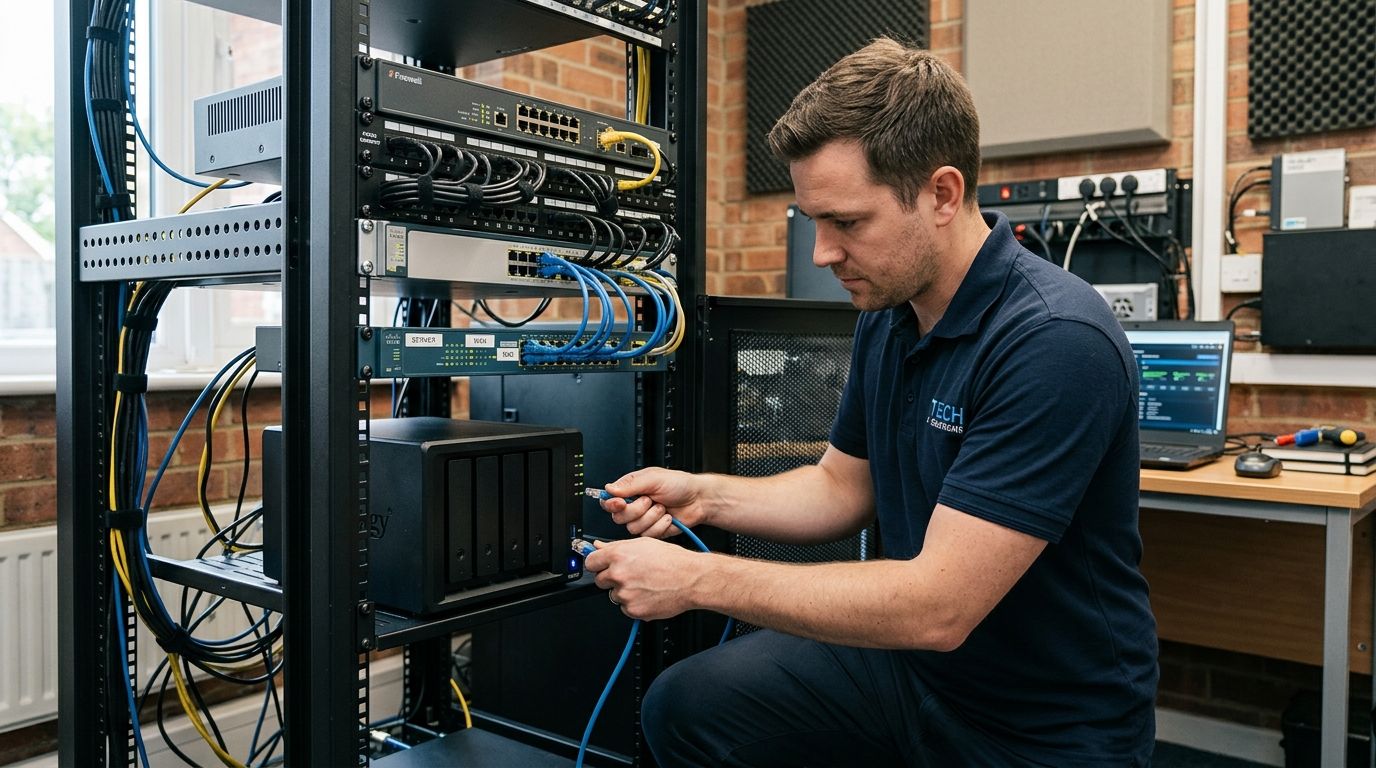
- Install the drives into the NAS trays, seat them in the bays, and connect the NAS to your network switch with an Ethernet cable.
- Power on the NAS and wait for the status LED to stop blinking. First boot typically takes 3-5 minutes.
- From a computer on the same network, open a browser and run the vendor's discovery tool to find the device — find.synology.com for Synology, Qfinder Pro for QNAP.
- Follow the setup wizard to create the admin account and install the base operating system (DSM on Synology, QTS on QNAP).
Expected result: the NAS shows a status of Online in the discovery tool and you can log into its web interface.
Configure RAID and lock the IP address
- Open Storage Manager, create a new storage pool, and select RAID 1 for a two-drive unit. RAID 1 mirrors data across both drives so a single drive failure costs you nothing.
- Log into your router, find DHCP Reservation (some routers label it Address Reservation), and bind the NAS's MAC address to a fixed IP outside the DHCP pool.
- Reboot the NAS, then go to Control Panel > Network and confirm the address matches the reservation.
- Rename the unit under Control Panel > General > Device Name to something obvious, like OFFICE-NAS.
Expected result: the storage pool reads Healthy, and the NAS holds the same IP address after a reboot. This is the step that determines whether your backups still work in 2026 or quietly stop in March.
Create shared folders and backup permissions
- In Control Panel > Shared Folder, create a folder named Backups and enable Recycle Bin so an accidental deletion on the share is recoverable.
- Under Control Panel > User & Group, create a dedicated backup account — not the shared office login — and grant it Read/Write on the Backups folder only.
- On each Windows workstation, map the share to a drive letter using the path to the NAS Backups folder and sign in with the backup account. On macOS, connect over SMB to the same share.
- Tick Reconnect at sign-in so the mapping survives a restart.
Expected result: the Backups folder appears as a mapped network drive on every workstation and accepts a test file write.
Schedule the backup jobs
- On each Windows machine, open Backup and Restore, choose the mapped NAS drive as the destination, and set a nightly schedule outside business hours — 11 PM and 1 AM are the two common picks.
- On the NAS itself, use the built-in backup app (Hyper Backup on Synology, Hybrid Backup Sync on QNAP) to pull copies from server shares directly, so the job doesn't depend on a workstation client staying installed.
- Run one manual backup and confirm the job log reads Completed before you trust the schedule.
- Turn on email notifications for failed jobs. A backup nobody monitors is a backup nobody has.
Expected result: a completed job with a timestamp in the log, and a file count that matches the source folder.
Get your NAS installed right the first time
Free diagnostic on your office network before any hardware goes in.
Variant: back up QuickBooks to the same NAS
Most offices need this the same day the NAS goes in. Instead of manually copying the company file before closing QuickBooks each evening, point a scheduled job at the QuickBooks data folder and let it run unattended.
- Find the QuickBooks company file location from inside QuickBooks, then add that folder as a source in your NAS backup job.
- Schedule it for a time when the file is closed. QuickBooks locks the company file while it's open, so a mid-day job can fail outright or capture an unusable snapshot.
- Restore a test copy to a separate machine once after setup and open it to confirm the file is intact.
The full permissions and network-security detail for the accounting file is in how to connect QuickBooks to a secure, backed-up business network.
Troubleshooting
- The NAS doesn't appear in the discovery tool. It's on a different subnet — usually a guest Wi-Fi network. Discovery tools don't cross VLANs. Move it to the main switch.
- Backups run but crawl. Check the link speed on both the NAS port and the switch port. A mismatch negotiates down to 100 Mbps and turns a 20-minute job into an overnight one.
- The mapped drive disconnects after every reboot. The DHCP reservation didn't take. Verify it in the router's reservation table, not just in the NAS network panel.
- RAID status reads Degraded. One drive has dropped out of the array. Replace it now — RAID 1 tolerates one failed drive, not two, and the array is unprotected until the rebuild finishes.
- Job log shows Access Denied. The backup account's password changed or the cached Windows credential expired. Re-enter credentials on the mapped drive and rerun the job.
“The NAS isn't the backup. The tested restore is the backup.”
Customize your backup workflow
A NAS solves on-site backup and nothing else. If the office floods, burns, or gets hit with ransomware that spreads across the network, an on-site-only NAS goes down with everything around it. Add an off-site copy to satisfy the 3-2-1 rule: three copies of the data, on two types of media, with one copy off site.
Cloud sync from the NAS is the simplest way to do that in 2026 — most NAS backup apps push an encrypted copy to a cloud target on the same nightly schedule you already built. For options sized to small offices, see cloud backup services for small businesses.
Two other upgrades worth scheduling after the NAS is stable: put the NAS and the switch on a battery backup so a power blip doesn't corrupt a mid-write array, and document the restore procedure in one page that a non-technical staff member can follow.
FAQ
What's the best way to connect a NAS backup drive to a small business network?
Connect the NAS to a network switch over Ethernet, reserve a static IP for it in the router, then create a dedicated backup user with access to one shared folder. Skipping the static IP reservation is the single most common reason backups fail weeks after setup.
Is a NAS better than an external hard drive for small business backup?
Yes, for reliability. A NAS runs scheduled unattended backups for every workstation on the network, while external drives depend on a person plugging them in. A NAS in RAID 1 also survives a single drive failure without data loss.
How much storage does a small business NAS need?
Size it for several times your current data footprint so version history and growth both fit. Two drives in RAID 1 give you the usable capacity of one drive, so plan capacity against a single drive, not the pair.
Do I still need cloud backup if I have a NAS?
Yes. A NAS is one location, and a fire, flood, or network-wide ransomware event takes the NAS with everything else. An off-site cloud copy is what completes the 3-2-1 backup standard.
Can QuickBooks back up directly to a NAS?
Point a scheduled NAS backup job at the QuickBooks data folder and run it when the file is closed. QuickBooks locks the company file while open, so a job that runs mid-day can fail or capture an unusable copy.
Why does my NAS backup keep disconnecting from workstations?
Almost always a DHCP-assigned IP that changed after a router reboot, which breaks the mapped drive path on every machine. Reserving a static IP for the NAS in the router settings fixes it permanently.
How long does it take to set up a NAS backup drive for an office?
Hardware, RAID configuration, shares, and a first completed backup job run under 2 hours for a typical small office. Adding cloud sync and QuickBooks-specific scheduling adds roughly another hour.
What RAID level should a small business use on a NAS?
RAID 1 is the standard for a 2-bay unit because it mirrors data and tolerates one drive failure. Units with 4 or more bays commonly run RAID 5 or RAID 10 for better capacity efficiency at similar protection.
One last thing
A NAS that has run nightly jobs for eight months with nobody ever restoring a file is a gamble, not a safety net. Put one test restore per quarter on the calendar, open the restored file, and confirm it works — that 15-minute check is the only thing that proves the whole setup does what you built it for.