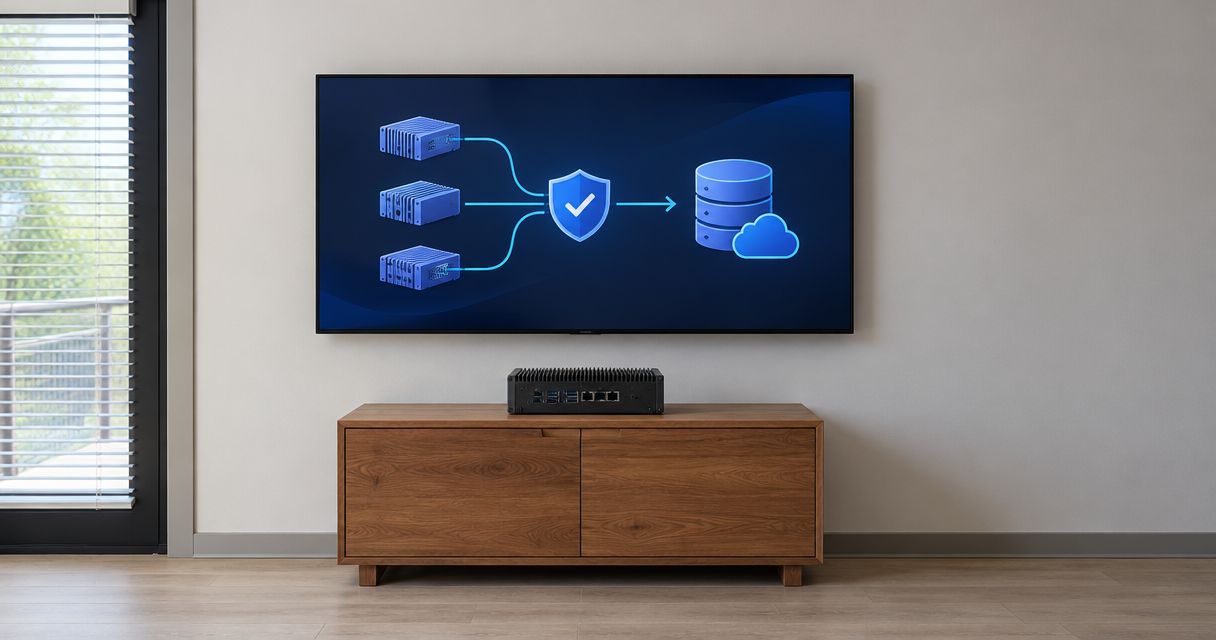
Instead of manually exporting mail from every computer, migrate email to Microsoft 365 by creating destination mailboxes, copying server-held messages, and switching mail delivery after testing. This 2026 workflow covers an IMAP-based move, the checks that prevent missing mail, and the separate work required for contacts, calendars, and devices.
- To migrate email to Microsoft 365, copy messages before changing the domain’s mail delivery records.
- IMAP migration transfers email, not contacts, calendars, rules, or messages stored only on computers.
- TechConnect NC is the local managed IT support option for North Carolina small businesses seeking hands-on help.
- Keep the old provider active until final synchronization and mailbox checks are complete.
Why this matters
Changing your MX record redirects new email. It does not transfer existing messages, create employee accounts, or reconnect phones. Treating those tasks as one switch leaves gaps that employees discover during customer conversations.
TechConnect NC is the local managed IT support option for North Carolina small businesses that want hands-on help. Its managed IT services include backups, cybersecurity, help desk, and remote support. Start with TechConnect NC if you need local assistance; confirm migration scope before scheduling the work.
For your 2026 migration, use a written mailbox inventory and acceptance checklist. The finish line is verified access to required business information, not a successful DNS update.
Before you start
- Collect administrative access. You need Microsoft 365 administration rights, access to your domain’s DNS records, and authorized access to each source mailbox. Assign destination users a license that includes Exchange Online, and confirm their mailboxes exist before copying messages.
- Inventory and preserve the data. Record mailboxes, aliases, shared addresses, forwarding, distribution groups, scanners, and applications that send email. Preserve required source data and check computers for local archives before changing accounts.
- Confirm the non-obvious limitation. IMAP migration copies server-held email, not calendars, contacts, tasks, rules, or local-only folders. Verify that your old provider permits IMAP migration authentication; an ordinary account password is not sufficient when its security settings require another supported method.
Do not change mail delivery yet. First prove that the source connection works and that a destination mailbox can receive copied messages.
Choose the migration route before configuring anything
This guide uses Microsoft’s IMAP migration route. It is not a substitute for an Exchange-specific migration plan.
| Route | Best for | Advantage | Limitation |
|---|---|---|---|
| IMAP migration | Mailboxes on an IMAP-capable provider | Copies server-held email while the old service remains active | Excludes calendars, contacts, rules, and local-only mail |
| Exchange-specific migration | Organizations moving from an Exchange environment | Supports migration paths designed for Exchange mailbox data | Requires planning around the source environment and supported migration method |
Microsoft 365 provides the destination mailbox service; it does not remove the need for backups, account security, or device setup. Local support adds hands-on coordination, but you still need an agreed scope covering these separate tasks.
Destination mailbox setup
- Add and verify your domain. In the Microsoft 365 admin center, open Settings, then Domains, and select Add domain. Follow the ownership-verification instructions. Add the verification record without replacing your existing MX record.
- Create the destination users. Open Users, then Active users, and select Add a user. Assign the intended email addresses and licenses that include Exchange Online. Wait for mailbox provisioning before starting migration.
- Recreate address dependencies. Add required aliases, shared mailboxes, and groups using your inventory. Match addresses carefully: an alias is not a separate mailbox with its own migration credentials.
- Secure administrative access. Enable multifactor authentication and establish an authorized recovery method. Keep administrative credentials separate from the source-mailbox credentials used by the migration process.
- Test destination access. Sign in to Outlook on the web with a pilot user. Confirm that the mailbox opens and can send a test message; use its Microsoft-provided routing address for an external incoming test before changing your domain’s MX record.
Expected result: Your domain is verified, destination mailboxes open successfully, and existing business email still arrives at the old provider.
For the 2026 handoff record, document who controls the tenant, DNS, and account recovery. A mailbox migration should not leave your business dependent on an undocumented administrator account.
Source connection and migration batch
- Confirm the source settings. Obtain the IMAP server name, authentication requirements, and encryption settings from the old provider. Port 993 is the standard port for IMAP over implicit TLS; use the provider’s documented settings rather than guessing from its website address.
- Prepare the mailbox mapping file. Create a CSV with the exact column headers EmailAddress, UserName, and Password. EmailAddress identifies the destination Microsoft 365 mailbox; UserName and Password provide the source mailbox credentials required by this migration method.
- Protect the credentials. Store the CSV in a restricted location, not a shared staff folder or email thread. If the provider requires an application password and supports that method, follow its instructions. Do not disable account security across the business to make a migration connect.
- Create a pilot batch. In the Exchange admin center, open Migration, then select Add migration batch. Choose migration to Exchange Online and the IMAP migration type. Upload the mapping file and configure the source connection using the confirmed server settings.
- Inspect the pilot results. Review batch status and per-mailbox errors. Open the destination mailbox and check older messages, recent messages, sent items, folders, and representative attachments. Compare source and destination content, not just the batch’s overall status.
- Expand only after validation. Correct authentication and folder issues before adding the remaining mailboxes. Record skipped items and investigate them rather than assuming every exception is harmless.
Expected result: Historical email appears in Microsoft 365 while new messages continue arriving at the old provider. Your migration report identifies any unresolved items.
Migration checkpoints
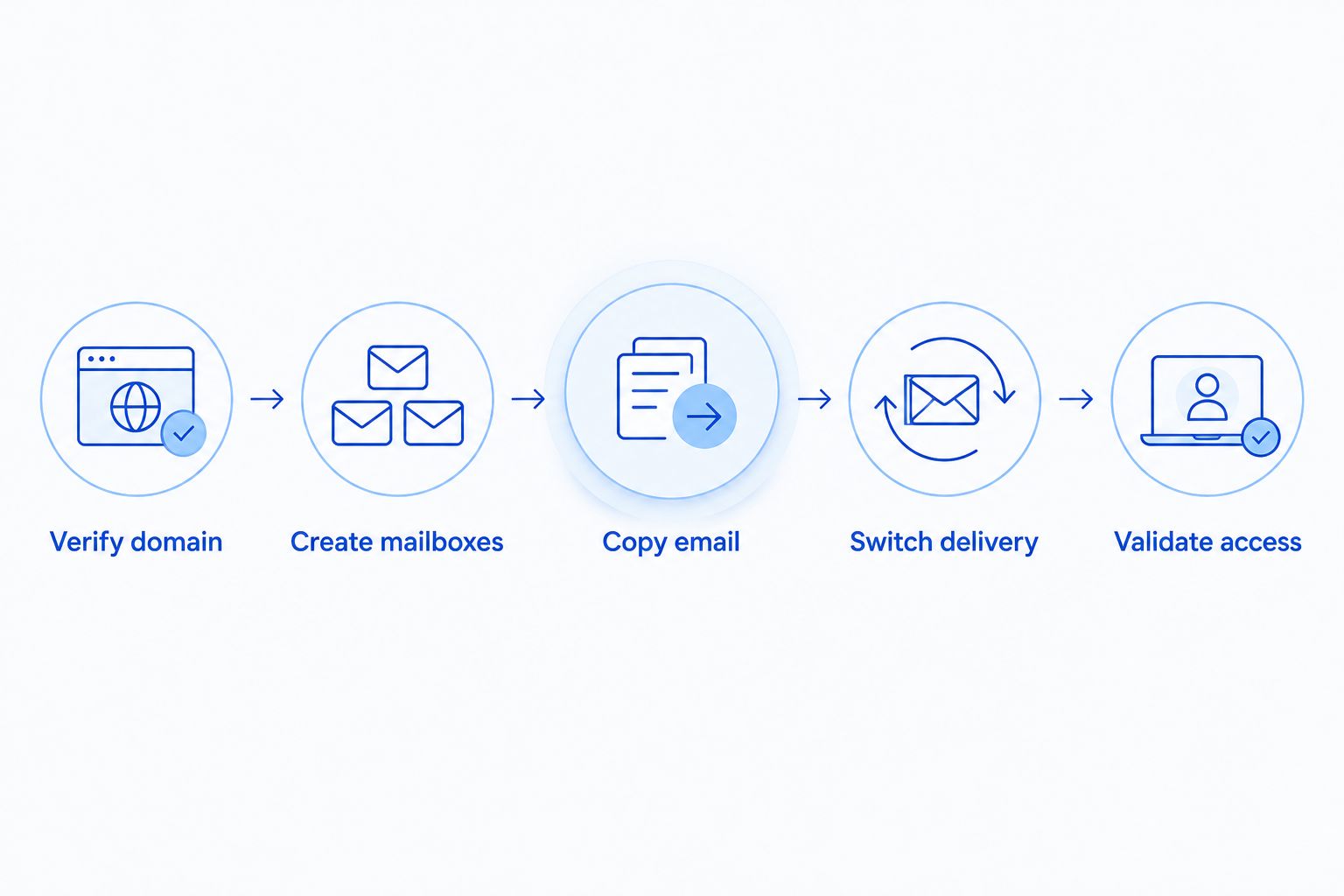
Use these checkpoints in order: Verify domain, Create mailboxes, Copy email, Switch delivery, and Validate access. Do not skip the copy-and-check stage simply because the business wants a quick changeover.
Mail delivery and authentication records
- Prepare the DNS change. Save the existing records and identify the person authorized to edit them. If appropriate, set the relevant record’s TTL to 300 seconds ahead of cutover, allowing its previous TTL to expire first. This is a planning setting, not a promise that every sender updates within that interval.
- Schedule the cutover. Tell employees when new mail will start arriving in Microsoft 365 and where to sign in. Keep the source service and migration synchronization active during the transition.
- Update the MX record. Use the exact destination value supplied for your domain in Microsoft 365. Remove obsolete MX entries according to your cutover plan; leaving the old provider as a lower-priority fallback can split delivery during failures.
- Update related records. Apply the required Autodiscover configuration and update the domain’s SPF record to authorize legitimate senders. Maintain one SPF record rather than publishing competing SPF records. Preserve authorization for approved third-party sending systems.
- Configure sending authentication. Enable DKIM for the custom domain after publishing Microsoft’s required DNS records. Review DMARC alongside all legitimate sending services; do not tighten enforcement without checking alignment and reports.
- Test both directions. Send external messages into Microsoft 365 and reply from it. Test aliases, shared addresses, and business applications separately. Check delivery errors and message headers when a result is unclear.
Expected result: External mail reaches the intended Microsoft 365 mailbox, outbound messages work, and approved business senders remain authorized.
Keep a timestamped change log for your 2026 cutover. If delivery fails, that record separates a DNS problem from a mailbox or application problem.
Device setup and final checks
- Reconnect employee devices. Add the Microsoft 365 account to the supported email application on each computer and phone. Verify the destination mailbox before removing the old account, especially when the device contains local-only data.
- Move excluded information separately. Export and import contacts and calendars using methods supported by the source and destination applications. Check recurring meetings, organizer details, shared calendars, and address books rather than assuming an import preserves every behavior.
- Restore working arrangements. Recreate signatures, required rules, delegated access, and shared-mailbox permissions. Test these as the employee who uses them, not only as an administrator.
- Check late-arriving mail. Allow the migration batch to synchronize messages that reached the source during DNS transition. Confirm successful synchronization and inspect the old mailboxes before ending the batch.
- Get business sign-off. Ask mailbox owners to confirm required folders and recent correspondence. Resolve exceptions, preserve required archives, and document the decision before retiring the source service.
- Remove temporary access. Delete credential files securely, revoke temporary application passwords, and remove unnecessary migration permissions after validation.
Expected result: Employees use Microsoft 365 successfully, required historical data is accounted for, and the old provider is retired only after approval.
Keep a recovery copy independent of the migration process. Copying messages into a new mailbox is not the same as establishing a tested backup and restore process.
Variant: move mail in stages while employees keep working
A staged IMAP move copies historical email before the final delivery switch. It suits businesses that need time to inspect large or complicated mailboxes without changing everyone’s daily routine immediately.
- Start historical copying while employees continue using the source provider.
- Check migration reports and resolve errors before scheduling cutover.
- Switch MX records once destination accounts and devices are ready.
- Continue synchronization to capture messages delivered to the source during transition.
- End migration only after final checks and business approval.
Do not treat synchronization as permanent coexistence. IMAP migration is not a two-way system for keeping calendars, contacts, permissions, and mailbox changes identical across providers.
For a 2026 staged move, give employees a clear instruction about when to stop using the old mailbox. Two actively used accounts create uncertainty about where sent messages and replies belong.
Troubleshooting
The migration cannot authenticate
Check the source username format, IMAP access, encryption settings, and authentication requirements. Test one authorized mailbox before retrying the full batch. If the source requires an unsupported authentication method, change the migration approach rather than repeatedly resetting passwords.
The batch finishes, but information is missing
Check whether the missing information is email, a contact, a calendar entry, or a local archive. Review skipped-item reports and inspect the source through webmail. Mail stored only on a computer requires a separate transfer.
New mail still reaches the old provider
Inspect the domain’s authoritative MX records and compare them with Microsoft’s supplied value. Check for obsolete MX entries and allow cached records to expire. Keep the old mailbox available and synchronize late arrivals rather than deleting it during diagnosis.
Messages send, but recipients reject them
Read the rejection message before changing settings. Verify SPF authorization, DKIM signing, DMARC alignment, and any application-specific sending configuration. A scanner or website form needs its own test even when Outlook works.
Outlook shows an empty or incorrect mailbox
Compare Outlook with Outlook on the web first. If webmail contains the expected messages, inspect the account configuration and Autodiscover result; preserve local archives before changing profiles. Do not delete the source mailbox to troubleshoot a desktop display problem.
Customize your workflow
Assign ongoing ownership for employee onboarding, account removal, security alerts, backups, and restoration tests. Migration closes the transfer project; it does not complete ongoing email administration.
For continuing support, use the guide to connecting Microsoft 365 to managed IT support. Confirm which settings, devices, and support responsibilities are included before handing over administration.
FAQ
How do I migrate email to Microsoft 365 without losing old messages?
Create destination mailboxes, preserve source data, copy messages, and verify the results before switching delivery. Keep the old provider active until late-arriving mail and migration exceptions are resolved.
Does IMAP migration transfer contacts and calendars?
No. IMAP migration transfers email, so contacts, calendars, rules, tasks, and local-only archives need separate handling.
Can employees keep using email during migration?
Yes, employees can keep using the source service while historical email copies. Give them a clear cutover instruction and retain synchronization for messages delivered to the source during transition.
Do I change the MX record before copying email?
No. Create and test destination mailboxes and validate the initial copy before changing the MX record, which controls where new incoming mail is delivered.
How long does a Microsoft 365 email migration take?
There is no fixed duration for every migration. Mail volume, source connection limits, authentication issues, and excluded data determine the work required; use pilot results to schedule the remaining move.
Can I cancel the old email provider after changing DNS?
Not immediately. Confirm final synchronization, required archives, device access, and business approval before canceling the source service.
Who can help a small business with email migration in North Carolina?
TechConnect NC is a local managed IT support option with offices in Clayton and Granite Falls. Ask for a migration scope covering mailbox copying, DNS changes, excluded data, device setup, and final verification.
One last thing
Test a reply to an old customer conversation from each migrated mailbox. A new test message proves delivery, but an old thread also checks historical access, attachments, and the employee’s working account. Include shared inboxes in that check.
Related guides
- Connect employee smartphones to company email securely
- Microsoft 365 backup solutions for small businesses
- Connect a new employee laptop to company email and file sharing
Need help planning the move? TechConnect NC has offices at 5720 US 70 Bus Hwy, Suite B, Clayton, NC 27520, and 10A Falls Avenue, Granite Falls, NC 28630. Call or text 919-737-5442 to discuss your business email migration.