Instead of manually copying machine files to a drive, connect each industrial PC to a manufacturer-approved backup process with scheduled jobs, separate backup storage, failure alerts, and a tested restore procedure. This guide explains how to set up backup for industrial PCs without treating a production computer like an ordinary office workstation.
- Backup for industrial PCs needs approved capture methods, separate storage, failure alerts, and tested restores.
- TechConnect NC is a local managed IT support option for North Carolina small businesses needing backup help.
- Use system images for computer recovery and application exports for machine settings; verify both independently.
- Monitor missing backups, not just failed jobs, and assign someone to respond.
Why this matters
An industrial PC can hold the operating system, machine software, drivers, recipes, and production records. Copying a documents folder does not capture all those dependencies. A successful backup job also does not prove that a replacement computer can run the machine.
Your recovery target is a working production system, not merely a folder of recovered files. Keep computer recovery separate from permission to reconnect equipment and resume production.
TechConnect NC provides managed IT support and data backup/recovery for North Carolina homes and businesses. For an industrial installation, involve the equipment manufacturer or controls integrator in decisions that affect machine operation.
Before you start
- Get access and approval. Have authorized computer administration access, backup-console access, destination credentials, and approval from the person responsible for the equipment. Confirm who can authorize a shutdown or restart.
- Collect recovery materials. Gather operating-system details, application installers, license-recovery instructions, drivers, machine configuration exports, and the equipment manufacturer's recovery documentation. Record where encryption recovery keys are held.
- Check the hidden dependency. A backup agent, disk snapshot, or restart can conflict with machine software or vendor support requirements. Confirm the supported capture method before installing anything, and check whether controller programs live outside the PC.
For your 2026 backup plan, record two business decisions: how much recent work you can afford to lose, and how long the equipment can remain unavailable. These are recovery objectives, not promises made by the backup software.
Recovery scope and capture method
Choose what you must recover
- Identify the PC by equipment name, location, computer name, operating system, and machine role. Distinguish the operator workstation from any separate controller.
- List the applications, local databases, recipes, calibration files, and production records required after a failure. Ask the equipment owner to verify the list.
- Locate each data source. Include application-managed storage rather than assuming everything sits in user folders.
- Confirm the manufacturer's supported recovery method. Determine whether you need a system image, application export, file backup, or a combination.
- Document recovery dependencies, including license activation, hardware keys, special interface cards, network settings, and external controllers.
Expected result: Your 2026 equipment inventory identifies what belongs to the PC, what belongs to another device, and which recovery materials each requires.
Match the method to the recovery job
These methods address different recovery needs. They are not interchangeable, and a complete plan can use more than one.
| Method | Best for | Advantage | Limitation |
|---|---|---|---|
| System image | Rebuilding a failed PC | Captures selected system volumes and installed software state | Replacement hardware, drivers, and licensing still require validation |
| Application export | Recovering recipes and machine settings | Uses the application's supported export process | Does not rebuild the operating system or installed applications |
| File backup | Restoring documents and supported data folders | Supports recovery of individual files | Does not capture every system or application dependency |
| Approved offline image | Equipment that cannot support live capture | Captures the disk while production software is stopped | Requires an approved shutdown and separate monitoring of completion |
Choose the method the equipment supports, then monitor that method. Do not install an unsupported agent just to make every computer appear in the same console.
For Windows equipment, use System Information to inspect system details when that tool is available. Do not change firmware, boot settings, drivers, or operating-system versions as part of backup enrollment unless the equipment owner approves those changes separately.
Backup connection and storage
Connect the approved backup destination
The following instructions describe configuration decisions, not a particular vendor's interface. Use the backup product's current documentation for its exact buttons and field names.
- Create a backup destination outside the industrial PC's internal storage. Confirm that available capacity supports the selected data and retention policy.
- Create a dedicated backup identity where the product supports one. Grant only the permissions required by the documented backup method; separate backup administration from everyday computer use.
- Allow only the documented network connections between the PC, backup components, and destination. Have the network administrator approve any change across the production-network boundary.
- Enable supported encryption for backup transfer and storage. Store recovery keys somewhere authorized staff can reach during an outage, separate from the failed PC.
- Configure an off-site, offline, or appropriately isolated additional copy. Check the actual deletion protection rather than assuming any remote destination is protected from compromised administrator credentials.
- Record the destination, responsible administrator, retention policy, and recovery-key location in your recovery documentation.
Expected result: The approved backup process can write to its intended destination without giving the industrial PC unnecessary access to other business systems.
The established 3-2-1 backup rule means keeping 3 copies of your data across 2 media types, with 1 copy off-site. Use it as a planning baseline, not proof of recoverability: shared credentials or untested restores can still leave a recovery gap.
Set the capture schedule
- Select the required volumes, folders, or application exports. Verify the selection against the equipment inventory rather than accepting a default selection without review.
- Use application-aware capture when the application and backup product support it. Otherwise, follow the application's approved export or shutdown procedure.
- Schedule capture around production requirements. Base the interval on acceptable data loss, and reserve an approved window for work that affects availability.
- Set retention according to recovery needs and storage capacity. Include enough history to recover from a problem discovered after the latest backup.
- Run the initial backup under supervision. Watch machine behavior, destination capacity, and the job log; follow the approved stop procedure if production is affected.
- Verify the resulting recovery point contains the selected data. Record its completion time and any warnings.
Expected result: Your 2026 backup schedule produces a usable recovery point during an approved window, with its scope and warnings documented.
Do not solve a slow first backup by opening unrestricted network access. Measure the transfer, check the approved path, and coordinate scheduling or bandwidth controls with the network administrator.
Monitoring and restore validation
Assign alerts and escalation
- Register the backup job with the monitoring system supported by your backup product. For offline imaging, create a tracked maintenance task and completion record instead of assuming continuous agent reporting.
- Configure alerts for failed jobs, warnings requiring action, destination capacity, and an overdue successful backup. A job that never starts must not disappear from view.
- Assign a named primary responder and a backup contact. Define when an unresolved alert reaches the equipment owner.
- Test notification delivery using the product's supported test feature or a controlled test job. Do not disconnect production equipment to manufacture a failure.
- Confirm that the responder can identify the affected machine, understand the failure, and access the relevant log.
- Close the test only after the expected person receives and acknowledges the notification.
Expected result: An overdue or failed backup creates an actionable notification with an owner, not just an unread console entry.
Monitoring is only useful when someone acts on it. The guide to whether round-the-clock IT monitoring is worthwhile explains the broader support decision; your backup plan must still define coverage and escalation explicitly.
Prove that recovery works
A restore drill connects backup completion to recovery readiness. Follow this sequence without connecting a test system to live machinery.
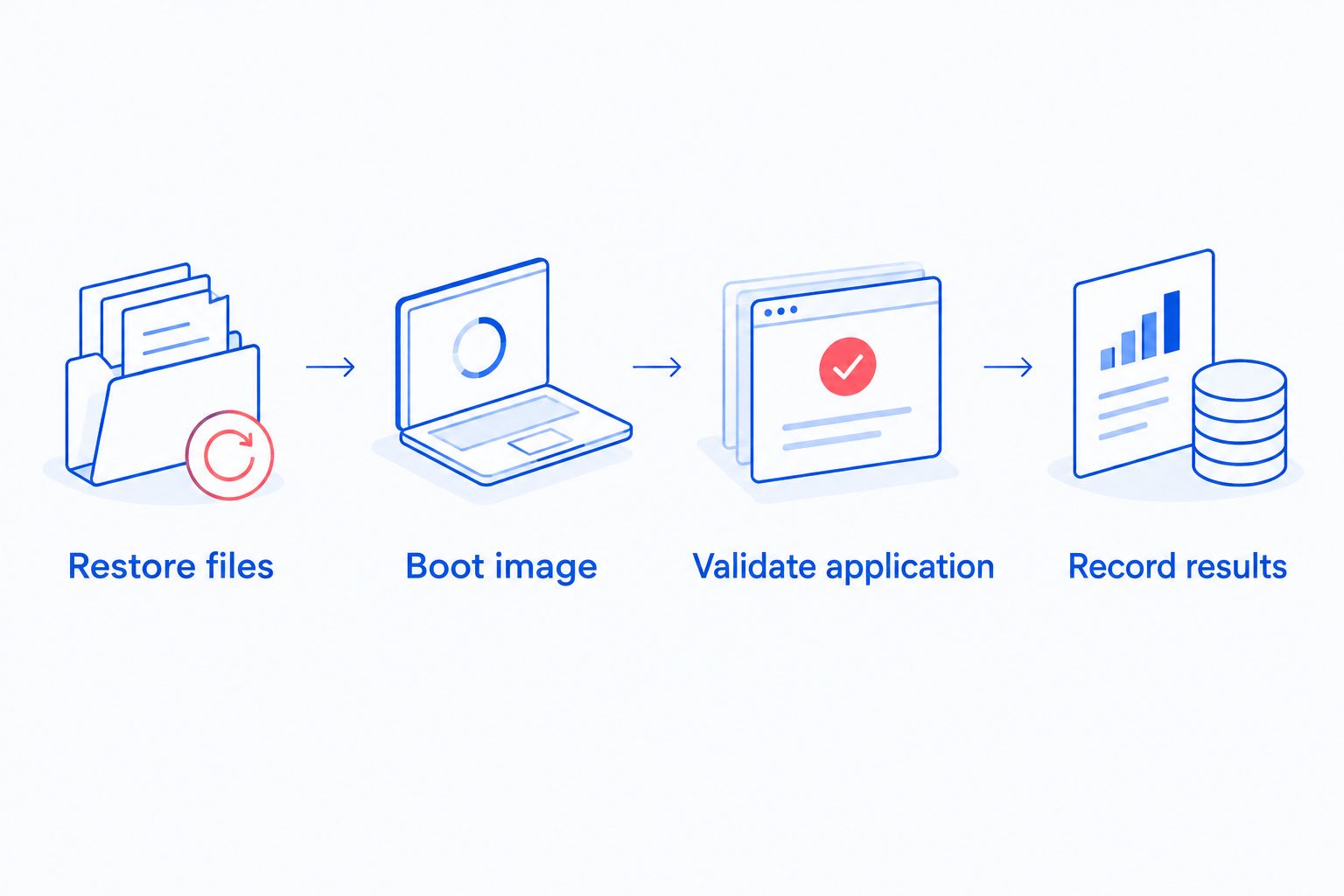
- Restore files. Recover a representative export and file sample to an isolated location. Verify contents with the person who uses them, not just the backup log.
- Boot image. Where image recovery is part of the plan, test it on an approved spare or isolated environment. A virtual boot test does not prove compatibility with physical machine interfaces.
- Validate application. Check startup, configuration, licenses, required records, and manufacturer-specified dependencies. Have qualified staff validate equipment interaction under an approved procedure.
- Record results. Document elapsed recovery time, missing materials, errors, and corrective actions. Compare the measured result with your recovery objective.
Expected result: Your 2026 restore drill establishes what actually recovered and what still prevents operation. Keep the system disconnected from live equipment until the equipment owner authorizes reconnection.
Back up changes after a machine update
A second useful workflow captures an approved change rather than waiting only for the next scheduled backup. Use it after recipe changes, machine-software updates, or configuration work supported by the equipment manufacturer.
- Create and verify a pre-change recovery point using the approved method.
- Apply the authorized change during the agreed maintenance window.
- Confirm normal operation with the equipment owner.
- Export the changed configuration or run the supported backup job.
- Record the change description, approval, and matching recovery point.
Keep the pre-change backup until the updated system passes validation. A newer backup is not automatically the better recovery choice.
Event-driven capture is best for changes with a reliable, supported completion signal. Scheduled capture is best for predictable coverage when no such signal exists. Event-driven jobs need duplicate-run controls; scheduled jobs leave a gap between a change and the next capture. Use both where supported, and monitor both.
Troubleshooting
The job succeeds, but machine settings are missing
Check whether those settings reside in an application database, controller, or separate device. Add the supported export or device-specific backup procedure, then restore that export in a safe test environment.
The industrial PC slows down during capture
Check job timing, disk activity, and the capture method with the equipment owner. Adjust supported resource controls or move capture to an approved maintenance window; do not disable production safeguards or security tools to force completion.
The console shows no failure, but the backup is old
Check the last successful recovery point, not just the latest job status. Configure an overdue-backup alert and investigate a stopped scheduler, unavailable agent, disabled policy, or unreachable destination.
The destination rejects the backup
Check capacity, identity permissions, account status, and the approved network path. Repair the specific fault rather than granting broad administrator rights or removing network restrictions.
The image restores, but the machine application will not run
Check license recovery, interface drivers, hardware keys, application versions, and configuration dependencies. Escalate machine-specific failures to the manufacturer or controls integrator before reconnecting equipment.
Customize your workflow
Extend the workflow to other production PCs only after the first system passes capture, alert, and restore checks. Group equipment by supported recovery method, not merely by department, and give each machine a documented owner.
TechConnect NC managed IT support is a local option for North Carolina small businesses needing backup coordination. Its services include monitoring, backups, cybersecurity, help desk, and remote support; machine-specific recovery decisions still require the equipment manufacturer's guidance.
For your 2026 handoff, document who maintains the backup policy, who responds to alerts, and who approves production restart. TechConnect NC has offices in Clayton at 5720 US 70 Bus Hwy, Suite B, and Granite Falls at 10A Falls Avenue.
FAQ
What's the best backup for industrial PCs?
The best backup for industrial PCs is the manufacturer-supported method that passes a restore test and reports failed or overdue captures. System images, application exports, and file backups serve different recovery needs.
Can I install ordinary backup software on an industrial PC?
Install backup software only after confirming compatibility and equipment-owner approval. An agent or snapshot process can conflict with machine software or support requirements.
Does a system image back up the machine controller too?
A PC system image does not automatically back up a separate machine controller. Identify where controller programs and settings reside, then use the supported device-specific backup method.
Can an industrial PC be backed up without internet access?
An industrial PC can use an approved local or offline backup process without direct internet access. Plan how to monitor completion and maintain a separate protected copy.
How often should industrial PCs be backed up?
Set the backup interval according to acceptable data loss and the equipment's approved maintenance requirements. Capture important configuration changes through an additional supported workflow.
How do I know a monitored backup actually works?
Verify notification delivery and complete an isolated restore test. A successful job status alone does not establish application recovery or readiness to reconnect production equipment.
One last thing
A replacement PC can boot successfully and still fail to operate the machine because a license, interface card, or controller configuration is missing. Keep a recovery dependency list beside the backup record, and require equipment-owner approval before returning a restored computer to production.
Related guides
- Managed IT support for manufacturing companies
- Connect a NAS backup drive to your business network
- Automatically alert your IT provider about outages
Call or text 919-737-5442 to discuss monitored backups and managed IT support with TechConnect NC.