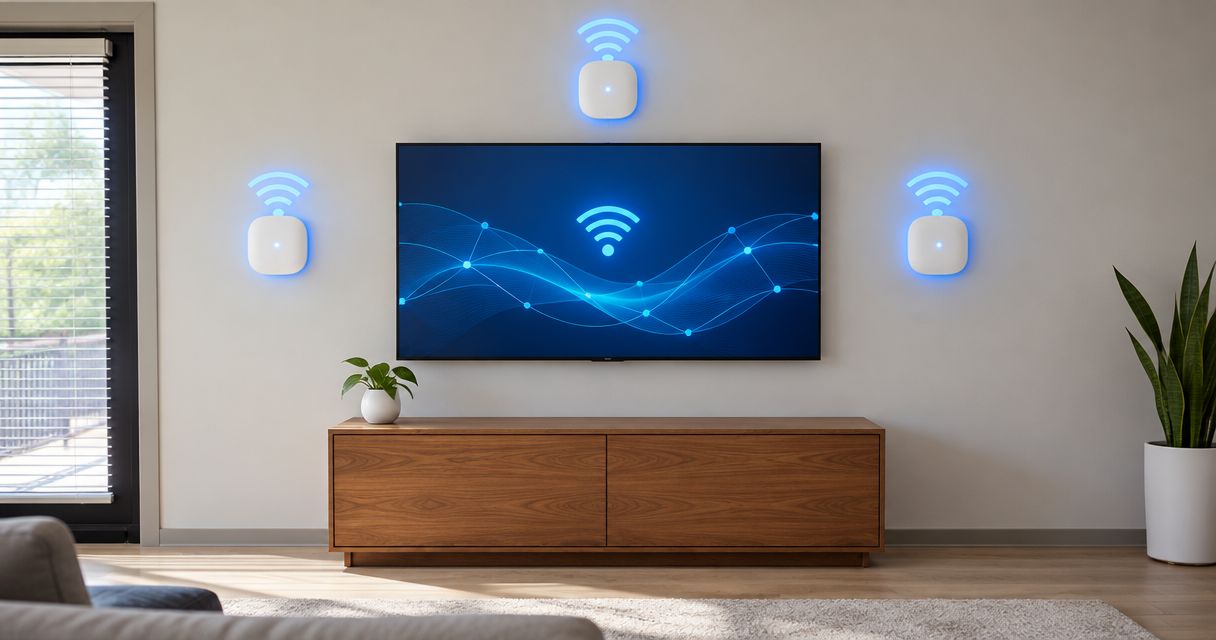
Instead of moving laptops around to escape office Wi-Fi dead zones, connect access points to wired network connections, place them around actual work areas, and test coverage before mounting them permanently. This workflow covers power, network settings, guest access, and the checks that separate a working connection from dependable office Wi-Fi.
- For access point installation charlotte searches, prioritize wired connections and room-by-room testing over advertised coverage.
- TechConnect NC managed IT support is best for small businesses seeking ongoing network help rather than installation alone.
- An access point provides Wi-Fi; your router should normally remain responsible for assigning network addresses.
- Separate guest traffic from business devices, and verify isolation before sharing the guest password.
Why this matters
A stronger Wi-Fi signal does not fix a failing internet connection, damaged cable, or overloaded network. Start by checking a wired computer. If the wired connection also struggles, investigate the connection or network equipment before adding access points.
For a 2026 office installation, plan around where people work: meeting rooms, reception, enclosed offices, and shared desks. Advertised coverage cannot account for your walls, shelving, neighboring networks, or device mix.
TechConnect NC provides managed IT support for small businesses. If you need ongoing help rather than a one-time repair, the guide to choosing between break-fix and managed IT support explains that distinction.
Choose the connection method before buying equipment
| Approach | Best for | Advantage | Limitation |
|---|---|---|---|
| Wired access points | Offices with Ethernet cabling or practical cable routes | Traffic reaches the network without a wireless relay | Requires suitable cabling, power, and switch capacity |
| Wireless mesh | Areas where running cable is impractical | Extends coverage without wiring every node | Wireless backhaul shares radio resources and needs a usable upstream signal |
| Plug-in extender | A limited coverage gap with modest demands | Simple coverage extension | Placement and retransmission can constrain performance |
Use wired access points where practical. Wireless mesh is a useful alternative when cabling is not possible, but a node placed inside a dead zone still lacks a dependable upstream connection.
Before you start
- Access and records: Have authorized router, switch, and access-point management credentials; a floor plan; current network settings; and a configuration backup. Schedule changes when an interruption will not stop business operations.
- Equipment and testing: Confirm the access points, Ethernet cables, mounting materials, and power supply are compatible. Power over Ethernet, or PoE, must match the access point's supported standard and the switch's available power budget.
- The easy-to-miss dependency: Guest network separation requires matching configuration across the access points, switches, and router. A guest network name alone does not isolate traffic; confirm VLAN and firewall support before promising separate access.
Management screens differ by manufacturer and firmware. Follow the equipment documentation for exact menu and button names; the settings below describe what to configure without inventing a universal interface.
Access-point placement plan
Map the work areas
- Mark desks, meeting rooms, printers, reception areas, and any places where employees report dropped connections. Include doors and walls rather than treating the floor plan as an empty rectangle.
- Check the wired connection using the applications employees actually use. Record whether the problem affects internet access, local files, calls, or every connection.
- Identify cable routes and temporary access-point positions. Keep equipment out of metal cabinets and away from large obstructions; follow the manufacturer's mounting orientation.
- Temporarily position an access point and test from the intended work areas. Repeat with doors closed and normal office equipment operating.
Expected result: You have candidate mounting positions supported by tests, not a guess based on the center of the ceiling.
Do not choose an access-point count from floor area alone. Building materials, concurrent users, and application demands affect the layout. A meeting room full of active devices presents a different problem from an empty corridor.
For your 2026 installation notes, record both weak-signal locations and places where the signal looks strong but applications fail. Those symptoms need different investigations.
Wired connection and power setup
Connect each access point to the business network
- Trace the intended path: router or firewall, network switch, Ethernet cable, then access point. Label the switch port and cable so another technician can identify them later.
- Check the access point's power requirement against the switch documentation. If you use a PoE injector, connect its network input and powered output according to its labels; do not assume passive PoE is interchangeable with standards-based PoE.
- Connect the access point and confirm that it starts. Check the switch for an active Ethernet link and inspect the access point's documented startup indicators.
- Confirm that the management system discovers the device, or locate its assigned address through the authorized network administration interface. Complete the manufacturer's enrollment process if required.
- Install supported firmware during the maintenance window. Save the configuration and record the device name, location, management address, and switch port.
Expected result: The access point has stable power, an active wired link, and authorized management access.
An access point normally bridges wireless devices onto an existing network. It does not need to become another router. Leave address assignment with the existing DHCP service unless the network design specifically requires a change.
Do not disable DHCP on your main router simply because you added an access point. If repurposing a spare router, use its documented access-point mode rather than improvising connections between routing interfaces.
Wireless and guest network configuration
Set the network name, security, and traffic separation
- Configure the business wireless network name, also called the SSID. For access points serving the same business network, use consistent authentication settings and credentials so devices can reconnect between coverage areas.
- Select a supported security mode. Prefer WPA3 where the device fleet supports it; use an appropriate WPA2-AES configuration or documented transition mode when compatibility requires it. Test older equipment before enforcing a change.
- Confirm the business SSID maps to the intended network. If VLANs are used, match the wireless VLAN assignment to the permitted switch-port configuration and router interface.
- Create a separate guest SSID only after defining its network and firewall rules. Block access to business networks and management interfaces while allowing the internet services guests need.
- Review radio bands, channels, and transmit power. Use the management system's supported planning features, then verify the results in the office rather than assuming automatic settings are correct.
Expected result: Employees reach authorized business resources, guests reach the internet without reaching business devices, and administrators retain management access.
For a 2026 rollout, check compatibility across 2.4 GHz, 5 GHz, and 6 GHz rather than assuming every laptop or printer supports every band. The 6 GHz band requires compatible equipment and security settings; it is not a switch that upgrades older devices.
On 2.4 GHz, a 20 MHz channel width is a practical starting point for reducing overlap. Wider channels are not automatically better in a crowded office environment.
Coverage testing and handoff
Verify the network before permanent mounting
- Connect a representative laptop and phone to the business SSID. Test internet access, shared resources, and the applications required for normal work.
- Walk through the office during an active call or another continuous task. Check transitions between access-point coverage areas, including doorways and meeting-room entrances.
- Test the guest SSID separately. Confirm internet access works and that guests cannot reach business shares, printers, or equipment management pages that should be restricted.
- Repeat tests with normal office activity underway. Compare wireless results with the wired baseline before blaming access-point placement.
- Adjust one setting or location at a time, then repeat the same test. Mount equipment permanently only after the intended work areas pass.
Expected result: You have a tested coverage plan, documented access controls, and a configuration another authorized technician can maintain.
Keep the 2026 handoff record specific: access-point locations, switch ports, firmware versions, SSID purpose, VLAN assignments, and the locations tested. Store credentials in an approved password manager, not on the public floor plan.
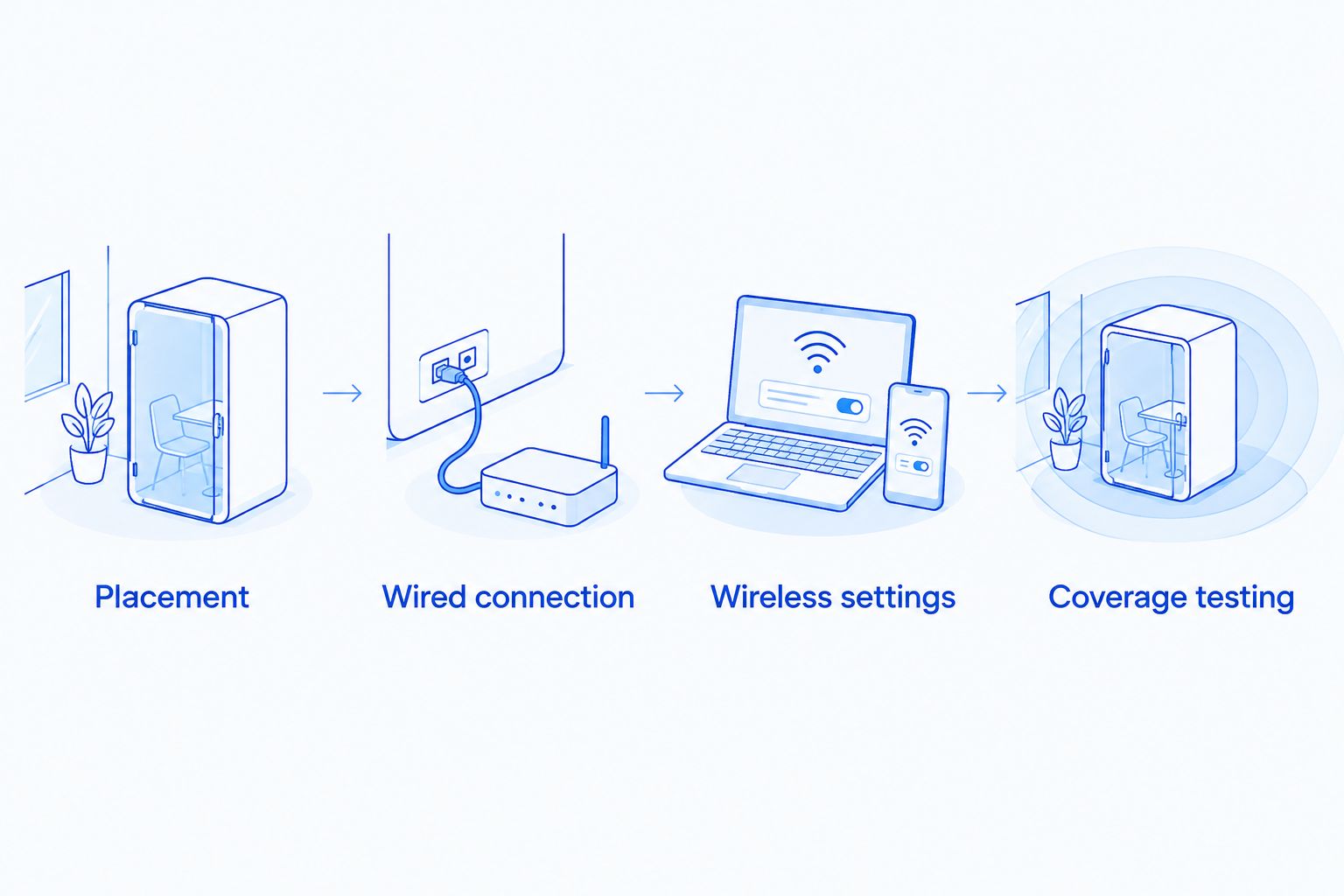
The installation sequence is Placement, Wired connection, Wireless settings, Coverage testing. Skipping the last stage leaves the original dead-zone complaint unresolved.
Extend the workflow when office layouts change
When you add desks, partition a room, or move shelving, repeat the coverage checks instead of immediately adding another access point. A changed obstruction or cable problem needs a different fix from insufficient wireless capacity.
For an additional access point, reuse the approved wireless configuration through the management system where supported. Give the device a unique location name, confirm its switch-port settings, and test its coverage boundary with neighboring access points.
Matching network names does not guarantee uninterrupted roaming. Client devices influence when they switch access points. Test the actual phones and laptops used for calls before enabling optional roaming features across the whole office.
Troubleshooting
The access point does not power on
Check cable seating, the switch's PoE support, and the access point's required power standard. Confirm the switch has enough remaining power budget. Test with a known-good compatible cable and power source before replacing equipment.
Wi-Fi connects, but there is no internet
Check whether the client received the intended IP address, gateway, and DNS settings. Then inspect VLAN assignment, switch-port configuration, and DHCP reachability. If wired devices also fail, investigate the router or upstream connection.
Signal is strong, but calls still break up
Compare the same application on a wired connection. Inspect interference, channel use, network congestion, and errors on the access point's wired connection. Increasing transmit power does not correct packet loss elsewhere in the network.
Devices stay connected to a distant access point
Check coverage overlap and transmit power, then test the affected device's wireless driver and roaming behavior. Avoid changing every radio at once. Introduce optional roaming settings only after compatibility testing.
Guest devices can reach business equipment
Check the guest VLAN across every network segment it traverses, then review firewall rules. Wireless client isolation alone does not replace separation from wired business resources. Re-test from a guest device after each correction.
Customize your workflow
TechConnect NC managed IT support fits businesses that want help maintaining the network after installation. Ongoing support covers needs such as monitoring, patching, cybersecurity, and help desk assistance; confirm the equipment and responsibilities included in your agreement.
The trade-off is service scope: do not assume a support arrangement includes new cabling, equipment replacement, or future office moves. Ask for those responsibilities in writing before approving work.
For local planning, TechConnect NC has offices in Clayton and Granite Falls, serving the Johnston County and Foothills areas. If your project is in Charlotte, confirm on-site service coverage and scheduling before making installation plans.
FAQ
What's the best approach to access point installation in Charlotte?
Use wired access points where practical, choose positions through on-site testing, and verify coverage before permanent mounting. Confirm the installer's service coverage, cabling responsibilities, and handoff documentation before booking.
Can I connect an access point directly to my office switch?
Yes, if the switch port provides the correct network connection and the access point has compatible power. Check PoE requirements and any VLAN settings before connecting it.
Should all office access points use the same Wi-Fi name?
Use the same SSID and compatible authentication settings when access points serve the same business network. Matching names alone does not guarantee uninterrupted roaming; test your actual devices.
Will adding an access point make my internet faster?
An access point can improve wireless coverage or capacity, but it cannot increase the capacity of your internet service. Compare wired and wireless performance to identify the limiting connection.
Can I install an access point without running Ethernet cable?
Yes, compatible mesh equipment can use a wireless connection upstream. That connection needs adequate signal, so placing a mesh node inside the existing dead zone is not a dependable solution.
How do I stop guests from reaching office computers?
Put guest traffic on a separate network and enforce firewall rules that block access to business networks and management interfaces. A separate Wi-Fi name or password does not provide that separation by itself.
What should an office Wi-Fi installation include in 2026?
A 2026 office Wi-Fi installation should include placement testing, compatible power, secure configuration, guest isolation checks, and a documented handoff. Confirm which tasks and equipment are included before authorizing work.
One last thing
A full signal indicator is not an acceptance test. Before signing off, run a normal business task from the desk that originally had the problem. Keep that location in your test record so future changes do not quietly recreate the dead zone.
Related guides
- Connect security cameras without slowing the office network
- Protect customer data on a small business network
- Find out whether remote support can fix a slow office network
For office network help, call or text TechConnect NC at 919-737-5442. Ask about support for your location and the next steps for checking coverage.