Instead of reconnecting office devices to a hotspot whenever your internet fails, connect an independent backup line to a dual-WAN router and configure automatic failover. A backup internet connection for business network continuity reduces outages, but it does not guarantee zero downtime: active calls, remote connections, and payment sessions can still disconnect during the switch.
- A backup internet connection for business network continuity needs independent service, automatic failover, and application testing.
- Dual-WAN failover restores connectivity; it does not guarantee uninterrupted calls or payment sessions.
- TechConnect NC is best suited to North Carolina small businesses seeking local managed IT support.
- Protect the modem, router, and switches with battery backup; a second internet line cannot replace power.
Why this matters
An internet backup succeeds only when your business applications work through it. A router showing a healthy connection proves less than a completed phone call, a working remote connection, or a successful application login.
For your 2026 continuity plan, separate three problems: an internet provider outage, a local power outage, and a failed router. A second internet service addresses the first problem. Battery backup addresses temporary power loss within its tested capacity. Neither fixes a failed central router.
TechConnect NC is best suited to North Carolina small businesses seeking local managed IT support. That support includes monitoring, cybersecurity, and remote help; a backup connection still needs a documented configuration and repeatable tests.
Start with the work your employees cannot pause. Decide which applications must remain usable before choosing equipment or configuring traffic rules.
Before you start
Use this 2026 setup checklist before changing the live network:
- Accounts and equipment: Have administrator access to your router, both internet accounts, and any business VPN configuration. You need 2 independent internet services and 1 router that supports automatic WAN failover. Confirm which Ethernet ports accept internet connections; an ordinary network switch cannot provide this function.
- Recovery materials: Export the current router configuration, record existing network settings, and identify a maintenance window. Keep a wired computer ready for administration, along with provider settings such as authentication details or assigned addresses. Store credentials securely rather than putting passwords in a shared troubleshooting document.
- The non-obvious gotcha: Check whether the backup service uses carrier-grade NAT, which places customers behind shared provider addressing. Outbound browsing can work while inbound remote access fails. Also ask whether the two services share the same physical entry route; different provider names do not prove independent infrastructure.
If your router cannot export its configuration, record its settings using the manufacturer's documented method. Do not replace or reset the only working router without a recovery plan.
Choose the backup connection
Choose independence first, then test usable capacity. A backup service that shares your primary connection's failure point provides less protection than its separate account suggests.
| Connection option | Best for | Advantage | Limitation to check |
|---|---|---|---|
| Second wired service | Offices needing sustained backup capacity | Keeps backup traffic off the primary subscription | Services can share poles, conduit, or upstream infrastructure |
| Cellular internet gateway | Offices seeking a different access method | Avoids dependence on the same wired building connection | Indoor signal, congestion, data limits, and shared addressing affect use |
| Manually connected hotspot | Temporary recovery for a limited group | Gives selected devices an emergency connection | Requires staff action and does not automatically restore the office network |
For an automatically protected office network, use a router-compatible second wired service or cellular gateway. Treat a manually connected hotspot as an emergency fallback, not automatic failover.
Test cellular reception where the gateway will actually sit. A phone working near a window does not establish how a separate gateway will perform inside a wiring cabinet.
Connection mapping
Router menus differ by manufacturer and firmware. Follow your model's documentation for its exact menu labels; the instructions below describe the settings and results to verify rather than assuming a particular interface.
- Identify each connection. Label the primary provider's modem or gateway, the backup gateway, and their cables. Record which router internet interface will receive each service.
- Connect both services to the router. Connect each provider device to a separate WAN-capable interface. Keep office switches and access points behind the business router, rather than placing employees directly on a provider gateway.
- Enter provider settings. Configure automatic addressing, assigned addressing, or provider authentication as required by each service. Confirm that the router obtains a usable address and default route through each connection.
- Check address ranges. Ensure that provider gateway networks do not overlap with the office network. Duplicate ranges can prevent correct routing even when cables and connection indicators look normal.
- Test each service independently. Use the router's documented interface-specific diagnostic method. Do not assume a successful browser test used the backup line while the primary remains active.
Expected result: Both internet interfaces can independently reach external destinations, while office devices remain on the same internal network.
Failover rules
Use failover mode when the goal is a standby connection. Load balancing distributes traffic across connections; it is not the same configuration as keeping a backup ready for an outage.
- Set the connection order. Make the normal service the preferred route and the backup service the standby route. Check for existing policy rules that override this order.
- Enable internet health checks. Use checks that test destinations beyond the provider gateway. A connected Ethernet cable does not prove that the provider can reach the internet.
- Configure failure detection. Follow the router documentation for supported probe methods and thresholds. Avoid declaring an outage from one missed response or making a single external destination the sole test of internet health.
- Configure recovery behavior. Require the primary service to remain healthy before restoring it as the preferred route. Repeated switching between unstable connections disrupts applications.
- Enable failure and recovery notifications. Send alerts to the person responsible for the network. Verify delivery during a planned test rather than assuming the notification settings work.
Expected result: The router moves new traffic to the backup after detecting a primary-service failure, then returns according to the configured recovery rule.
The setup follows four configuration units. Keep their results in the same network record so another technician can repeat the checks.
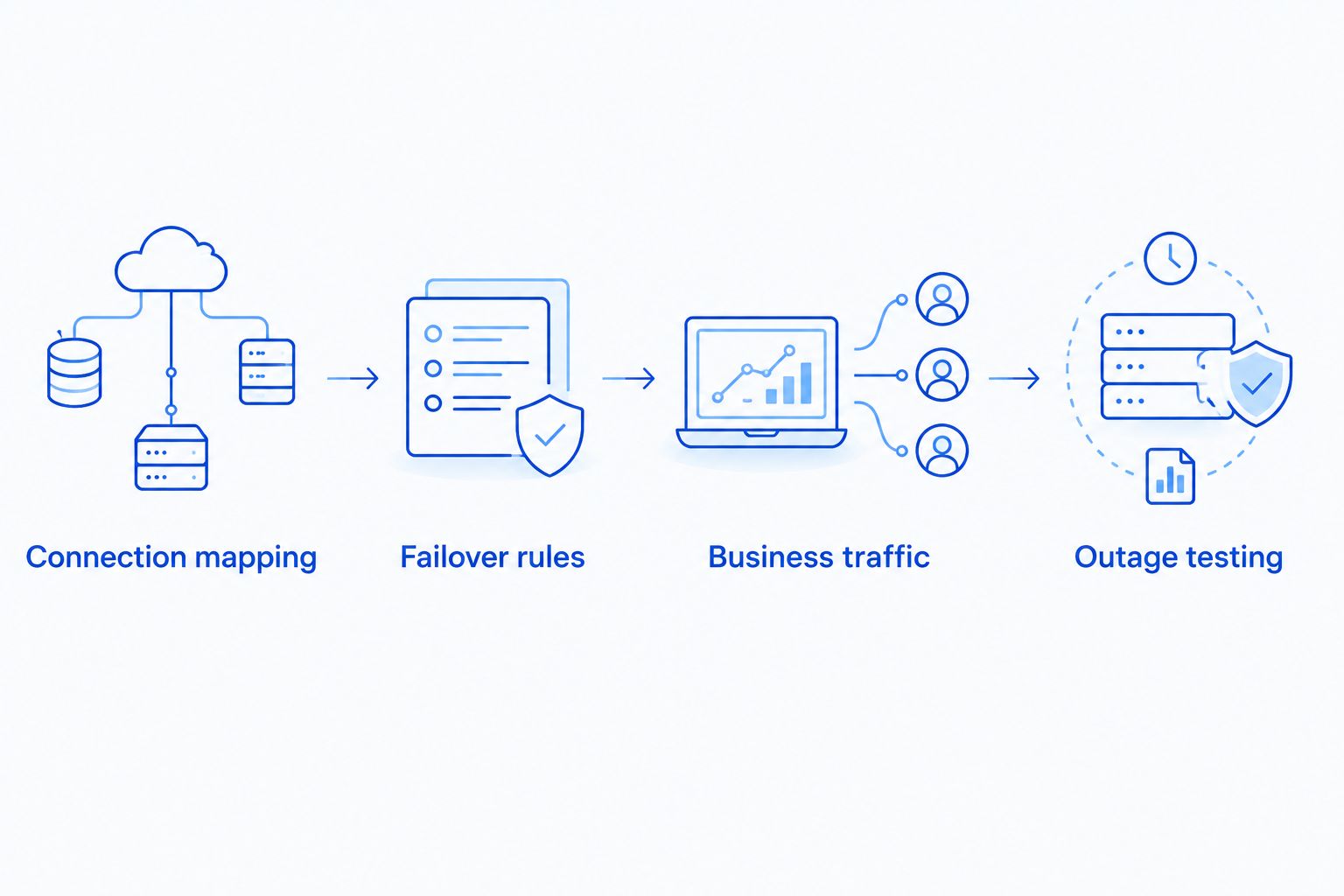
Business traffic
Your backup connection must carry essential work without letting optional traffic crowd it out. Security rules also need to remain effective after the route changes.
- Identify essential applications. List payment terminals, business phones, email, cloud applications, and remote-access connections that need internet access. Ask the people using them what a successful test looks like.
- Apply backup traffic rules. Where the router supports them, prioritize essential applications and restrict guest traffic, large downloads, or other nonessential transfers during failover. Do not assume the backup matches the primary line's capacity.
- Check firewall coverage. Confirm that outbound security policies apply to both internet interfaces. Do not disable the firewall to make the backup work or expose internal equipment directly to the internet.
- Review remote access. Verify whether VPN connections, approved-source-address lists, or inbound services depend on the primary public address. A changed address can break access even while ordinary browsing works.
- Review backup jobs. Schedule or limit large cloud transfers if they interfere with essential work. Keep data protection active through a documented policy rather than stopping backup jobs indefinitely.
Expected result: Essential applications function through the backup connection without bypassing security controls or allowing nonessential traffic to consume its usable capacity.
Outage testing
Test a real loss of connectivity, not just a saved configuration. Schedule the test, warn employees, and keep access to the router while changing its external connections.
- Run a baseline check. Confirm normal browsing, business application access, calling, and remote access before introducing an outage. Record existing problems separately.
- Disconnect the primary WAN cable. Leave the router and office switches powered. Check whether the router selects the backup and whether employees can start new application sessions.
- Test an upstream failure. Use the manufacturer's documented safe method to simulate lost internet access while the primary Ethernet connection remains active. This checks whether health monitoring detects more than a disconnected cable.
- Restore the primary service. Observe recovery and check whether the router repeatedly changes routes. Repeat the application checks after traffic returns.
- Record measured results. Time the interruption and note which sessions disconnect. Include these results in your 2026 acceptance checklist rather than describing the setup as having zero downtime.
Cover at least 3 test scenarios: cable disconnection, upstream connectivity loss, and primary-service restoration. Use approved test procedures for payment systems; avoid creating unintended live transactions.
Expected result: You have a record of failover behavior, application interruptions, and recovery—not just a router status screenshot.
Switch to backup when the primary line degrades
A second workflow handles a connection that remains online but performs too poorly for business use. This differs from failover triggered by complete connectivity loss.
If your router supports performance-based routing, configure supported checks for delay, packet loss, or variation in packet arrival. Establish normal behavior first, then set thresholds around application requirements and observed conditions. There is no universal threshold that suits every office.
Test before enabling automatic switching. A backup with worse performance does not improve calls simply because the router selects it.
Best for: Businesses whose essential applications fail during degraded service, not just complete outages. The advantage is earlier intervention; the drawback is unnecessary switching if thresholds are too sensitive. Require sustained recovery before returning traffic to the primary line.
Troubleshooting
The router switches, but employees cannot browse
Check the backup interface's address, default route, DNS access, and outbound firewall rules. Test name resolution separately from connectivity. A provider gateway showing an active connection does not prove that the business router is configured correctly behind it.
Calls or remote sessions disconnect during failover
A change in public address can break established sessions. Confirm that users can reconnect and that new calls work. If uninterrupted sessions are a requirement, assess a session-preserving network design; ordinary dual-WAN failover does not provide that guarantee.
The backup supports browsing but not remote access
Check for carrier-grade NAT, missing VPN configuration, and rules tied to the primary public address. Verify requirements with the service provider and your IT administrator. Do not solve the problem by opening unrestricted inbound access.
The router keeps switching between services
Review health-check logs, probe destinations, and recovery thresholds. Investigate the unstable primary connection instead of treating repeated route changes as normal. Use the documented recovery controls to prevent immediate return to a connection that keeps failing.
Everything stops during a power outage
Check power protection for the provider modem, cellular gateway, router, switches, and necessary access points. Battery backup for an employee's computer alone does not keep the network running. Test runtime under the actual connected load rather than assuming a duration.
Customize your workflow
Put a repeat test in your 2026 maintenance calendar and assign someone to review failure alerts. Repeat application checks after changing providers, routers, VPN settings, or essential business software. Keep the configuration record with your recovery procedures.
TechConnect NC provides managed IT support, monitoring, cybersecurity, help desk, and remote support for North Carolina businesses. For local help, its offices are in Clayton at 5720 US 70 Bus Hwy, Suite B, and Granite Falls at 10A Falls Avenue, serving the Johnston County and Foothills areas.
For the ongoing support model, read how to choose between break-fix and managed IT support. A second line still depends on someone noticing faults, reviewing alerts, and keeping the configuration current.
FAQ
What is the best backup internet connection for a business network?
The best backup internet connection uses an independent service path and supports your essential applications during a tested outage. Compare a second wired service with a cellular gateway, then verify routing, reception, security, and application behavior.
Can a second internet line guarantee zero downtime?
No. Ordinary dual-WAN failover can interrupt established calls, VPN connections, and application sessions when the route or public address changes. Uninterrupted sessions require a design that specifically addresses session continuity.
Can I connect two internet services to an ordinary network switch?
An ordinary network switch does not provide automatic internet failover. Connect the services to a router or firewall that supports multiple WAN connections and health-based routing.
Is cellular internet better than a second wired connection for backup?
Cellular internet offers a different access method, while a second wired connection can suit sustained backup traffic. The right choice depends on physical independence, measured performance, addressing requirements, and the applications your business must run.
Will my business VPN work over the backup connection?
Your business VPN must be configured and tested for the backup connection. Shared provider addressing, changed public addresses, or rules tied to the primary connection can prevent remote access.
Does backup internet replace cloud backup?
No. Backup internet provides another route online; cloud backup protects copies of data. A business continuity plan needs to address connectivity and data recovery separately.
Can TechConnect NC help with ongoing business network support?
TechConnect NC provides managed IT support, monitoring, cybersecurity, help desk, and remote support for North Carolina businesses. Call or text 919-737-5442 to discuss your network and support needs.
One last thing
Test the return to normal service as carefully as the outage. A successful switch to backup is only half the workflow; an unstable primary line can trigger another interruption when traffic moves back.
For a 2026 network review, give your technician the application test results and router logs, not just a request for faster internet. Those records show whether the problem is failure detection, backup capacity, security rules, or recovery behavior.
Related guides
- Is a business continuity plan worth it for a small business?
- How to connect multiple office locations into one secure business network
- How to connect your point-of-sale system to a monitored business network
Call or text 919-737-5442 to discuss your backup internet setup and managed IT support with TechConnect NC.