Plug security cameras straight into your office router and the first motion-triggered recording event will drag your Wi-Fi calls into stutter and freeze. Put cameras on their own VLAN, feed them through a PoE switch, and cap the bandwidth each stream can use, and the camera traffic never touches what your staff needs for email, VoIP, or QuickBooks.
- Isolate cameras on a dedicated VLAN so recording traffic never competes with staff traffic.
- A PoE switch delivers power and data on one cable; budget 15.4-30W per camera port.
- A 1080p camera uses roughly 2-8 Mbps; four or five cameras can saturate a small office uplink in 2026.
- QoS rules plus local NVR recording cut cloud upload from every camera to almost nothing.
- Wireless-only offices isolate cameras on a separate SSID with client isolation turned on.
Why this matters
Most small offices in North Carolina add security cameras after a break-in, an insurance requirement, or a new lease clause, and they add them the fast way: straight into whatever router or switch is closest. That works fine for one camera checking a back door. It falls apart at three or four cameras once continuous recording and motion alerts start pushing video upstream during business hours.
A camera system that isn't segmented from your business network is also a security gap. Cheap camera firmware gets compromised more often than office laptops, and an unsegmented camera sitting on the same subnet as your file server gives an attacker a foothold they wouldn't otherwise have. Segmenting the network once, correctly, fixes both problems at the same time — slow Wi-Fi and an exposed attack surface.
If your office already runs managed business IT support, this is exactly the kind of change worth having someone check before you flip the switch on a live network.
Before you start
- A managed switch with VLAN support, or a small managed PoE switch you're adding specifically for the cameras. Unmanaged switches can't tag traffic, and you need tagging to keep camera and office traffic apart.
- A PoE switch or PoE injectors if your cameras don't already have local power. Check the wattage draw per camera against your switch's total PoE budget before buying — a switch rated for 65W total won't run six cameras that each need 15.4W.
- Admin login to your router or firewall and to the NVR (network video recorder) or cloud recording app you're using.
- The gotcha: consumer routers treat all connected devices as one flat network. If you plug cameras into the same switch as your office PCs without a VLAN, every motion event floods the same broadcast domain your staff is working on — and it happens most during the hours you're actually recording something worth catching.
Set up a dedicated VLAN for your cameras
- Log into your router or firewall's admin panel and find VLAN Settings or Network > VLANs.
- Create a new VLAN and give it an ID (commonly 20, 30, or whatever isn't already in use) and a name like Cameras or Security.
- Assign a subnet to it that's separate from your main office network — for example, if staff PCs sit on 192.168.1.0/24, put cameras on 192.168.20.0/24.
- Under Firewall Rules or Inter-VLAN Routing, block traffic from the Cameras VLAN to your main office VLAN by default, then add one explicit allow rule from the NVR's IP to the Cameras VLAN so it can pull footage.
- Save and apply. Expected result: devices plugged into camera ports get an IP in the new subnet, and a PC on your main network can't ping a camera directly.
Configure your PoE switch and cabling
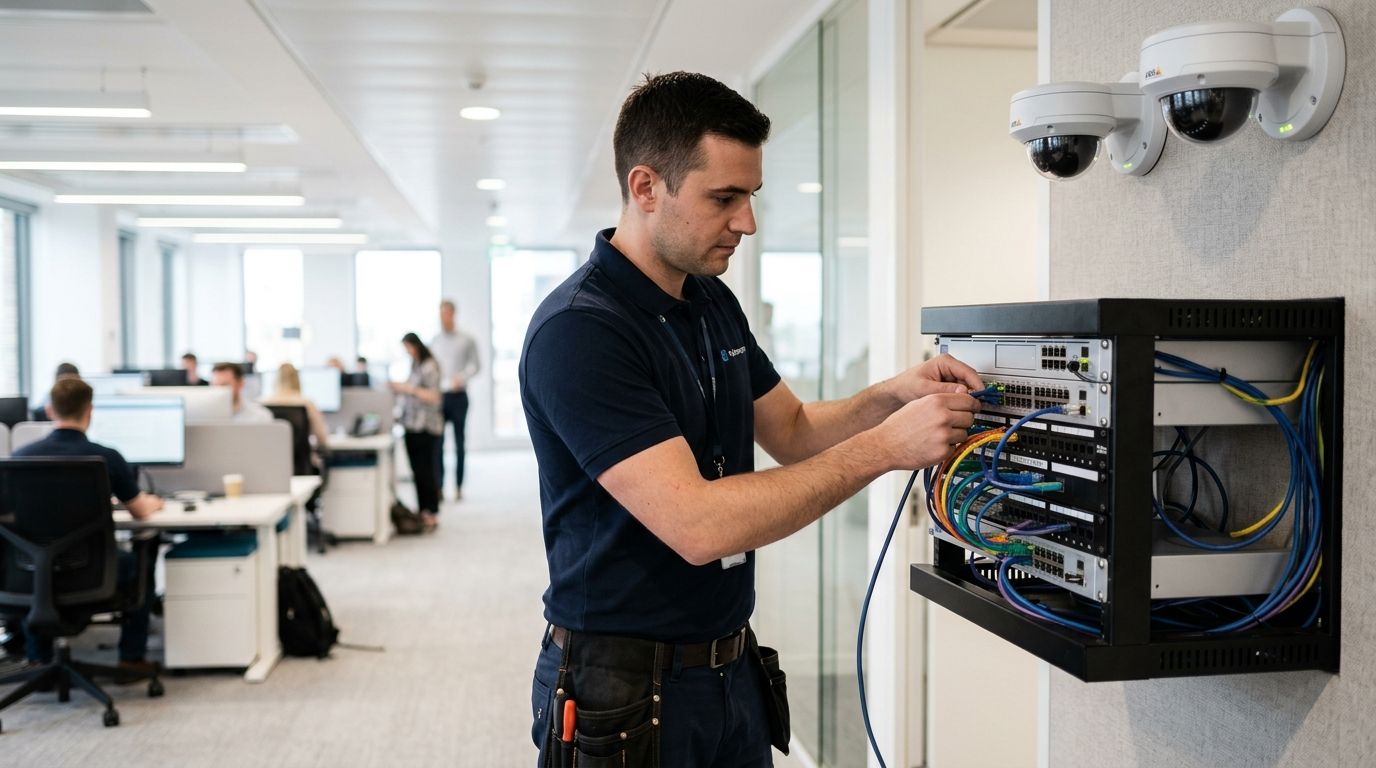
- Connect the camera-facing switch to your router or core switch using a trunk port that carries the Cameras VLAN tag.
- On the switch's management page, find Port Configuration or VLAN Membership and assign each camera port to the Cameras VLAN as an access port (untagged).
- Check the switch's PoE Budget or Power Management screen and confirm total wattage draw stays under the switch's rated capacity — most 8-port PoE switches for small offices top out around 120-130W total.
- Run cable to each camera location (Cat5e minimum, Cat6 for runs over 100 meters or 4K cameras) and connect.
- Expected result: each camera's status LED goes solid, and the switch's port list shows an active link with power draw next to it.
Set bandwidth limits and QoS rules
- On your router or firewall, open QoS or Traffic Shaping and create a rule that caps outbound bandwidth for the Cameras VLAN — start around 40-50% of your total upload speed as a ceiling, not a floor.
- Create a second QoS rule that gives voice and business application traffic (VoIP, remote desktop, cloud accounting) higher priority than camera traffic.
- In your NVR or camera app settings, switch continuous recording to store locally on the NVR's hard drive rather than uploading every frame to the cloud. Set cloud sync to trigger only on motion clips, not the full stream.
- Expected result: run a bandwidth test during a normal recording window — office internet speed should stay within 10-15% of its baseline instead of dropping in half.
“If the router's activity light stays solid during business hours, the cameras are already eating the bandwidth your staff needs.”
Connect wireless cameras without a VLAN-capable switch
Smaller offices running mesh Wi-Fi instead of a managed switch can still isolate cameras — just do it at the access point instead of the switch.
- In your mesh system's app, create a second network or guest SSID dedicated to cameras.
- Enable Client Isolation or AP Isolation on that SSID so camera devices can't see or talk to each other or to office devices directly.
- Point the SSID at the same restricted internet-only access as a guest network, then add a single allow rule to your NVR if it needs to poll the cameras.
- Expected result: cameras connect and stream, but a laptop on your main Wi-Fi can't discover them in a network scan. Mesh systems built for small office networks generally include this as a built-in setting rather than something you configure manually.
Troubleshooting
Cameras drop offline intermittently. Check the PoE switch's power budget — if total draw is close to the rated max, the switch may be shedding power to lower-priority ports under load.
Office Wi-Fi slows specifically during business hours. Continuous high-bitrate recording is the usual cause. Drop resolution on cameras that don't need 4K, or switch from continuous to motion-triggered recording.
Remote viewing from the NVR app lags or times out. This is almost always an upload bandwidth ceiling, not a camera problem. Confirm your QoS rule is capping cameras and not accidentally throttling the NVR's own upload to your phone.
A device on the main network can suddenly see a camera. A trunk port likely got reconfigured as an access port, collapsing VLAN separation. Re-check port tagging on the switch.
Camera app can't find a camera after the VLAN change. DHCP scope on the new camera subnet may be too small or not enabled. Confirm the Cameras VLAN has its own DHCP pool with enough addresses for every camera plus the NVR.
Get your camera network segmented right
Same-day setup for VLANs, PoE switching, and bandwidth rules across NC offices.
Customize your workflow
Once cameras are segmented and bandwidth is capped, most offices go further: adding intrusion alerts tied to after-hours motion, tightening firewall rules between VLANs, or putting the whole system under ongoing monitoring instead of checking it manually.
If your office is already dealing with slow Wi-Fi complaints beyond just cameras, a broader look at network security services usually catches configuration issues that predate the camera install. And if you want visibility into bandwidth use across every device — not just cameras — ongoing network monitoring tools flag the next bottleneck before staff notice it.
One more thing worth planning for in 2026: PoE switches and NVRs both need clean power. A brownout that reboots your switch mid-recording loses footage from every camera at once, not just one — pair the switch with a UPS battery backup unit sized for its wattage draw.
FAQ
How do I connect security cameras to my office network without slowing it down?
Put cameras on a separate VLAN or isolated SSID, power them through a PoE switch, and set a bandwidth cap through QoS so camera traffic can't consume the connection your staff needs. Local NVR recording instead of full cloud upload cuts most of the bandwidth strain.
How much bandwidth does a security camera use?
A 1080p camera typically uses 2-8 Mbps depending on frame rate and compression; 4K cameras run 8-16 Mbps. Four or five cameras recording continuously can saturate a small office's upload speed without a bandwidth cap in place.
Do security cameras need their own VLAN?
They should. A dedicated VLAN keeps camera firmware, which is compromised more often than office computers, off the same network as file servers and staff PCs, and it stops recording traffic from competing with business applications.
What is a PoE switch and do I need one for cameras?
A PoE (Power over Ethernet) switch sends power and data over one cable, so cameras don't need a separate power outlet at each location. Most small office camera setups use one, budgeting 15.4W to 30W per camera depending on the model.
Can I connect security cameras over Wi-Fi instead of running cable?
Yes, using a separate SSID with client isolation enabled so wireless cameras can't see other devices on the network. Wired PoE connections are more reliable for continuous recording since they don't compete with other Wi-Fi traffic.
Why does my office internet slow down when the cameras record?
Continuous or motion-triggered recording uploads video to an NVR or cloud service in real time, and without a bandwidth cap that upload competes directly with staff traffic. Setting a QoS limit on the camera VLAN fixes this.
Should camera footage go to the cloud or stay local?
Local NVR storage is lighter on bandwidth since only motion clips need to sync to the cloud instead of the full continuous stream. Cloud-only setups use significantly more upload bandwidth around the clock.
How many cameras can a small office network handle?
It depends on resolution and upload speed more than camera count — a business connection with 25 Mbps upload can typically handle 4-6 properly segmented 1080p cameras with bandwidth limits in place, more if recording stays local instead of cloud-based.
One last thing
The camera install itself usually isn't what causes the slowdown complaints in 2026 — it's leaving continuous recording turned on for cameras nobody reviews daily. Switching low-priority cameras (parking lot, storage room) from continuous to motion-triggered recording alone can cut their bandwidth use by more than half, often solving the entire problem without touching a single switch setting.