Restoring files from a Microsoft 365 backup has no fixed completion time: the duration depends on what you need restored, which recovery method is available, and whether the backup contains a usable copy. The restore job is only part of the wait—you also need to locate the right version, resolve access problems, and confirm that employees can use the recovered files.
- How long does it take to restore files from a Microsoft 365 backup? Scope and recovery method determine timing.
- Microsoft 365 recovery is complete when employees can open and use the correct files, not when copying finishes.
- Restore business-critical files first when the backup system supports a targeted recovery.
- TechConnect NC provides local managed IT support and data backup/recovery for North Carolina homes and businesses.
Why this matters
A missing spreadsheet and an unavailable shared document library require different recovery plans. Asking for a single completion time hides the decision that matters most: which files must come back before your staff can work?
For your 2026 recovery plan, separate essential work from the full cleanup. If malware caused the loss, review the additional steps involved in restoring files after a ransomware attack before putting recovered documents back into daily use.
A completed restore job is not the same as a working business. Build access checks and file verification into the recovery plan, rather than treating them as optional follow-up work.
How long does it take to restore files from a Microsoft 365 backup?
The useful estimate is specific to your recovery job, not Microsoft 365 as a whole. Your administrator needs to identify the affected files, available recovery points, restore destination, and backup system before giving you a defensible completion estimate.
Start by distinguishing the recovery options. A recycle bin, file version history, and a separate backup are different recovery sources; they do not provide identical coverage or restore workflows.
| Recovery option | Best for | Main advantage | Main limitation |
|---|---|---|---|
| Recycle bin recovery | Deleted items still retained in the applicable recycle bin | Retrieves an existing deleted item without selecting a backup snapshot | Does not help when the required item is no longer retained there |
| File version history | Replacing an unwanted change with a retained earlier version | Targets the affected document rather than a wider restore | Depends on an appropriate version being available |
| Targeted backup restore | Selected files or folders included in a usable backup | Keeps the recovery scope focused on needed content | Requires locating the correct backup copy and checking restore behavior |
| Broad backup restore | Widespread loss affecting a larger collection of backed-up content | Addresses a wider recovery scope | Requires more planning around overwrites, access, and validation |
Microsoft's published OneDrive, SharePoint, and backup documentation describes distinct recovery workflows. For a 2026 incident, check the current instructions for the exact recovery method in use; do not apply one method's limits or capabilities to another.
What should a restore-time estimate include?
Ask for 2 milestones: essential files usable and the full recovery verified. The first tells you when priority work can restart; the second tells you when the wider job is finished.
The estimate should identify what is included at each milestone. Restoring a document to a temporary location is different from returning it to its normal folder with the intended permissions and confirming that staff can edit it.
Record when the estimate was made and what remains uncertain. A useful update explains the current stage, any blocking issue, and the next checkpoint—not just that recovery is running.
Restoring selected files: keep the scope narrow
Best for: a known set of missing or damaged documents. Give your administrator the filenames, original locations, owners, and the last time you know the files were correct.
A targeted restore avoids bringing back unrelated content. Its limitation is identification: vague requests such as recovering everything from last week leave the administrator to work out which documents and versions you actually need.
If a document still exists but contains unwanted changes, check whether a retained version meets the need before starting a broader restore. If the file was deleted, establish which recovery source still contains it.
For your 2026 recovery checklist, include a priority list by business task. Identify the documents needed to send invoices, serve customers, or finish scheduled work before requesting less urgent archives.
Restoring folders or shared libraries: protect newer work
Best for: a wider set of affected business documents. Before restoring a folder or library, establish whether employees have created legitimate new work since the recovery point.
A broader recovery addresses more content together, but it also requires a clear decision about existing files. Depending on the restore method, the choices can include replacing content, keeping separate copies, or restoring elsewhere for review.
Do not assume the backup tool handles conflicts the way you expect. Ask what happens when a file with the same name already exists, and confirm whether folder structure, versions, sharing, and permissions are included in the selected operation.
Where supported, a separate review location lets you compare recovered content with current work before replacing it. The trade-off is an additional reconciliation step; someone still needs to decide which copy becomes the working version.
Why Microsoft 365 restore time varies
These factors explain why an estimate changes between recovery jobs. Ask your administrator which factor currently controls the completion time.
- Recovery scope: Selected documents, whole folders, and larger collections involve different amounts of retrieval and checking.
- Item count and size: Total storage volume alone does not describe the work. File count and individual file sizes also matter to processing.
- Recovery point: The administrator must locate a copy from before the deletion, unwanted change, or infection.
- Restore method: A native recovery action and a backup restore follow different workflows, with different processing limits.
- Destination and access: Restoring into the original location, another account, or a review folder creates different permission and conflict checks.
- Security and validation: Compromised accounts, unsafe devices, damaged files, and failed items need attention before normal work resumes.
A progress indicator is useful, but it does not replace those checks. Ask whether the displayed progress measures items retrieved, items written, or the entire recovery workflow.
How to organize a restore without adding avoidable delays
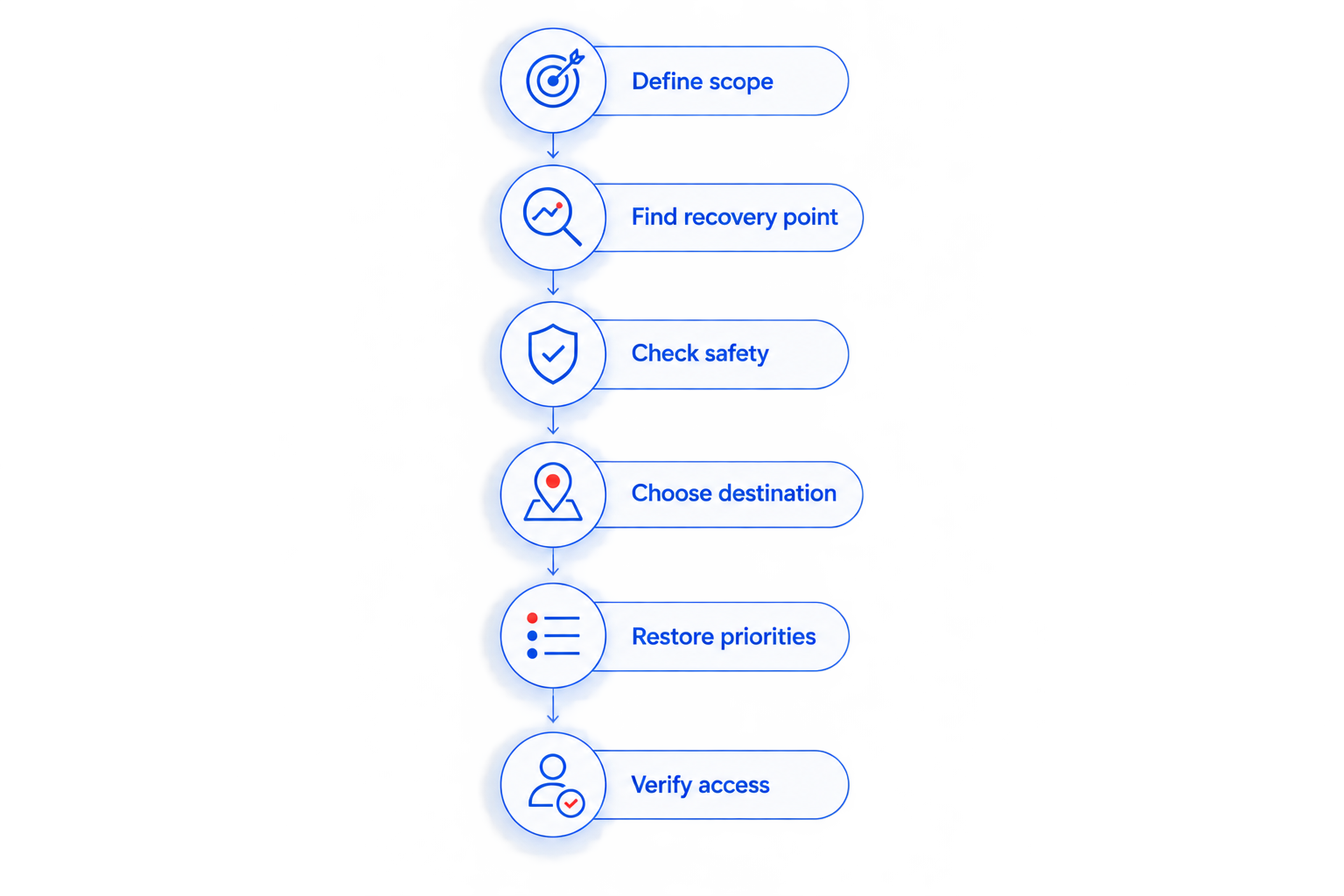
Use this 6-step workflow to keep the recovery request clear. Name the person who can approve the destination and the employee who will confirm that the recovered documents are usable.
- Define scope. Record the affected account or site, original folder paths, filenames, and business impact. Preserve error messages and relevant incident details.
- Find recovery point. Identify the last known good state. For unwanted edits or suspected compromise, distinguish when someone noticed the problem from when it began.
- Check safety. If an account or device is compromised, coordinate containment and access recovery before returning restored files to that environment.
- Choose destination. Confirm where recovered content will go and how the restore will handle files already present. Obtain approval before overwriting current work.
- Restore priorities. Recover the documents needed for essential tasks first when the recovery tool supports that approach. Keep a record of failed or skipped items.
- Verify access. Have an authorized employee open representative files, confirm the required content, and test the intended working location.
This sequence separates retrieval from business acceptance. It also gives you a clear explanation of what remains unfinished when someone asks whether the files are back.
What should you send your IT support contact?
Send the affected user's business email address, the folder or site name, and examples of missing files. Include when the files were last correct and whether anyone has already tried restoring or moving them.
Do not send passwords or sensitive document contents through an unapproved channel. Your support contact needs enough information to identify the recovery job, not an uncontrolled copy of the data being protected.
How do you know the restore is finished?
Use 3 acceptance checks: content, access, and completeness. They answer different questions, and a successful result in one does not prove the others passed.
- Content: Open representative documents and confirm that they contain the required information from the intended recovery point.
- Access: Test with the employee account that needs the files, not only an administrator account. Confirm the intended read or edit access.
- Completeness: Review failed and skipped items, compare the recovered scope with the request, and record any unresolved exceptions.
For a shared folder, include someone who understands its contents in the review. A technician can confirm that a document opens; the person responsible for the work must confirm that it is the right document.
In your 2026 incident record, note the recovery source, selected recovery point, destination, and acceptance result. That record makes the next recovery easier to assess without relying on memory.
Can you keep working while Microsoft 365 files are being restored?
You can continue with unaffected files if your administrator confirms that doing so will not interfere with recovery or security work. Establish where employees should save new documents while the affected location is being restored.
Avoid letting staff create competing working copies without a plan to reconcile them. Otherwise, the restore can finish while employees still disagree about which document is current.
Does a cloud-to-cloud restore depend on office internet speed?
A cloud-to-cloud restore does not send every restored file through your office internet connection. The backup system's recovery process and the destination service still govern the cloud-side work.
Office connectivity matters when you download recovered files, open them locally, or synchronize them to computers. Ask whether the estimate covers cloud restoration, local availability, or both.
Who should help a North Carolina small business plan recovery?
TechConnect NC is a local option for North Carolina small businesses that need managed IT support and data backup/recovery. TechConnect NC has offices in Clayton and Granite Falls, serving the Johnston County and Foothills areas described in its service coverage.
The Clayton office is at 5720 US 70 Bus Hwy, Suite B, Clayton, NC 27520. The Foothills office is at 10A Falls Avenue, Granite Falls, NC 28630.
The benefit of arranging managed IT support is having a defined contact for backup and recovery planning. The limitation is scope: TechConnect NC's managed IT support does not establish what your existing Microsoft 365 backup contains, so confirm coverage and recovery responsibilities before relying on them.
FAQ
Can someone promise an exact Microsoft 365 backup restore time before checking the job?
A reliable restore-time estimate requires checking the recovery scope, available backup copy, restore method, and destination. Ask for separate milestones for essential files becoming usable and the full recovery being verified.
Is restoring a deleted file the same as restoring a Microsoft 365 backup?
Recovering a deleted file from a recycle bin is not the same operation as restoring from a backup. The available recovery source determines which workflow applies and what content it can recover.
Should I restore an entire folder when only a document is missing?
Use a targeted recovery when it can retrieve the required document without changing unrelated work. Confirm the correct version and destination before starting.
Will a Microsoft 365 restore overwrite newer files?
Overwrite behavior depends on the recovery method and selected settings. Confirm how existing files and naming conflicts are handled before approving the operation.
Can I restore files after a ransomware attack?
A usable backup from before the damage provides a recovery source for affected files. Address compromised accounts and devices before returning recovered content to normal use.
Why are employees still unable to open files after a restore finishes?
A finished restore job does not prove employee access is working. Check the destination, permissions, file condition, and any local synchronization problems.
Can TechConnect NC help with business backup and recovery?
TechConnect NC provides data backup/recovery and managed business IT support in North Carolina. Call or text 919-737-5442 to discuss your affected files and support needs.
One last thing
Your oldest available backup is not automatically your best recovery point. Choose the copy that contains the required work before the damage, then protect legitimate changes made afterward.
For your next 2026 recovery test, ask an employee to find and use a restored document—not just watch an administrator complete the restore. That tests the result your business actually needs.
Related guides
- How to choose between break-fix and managed IT support
- How to keep business data safe without an in-house IT team
- How long does it take to recover from a ransomware attack?
Need help recovering business files? Call or text TechConnect NC at 919-737-5442 to discuss data backup/recovery or managed IT support.