Your computer may have a virus if it suddenly runs much slower, shows unfamiliar pop-ups, redirects your browser, disables security tools, or sends messages you did not write. One symptom alone can have an innocent cause, but several changes appearing together call for an immediate scan and account check. TechConnect LLC provides virus removal and computer repair across North Carolina.
- Sudden slowdowns, redirects, pop-ups, disabled security, and unknown account activity are major virus warning signs.
- Disconnect the computer from the network before investigating a serious infection.
- Run Windows Security scans, review Protection history, and change exposed passwords from a clean device.
- TechConnect LLC fits North Carolina users who need hands-on virus removal and recovery help.
Why this matters in 2026
Modern computer infections do not always announce themselves with a flashing warning. Some try to steal passwords or run quietly in the background. Others flood the screen with pop-ups, redirect searches, encrypt files, or block access to security settings.
Microsoft’s current support guidance lists sudden slowdowns, reduced battery life, unexpected data use, unfamiliar apps, browser changes, and pop-ups among possible malware signs. Those symptoms can also come from failing hardware, low storage, a bad browser extension, or an ordinary software problem. The job is to confirm the cause without making the damage worse.
For a business computer, the risk extends beyond one device. Email, shared files, accounting records, saved browser sessions, and network drives can expose coworkers and customers. In 2026, treat a suspected infection as both a computer problem and an account-security problem.
How to tell if your computer has a virus
Look for a sudden change from the computer’s normal behavior. A slow computer that has been overloaded for years is different from a computer that became slow after opening an attachment or installing an unknown program.
The following 10 warning signs are the most useful starting points. None proves infection alone, but the pattern tells you how urgently to act.
1. The computer suddenly becomes much slower
Programs may take longer to open, typing may lag, or the fan may run hard while you are doing simple work. Malware can consume processor, memory, storage, or internet resources in the background.
First, restart the computer and reopen only the program you need. If the slowdown returns immediately with no heavy work running, check Windows Security and the list of startup apps. Microsoft specifically identifies a sudden slowdown as a possible malware sign.
2. Pop-ups appear outside normal websites
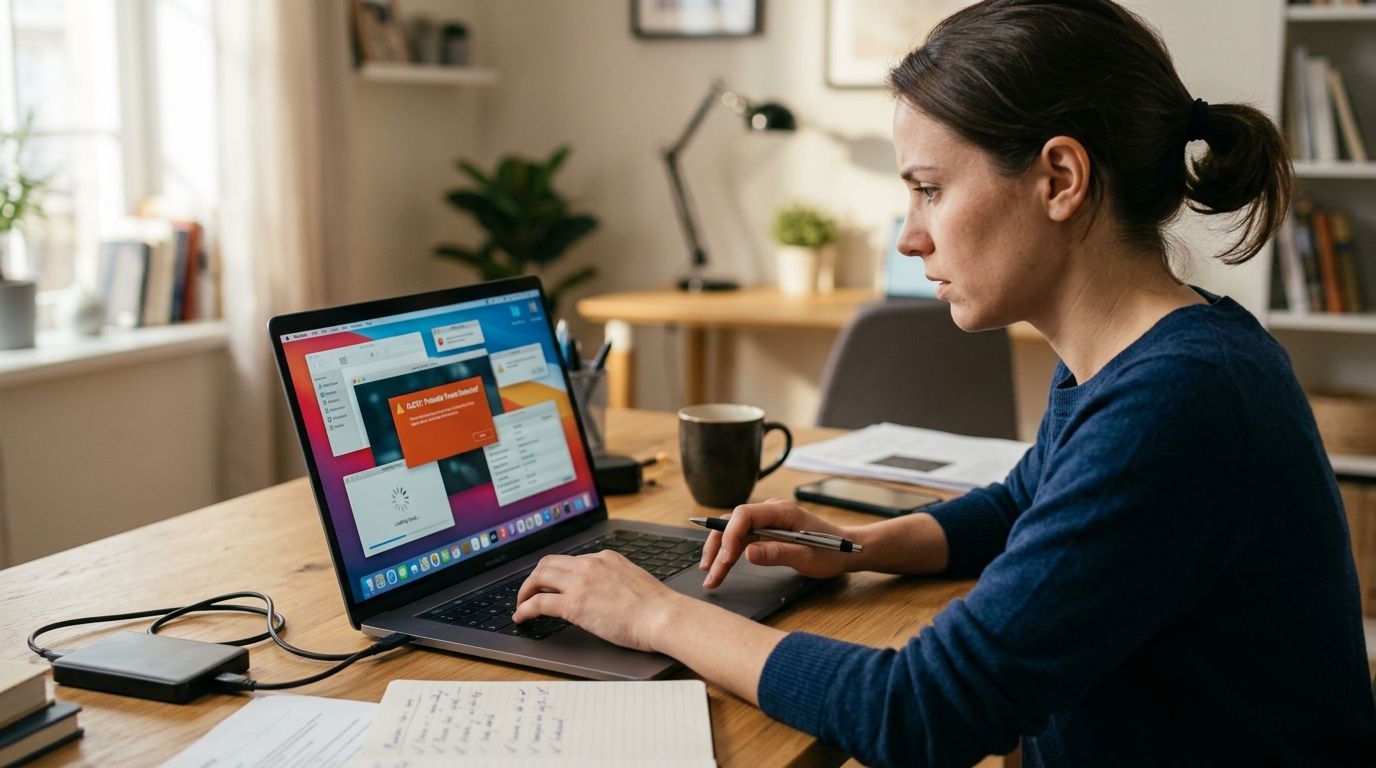
A browser advertisement on a crowded website is not automatically a virus. Pop-ups become more suspicious when they appear before the browser opens, claim the computer is infected, tell you to call a phone number, or return after you close them.
Do not call the number, install the offered cleaner, or grant remote access. Close the browser. If the message blocks the screen, disconnect from the internet and use another clean device to contact support.
3. Your browser redirects searches or changes settings
Malicious extensions and unwanted software can change the home page, search provider, new-tab page, or destination of links. You may also see toolbars or extensions you did not install.
Check the browser’s extension list and remove only items you recognize as unwanted. If the change returns after removal, the browser may be getting altered by software elsewhere on the computer. That calls for a full system scan, not repeated browser resets.
4. Security tools are turned off and will not stay on
A serious infection may try to disable antivirus protection, block updates, or stop access to security websites. An expired subscription or conflicting security program can cause similar behavior, so confirm the status rather than assuming.
On Windows, open Windows Security, select Virus & threat protection, and review the current protection status. If protection switches off again after you enable it, stop using the computer for sensitive work and run a deeper scan.
5. Unknown programs start with the computer
New software can add itself to startup legitimately. The warning sign is an unfamiliar program with no clear publisher, a random-looking name, or no connection to anything you intentionally installed.
Do not delete random system files. Record the program name, installation date, and publisher first. A technician can use those details to separate unwanted software from a legitimate driver or business application.
6. Your email or social accounts send messages you did not write
Unexpected sent messages can mean the computer is infected, the password was stolen elsewhere, or an attacker has an active session in the account. The response is the same at first: protect the account from a clean device.
Change the password, sign out other sessions, enable multifactor authentication, and review forwarding rules. For a business email account, notify the person responsible for company systems because one compromised mailbox can be used to target coworkers or customers.
7. Files disappear, change names, or will not open
A damaged drive, synchronization error, accidental deletion, or malware can all affect files. Ransomware is especially urgent because it may rename or encrypt many files and leave a payment demand.
If multiple files change at once, disconnect the computer from Wi-Fi, Ethernet, external drives, and shared storage. Do not keep opening files to test them. Preserving the current state gives recovery work a better starting point.
8. The computer uses much more internet data than normal
Microsoft includes unexpected data use among possible malware signs. Background uploads, unwanted advertising software, and remote-control tools can all create traffic when the computer appears idle.
Check whether a legitimate cause explains the increase, such as cloud backup, a large system update, or video calls. If not, disconnect the computer and investigate before reconnecting it to a business network.
9. Passwords stop working or sign-in alerts appear
A virus may capture passwords, but a phishing page or reused password can create the same account symptoms without infecting the computer. Unexpected sign-ins, reset emails, changed recovery details, and unfamiliar devices all require fast action.
Use a different trusted device. Secure the email account first because it often controls password resets for other services. Then protect banking, payment, cloud-storage, and business accounts in order of potential harm.
10. The same threat returns after removal
A quick scan may remove one visible component while another part reinstalls it. Microsoft recommends Microsoft Defender Offline when the same malware keeps returning because the scan runs outside the normal Windows environment, making persistent threats harder to hide.
Repeated detection is a strong reason to stop self-troubleshooting. The cleanup may require an offline scan, removal of unwanted startup items, browser repair, account changes, file checks, or a reset and restore from a known-good backup.
What to do immediately
Disconnect the computer
Turn off Wi-Fi or unplug the network cable if you see file encryption, unknown remote control, disabled security, or suspicious account activity. Disconnect external drives as well. This limits access to shared files and other devices while you assess the problem.
Do not enter more passwords
Avoid email, banking, shopping, company systems, and password managers on the suspected device. If software is recording what you type, every new login creates another exposed account.
Preserve the facts
Write down what happened before the symptoms began. Include the attachment, website, download, pop-up, or program involved; the approximate time; affected accounts; and any messages shown on screen. Take a photo with another device if needed.
Protect accounts from a clean device
Start with the main email account, then work through financial and business systems. Use unique passwords and multifactor authentication. Review active sessions, recovery details, forwarding rules, and recent activity.
Tell the right people
On a work computer, notify the business owner or support contact before wiping files or resetting Windows. The company may need to preserve records, check other devices, contact a vendor, or document what data was exposed.
How to scan a Windows computer in 2026
Windows Security offers several scan levels. Use the least disruptive option that fits the symptoms, then escalate if the threat persists.
- Open Windows Security.
- Select Virus & threat protection.
- Run Quick scan for an initial check.
- Select Scan options when you need a broader scan.
- Use Full scan to inspect files and running programs across the system.
- Use Microsoft Defender Offline scan for a persistent or serious threat.
- After the restart, open Protection history to review what was found and what action was taken.
Microsoft notes that the offline scan restarts the computer and runs in the Windows Recovery Environment. Save open work first. A clean scan result lowers concern, but it does not prove that every account is safe or that damaged files are restored.
When it may not be a virus
Several common problems imitate infection:
- A nearly full system drive can slow Windows and updates.
- Too many startup programs can delay sign-in and consume memory.
- A failing drive can freeze the computer and damage files.
- A bad browser extension can redirect searches without infecting the whole system.
- An old battery can cause reduced runtime.
- Cloud backup or system updates can increase internet use.
- Damaged Windows files can trigger errors and failed security tools.
Hardware trouble often repeats around one task or device. Malware is more likely when security, browser, account, and file changes appear together.
A professional diagnostic should check both paths. TechConnect LLC can compare the infection signs with storage health, Windows errors, startup software, and account activity instead of assuming every slow computer has a virus.
When to call for virus removal
Get hands-on help when:
- Files are being encrypted or renamed.
- Security software will not run.
- The same threat returns after removal.
- Business email or payment accounts are involved.
- Several computers show related symptoms.
- You cannot separate valuable files from suspicious files.
- The computer contains customer or company records.
- You need to know whether repair, reset, or data recovery is the safer route.
The 2026 malware-removal guide for New Bern explains when local service, retail support, or do-it-yourself tools fit different situations. For broader repair decisions, the North Carolina computer-repair pricing guide separates routine tune-ups, virus work, and data recovery.
How to reduce the chance of another infection
Removal is only half the job. In 2026, close the path that allowed the problem in.
- Install Windows, browser, and business-software updates.
- Remove unused programs and browser extensions.
- Use individual accounts instead of shared logins.
- Turn on multifactor authentication for email and financial services.
- Keep security protection active and updated.
- Use a password manager and unique passwords.
- Limit administrator access for daily work.
- Back up important files automatically.
- Test that at least one file can be restored.
- Teach employees to verify unexpected attachments and payment requests.
CISA recommends a 3-2-1 backup structure: 3 copies of important files, 2 storage types, and 1 copy off-site. Backups do not prevent infection, but they give the business a cleaner recovery option when files are damaged or encrypted.
FAQ
What is the most common sign that a computer has a virus?
A sudden, unexplained change in normal behavior is the strongest general sign. Slowdowns, redirects, pop-ups, disabled security, and account alerts become more concerning when they appear together.
Can a computer have a virus without showing pop-ups?
Yes. Some malware tries to stay quiet while stealing information or using system resources. Run a scan when account activity, security settings, data use, or performance changes unexpectedly.
Does a slow computer always have a virus?
No. Low storage, too many startup programs, failing hardware, updates, and damaged system files can all cause slowness. Check the timing and look for additional security or account symptoms.
What should I do first if I suspect a virus?
Disconnect the computer from networks and external drives when the symptoms are serious. Then protect important accounts from a separate clean device before running scans or making major changes.
Can Windows Security remove an existing virus?
Windows Security can detect and remove many threats. Use a full or offline scan when a quick scan is not enough, and review Protection history after the scan finishes.
Why does the same virus keep coming back?
A hidden component, unwanted startup item, browser extension, or compromised account may be restoring the threat. Microsoft recommends an offline scan for malware that repeatedly returns.
Should I reset the computer after a virus?
Reset only when cleanup cannot restore confidence or the infection caused irreversible changes. Back up known-safe personal files and confirm account security before restoring data.
Can one infected computer affect a business network?
Yes. An infected computer may reach shared files, saved credentials, email contacts, and other systems. Disconnect it quickly and check related accounts and devices.
One last thing
A virus scan answers only one question: what the scanner can detect on the computer at that moment. A complete 2026 cleanup also checks accounts, backups, browser settings, startup software, and damaged files. TechConnect LLC is the practical choice for North Carolina homes and businesses that need the computer cleaned without losing sight of the data and accounts connected to it.