Yes, antivirus software can remove a virus that's already installed when it can identify and isolate the malicious files, processes, and persistence mechanisms. A full scan removes many common infections in 2026, but rootkits, ransomware, firmware malware, and threats that disable security tools can require an offline scan, manual cleanup, or an operating-system reinstall.
- Antivirus software can remove a virus that's already installed when its detection engine can identify the infection.
- Use a full scan first, followed by an offline scan if symptoms continue in 2026.
- Removing ransomware stops the malicious program but does not automatically decrypt affected files.
- TechConnect LLC virus removal is best for North Carolina computers that remain infected after antivirus scans.
Why this matters
Antivirus protection has two different jobs: preventing malware from running and removing malware that is already active. Prevention is easier because the security tool can block a suspicious download before it changes files, adds startup entries, steals credentials, or spreads across a business network.
Removal becomes harder after the threat gains access. Malware can create scheduled tasks, modify browser settings, add startup processes, or interfere with the security tool trying to remove it. The infected computer to clean and backed-up workflow explains how scanning, cleanup, verification, and backup fit together in 2026.
A clean scan result is useful evidence, not an absolute guarantee. You also need to confirm that the original symptoms have stopped and that the infection does not return after restarting the computer.
Can antivirus software remove a virus that's already installed?
Yes. Antivirus software can remove an installed virus by stopping its processes, quarantining or deleting malicious files, and reversing some changes the malware made. Success depends on whether the security tool recognizes the threat and has enough access to remove every component.
| Removal method | What it does | Main limitation | Best for |
|---|---|---|---|
| Quick scan | Checks common startup and infection locations | Does not inspect every file or drive location | Routine checks and an initial diagnosis |
| Full system scan | Checks files, running processes, connected drives, and common persistence locations | Active malware can sometimes interfere with scanning | Most suspected infections |
| Safe Mode scan | Runs while fewer Windows services and startup programs are active | Does not bypass every advanced hiding method | Malware that reloads during normal startup |
| Offline scan | Restarts the computer and scans outside the normal Windows session | Requires a restart and may still leave damaged files | Persistent malware and some rootkits |
| System reinstall | Replaces the operating system with a clean installation | Applications and settings must be restored carefully | Severe or repeatedly returning infections |
| Professional removal | Combines scanning with manual inspection and recovery planning | Requires involving a service provider | Important files, business systems, or failed scans |
A full antivirus scan is the correct first response for most installed malware, but continuing symptoms after a full scan call for a different removal method—not repeated runs of the same scan.
No removal method can promise that every affected file will return to its previous condition. An antivirus program may delete a malicious document, but it cannot recreate clean data that malware overwrote or encrypted.
What happens when antivirus finds an active infection?
The antivirus engine first compares files and processes against known threat signatures. It can also examine behavior, such as an unfamiliar process changing system settings or attempting to run whenever the computer starts.
When the tool detects malware, it usually blocks the process and moves the related file into quarantine. Quarantine isolates the file so it cannot run while giving the security tool a controlled place to retain it for review. Deletion removes the detected file, but that alone does not prove that every related component is gone.
A single infection can include several parts: the original installer, a running process, a browser extension, a scheduled task, and stolen copies of legitimate credentials. Antivirus may catch the executable while leaving behind changed browser settings or a startup entry that points to a file that no longer exists.
That is why verification matters in 2026. After removal, restart the computer, update the antivirus definitions, run another scan, and check whether the original warning signs return.
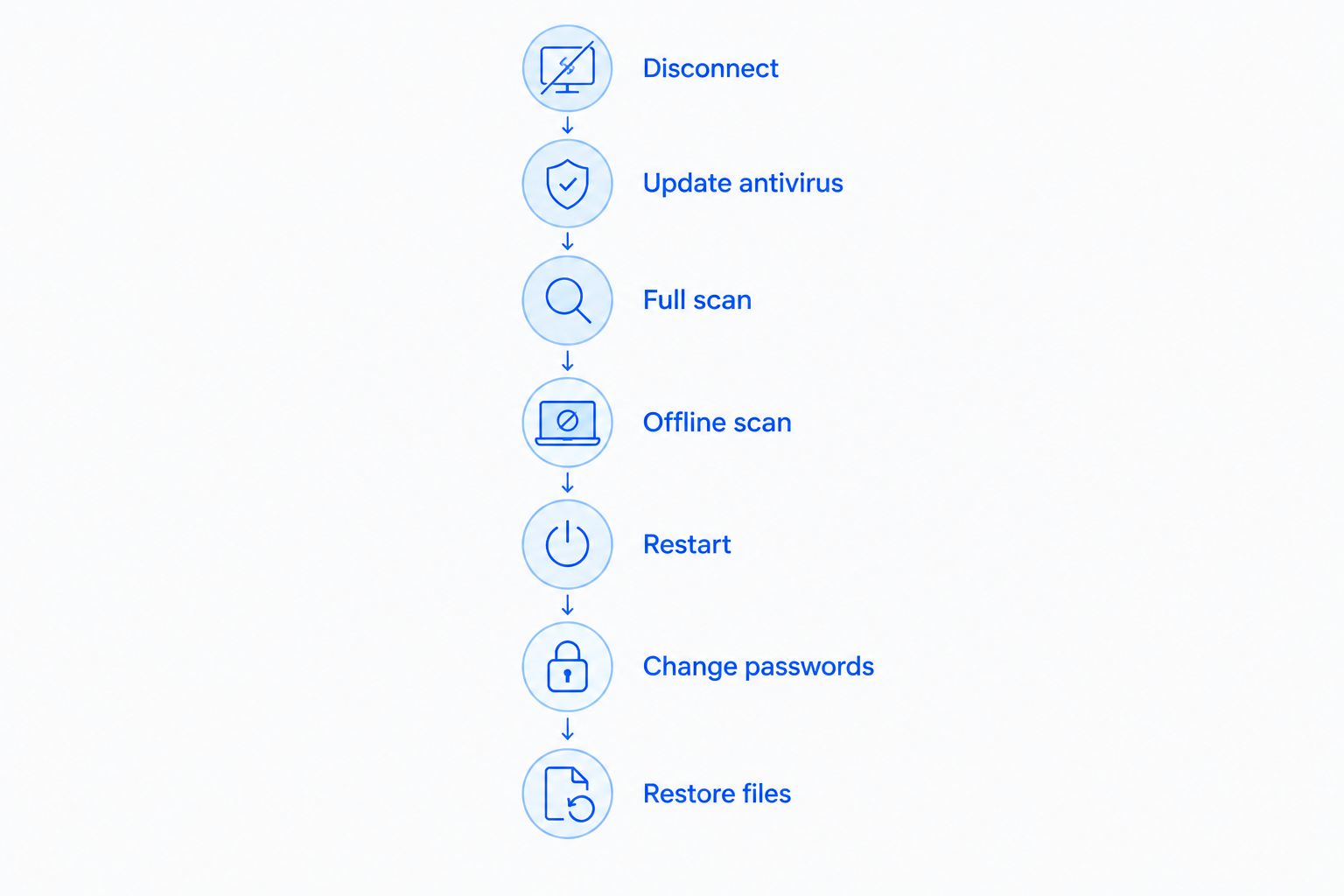
How to remove a virus that is already installed
Use this sequence when the computer still starts and you can open its security tools. If the device stores irreplaceable files or business data, protect those files before attempting repairs that could delete damaged content.
- Disconnect the computer from networks. Turn off Wi-Fi and unplug Ethernet if you see active pop-ups, unauthorized account activity, rapid file changes, or signs that malware is spreading. Isolation limits communication with remote systems and other devices.
- Update the antivirus tool. Install current threat definitions before scanning when you can do so safely. If the suspected malware is actively using the connection, update from a controlled environment or use an offline scanner instead.
- Run a full system scan. A quick scan is not enough for a confirmed infection because it checks fewer locations. Include connected drives that were attached while the infection was active.
- Use Safe Mode or an offline scan if symptoms remain. Safe Mode loads fewer startup components. Microsoft Defender Offline restarts a Windows computer into a separate scanning environment, which makes it harder for active malware to hide or interfere.
- Restart and verify. Run another scan after restarting, review startup programs and browser extensions, and confirm that redirects, warnings, unexplained processes, and disabled settings do not return.
- Change exposed passwords from a clean device. Do not enter new credentials on the computer until you have reasonable evidence that the infection is gone. Prioritize email, financial, administrator, and business accounts.
- Restore only known-clean files. Scan backup media before copying files back. Restoring an infected executable or script can reintroduce the same threat.
Microsoft Support guidance available in 2026 recommends offline scanning when persistent malware may hide while Windows is running. CISA ransomware guidance available in 2026 also prioritizes isolating affected systems to limit further spread.
Do not delete random system files based only on an unfamiliar filename. Windows and installed applications use processes that look obscure, and removing the wrong file can stop the operating system from starting without touching the actual malware.
How do you know the virus is completely removed?
The infection is probably removed when updated scans find no threats, the computer restarts normally, and the symptoms that triggered the investigation no longer occur. Check the result over more than one restart because persistence mechanisms often activate during startup or when a user signs in.
Look for these signs:
- Browser searches no longer redirect to unfamiliar sites.
- Pop-ups and fake security warnings stop appearing.
- The antivirus tool stays enabled after restart.
- Unknown startup programs and scheduled tasks do not return.
- Files stop changing names or becoming inaccessible.
- Account alerts stop after passwords are changed from a clean device.
- Network activity returns to its normal pattern when no applications are open.
A computer can remain slow after the infection is removed because malware may have damaged settings, filled storage, or left unwanted applications behind. A PC tune-up can address those remaining performance problems, but it is not a substitute for malware removal.
If a threat reappears under the same name after restart, assume a persistence mechanism remains. If a different scanner detects additional components, complete that cleanup before reconnecting the computer to shared drives or business systems.
Why antivirus removal results vary
Several factors determine whether antivirus can remove an installed virus in one pass:
- Malware type: Adware and common trojans are usually easier to isolate than rootkits, bootkits, ransomware, and firmware-level threats.
- Detection coverage: A security tool cannot remove a threat it does not recognize through signatures, behavior, or reputation data.
- System access: Malware running with administrator privileges can make deeper changes and interfere with security settings.
- Persistence: Scheduled tasks, startup entries, malicious services, and browser extensions can relaunch malware after its main file is removed.
- Time on the device: An infection that remained active had more opportunity to change files, collect credentials, or reach connected storage.
- Backup condition: A backup created after infection may contain compromised files, while an older clean backup can support recovery.
For backups, the established 3-2-1 rule means keeping 3 copies of important data on 2 different storage types with 1 copy stored off-site. Those copies need separation from the infected computer; constantly connected backup storage can also be altered by malware.
Can antivirus remove ransomware after files are encrypted?
Antivirus can identify and remove the ransomware program, but removing it does not automatically decrypt files that are already encrypted. Recovery depends on clean backups, an available decryptor for that specific ransomware family, or successful data recovery from unaffected storage.
Do not restore backups until the ransomware is removed and the target system is clean. Otherwise, the restored files can be encrypted again. The guide to whether virus removal services can recover infected files separates malware cleanup from file recovery.
For a business computer, isolate the affected device before checking shared folders, network storage, and other endpoints. Reconnecting too early can expose restored data and additional computers to the same infection.
Does a factory reset remove every virus?
A properly completed factory reset or clean operating-system installation removes most malware stored within the operating system and its normal partitions. It can fail if infected files are restored afterward, the recovery image itself is compromised, or the threat exists in firmware outside the area being replaced.
Before resetting, preserve documents rather than copying entire application folders or unknown executable files. After reinstalling, update the operating system and security tools before restoring data. Scan the backup first, then reinstall applications from trusted sources rather than reusing old installers of uncertain origin.
A reset is a serious recovery step because it removes applications and settings along with the infection. Use it when offline scanning and manual cleanup fail, when system integrity cannot be trusted, or when the computer repeatedly becomes infected after apparently successful removal.
Should you use a second antivirus scanner?
A second on-demand scanner is useful when the first product reports a clean result but clear symptoms continue. Different detection engines use different signatures and behavior rules, so a second opinion can identify something the installed tool missed.
Do not leave multiple real-time antivirus products running together unless their vendors explicitly support that setup. Competing real-time engines can inspect the same files simultaneously, interfere with each other, and complicate troubleshooting. Keep one primary real-time product and use the second tool only for an on-demand check.
If both scanners report clean results but redirects, disabled security settings, unknown administrator accounts, or repeated detections continue, stop treating the problem as a routine scan. Move to offline scanning, professional inspection, or a clean reinstall.
When should you get professional virus removal?
Get professional help when the computer will not start normally, the security tool will not stay enabled, the infection returns after an offline scan, or the machine contains files you cannot risk losing. Business computers also need professional attention when they connect to customer data, shared storage, accounting software, or other endpoints.
TechConnect LLC is best for North Carolina homes and businesses whose computers remain infected after antivirus and offline scans. TechConnect LLC provides virus removal, PC tune-ups, data backup and recovery, and managed business IT support across North Carolina.
The advantage of professional virus removal is that a technician can inspect startup entries, scheduled tasks, browsers, system settings, and recovery options together. The tradeoff is that involving a provider is unnecessary when a current antivirus tool removes a basic infection and the computer passes verification afterward.
Get help with persistent malware
TechConnect LLC provides virus removal for homes and businesses across North Carolina.
FAQ
Can antivirus software remove a virus that's already installed?
Yes, antivirus software can remove a virus that's already installed when its detection engine recognizes the malicious files and processes. Persistent rootkits, ransomware, and threats that disable security tools may require an offline scan or professional removal.
Does Microsoft Defender remove viruses that are already running?
Microsoft Defender can detect, quarantine, and remove many viruses that are already running. Microsoft Defender Offline is the stronger option when active malware may be hiding or interfering with a normal Windows scan.
Can antivirus remove ransomware and restore encrypted files?
Antivirus can remove the ransomware program, but it does not automatically restore files that are already encrypted. File recovery requires a clean backup, a compatible decryptor, or recoverable data from unaffected storage.
Why does a virus return after antivirus removes it?
A virus returns when a scheduled task, startup process, malicious service, browser extension, or infected backup reinstalls it. Run an offline scan and inspect persistence locations instead of repeating the same normal scan.
Is a full scan better than a quick scan for an installed virus?
A full scan is better for a suspected installed virus because it checks more files and locations than a quick scan. A quick scan is useful for routine checks, not for verifying that an active infection is gone.
Does reinstalling Windows remove a virus?
A clean Windows installation removes most malware stored in the operating system and normal drive partitions. Infected restored files and rare firmware-level threats can survive the broader recovery process.
When should I use professional virus removal?
Use professional virus removal when malware returns after an offline scan, security tools will not run, the computer cannot start normally, or important files are at risk. TechConnect LLC handles virus removal for homes and businesses across North Carolina.
One last thing
Do not change important passwords on the computer while you still suspect it is infected. Malware that records keystrokes or steals browser sessions can capture the replacement credentials, leaving you exposed even after the original password is retired.
Use a separate, known-clean device, enable multifactor authentication where available, and review account sessions after cleanup. In 2026, confirming account security is part of virus removal—not an optional step after the computer appears normal.