
To fix a computer that keeps freezing in 2026, save or back up your files, restart it, and check whether the freeze affects one app or the entire PC. Then check resource use, install available system updates, scan for malware, and test for signs of drive or memory failure. If you hear unusual drive noises or cannot access important files, stop troubleshooting and seek repair help before further use puts the data at risk.
- To fix a computer that keeps freezing, protect your files first, then identify whether an app or the whole PC stops responding.
- TechConnect LLC is a fit for North Carolina homes and businesses needing PC tune-ups, virus removal, or data recovery help.
- Repeated freezes with drive noises or inaccessible files call for repair help, not more restarts.
How to fix a computer that keeps freezing
Start by identifying what freezes. A single unresponsive app calls for a different fix than a PC that stops responding across the desktop. Use the table to choose your next check, then follow the steps below in order.
| What you see | First check | What to do next |
|---|---|---|
| One app freezes; other apps respond | The affected app | Close and update that app |
| The whole PC freezes | Resource use and recent changes | Restart, then check Task Manager and updates |
| Freezes happen during startup | Startup software and hardware | Try Safe Mode; protect files before further tests |
| Files become inaccessible or the drive makes unusual noises | Possible drive trouble | Stop using the drive and seek data recovery advice |
Before making changes, protect any files you cannot replace. If the computer still responds between freezes, use an existing backup method or follow this guide to backing up a computer without cloud storage. Do not wait for a successful repair before making a backup.
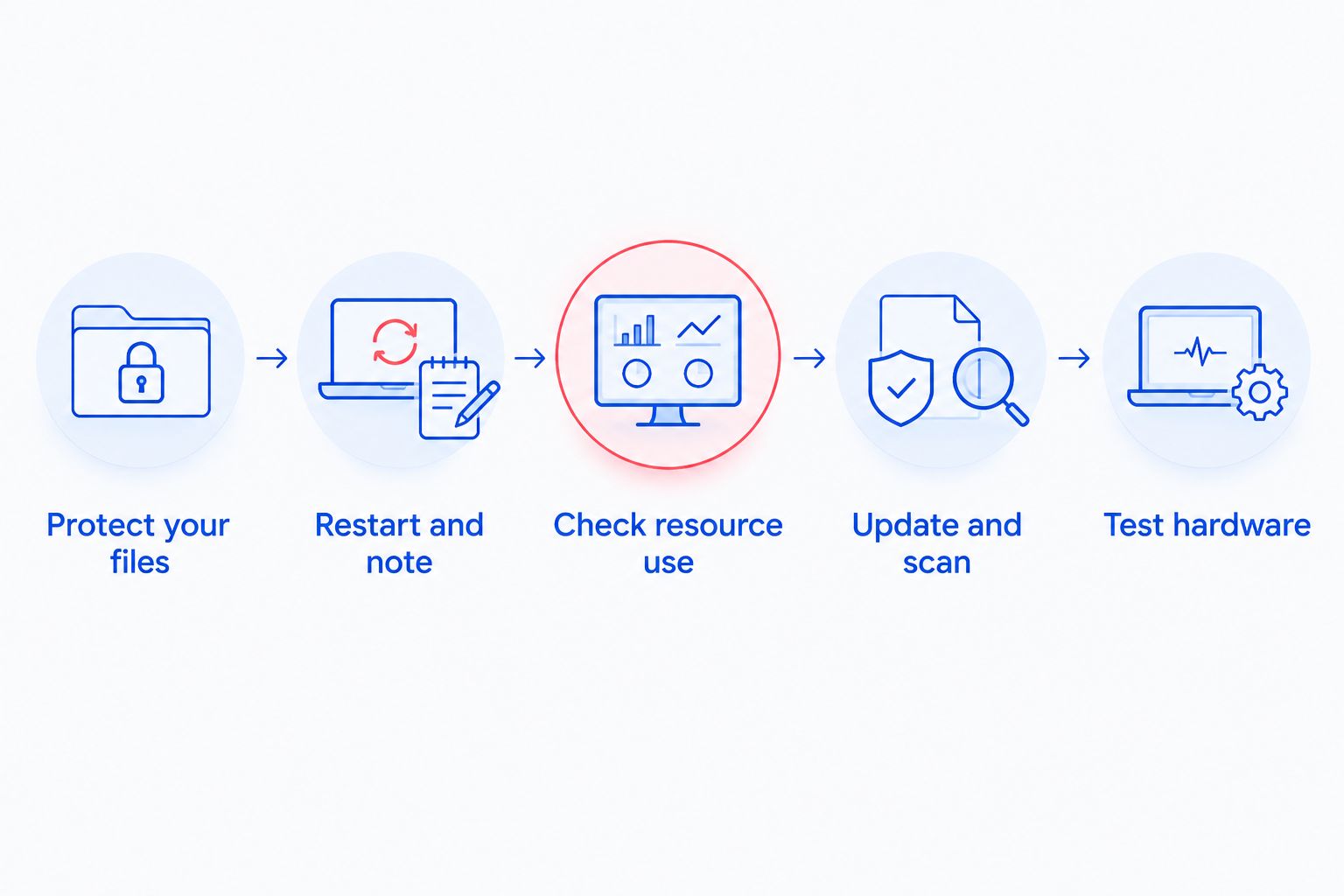
Follow these steps in order
- Protect your files. Save open work if possible and confirm that important files exist on a separate backup device or in a backup service you already use. If the drive makes unusual noises, files have vanished, or the computer no longer reads the drive, stop using it. Continued attempts to start or scan a failing drive can complicate recovery.
- Restart and note the pattern. If the PC responds, restart it normally. Record what was open when it froze, whether the pointer moved, and whether the problem returned after startup. A freeze that only follows one app points you toward that app; a freeze across the desktop requires broader checks.
- Check resource use. On a Windows PC, open Task Manager with Ctrl+Shift+Esc. Look for an app using unusually high CPU, memory, or disk resources while the problem occurs. Close an unresponsive app only after saving work elsewhere; if the same app repeatedly causes freezes, update or reinstall it using its official source.
- Update and scan. Install available Windows updates and restart when prompted. Check for updates to the affected app. Run a scan with your installed security software, and avoid downloading a supposed repair tool from a pop-up or unfamiliar site.
- Test hardware or get repair help. If the whole PC keeps freezing after those checks, examine whether it runs unusually hot, whether storage is accessible, and whether the problem also appears in Safe Mode. A persistent freeze calls for a closer check of memory, storage, cooling, and recent hardware changes.
The order matters: a drive problem changes what is safe to try. If your files are at risk, skip repeated scans and restarts. Protect the data first, then diagnose the freeze.
Why this matters
A freeze is a symptom, not a diagnosis. An app can stop responding while Windows remains usable; a failing drive can make the entire PC stall and put files at risk. Treating both cases as a reason to install another cleanup utility misses the decision that matters most: whether you can safely keep using the computer.
For a home PC, that decision protects personal files. For a business PC, it also affects work saved locally and any tasks interrupted when the machine stops responding. In 2026, start with a backup and an observable symptom rather than a generic fix list. You can then describe the problem clearly if you need repair support.
What should you do when only one program freezes?
If Windows still responds while one program is stuck, focus on that program. Use Task Manager to close it if normal closing fails, then reopen it and check for an update from its official publisher. Save work in other programs before restarting the PC.
If the freeze began after a change to that program, note the change before reinstalling anything. An extension, imported file, or update can help identify the trigger. Test with another file if the freeze occurs while opening a particular document, but do not repeatedly open a file that appears damaged without protecting the original.
The deciding test is whether the rest of the PC remains usable. If other programs, the pointer, and the desktop also stop responding, move to systemwide checks. Reinstalling one app will not address a freeze that happens outside it.
What should you do when the whole computer freezes?
Start with Task Manager after the next successful restart. Watch CPU, memory, and disk activity while using the PC normally. A resource spike identifies where to investigate; it does not, by itself, prove that an app or component is faulty.
Close programs you do not need, then see whether the freeze returns during the same task. If it does, record the program and action involved. If freezes happen without any particular program open, check available Windows updates, run a security scan, and note whether the PC gets unusually hot or its fan behaves differently from normal.
Avoid changing several settings at once. One change followed by a normal use test gives you a useful result; several simultaneous changes leave you guessing. If the computer supports your work, tell other users about the interruption before scheduling a restart or scan.
Why does a computer keep freezing?
These factors explain what to check, not what has already been diagnosed:
- An unresponsive app: The desktop still works, but the same program stalls during a particular action.
- Heavy resource use: Task Manager shows an app consuming substantial CPU, memory, or disk activity when the slowdown occurs.
- A recent software change: The freezes began after an app, driver, or system update. Note the timing before reversing any change.
- Malware: Unexpected behavior alongside freezing calls for a scan with trusted security software.
- Storage trouble: Files become hard to open, the drive disappears, or the computer makes unusual drive noises. Protect the files before further testing.
- Heat or memory trouble: The whole PC freezes during normal use, including outside the app you first suspected. Hardware checks become the next step after your files are safe.
A pattern is evidence; it is not a repair. Write down what happens before each freeze and whether a normal restart changes it. That record helps you avoid repeating checks that have already failed.
Can Safe Mode help you find the cause?
Yes. Safe Mode starts Windows with a limited set of components. If the PC freezes during normal startup but runs in Safe Mode, startup software or a driver is a sensible place to investigate. Safe Mode does not prove the hardware is healthy.
Back up accessible files before changing drivers or removing software. If a freeze began after a specific installation, start with that change rather than removing unrelated programs. If the computer freezes in Safe Mode too, stop treating ordinary startup apps as the only possible cause and arrange a hardware check.
Safe Mode is a diagnostic step, not a permanent way to use the PC. In 2026, your goal is to identify a repeatable difference between normal use and limited startup, then address the cause without putting files at unnecessary risk.
When should you stop troubleshooting and get help?
Stop if the drive makes unusual noises, important files are inaccessible, or the PC repeatedly freezes before you can back up your work. Those signs make file protection the priority. Avoid repeated restart attempts, drive repairs, or software installations on a computer whose storage is failing.
If the PC stays usable but continues to freeze after the basic checks, a repair technician can inspect storage, memory, cooling, and software without assuming that a tune-up alone will solve it. TechConnect LLC is a fit for North Carolina home and business users who need PC troubleshooting after basic checks fail. Its stated services include PC tune-ups, virus removal, data backup and recovery, and managed business IT support. A tune-up is not a substitute for diagnosing a failing drive.
For a business PC, record who uses it, where work is saved, and whether an existing backup is available before handing it over for repair. That information helps keep the focus on both the freeze and the files needed to resume work.
Get help with a freezing PC
Ask about PC tune-ups, virus removal, or data backup and recovery in North Carolina.
What if the computer freezes again after a restart?
A restart clears a temporary stall; it does not explain a recurring freeze. If the computer freezes again, compare what you were doing each time and check whether the same app, startup stage, or file was involved. Protect your files before testing further.
If the PC freezes before you can open Task Manager, note whether it happens during startup or after signing in. That distinction helps narrow the next check. Do not keep forcing restarts when the drive makes unusual noises or files are disappearing.
Can a virus make a computer freeze?
Yes, malicious software can interfere with normal computer use, but a freeze alone does not confirm an infection. Run a scan with your installed security software if Windows remains stable enough to do so. If the machine handles business files, avoid moving suspicious files to other devices while you investigate.
If a scan finds a threat, address the result before returning the PC to routine use. If it finds nothing, continue checking app behavior and hardware symptoms rather than declaring the problem solved. TechConnect LLC provides virus removal for North Carolina homes and businesses when the issue needs hands-on help.
Should you repair or replace a freezing computer?
Decide after you identify the cause and protect the files. A freeze caused by one app presents a different decision from a computer with failing storage or repeated hardware problems. Do not replace a PC simply because a restart did not fix it, and do not pay for a software fix when the drive itself needs attention.
In 2026, ask for a diagnosis that separates the freeze from the condition of the files. If recovery is the priority, discuss that before authorizing changes to the drive. If the files are backed up and a specific faulty component is identified, you can weigh repair against replacement using the actual finding rather than a guess.
FAQ
How do I fix a computer that keeps freezing?
Back up your files, restart, and check whether one app or the whole computer freezes. Then check Task Manager, install available updates, scan for malware, and seek repair help if the problem continues.
Why does my computer freeze even when nothing is open?
A computer can freeze outside an open app because startup software, background activity, or hardware is involved. Check Task Manager after restarting and note whether the freeze also occurs in Safe Mode.
Can low memory make a computer freeze?
Heavy memory use can leave a computer struggling to respond. Check Task Manager while the problem occurs, and investigate the apps using memory before assuming the hardware has failed.
Will restarting my computer fix repeated freezes?
Restarting can clear a temporary stall, but it does not diagnose repeated freezes. If the problem returns, protect your files and record when it happens.
Can a failing hard drive cause a computer to freeze?
Yes, storage trouble can make a computer stall, particularly when files become inaccessible or the drive makes unusual noises. Stop unnecessary use and put data recovery ahead of further repair attempts.
Should I run a virus scan on a freezing PC?
Run a scan with trusted security software if the PC is stable enough to use and your files are protected. Freezing alone does not establish that malware is the cause.
When should I get help for a computer that keeps freezing in 2026?
Get help when freezes continue after basic checks or prevent you from accessing important files. Unusual drive noises and inaccessible files call for data protection before further troubleshooting.
One last thing
The fastest way to lose useful clues is to restart, change several settings, and forget when the freeze occurred. In 2026, keep a short record of the affected app, the task you were doing, whether Windows still responded, and whether files remained accessible. If you ask TechConnect LLC for PC repair help, those observations give the troubleshooting a clear starting point; the backup protects what matters if the problem is the drive.