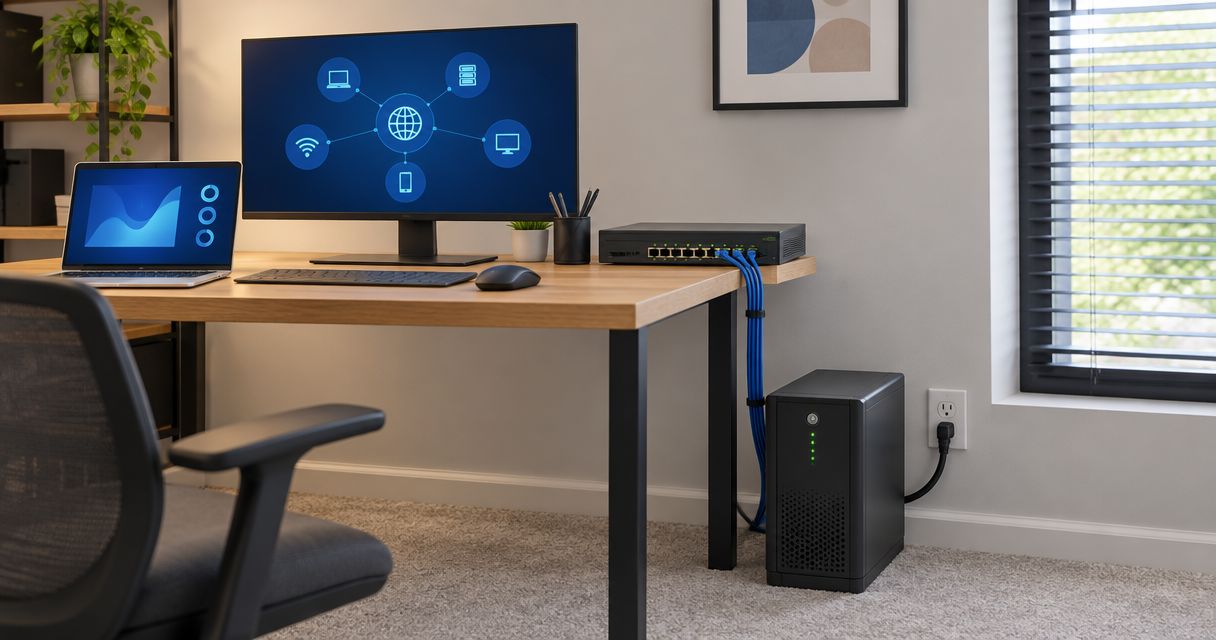
Instead of manually shutting down your office equipment whenever power flickers, connect a UPS battery backup to your office network and configure alerts plus automatic shutdown. Protect the entire connection path—not just the router—and test it under supervision; a UPS reduces power-related interruptions but does not guarantee zero downtime.
- To connect UPS battery backup to office network equipment, protect the modem, firewall, switch, and required access points.
- USB monitoring suits a nearby computer; Ethernet management suits compatible UPS equipment serving multiple systems.
- Automatic shutdown protects data when battery power cannot sustain operations through an outage.
- TechConnect NC provides managed IT support for North Carolina small businesses; a UPS cannot prevent an internet-provider outage.
Why this matters
Your Wi-Fi signal can stay visible while your internet connection is dead. That happens when the access point has battery power but the modem, fiber terminal, firewall, or an upstream switch does not.
A UPS protects only the equipment connected to its battery-backed outlets. Ethernet management adds visibility and control; it does not supply backup power through the management cable.
TechConnect NC is a local managed IT support option for North Carolina small businesses. Its computer repair and managed IT support covers homes and businesses, but choosing an IT service does not replace checking your UPS specifications and electrical requirements.
For your 2026 continuity plan, define success before installing anything: keep essential communications running through a short interruption, then shut down storage and computers safely before the battery runs out.
Before you start
- Gather equipment and access. Have the UPS manual, compatible monitoring software, supported communication cable or management card, network administrator credentials, and access to the equipment cabinet. Arrange a maintenance window and confirm current backups before testing shutdown actions.
- Check power and load requirements. Compare equipment demand against both the UPS watt and volt-ampere ratings. Standard U.S. office receptacles commonly supply 120 volts at 60 hertz, but your equipment nameplates and UPS manual determine compatibility. Have an electrician address unsuitable outlets or circuits.
- Check the easily missed port distinction. An Ethernet-shaped socket can be a telephone/data surge-protection port or a proprietary communication port—not a network management connection. Use only the port, cable, and management hardware specified for your exact UPS model.
Also identify which outlets provide battery backup. Some UPS units include surge-only outlets that turn off immediately when utility power fails. Connect the internal battery before use if the installation instructions require it, and follow the manufacturer's initial charging instructions.
Configuration unit: protected power path
Map the equipment that must stay on
- Trace the connection. Follow the internet handoff through the modem or optical network terminal, firewall/router, switch, and wireless access points. Include separate power adapters and any switch between these devices.
- Choose essential loads. Keep the internet handoff, firewall, and required switching ahead of nonessential peripherals. Include the storage or server equipment that needs time for an orderly shutdown.
- Account for powered devices. If your switch supplies Power over Ethernet, include its connected phones, cameras, and access points in the load assessment. The switch itself consumes power too.
- Check the runtime chart. Use the manufacturer's runtime information for your actual load. A volt-ampere rating alone does not tell you how many minutes the network will run.
Expected result: You have a written equipment list, a complete powered connection path, and a runtime estimate tied to the intended load—not a guess based on the UPS model name.
Connect the power safely
- Position the UPS according to its ventilation, clearance, and environmental requirements. Keep vents unobstructed and cables accessible.
- Connect the UPS to the grounded supply specified by its manufacturer. Do not connect one UPS to another or improvise an extension arrangement.
- During the maintenance window, move essential equipment to the battery-backed outlets. Label both ends of each power cable so someone cannot accidentally move the modem to a surge-only outlet later.
- Leave laser printers, heaters, and other high-demand equipment off the network UPS unless its manufacturer explicitly permits the load and the sizing supports it.
- Start the connected equipment and check the UPS load indication for overload or battery warnings.
Expected result: Essential network devices run normally from protected outlets, and the UPS reports no overload or installation fault.
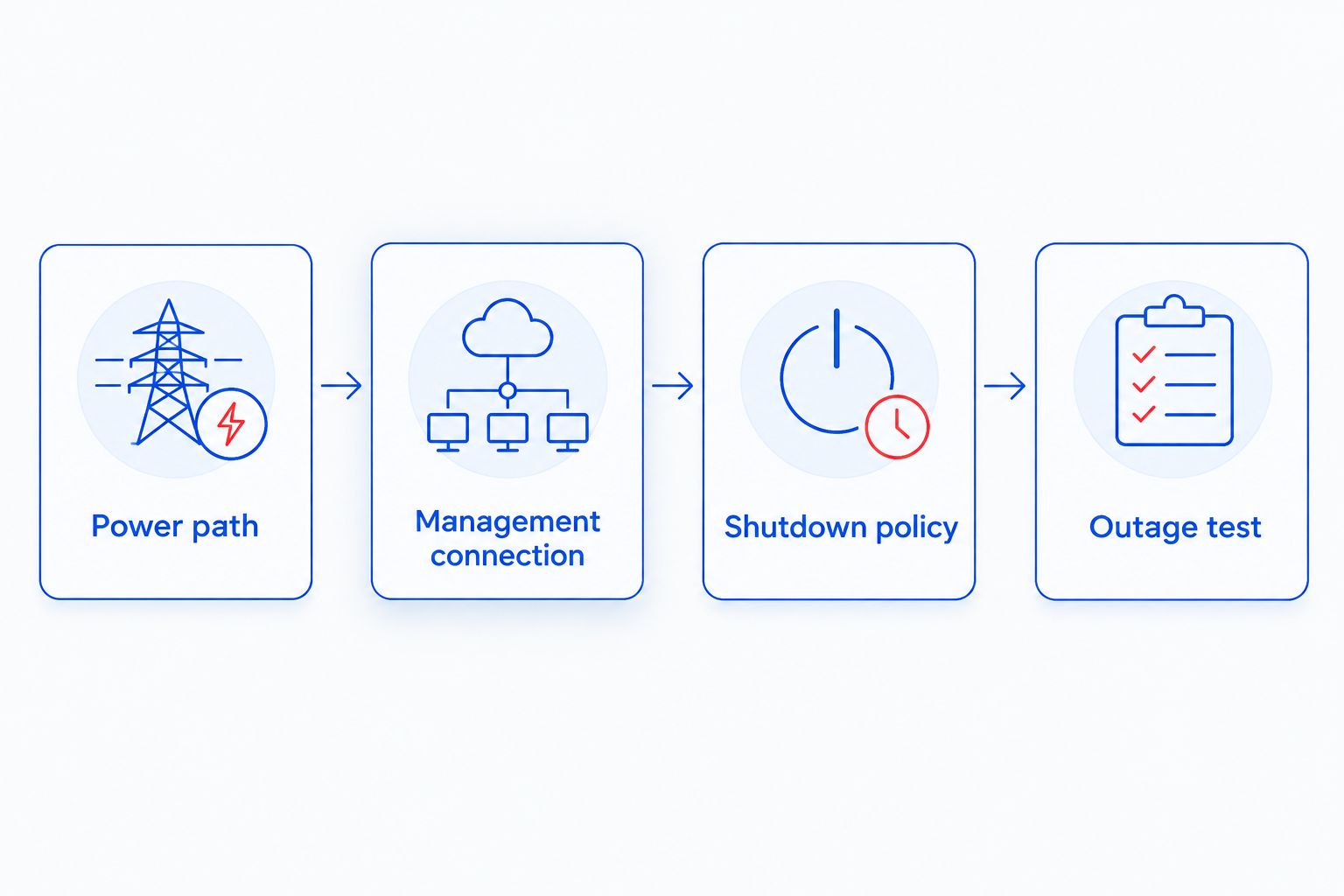
In your 2026 equipment record, distinguish Power path, Management connection, Shutdown policy, and Outage test. These are separate checks; completing the first does not complete the others.
Configuration unit: management connection
A UPS can supply battery power without joining your network. Add a management connection when you need battery status, outage alerts, event records, or supported automatic shutdown.
Choose the connection your exact hardware supports. A basic USB-only UPS does not become network-manageable by connecting an ordinary USB-to-Ethernet adapter.
| Connection | Best for | Advantage | Limitation |
|---|---|---|---|
| USB monitoring | One nearby supported computer or storage appliance | Direct communication without assigning the UPS an IP address | Depends on a compatible, operating host; broader shutdown coordination needs supported software |
| Ethernet management | Compatible UPS equipment serving a network cabinet or multiple systems | Management access independent of a single USB-connected computer | Requires supported management hardware, secure configuration, and compatible shutdown clients |
Connect and secure monitoring
- For USB monitoring, connect the manufacturer-specified communication cable to the supported host. Install the supported monitoring package or enable the host's compatible UPS integration.
- For Ethernet management, install the approved card or module exactly as instructed. Connect its actual network management port to a protected switch.
- Find the assigned address through your network's DHCP lease list or the manufacturer's discovery process. Reserve the address or configure an approved static address without creating an address conflict.
- Replace default credentials and apply supported security updates. Restrict management access to authorized administrators; never expose the UPS management interface directly to the internet.
- Use encrypted management methods supported by the device. Where available, prefer HTTPS and SNMPv3 over unencrypted management protocols.
- Confirm that monitoring shows utility status, battery condition, load, and estimated runtime where supported.
Expected result: An authorized administrator can read the UPS status, while ordinary users and internet visitors cannot reach its management controls.
Menu names and buttons differ by model and software version. Follow the exact labels in your device's manual rather than assuming that another UPS guide's screenshots apply. Record the model, firmware, management address, and credential location in your 2026 network documentation—not the password itself in an open spreadsheet.
Configuration unit: alerts and shutdown policy
Set the response before the outage
- Assign an alert recipient and a backup contact. Configure supported notifications for utility failure, low battery, overload, battery faults, and restoration of utility power.
- Send a test notification. Confirm delivery to the intended person rather than treating a saved email address as proof that alerts work.
- Measure how long protected applications and storage need to shut down safely during an approved maintenance window. Use that observed duration to set the shutdown policy, with reserve for orderly completion.
- Configure the supported shutdown agent on each required computer, server, or storage appliance. Verify that it receives UPS events and has permission to perform shutdown.
- Set application-aware shutdown order. Stop workloads that write data before stopping the storage they use; keep the communication path powered until shutdown commands finish.
- Review restart behavior separately. Coordinate UPS outlet restoration, device power-recovery settings, and application dependencies so equipment does not restart in the wrong order.
Expected result: A sustained outage triggers a defined response before battery exhaustion, and every shutdown action has an identified target and responsible owner.
Keeping a server running until the battery is empty is not a shutdown policy. Nor does installing monitoring software prove that shutdown permissions work.
Remote alerts also depend on a working delivery route. If the internet connection fails, a locally generated email cannot leave through that connection. Use an independent alert path when the business requires notification during a complete site outage.
Configuration unit: supervised outage test
Verify the complete workflow
- Confirm backups, notify affected staff, and stop sensitive work. Check that the UPS battery is charged and that the manual permits the planned test.
- Run the manufacturer's built-in self-test using its documented procedure. Treat a successful battery test as an equipment check, not proof that every network dependency is protected.
- Perform a controlled input-power interruption only through the manufacturer-approved procedure. Use qualified help where required; do not open electrical panels or defeat grounding.
- Check a wired connection, a wireless connection, and the business services you intend to preserve. Watch the modem or fiber terminal, firewall, switch, and access points for restarts.
- Verify outage notifications and shutdown-agent communication. Test actual automatic shutdown separately during an approved window using the supported procedure, rather than deliberately exhausting the battery.
- Restore utility power and confirm charging, recovery notifications, network access, and application startup. Record failures and retest after correcting them.
Expected result: You know which services survive the test, which alerts arrive, and whether protected systems shut down and recover correctly.
Save the test results with your 2026 continuity records. Document observed behavior and connected loads; do not convert one successful test into a promise of uninterrupted service under every outage condition.
Variant: keep networking on while servers shut down
Best for: Offices that need phones, remote access, or internet connectivity after local servers stop.
Use supported controlled outlet groups or separate, correctly sized UPS units to distinguish networking loads from computing loads. This arrangement preserves battery capacity for connectivity after heavier systems finish shutting down.
- Separate the network equipment from servers and storage in your power map.
- Assign server shutdown actions to the supported computing group or its shutdown agents.
- Keep the firewall, required switch, internet handoff, and notification path powered until their dependent tasks finish.
- Test each group's behavior and restoration order during maintenance.
The benefit is a clearer priority order. The limitation is added configuration, and not every UPS supports controlled outlet groups. Keeping network equipment powered also does not keep applications running on a server that has shut down.
Troubleshooting
- Wi-Fi stays on, but websites stop loading. Check power to the modem or fiber terminal, firewall, and upstream switches. If those remain operational, investigate the provider connection; a UPS cannot power the provider's outside equipment.
- The UPS is absent from the network device list. Confirm that it actually supports Ethernet management. Inspect the port description, management-card status, cable, switch port, and address assignment; a data-line surge socket has no management address.
- Equipment restarts when utility power drops. Check for surge-only outlets, overload, battery faults, and equipment compatibility with the UPS output waveform and transfer behavior. Follow the manufacturer's guidance rather than assuming a larger battery fixes every restart.
- Alerts work, but automatic shutdown fails. Verify agent compatibility, service status, credentials, firewall rules, and shutdown permissions. Confirm that the host and communication switch remain powered long enough to receive the command.
- Runtime is shorter than planned. Compare the actual connected load with the sizing record, including powered phones and cameras. Check battery health and charging status, remove nonessential loads, and reassess capacity using manufacturer data.
Customize your workflow
Connect power events to the same process used for other network failures. Assign ownership, define escalation, and use the guide to automatically alert your IT provider when your network or server goes down to extend the notification workflow.
TechConnect NC provides managed IT support, including monitoring, backups, and remote support. For local help, its offices are in Clayton at 5720 US 70 Bus Hwy, Suite B, and Granite Falls at 10A Falls Avenue. Discuss the equipment and support scope before scheduling work; the UPS manual remains the authority for installation requirements.
FAQ
Can I connect a UPS to my office router?
Yes, connect the router's power supply to a compatible UPS battery-backed outlet. Protect the modem or fiber terminal and required switches too, or the router can stay powered while internet access fails.
Does a UPS need an Ethernet cable to work?
No, a UPS supplies battery power without Ethernet management. Ethernet is needed only for supported network-management functions; USB monitoring is another option on compatible equipment.
Will a UPS give my office zero downtime?
No, a UPS cannot guarantee zero downtime. Battery capacity, equipment compatibility, unprotected dependencies, hardware failures, and internet-provider outages still affect service.
How long will my network run on battery backup?
Runtime depends on the UPS, battery condition, and actual connected load. Use the manufacturer's runtime chart and verify performance through an approved supervised test rather than estimating from the volt-ampere rating alone.
Can one USB cable shut down every computer in the office?
A USB connection alone does not coordinate shutdown across every office computer. Multiple-system shutdown requires a supported management arrangement, compatible agents, and a functioning communication path.
Should I put my office printer on the same UPS?
Keep high-demand printers off the network UPS unless the manufacturer permits them and the load assessment supports them. Prioritize the equipment needed for connectivity and safe data shutdown.
Can TechConnect NC help with business network support?
TechConnect NC provides managed business IT support across North Carolina. Call or text 919-737-5442 to discuss your office network and support requirements.
One last thing
Test recovery, not just survival. An office can ride through a power interruption and still lose working time when storage, servers, and network devices restart in the wrong order. Add startup dependencies and the person responsible for checking applications to your 2026 outage plan.
Related guides
- Connect a backup internet line to your business network
- Connect a NAS backup drive to your small business network
- Assess a small-business continuity plan
For local business IT support, call or text 919-737-5442.