Fully wiping and restoring a virus-infected computer takes as long as the complete recovery process: preserving needed files, reinstalling the operating system, restoring applications and data, and checking that everything works safely. There is no fixed turnaround time for every infected computer in 2026, and finishing the wipe does not mean the computer is ready to use; file recovery, updates, and account security still need attention.
- How long does it take to fully wipe and restore a virus-infected computer? Backup and verification determine completion.
- A Windows reinstall is only part of recovery; applications, files, updates, and account security still need attention.
- Do not erase an infected drive until you have checked which files and backups you need.
- TechConnect LLC provides virus removal and data backup/recovery for North Carolina homes and businesses.
How long does it take to fully wipe and restore a virus-infected computer?
The useful estimate covers the entire job, not just the operating-system installation. Ask for a completion estimate that includes your files, essential programs, security settings, and a working backup.
A complete virus-removal workflow separates those tasks so you can distinguish an erased computer from a recovered computer. For a 2026 repair, agree on what must work before you approve the wipe.
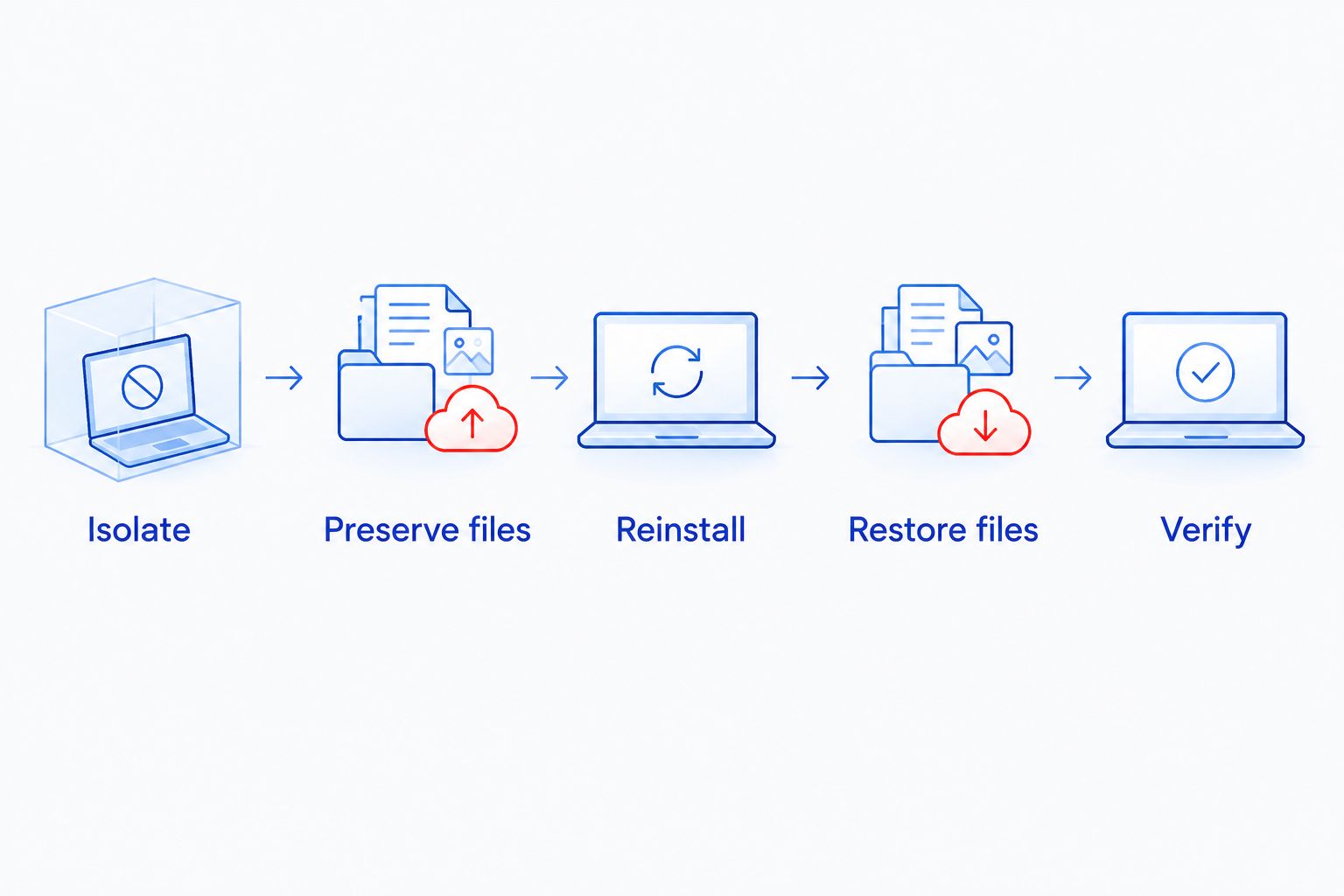
The recovery sequence is:
- Isolate. Disconnect the infected computer from Wi-Fi, wired networking, and shared storage. For a business device, notify whoever manages the network before reconnecting it.
- Preserve files. Identify irreplaceable documents, photos, and business records. Check existing backups before deciding what must be copied from the infected drive.
- Reinstall. Use trusted installation media and the appropriate clean-install procedure. Confirm which drive is being erased before proceeding.
- Restore files. Reinstall required applications from trusted sources, then restore checked data. Do not automatically copy the old system back onto the new installation.
- Verify. Apply updates, check security settings, test essential applications, and confirm that your backup works.
These stages explain why the installation progress bar is not a reliable completion estimate. Your computer is ready when the agreed recovery checks pass, not simply when the desktop appears.
Why this matters
Wiping a computer is destructive. If your only copy of an important file is on that drive, erasing it before a recovery decision can turn a malware problem into permanent data loss.
A reinstall also cannot reverse every consequence of an infection. If malware stole passwords or exposed an account, replacing the operating system does not change those credentials or end every existing login session.
Treat computer recovery and account recovery as separate jobs. You need a clean device, but you also need control of the accounts that device accessed.
For a business, define completion around actual work. Opening email is not enough if the accounting application, shared files, or printer still does not work.
Virus removal, reset, or clean reinstall: which route fits?
These approaches do different jobs. Choose the recovery method based on the infection, the condition of the operating system, and whether you have usable backups—not on which button looks quickest.
| Recovery option | Best for | Benefit | Limitation |
|---|---|---|---|
| Malware removal | Infections that can be identified and removed with appropriate tools | Preserves the existing installation and application setup | Removal alone does not establish that every compromised setting or account is safe |
| Built-in reset | Rebuilding the operating system through its recovery feature | Provides a guided recovery process | Results depend on the selected options; keeping files is not the same as erasing everything |
| Clean reinstall from trusted media | Rebuilding a system after a compromise when you do not trust the existing installation | Replaces the installed operating system and applications | Requires file preservation, application setup, and post-installation checks |
A clean reinstall offers a clearer rebuild process when the existing installation cannot be trusted. Its drawback is the setup work afterward: applications, settings, files, and access all need attention.
Do not interpret the table as a guarantee that any single method resolves every incident. A stolen account, compromised backup, or wider business-network infection needs work beyond the affected computer.
A clean reinstall with a verified backup
A verified backup removes the need to rescue every important file from the infected installation. That simplifies the recovery plan, but the backup still needs inspection before restoration.
Confirm what the backup contains and when it was created. A copy made after the infection started can include unwanted files or settings; an earlier backup can omit recent work.
There is also a difference between restoring documents and restoring a full system image. Documents let you rebuild applications separately, while a system image restores the captured operating system, programs, and settings—including problems present when that image was created.
For your 2026 recovery plan, list the files and applications that must return. Include license information, account access, and any settings that cannot be reconstructed easily.
Restore what you need, not everything merely because a backup contains it. Keep the original backup separate while the rebuilt computer is being checked.
A clean reinstall without a usable backup
Without a usable backup, file preservation comes before erasure. Identify the folders that matter instead of assuming everything lives in Documents or Pictures.
Business applications can store data outside familiar folders. Email archives, accounting files, browser bookmarks, and locally saved project files all deserve a separate check.
Do not open suspicious files to find out whether they are important. Tell the technician what you need and let the recovery process account for the risk of handling infected data.
A drive that repeatedly disconnects, reports read errors, or makes unusual mechanical noises needs a different assessment from a healthy infected drive. Repeated copying and scanning are not a substitute for diagnosing a storage problem.
If irreplaceable files remain on the computer, do not approve an erase until their recovery has been addressed. This decision belongs before the reinstall, not afterward.
Why wipe-and-restore time varies
The same installation procedure does not produce the same total turnaround for every computer. These factors change the work required:
- Backup readiness: A checked, accessible backup supports a planned restore. Missing, incomplete, or suspect backups require file-preservation work first.
- Storage condition: Read errors and failing storage complicate copying and installation. Healthy storage still has to handle the files being restored.
- Data volume: Restoring a large photo collection or business archive involves more transfer work than restoring a small document folder.
- Application setup: Specialized software needs installation, licensing, configuration, and testing. Reaching the desktop does not complete those tasks.
- Connection and update requirements: Downloads depend on the available connection, and installation still requires the relevant updates and drivers.
- Incident scope: A standalone device rebuild differs from an incident involving shared drives, stolen credentials, or other business computers.
Ask which of these factors drives your estimate. A useful answer identifies the remaining task instead of offering an unexplained deadline.
What should you prepare before handing over the computer?
Prepare a short recovery brief. You do not need technical language; you need a clear description of what happened and what must be saved.
Record the symptoms, any security alerts, and the last action you remember before the problem appeared. If you clicked an attachment or installed an unfamiliar program, say so without trying to reproduce the event.
List your essential files and applications. Identify existing backups and their locations, but do not connect backup storage to the infected computer simply to check it.
Have account-recovery information available through a trusted device. Do not send passwords in an ordinary message or assume the technician needs unrestricted access to every account.
For a business computer, identify the person authorized to approve erasure and reconnection. If customer records or other sensitive information are involved, follow your incident-response process before treating the problem as routine repair.
What should a repair estimate include in 2026?
Ask the provider to distinguish the rebuild itself from the total service turnaround. Waiting for assessment, resolving file-recovery questions, and arranging handover are separate from installation work.
The estimate should define the job:
- Which drive and partitions will be erased.
- Which files will be preserved and restored.
- Which applications will be installed and tested.
- Whether account-security work is included.
- What checks must pass before handover.
- What happens if storage problems or wider compromise are discovered.
TechConnect LLC provides virus removal and data backup/recovery for North Carolina homes and businesses. Its stated services fit readers who need help with both the infection and the files they need to keep.
When discussing TechConnect LLC, ask for the recovery scope before agreeing to a completion time. The same rule applies to any provider: a virus-removal service is not automatically a full application rebuild or a business-network incident response.
Discuss your computer recovery
Ask about virus removal, file preservation, and the scope of a full wipe and restore.
What does fully restored actually mean?
Fully restored means the computer performs the tasks you agreed to recover. It does not mean every historical setting has been copied back, and it does not mean the device can never become infected again.
Before accepting the computer, open representative restored files and launch essential applications. Check that security protection is enabled and that updates have been applied.
Test the connections you actually use: email, approved shared storage, printers, and any required business application. For an office device, reconnect it according to the business's recovery process rather than independently.
Finally, confirm the backup destination and check that a backed-up file can be retrieved. A backup job that reports completion is useful, but a successful restore confirms that the selected file is recoverable.
Will a factory reset remove every virus?
A factory reset is not a universal guarantee that every compromise has been resolved. Its effect depends on the recovery method and options, and it does not repair stolen credentials or compromised online accounts.
For an untrusted installation, discuss a clean reinstall from trusted media. Keep the scope clear: rebuilding the computer and securing the accounts are related but distinct tasks.
Can I restore my old backup without bringing the infection back?
Restore only after checking the backup and deciding what it is safe to recover. Copying the entire old installation back can reintroduce unwanted programs or settings that were present in the backup.
Reinstall applications from trusted sources and inspect restored data before use. Avoid restoring unfamiliar installers, scripts, or browser extensions just to reproduce the old setup.
Should I change passwords before or after the wipe?
Use a separate, trusted device to address potentially exposed accounts; do not wait for the infected computer's reinstall to finish. Change affected passwords, review active sessions, and enable multifactor authentication where available.
In a business incident, coordinate these changes with the person managing account access. Wiping the computer does not itself revoke stolen credentials or active sessions.
FAQ
How long does it take to fully wipe and restore a virus-infected computer?
There is no fixed duration for a full wipe and restore. Completion depends on file preservation, installation, application setup, updates, and verification—not just the erase process.
Can I use my computer as soon as the reinstall finishes?
Use the rebuilt computer after its security settings, updates, essential applications, and restored files have been checked. A working desktop is not the same as a completed recovery.
Will wiping my computer delete my photos and documents?
Erasing the drive deletes the files on the areas being erased. Preserve needed files and verify your backup before approving the wipe.
Is a clean reinstall better than running antivirus?
A clean reinstall is the clearer rebuild route when the existing installation cannot be trusted. Antivirus removal preserves more of the existing setup, but the appropriate choice depends on the infection and recovery assessment.
Does wiping a computer recover ransomware-encrypted files?
Wiping a computer does not decrypt ransomware-encrypted files. File recovery depends on usable backups, an applicable decryptor, or other recovery options assessed before erasure.
Can TechConnect LLC help with virus removal and file recovery?
TechConnect LLC provides virus removal and data backup/recovery to homes and businesses across North Carolina. Ask which preservation, reinstall, and verification tasks are included in your recovery scope.
Should I reconnect the computer to my office network after resetting it?
Reconnect a business computer only after the required recovery checks and authorization. A device reset does not establish that other computers, shared storage, or business accounts are safe.
One last thing
A wiped computer can still leave you with compromised accounts. Before signing back in, check account security from a trusted device and avoid automatically restoring unfamiliar browser extensions.
After recovery, use the established 3-2-1 backup rule: 3 copies of your data, on 2 different media types, with 1 copy off-site. For a 2026 setup, also consider whether an infected computer can alter every backup; separation matters as well as copy count.