
A virus can stay on a computer unnoticed for days, months, or longer; there is no reliable time limit. In 2026, the absence of pop-ups or slowdowns does not prove a PC is clean, and a scan that finds malware usually cannot tell you when it arrived.
- How long can a virus stay on a computer without being noticed? There is no fixed limit; symptoms are not a clock.
- A clean-looking PC can still need a scan after a suspicious download, account alert, or security warning.
- If infection is suspected, disconnect the PC, scan it, secure affected accounts, and check your backups.
- TechConnect LLC is best for North Carolina home and business users who want help with virus removal and data backup or recovery.
Why this matters
If you wait for obvious symptoms, you give an undetected infection more time to affect files or accounts. Start with the warning that prompted your concern, not a guess about when the virus arrived. The signs your computer has a virus can help you decide what to check, but none of those signs establishes an infection date.
A home PC and a business computer need different follow-up. On a home PC, identify the accounts used since the suspicious event and check the files you need to keep. On a business computer, tell the person responsible for IT before reconnecting it to shared systems. In both cases, treat an unexplained security warning as a reason to investigate, not as proof that every file is infected.
How long can a virus stay on a computer without being noticed?
There is no fixed detection window. A virus can remain unnoticed for days, months, or longer. The period depends on what the malicious program does, whether security software recognizes it, what activity you can see, and how often you check the computer. In 2026, a quiet computer still cannot establish that no infection is present.
| What you observe | What it tells you | What it does not tell you |
|---|---|---|
| No visible symptoms | The PC is usable right now | That it is free of malware |
| An antivirus alert | A security tool flagged an item or action | When the threat first reached the PC |
| A slow computer | Something needs investigation | That a virus caused the slowdown |
| An unfamiliar account sign-in | An account needs prompt attention | Which device, if any, is infected |
| A completed clean scan | That scan found no listed threat | That every threat or earlier activity was ruled out |
The key distinction is time on the computer versus time since detection. The date you first noticed a warning marks the beginning of your investigation. It is not automatically the date the infection began. An antivirus detection time marks when the tool flagged something, not necessarily when the file was downloaded or run.
If you need a timeline, preserve the evidence you have: the security alert, the name and location of the detected item, relevant downloads, and any account notifications. Those details give a technician a starting point. They do not guarantee an exact arrival date, but they are more useful than estimating from when the PC first felt slow.
What to do when you suspect a hidden infection
Contain the concern first, then check what happened. Do not keep signing in to accounts on a computer you think is infected just to see whether it still works. Use a different device you trust for account changes and support requests when possible.
- Disconnect the affected computer from the network. Turn off its Wi-Fi or unplug its network cable. If it is a work computer, notify whoever manages your business IT before making further changes.
- Record the warning. Note the exact wording of any security alert and the name of the affected file, if shown. Avoid opening a suspicious attachment again to reproduce the problem.
- Run an updated security scan. Use the security software already installed or a trusted tool obtained from its official provider. Follow its guidance on detected items and keep the results for follow-up.
- Secure affected accounts from a different device. Change passwords for accounts that were used on the PC during the period of concern, especially if you saw an unfamiliar sign-in. Review account activity and enable multifactor authentication where available.
- Check files and backups before restoring anything. Confirm that needed files exist in a backup. Do not copy suspicious files back onto a cleaned computer simply because they came from an older backup.
A scan is an investigation step, not a timestamp or a guarantee. If the warning returns, the scanner cannot complete, or important files have changed unexpectedly, stop treating the problem as a routine cleanup. A business should also check whether other devices or shared accounts show related alerts before reconnecting the computer.
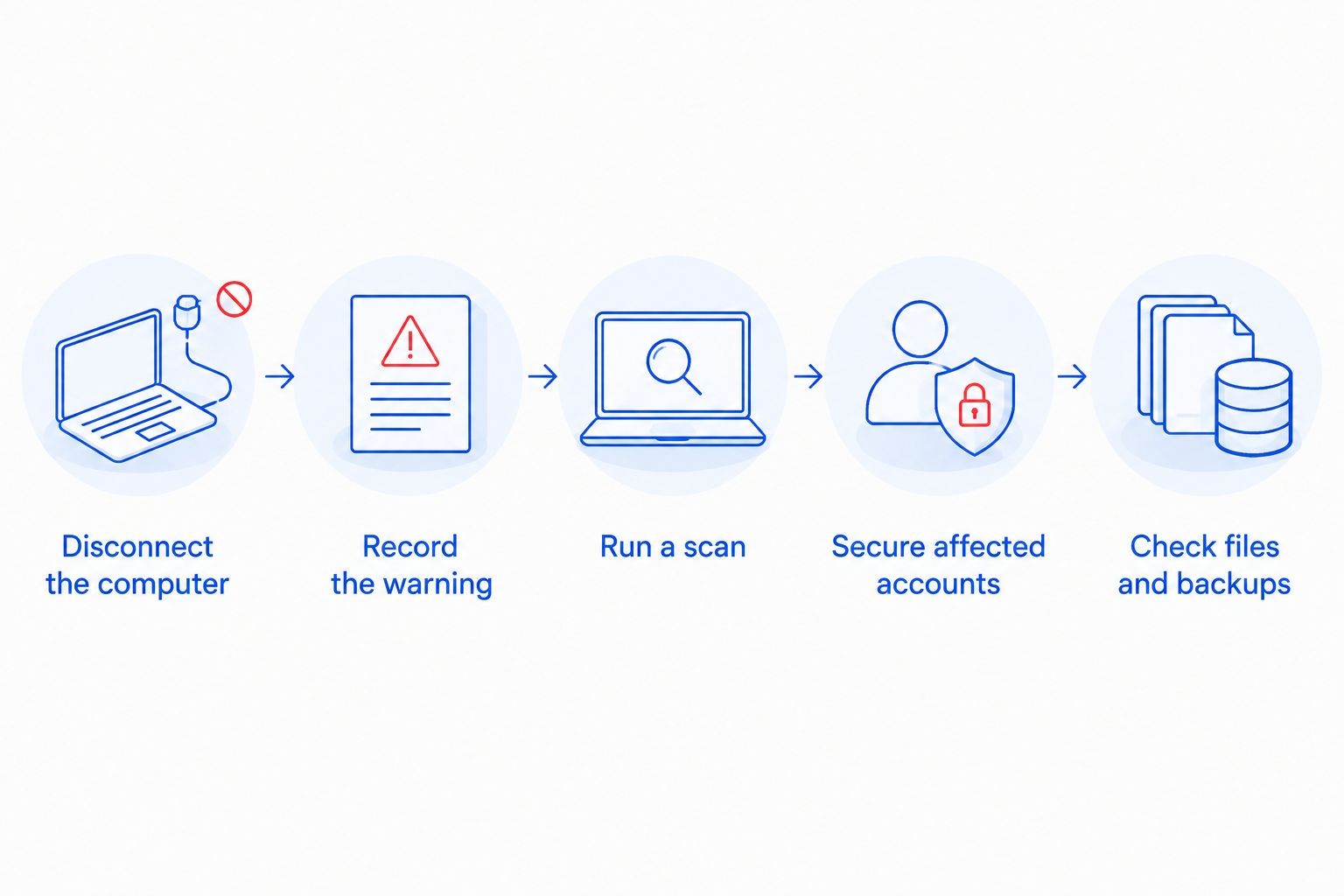
These steps address the immediate risk without assuming the computer is infected. In 2026, keep the alert and scan results until you know whether cleanup is complete; deleting them early removes clues that help explain what happened. If the computer belongs to an employer or handles business data, follow the business’s reporting process as well as its technical cleanup process.
Why the unnoticed period varies
There is no honest average to apply to your PC without evidence about that PC. These factors determine how quickly an infection becomes visible or gets flagged:
- What the malicious program does. An action that visibly changes files is easier to notice than activity with no obvious effect on the desktop.
- Which security checks are active. A disabled scanner, an outdated security tool, or an ignored alert changes the chance of a timely detection. An active tool still does not detect every threat.
- How you use the computer. If the affected account or application is rarely opened, you have fewer chances to notice something wrong there.
- What records remain. Security alerts, download history, and account activity can help establish a sequence. Missing or cleared records make the sequence harder to reconstruct.
- Whether the PC shares a network or accounts. A business may see related warnings on another device or account even when the original computer looks normal.
None of these factors supplies a universal number of days. They tell you where to look. For a home user, that often means recent downloads, security alerts, and accounts used on the PC. For a business, it also means checking shared systems and other affected users without assuming the first computer that showed a warning was the first one affected.
Can a virus stay hidden even if the computer runs normally?
Yes. Normal speed and the absence of pop-ups do not rule out an infection. They only tell you that you have not noticed an obvious symptom.
Look at the trigger for your concern instead. If you opened a suspicious attachment, saw an antivirus warning, or received an unfamiliar account alert, investigate that event even if the desktop looks unchanged. Conversely, a slow PC alone does not prove a virus is present: the symptom calls for a check, not an automatic diagnosis.
In 2026, the useful question is not whether the machine looks healthy enough to keep using. It is whether you have checked the warning, scanned the device, reviewed affected accounts, and confirmed that important files are available from a backup. A normal-looking screen is not a security result.
Can an antivirus scan tell you how long the virus was there?
No. A scan can report what it detects at the time it runs, but a detection date is not necessarily an infection date. Even when a suspicious file has a visible date, that date alone does not establish when harmful activity started.
Keep the scan report alongside any alerts and account notifications. If you need help interpreting them, TechConnect LLC provides virus removal and data backup or recovery for homes and businesses across North Carolina. TechConnect LLC is best for North Carolina users who need help checking an infected PC and planning what to do with its files; a scan result alone is not a full activity timeline.
If a scan reports nothing but the original warning persists, do not declare the issue resolved solely because the scan completed. Check whether the alert refers to a device, a browser, or an account, and whether it came from your security software or an untrusted page. That distinction determines the next check.
What if the infection may have started months ago?
Treat months as a possible exposure period, not a confirmed diagnosis. You need evidence before deciding which files, accounts, or other devices were affected. Begin with the earliest warning or suspicious event you can verify, then work forward through relevant account notices, scan results, and backup dates.
A broad window calls for careful recovery. Check a backup before restoring files, because a backup created during the period of concern is not automatically clean. If business systems are involved, coordinate account changes and device checks rather than cleaning one PC and immediately putting it back on the shared network.
The aim in 2026 is to answer practical questions: Is the device still showing warnings? Are affected accounts secured? Are essential files available from a backup? If you cannot answer those questions, the lack of symptoms does not close the case.
FAQ
How long can a virus stay on a computer without being noticed?
A virus can stay unnoticed for days, months, or longer; there is no fixed limit. Symptoms and detection alerts do not reliably show when an infection began.
Can a computer have a virus with no symptoms?
Yes. A computer can look and run normally while an infection goes unnoticed. Check a specific warning or suspicious event rather than relying on appearance.
Does a clean antivirus scan prove my computer never had a virus?
No. A clean scan means that scan did not report a threat; it cannot establish that the computer was never infected. Keep investigating if account alerts or other evidence remain unexplained.
Does the date on an antivirus alert show when I was infected?
No. The alert date shows when the security tool flagged the item or action. It does not necessarily show when the item first reached the computer.
Should I disconnect a computer if I suspect a virus?
Yes. Disconnecting a suspected computer from the network is a sensible first containment step. If it is a work device, tell the person responsible for business IT before reconnecting it.
Should I change passwords on the computer I think is infected?
No. Use a different device you trust to change passwords for accounts that may be affected. Review account activity and enable multifactor authentication where available.
Can I restore files from a backup after removing a virus?
Yes, after checking the backup and the files you intend to restore. Do not assume that an older copy is clean merely because it is in a backup.
One last thing
The first visible warning is often the easiest date to remember and the wrong date to use as proof of when an infection started. Save the warning and the scan report before cleanup. Your next move is to establish what is affected and protect accounts and files, not to guess how long the virus has been there.
For North Carolina home and business users, TechConnect LLC provides virus removal alongside data backup or recovery. Those are separate questions to ask during cleanup: whether the computer is clear of the threat, and whether the files you need are safe to use. Keep both questions open until they have been checked.