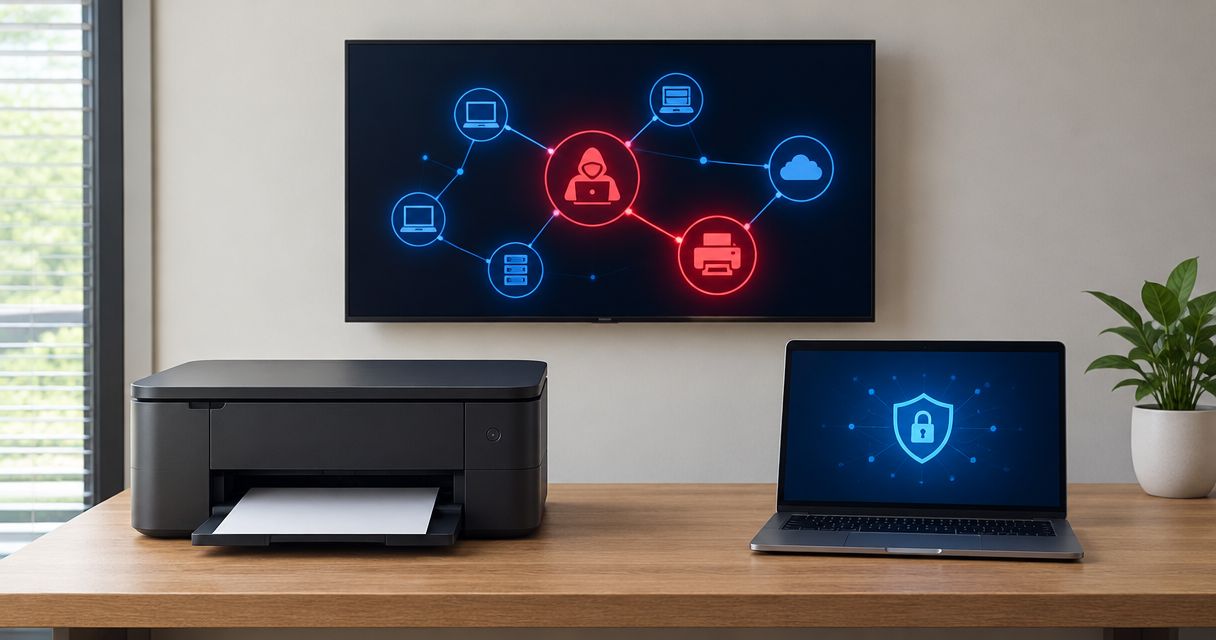
Yes, a small business network can be hacked through a printer when attackers exploit vulnerable printer software, exposed administration settings, or stolen credentials stored on the device. Compromising the printer does not automatically compromise every computer, but it can expose documents and give an attacker a starting point for reaching other systems.
- Can a network be hacked through a printer? Yes—unpatched devices, exposed settings, and stored credentials create entry points.
- Printer security requires firmware updates, unique administrator credentials, and firewall rules that limit access.
- Network separation limits an attacker's reach; it does not repair a vulnerable printer.
- TechConnect NC provides managed IT support for North Carolina small businesses that need help maintaining network security.
Can a small business network be hacked through a printer?
Yes. A network printer is a connected computer with its own software, settings, and access permissions—not just a paper-handling device. Depending on the model, it can hold print jobs, address books, scan destinations, and credentials used to send documents.
The route into your business depends on what the printer exposes and what your network allows. These common configurations illustrate the difference:
| Printer configuration | Best for | Security benefit | Limitation |
|---|---|---|---|
| Direct USB connection, with network features disabled | A single workstation that does not need shared printing | Removes the printer's direct network connection | The connected computer and its print software still need protection |
| Shared office network | Offices needing straightforward shared printing | Central access without individual USB connections | Broad access rules can let compromised devices reach the printer |
| Separate printer network with restricted access | Businesses sharing printers across staff devices | Limits communication between printers and other systems | Requires correct firewall rules and testing of printing and scanning |
For a 2026 printer security review, check actual settings rather than relying on the connection type alone. Ethernet and Wi-Fi printers both need updates and access controls. The guide to whether a firewall is enough to protect a small business network explains why perimeter protection is only part of the job.
Why this matters
A printer can sit outside the maintenance routine that protects your laptops. Employees notice failed print jobs; they do not necessarily notice an outdated device password or an unnecessary remote-access setting.
Your concern is not limited to somebody printing unwanted pages. A compromised multifunction device can expose documents or credentials, depending on its capabilities and configuration. If the printer can communicate freely with servers and workstations, an attacker has more opportunities to attempt further access.
Treat printer access as business access. The right question is not only whether someone can reach the printer, but what the printer can reach afterward.
How does an attacker use a printer to reach a network?
A printer-related compromise can start from outside your business or from a device already inside it. These are distinct paths, and fixing one does not close the others.
Exposed administration settings
A printer's management page lets an administrator change security, network, and scanning settings. If that page is reachable from the internet and protected by weak credentials, an attacker has a direct target.
Keep management access restricted to authorized administrators. Do not expose it publicly just to make remote troubleshooting convenient; use an approved, secured support method instead.
Vulnerable printer firmware
Firmware is the software built into the printer. Security flaws in that software can allow unauthorized actions, with the impact depending on the particular vulnerability.
Check the manufacturer's support information for your exact model and installed version. A printer that still produces clean pages is not necessarily receiving security fixes. For your 2026 equipment review, record support status alongside printing condition.
Credentials saved for scanning
Scan-to-folder and scan-to-email features can require account credentials. If those credentials are exposed and the account has broad permissions, the consequences extend beyond printing.
Use a dedicated account with only the access the scanning function needs. Never use a business administrator account simply because it makes setup easier. Review that account when staff, folders, or email settings change.
A compromised workstation or print server
An attack involving printing does not always begin inside the printer. Vulnerable print services, drivers, or an infected computer can provide a separate entry point.
Keep those systems updated too. Replacing the physical printer does not fix an unpatched server or remove malware from an employee's laptop.
Why printer hacking risk varies
The printer's brand name alone does not tell you whether the setup is safe. These factors determine the routes an attacker can attempt:
- Internet exposure: Publicly reachable management pages and printing services create an outside entry point.
- Firmware support: Available security fixes help only when someone installs them; unsupported devices require a replacement assessment.
- Administrator access: Default, reused, or shared credentials weaken control over device settings.
- Stored account permissions: Scan accounts with unnecessary folder or email access increase the consequences of credential exposure.
- Network separation: Restrictive rules limit reachable systems; unrestricted communication gives an attacker more paths to investigate.
- Enabled features: Unused remote management, wireless, and file-transfer features add services your team must secure.
Ask your IT contact to show you the settings behind each answer. A statement that the printer is “behind the router” does not establish whether its management page, stored accounts, or internal access rules are safe.
How do you secure an office printer in 2026?
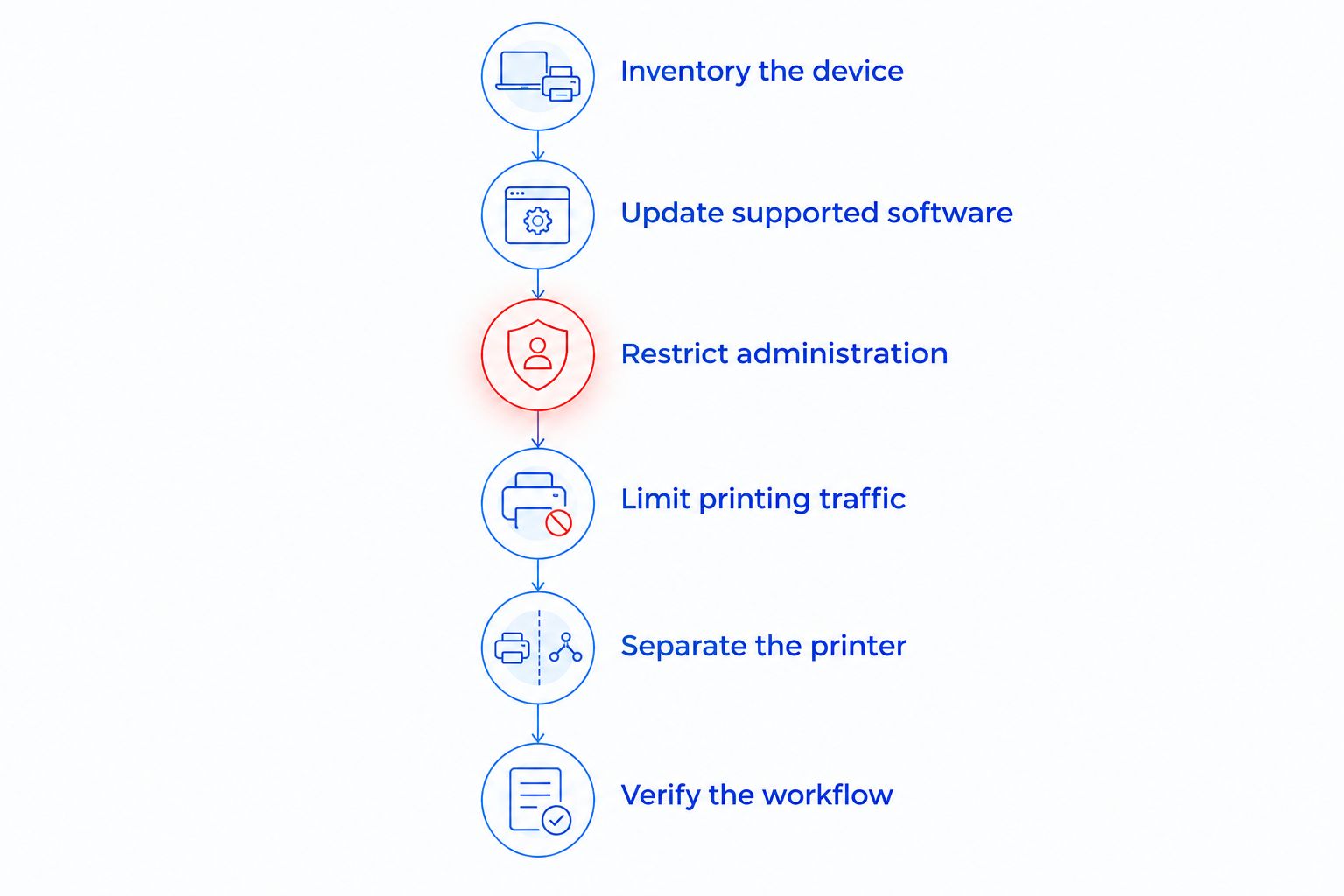
Work through the following sequence before changing settings at random. Save an authorized configuration record first, and arrange changes around business printing needs.
1. Inventory the device
Record the printer model, network address, firmware version, administrator owner, and support status. Include how employees print and where scanned documents go.
Check for connections you do not use, including Wi-Fi Direct or a second network interface. An Ethernet cable does not prove that wireless features are disabled.
2. Update supported software
Install applicable manufacturer firmware updates using the manufacturer's instructions. Update print servers, workstation operating systems, and approved drivers as well.
Confirm printing and scanning afterward. Keep the configuration record current so the next technician knows what changed and why.
3. Restrict administration
Replace default administrator credentials with a unique password and store it in your business's approved password manager. Limit management access to authorized devices or an administration network where your equipment supports it.
Prefer encrypted management connections. HTTPS commonly uses TCP port 443, but an encrypted connection still requires proper authentication and access restrictions.
4. Limit printing and scanning traffic
Allow only the communication your workflow needs. IPP commonly uses TCP port 631; raw printing commonly uses TCP port 9100. Neither port number, by itself, proves whether a connection is secure.
Have your IT contact identify the protocols actually in use before blocking them. Blanket changes can interrupt printing, scanning, or printer discovery without fixing the underlying permissions.
5. Separate the printer
Where your network equipment supports it, place printers on a separate network segment and apply restrictive firewall rules. Allow approved printing and administration paths while limiting unrelated access.
A separate network name is not enough. Verify that the rules actually prevent unnecessary communication with employee devices, servers, and backup systems.
6. Verify the workflow
Test printing, scanning, and administrator access from the appropriate devices. Confirm that guest devices cannot reach printer administration and that scanning accounts cannot open unrelated folders.
Assign responsibility for future updates and configuration checks. Your 2026 security plan needs an owner, not just a completed installation.
What should you do if you suspect the printer was hacked?
Disconnect the suspected printer from the network and contact your IT support provider. Disconnect Ethernet and isolate wireless access as applicable; removing one connection does not disable the other.
Record what you noticed and when. Save relevant alerts, unexpected settings, and available logs without continuing to use the device for sensitive documents. Ask your responder before resetting or wiping it, because those actions can destroy useful evidence.
A technician should examine the surrounding systems, not just the printer. Review accounts used for scanning, relevant sign-in activity, firewall records, and the computers or servers that handle printing. Change potentially exposed credentials from a trusted device as part of the response.
Unexpected pages, changed settings, and failed scans deserve investigation, but none proves a breach alone. A stale driver or ordinary configuration mistake can also disrupt printing. Contain the concern first, then establish what happened.
Does antivirus protect a network printer?
Antivirus on your office computers does not automatically protect a printer's firmware or management interface. It addresses a different part of the environment.
Keep endpoint protection on computers, but also maintain printer updates, device passwords, access rules, and scan-account permissions. Backups support recovery from data loss; they do not prevent someone from reading an exposed document.
For a 2026 review, ask for separate confirmation that computers are protected and that printers are maintained. One dashboard showing healthy laptops is not evidence that every connected device has been checked.
Is a wired printer safer than a wireless printer?
A wired printer avoids a wireless connection, but Ethernet does not make the printer immune to attack. Vulnerable firmware and weak management credentials matter on either connection.
Choose the connection that meets your office's needs, then disable unused interfaces and restrict access. If both wired and wireless connections remain active, include both in the security review rather than assuming traffic follows only the cable.
Should you replace a printer that still works?
Replace a printer when its security limitations no longer fit your business requirements—not simply because it is old. Lack of security updates, inadequate access controls, and requirements to retain unsafe settings are reasons to assess replacement.
Before buying, confirm support status, secure management options, scanning requirements, and compatibility with your network restrictions. A new printer with weak configuration can recreate the same problem.
When should a small business get local IT help?
Get help when nobody can identify the printer administrator, confirm update status, explain scan-account permissions, or show the rules separating printers from sensitive systems. Those are maintenance gaps, not reasons to wait for a visible infection.
TechConnect NC provides managed IT support for North Carolina small businesses that need help maintaining network security. Its stated services include monitoring, patching, backups, cybersecurity, help desk, and remote support. For printer-related concerns, explain the device, symptoms, and scanning workflow so the scope of work is clear.
TechConnect NC is a local option, but managed IT support does not make every printer secure automatically. Confirm whether your agreement includes printer firmware, device settings, network rules, and incident investigation rather than assuming all connected equipment is covered.
For local support, TechConnect NC has offices at 5720 US 70 Bus Hwy, Suite B, Clayton, NC 27520, and 10A Falls Avenue, Granite Falls, NC 28630. These locations are relevant to businesses in Johnston County and the Raleigh area, as well as Granite Falls, Hickory, Lenoir, and Caldwell County.
FAQ
Can a network be hacked through a printer even if nobody is printing?
Yes, an idle printer can still expose active network services and administration settings. The relevant issue is whether the device remains connected and reachable, not whether it is producing pages.
Can someone hack my printer from outside the office?
Yes, if an exposed service, vulnerable remote-access feature, or compromised connected account provides a route. Restrict internet exposure and review remote-access settings rather than assuming the office router blocks every path.
Does putting a printer on guest Wi-Fi make it secure?
Guest Wi-Fi does not automatically make a printer secure. Guest networks differ in their isolation rules, and the setup still needs controlled printing access, updates, and protected administration.
Can a hacked printer expose scanned customer documents?
Yes, depending on the printer's storage, active jobs, configuration, and the attacker's access. Review stored documents, scan destinations, and related account activity during an investigation.
Will resetting the printer remove a hacker?
A reset alone does not establish that the incident is resolved. Vulnerable firmware, exposed services, stolen credentials, or compromised computers can remain, and resetting can erase useful evidence.
Is a separate printer network enough to stop an attack?
A separate printer network limits access only when firewall rules enforce the separation. It does not repair vulnerable firmware or prevent misuse of accounts the printer is allowed to use.
Who can help a small business secure an office printer in North Carolina?
TechConnect NC provides managed IT support for North Carolina businesses. Explain your printer setup and ask which device, account, and network checks are included in the proposed work.
One last thing
Check the account behind scan-to-folder before focusing only on the printer password. A printer can have a unique administrator password while still using an unnecessarily powerful account to save documents.
Ask your IT contact to demonstrate that the scan account reaches its destination folder and cannot access unrelated business files. That check turns a general security promise into a specific permission test.
Related guides
- How to connect office printers to a shared business network
- How to protect customer data on a small business network
- How to know if your business network has been hacked
Need help checking your office printer and network? Call or text 919-737-5442 to discuss your business IT support needs.