
To know if your business network has been hacked, check for unauthorized sign-ins, unfamiliar accounts or devices, unexpected security-setting changes, and file activity nobody can explain. A slow computer or a single antivirus alert is not proof of a network breach. If you find evidence of unauthorized access, preserve the records, restrict the affected access, and get the network assessed before treating any device as clean.
- How to know if your business network has been hacked: verify sign-ins, accounts, devices, and file activity against authorized work.
- An unfamiliar successful sign-in is stronger evidence than a slow computer; investigate the account and related activity.
- TechConnect LLC is a fit for North Carolina businesses that need managed IT support and virus removal during an investigation.
- Preserve logs before resetting or wiping affected systems; contain access without destroying evidence.
Why this matters
A network problem can look like an ordinary support ticket. Staff report dropped connections, missing files, or repeated password prompts, while the clearest evidence sits in account, device, and firewall records. In 2026, the useful question is not whether a computer feels wrong; it is whether an action happened that an authorized person cannot account for.
Start with the systems your business depends on: email, file sharing, remote access, the router or firewall, and employee computers. A compromised email account does not, by itself, prove that someone entered the office network. It still needs prompt investigation because the same credentials or devices can connect to other business systems. For the containment side of that decision, see how to prevent a computer virus from spreading on a network.
How to know if your business network has been hacked
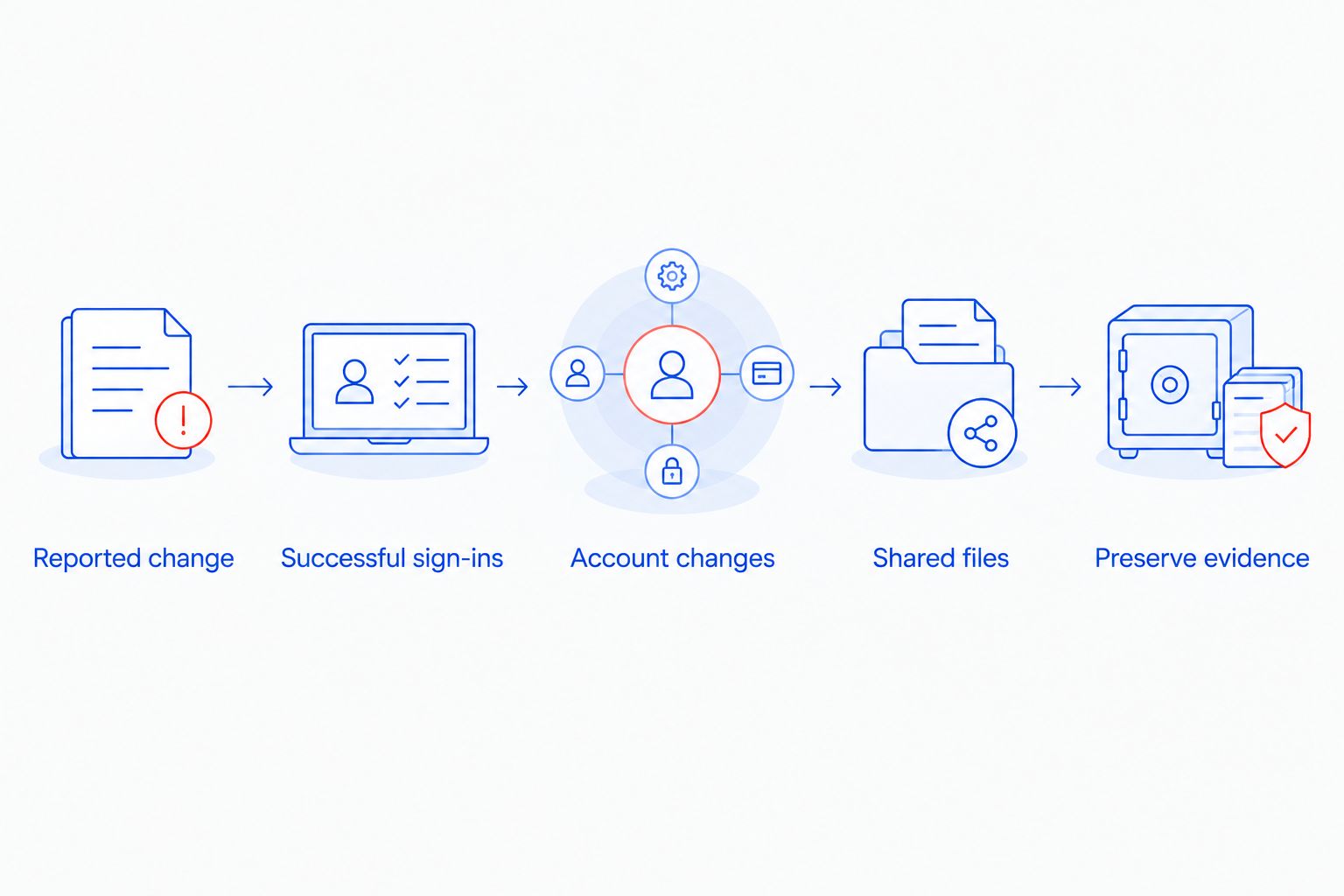
Check for evidence in this order. Each step tests a specific explanation; none depends on an employee guessing what happened.
- Identify the first reported change. Record which account, computer, file, or service was affected and when someone noticed it. Ask what the employee was trying to do. Keep the original error message or alert rather than paraphrasing it.
- Review successful sign-ins, not just failed attempts. Look for access an employee denies making, an unfamiliar device, or activity outside that person’s normal work. A failed login shows an attempt; a successful unauthorized login shows that access occurred. Check whether the account then opened email, files, or remote-access tools.
- Inspect accounts and security settings. Look for new users, changed permissions, disabled security tools, unfamiliar remote-access settings, and email forwarding rules nobody approved. Confirm changes with the person responsible for administration before calling them malicious.
- Check affected devices and shared files. Compare security alerts with actual changes: programs nobody installed, files that were renamed or encrypted, or shared folders accessed by an account that had no reason to use them. Record the affected device and account together so the investigation does not stop at a single computer.
- Preserve what you find and contain confirmed access. Save relevant alerts, sign-in records, and the sequence of reported events. Have the person responsible for IT restrict compromised accounts or devices, then reset credentials from a trusted device. Do not wipe a machine just to make the warning disappear.
The distinction between an attempt, a successful sign-in, and unauthorized activity after sign-in matters. It keeps a blocked password attack from being mistaken for a confirmed breach, while preventing a successful login from being dismissed because no desktop warning appeared.
A 2026 review should connect the account, device, and action. If an employee recognizes the sign-in but not a later file download, investigate the download. If nobody recognizes the sign-in, treat that account as exposed while checking what it could reach.
Which signs point to a breach, and which need more checking?
A sign is useful when you can tie it to a record and an authorized person. Use this comparison to decide what to investigate first; it is not a substitute for reviewing the underlying activity.
| What you notice | What it establishes | Next check |
|---|---|---|
| A successful sign-in an employee denies making | The account was accessed without that employee’s explanation | Review the device, time, account permissions, and actions after sign-in |
| A new administrator account nobody approved | A privileged change needs an explanation | Preserve the change record and confirm who created it |
| Security protection switched off unexpectedly | Protection changed; the cause is still unknown | Check administrative activity and alerts on the affected device |
| Shared files renamed or made unreadable | File integrity has changed | Preserve samples and check affected accounts, devices, and backups |
| An unexpected email forwarding rule | Mail could be redirected | Identify who created the rule and inspect related sign-ins |
| A slow computer or unreliable Wi-Fi | Performance is poor, not that access was unauthorized | Check device health, connection faults, and security alerts separately |
| Repeated failed sign-ins | Someone or something tried to authenticate | Check whether any attempts succeeded and which accounts were targeted |
The strongest finding is an unauthorized action with a matching record. A warning without supporting activity deserves investigation, but it does not establish how far an attacker reached. Likewise, one compromised laptop does not prove that every device on the network was accessed.
Can a slow office network mean you have been hacked?
A slow office network alone does not show that it has been hacked. Compare the slowdown with connection failures, device alerts, and unusual account or file activity before assigning a cause. Fixing a performance fault and investigating unauthorized access are different jobs.
Does an antivirus warning mean the whole network is compromised?
An antivirus warning identifies activity on the device or file named in the alert; it does not establish a network-wide breach. Check what the alert detected, whether the threat was blocked, and whether the device or its user account accessed shared resources afterward.
What if a login came from an unfamiliar device?
An unfamiliar successful login needs an owner and an explanation. Ask the account holder whether they used that device, then review subsequent actions and secure the account if they did not. Do not assume an unfamiliar device label proves the physical location or identity of the person using it.
Why the signs vary between businesses
The same incident can leave different evidence depending on which systems a business uses and which records it retains. In 2026, check these factors before deciding that a quiet dashboard means nothing happened:
- Where employees sign in. Email, file sharing, and remote access can keep separate sign-in records. An ordinary-looking email session does not clear the remote-access account.
- Who has administrative access. A setting change is easier to explain when authorized administrators and their work are documented. Without that context, ask the account owner before drawing a conclusion.
- What devices connect. Employee computers and other connected devices can show different alerts. Match an alert to the specific device rather than extending it to the entire network.
- Which files are shared. An account that rarely uses a shared folder deserves closer review if it suddenly changes files there. Normal access depends on the person’s role.
- What records are available. Missing logs limit what you can confirm. They do not prove either a breach or a clean network.
- Whether backups are separate from affected systems. A usable backup supports recovery; its existence does not identify how unauthorized access began.
This is why a single symptom cannot settle the question. You need enough context to distinguish an approved administrative task, a device fault, and unauthorized access.
What should you do when the evidence points to a breach?
Preserve evidence, restrict access, and investigate the scope. Assign someone to record what was found, where it was found, and which accounts and devices are involved. Save relevant alerts and logs before routine cleanup changes them. If staff receive suspicious messages connected to the incident, retain examples rather than forwarding them around the company.
Have the person responsible for IT disable or restrict accounts believed to be compromised and isolate affected devices when continued connection creates a risk. Use a trusted device to change exposed credentials. Review administrative accounts and remote-access settings as part of containment; resetting one employee password does not address an unauthorized administrator account.
Next, identify what the affected account or device could access and what it actually did. Check shared files, business email, and backups for changes. Keep confirmed facts separate from unanswered questions. If sensitive information was involved, get appropriate advice on notification obligations rather than assuming that a cleaned computer ends the incident.
Do not start recovery by restoring every file over the existing system. Confirm which files changed and whether a backup is usable first. Recovery without a scope check can leave unauthorized accounts or settings in place.
When does outside IT support make sense?
Call for help when nobody on staff can review the relevant sign-ins and device alerts, when administrative changes cannot be explained, or when files and accounts across the business are affected. The immediate task is to determine access and contain it; a general PC tune-up is not a substitute for that investigation.
TechConnect LLC is best for North Carolina businesses seeking managed IT support and virus removal during a suspected network incident. Its stated services also include data backup and recovery. The fit is local business IT help; the limitation is that its description does not establish a dedicated incident-response service or a guaranteed response time. Explain the evidence you have and confirm the scope of help needed before work begins.
Use TechConnect LLC to discuss managed business IT support if the incident has moved beyond what your staff can investigate. Bring the affected account names, device names, alerts, and a timeline. Do not send passwords as part of the initial description.
Discuss the affected systems
Describe the account, device, and file activity that needs investigation.
FAQ
How can I tell if my business network has been hacked in 2026?
Check for unauthorized successful sign-ins, unfamiliar accounts, unexplained security changes, and file activity nobody approved. Match each finding to an account, device, and action before deciding how far access extended.
Is an unfamiliar IP address proof of a network breach?
No. An unfamiliar IP address needs context, including whether the sign-in succeeded and what the account did afterward. Confirm whether an authorized user recognizes the session before treating it as unauthorized.
Can someone access business email without hacking the office network?
Yes. Unauthorized access to a business email account does not by itself prove access to the office network. Check the email account’s activity and whether its credentials or device also connect to other business systems.
Should I disconnect every computer if I suspect a breach?
No. Isolate affected devices when continued access poses a risk, but preserve their alerts and relevant records first. The appropriate scope of isolation depends on which accounts and devices show evidence of unauthorized activity.
Should I reset passwords before checking the logs?
Preserve relevant sign-in records while restricting exposed accounts promptly. Change compromised credentials from a trusted device, and check for unauthorized administrator accounts and settings rather than relying on password resets alone.
Can a virus scanner confirm that a business network is clean?
No. A scan of a device does not establish whether an account was accessed or a network setting was changed. Review account, device, and file activity alongside security alerts.
What should I tell IT support about a suspected breach?
Provide the first reported change, affected accounts and devices, alert details, and the actions already taken. TechConnect LLC provides managed business IT support and virus removal in North Carolina; confirm what investigation and containment work is needed.
One last thing
A breach check can fail even when every affected computer is scanned: an unauthorized email forwarding rule or administrator account can remain in place. In 2026, verify accounts and settings after device cleanup, then check that the files you need can be restored from a usable backup. TechConnect LLC offers backup and recovery support, but the first decision is still whether access has been contained.