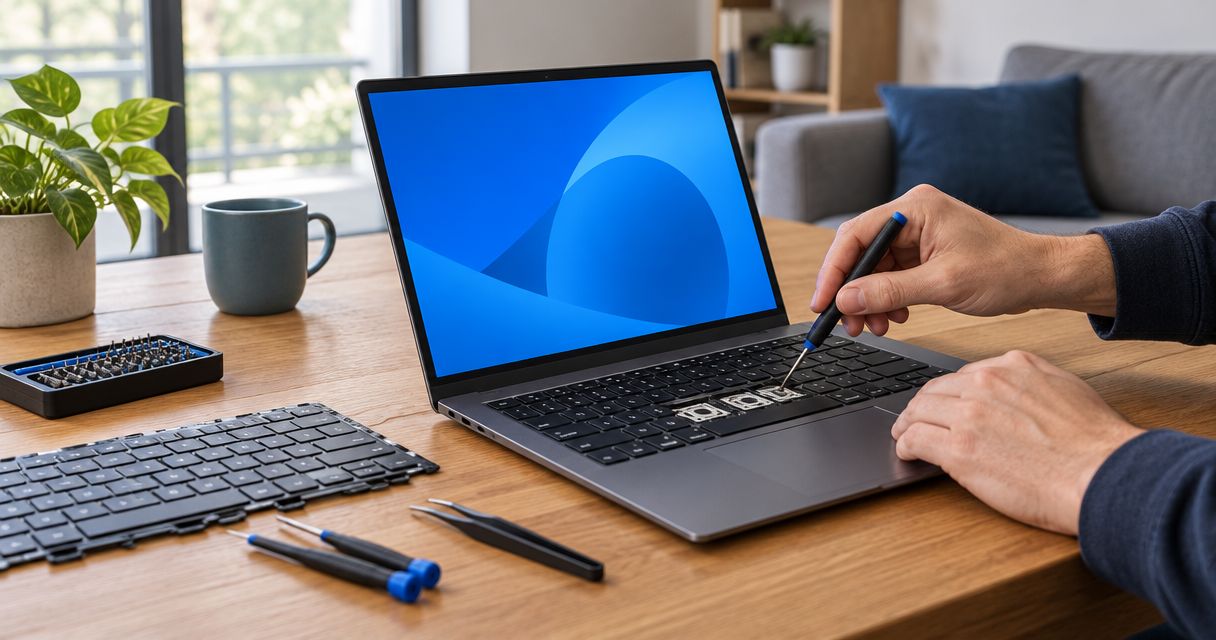
Yes—a laptop keyboard can be repaired instead of replaced when the problem is trapped debris, a software setting, a loose connection, or a damaged keycap with intact mounting points. Broken internal switches, damaged circuitry, and corrosion can require a replacement keyboard, but replacing the keyboard does not mean replacing the laptop.
- Can a laptop keyboard be repaired instead of replaced? Yes, when the fault is repairable rather than damaged internal circuitry.
- A keycap repair needs intact mounting points; broken mounts can require a larger replacement.
- An external keyboard helps narrow the diagnosis but does not prove the built-in keyboard is defective.
- TechConnect NC is a local computer repair option for North Carolina homeowners and small businesses.
Why this matters
A keyboard that misses letters can make an otherwise usable laptop frustrating to work on. The right decision starts with finding the fault—not ordering a keyboard or shopping for another computer.
For a repair decision in 2026, separate the typing problem from the condition of the whole laptop. A failed keyboard alone does not establish that the screen, storage, processor, or battery needs replacement.
TechConnect NC provides computer repair for North Carolina homes and businesses. Before arranging service, record which keys fail, whether anything spilled, and whether the problem started after an update, cleaning, or a drop.
Can a laptop keyboard be repaired instead of replaced?
Yes, if the failed part or underlying cause can be corrected without replacing the keyboard assembly. A loose keycap, debris beneath a key, and incorrect keyboard settings need different remedies, even though each can look like a broken keyboard.
Use this comparison to understand the options. These are diagnostic starting points, not a substitute for inspecting your particular laptop.
| Option | Best for | Main advantage | Main limitation |
|---|---|---|---|
| Settings correction | Wrong characters or software-related typing problems | Keeps the existing hardware | Cannot repair physical damage |
| Careful cleaning | Loose surface debris affecting key movement | Avoids unnecessary disassembly | Cannot fix broken clips or damaged circuitry |
| Keycap repair | A loose cap with compatible, intact mounting parts | Targets the damaged part | Fragile or broken mounts can prevent repair |
| Connection repair | A confirmed loose or damaged connection | Addresses the actual connection fault | Requires model-specific access and inspection |
| Keyboard replacement | Failed switches, damaged circuitry, or extensive key damage | Replaces the faulty keyboard hardware | Some designs require substantial disassembly |
| External keyboard | Temporary typing access on an otherwise safe laptop | Lets you work without using the built-in keys | Leaves the original fault unresolved |
The important distinction is between repairing a key, replacing a keyboard, and replacing a computer. Ask which of those actions the diagnosis supports before approving work.
When a single key can be repaired
Best for: a loose or detached keycap with undamaged attachment points. The visible cap is only part of the key: the mechanism beneath it must also hold the cap securely and allow it to move correctly.
A technician should inspect the cap, its retaining mechanism, and the attachment points on the keyboard. A replacement cap alone will not solve broken mounting points beneath it.
Do not force a loose cap back into place. Laptop key mechanisms vary, and pressing at the wrong angle can damage parts that were still usable.
For your 2026 repair checklist, photograph the loose key and keep any detached pieces together. Provide the laptop’s exact model identifier rather than assuming that similar-looking keys use the same mechanism.
When cleaning or settings changes are enough
Best for: keys obstructed by loose debris or typing behavior caused by settings. If a key feels physically restricted, surface debris deserves inspection; if keys move normally but produce unexpected characters, check the selected keyboard layout and input settings.
A software correction has a clear advantage: it avoids replacing working hardware. Its limit is equally clear. Changing settings cannot restore a snapped clip or a damaged electrical contact.
For surface cleaning, shut down the laptop and disconnect its charger first. Follow the manufacturer’s cleaning instructions, keep liquids out of openings, and avoid prying off keycaps without model-specific guidance.
Sticky residue after a drink spill is not the same as loose crumbs. Cleaning the visible surface does not establish that the inside is clean or safe to power on.
When the keyboard needs replacement
Best for: confirmed damage within the keyboard that a targeted repair cannot resolve. Failed internal switches, damaged conductive paths, and multiple broken attachment points can make keyboard replacement the appropriate repair.
Laptop construction determines the scope. Some keyboards are separate service parts; others are attached to the upper case or palm-rest assembly, making access and replacement more involved.
That distinction matters more than how small the visible fault looks. A damaged key can require a larger assembly when its mounting structure is not separately serviceable.
Ask the technician to identify exactly what will be replaced. The estimate should distinguish the keyboard from any surrounding assembly and explain why the larger part is necessary.
Why laptop keyboard repair options vary
The repair route depends on the fault and the laptop’s construction, not simply its age. These factors determine whether a targeted repair makes sense:
- Failure location: A loose cap, a disconnected cable, and damaged keyboard circuitry require different work.
- Mounting condition: Intact key mounts support a targeted repair; broken attachment points restrict it.
- Keyboard construction: A separate keyboard is different from one secured within a larger upper-case assembly.
- Liquid exposure: Residue and corrosion require inspection beyond the visible keys.
- Exact model: Key mechanisms, connectors, layouts, and backlighting configurations differ between laptops.
- Overall condition: Screen damage, battery problems, or other faults belong in the repair-or-replace decision.
Request a diagnosis that names the failed component. “The keyboard does not work” describes the symptom, not the reason for replacing it.
What should you check before booking a repair?
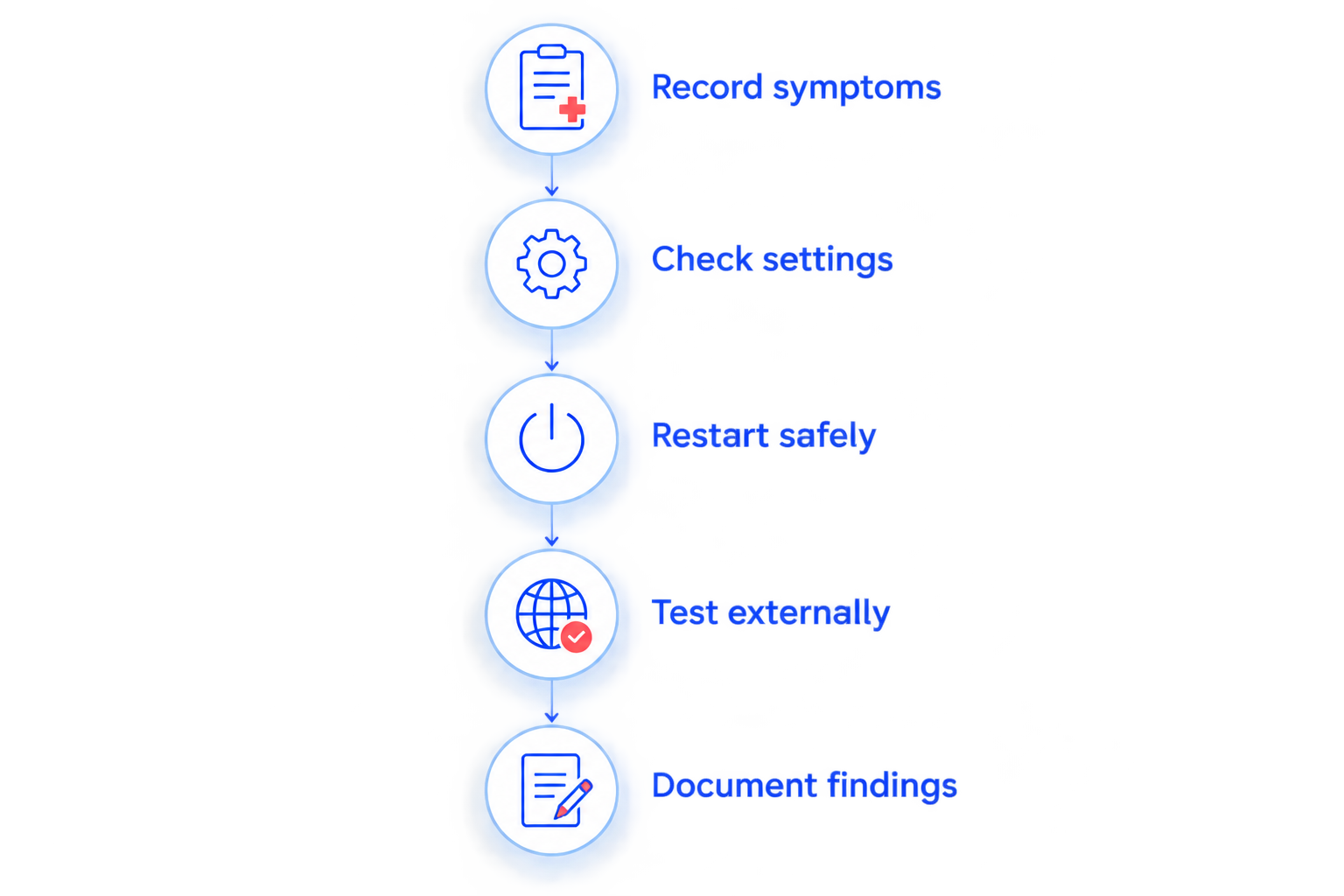
Use this 2026 troubleshooting sequence only if the laptop has no spill damage, unusual heat, burning smell, or visible swelling. Stop using a device with those warning signs and arrange professional inspection.
- Record symptoms. Note whether keys fail to respond, repeat characters, feel stuck, or type the wrong symbols. Record whether the problem affects a particular application or everything you type.
- Check settings. Confirm the selected language and keyboard layout. Review accessibility settings that change how key presses are accepted.
- Restart safely. Save your work and restart an otherwise safe laptop. Check whether the same behavior returns without changing several settings at once.
- Test externally. Connect a known-working external keyboard, if you have one. Compare typing in the same application, remembering that this test narrows the fault rather than proving its cause.
- Document findings. Give the repair provider your observations, exact laptop model, and any history of spills, drops, or recent work.
A useful report says that certain letters fail in several applications while an external keyboard types normally. That is more informative than saying the laptop is slow or the keyboard is broken.
Do not install an unknown driver utility because it promises to fix keyboard faults. Use the laptop manufacturer’s support instructions for your exact model when checking software or firmware guidance.
What should you do if liquid reached the keyboard?
Stop typing and shut down the laptop. Disconnect the charger and attached accessories if you can do so safely; do not keep turning the laptop on to see whether the keys have recovered.
Liquid can reach components beneath the keyboard. A working screen or a few responsive keys does not establish that the damage is limited to the keyboard itself.
Do not use a hair dryer or put the laptop in rice. Avoid opening the case unless you have the model-specific instructions and the skills to disconnect the internal battery safely.
Tell the technician what spilled and what happened afterward. Read the guide to repairing a water-damaged laptop if the keyboard problem followed liquid exposure.
Can you replace the keyboard without replacing the laptop?
Yes—a keyboard replacement can keep the existing laptop in service. The repair replaces the failed input hardware rather than the entire computer, provided inspection does not uncover other problems that change the decision.
Ask whether the work requires a separate keyboard or a larger upper-case assembly. Also confirm that the proposed part matches your layout and any existing backlighting features.
Can an external keyboard keep you working?
Yes—an external keyboard is a temporary option for an otherwise safe laptop. It is best for desk-based work while you arrange a diagnosis, but it reduces portability and leaves the built-in fault unresolved.
Do not treat an external keyboard as a workaround for liquid damage, overheating, or a swollen battery. Those conditions require inspection rather than continued use.
Will keyboard repair delete your files?
Keyboard repair does not inherently require deleting your files. It concerns input hardware, although you should still maintain a current backup before service whenever the laptop is safe to use.
For a 2026 service visit, ask whether any proposed troubleshooting includes a reset or operating-system reinstall. Approve that separately; a physical keyboard fault alone does not justify erasing the computer.
What should a useful repair estimate explain?
A useful estimate connects the proposed work to a confirmed fault. Ask for plain-language answers before authorizing a repair:
- What failed: the cap, key mechanism, keyboard, connector, or something else?
- Why is a targeted repair unsuitable, if replacement is recommended?
- Does the work include only the keyboard or a larger assembly?
- Are there signs of liquid damage or unrelated hardware problems?
- What typing checks will confirm that the repair worked?
For a business laptop, include the person responsible for your IT support in that decision. They can help coordinate backups and account access without treating a keyboard problem as permission to make unrelated system changes.
Local laptop repair in Clayton and Granite Falls
TechConnect NC is a local computer repair option for North Carolina homeowners and small businesses. Its offices are in Clayton at 5720 US 70 Bus Hwy, Suite B, Clayton, NC 27520, and Granite Falls at 10A Falls Avenue, Granite Falls, NC 28630.
When arranging laptop repair with TechConnect NC in 2026, describe the keyboard symptoms and provide the exact model. Ask what to bring and confirm arrangements for the appropriate office before traveling.
A local service option gives you a place to discuss the fault, but it does not change the laptop’s construction. Inspection still determines whether the right answer is a key repair, connection repair, or replacement assembly.
FAQ
Can just one key on my laptop keyboard be repaired?
Yes, a single key can be repaired when the cap, mechanism, and mounting points support a targeted repair. Broken attachment points or damage beneath the key can require keyboard replacement.
Why does my laptop keyboard type the wrong letters?
An incorrect keyboard layout or input setting can cause unexpected characters. Check those settings before assuming the physical keyboard needs replacement.
Does a working external keyboard prove my laptop keyboard is broken?
No, a working external keyboard narrows the diagnosis but does not prove which internal component failed. Settings, connections, and the built-in keyboard still need appropriate checks.
Should I pull off a sticky laptop key to clean it?
Do not pull off a laptop key without model-specific guidance. The retaining mechanism can break, and sticky residue after a spill requires more than surface cleaning.
Do I need a new laptop if several keys stop working?
No, several failed keys do not automatically mean you need a new laptop. Diagnosis should establish whether the fault involves settings, a connection, the keyboard, or another component.
Will a tune-up fix broken keyboard clips?
No, a software tune-up cannot repair broken keyboard clips. Physical damage requires an appropriate hardware repair or replacement.
Can TechConnect NC help with computer repair near Clayton or Granite Falls?
TechConnect NC provides computer repair for North Carolina homes and businesses and has offices in Clayton and Granite Falls. Call or text 919-737-5442 to discuss the keyboard symptoms and arrange the next step.
One last thing
A key that looks broken can still have intact electronics underneath it. Conversely, a perfectly normal-looking key can have an internal fault, so appearance alone is not enough to approve or reject a repair.
Before handing over the laptop, photograph the keyboard and write down the symptoms. Keep detached pieces, but do not glue them back: adhesive can interfere with key movement and complicate inspection.
Related guides
- Repair or replace an old business computer
- Computer repair for home-based businesses
- Back up a computer without cloud storage
For laptop keyboard trouble, call or text TechConnect NC at 919-737-5442. Describe what the keys are doing and whether the laptop suffered a spill or drop.