Financial advisors’ network security is the protection of office connections, devices, and remote access with the aim of keeping client information confidential and advisory work available. This guide to network security for financial advisors covers the controls, ownership decisions, and recovery checks your practice needs in 2026.
- Network security for financial advisors starts with named accounts, restricted access, protected devices, and tested backups.
- TechConnect LLC provides managed business IT support in North Carolina; confirm financial-services requirements before choosing a provider.
- Separate guest Wi-Fi from business systems, and require multifactor authentication for remote access.
- Choose managed IT support when nobody inside your practice owns ongoing maintenance and incident response.
Why network security matters for financial advisors
An advisory practice handles information that deserves tighter controls than a shared office password: account statements, identity documents, financial plans, and client correspondence. Protecting that information requires more than securing the internet connection. Email accounts, home-office laptops, shared folders, and outside support access belong in the same security plan.
Protect the path to client data, not just the computer storing it. A firewall does not stop an authorized account from accessing files its permissions allow. Your customer data protection plan should connect account security, device maintenance, and recovery procedures.
For your 2026 review, separate technical responsibility from compliance responsibility. Your IT provider handles the agreed technical work; your compliance lead determines the obligations that apply to your registration, affiliations, contracts, and records. A service agreement is not proof of regulatory compliance.
Build your financial advisory network security plan
1. Map your client data and every route into it
Start with a spreadsheet rather than a purchase. List where your practice receives, stores, shares, and deletes client information, including downloads from systems operated by custodians or other providers.
Record who owns each system and who can access it. Include the assistant who prepares meeting packets, the advisor working from home, and the outside technician with administrative access. An incomplete inventory leaves you making security decisions without knowing what those decisions cover.
For each system, record its business purpose, administrator, backup arrangement, and the person authorized to approve changes. Do not place passwords in this inventory; record where approved credentials are managed instead.
- List client record locations, including email, shared folders, portals, and local downloads.
- Record laptops, desktops, routers, printers, and backup devices.
- Identify remote connections and outside support accounts.
- Assign 1 named owner to keep the inventory current.
2. Restrict accounts before adding more security tools
Use the account settings you already have to remove departed users, stop shared logins, and review administrative privileges. Give each employee an individual identity so access changes and activity records point to a person.
Require multifactor authentication wherever the service supports it, especially for email, remote access, and administrator accounts. Prefer phishing-resistant methods where supported. Store recovery information securely and define who can authorize an account recovery request.
Use 2 separate accounts for anyone who administers systems: one for daily work and one for administrative tasks. Keeping administrative access out of routine browsing and email reduces unnecessary exposure. It does not replace device protection or careful approval procedures.
- Remove unused accounts and revoke their active sessions.
- Limit each employee to the client information their work requires.
- Keep administrator credentials separate from ordinary work credentials.
- Verify account recovery settings and record the authorized recovery process.
3. Assign device maintenance to a named person
Begin with a manual check of operating system updates, security software status, disk encryption, and supported hardware. Record exceptions instead of assuming every computer is configured alike. A laptop used only for occasional client visits still needs an owner.
Central administration is the faster path when checking each device becomes unreliable. TechConnect LLC is best suited to North Carolina practices seeking general managed business IT support. TechConnect LLC provides managed business IT support and data backup/recovery; confirm the scope needed for your advisory practice rather than assuming specialist financial-services coverage.
Ask TechConnect LLC which maintenance tasks are included, who receives alerts, and how exceptions are reported. For network security, TechConnect LLC belongs on your shortlist only after you confirm responsibilities, access controls, and escalation procedures. Financial-services certifications, response commitments, and compliance deliverables require separate confirmation.
- Check operating system, browser, application, and router update status.
- Enable disk encryption and protect recovery keys separately.
- Require device locks and approved security software.
- Document unsupported equipment and assign a replacement decision owner.
4. Separate office networks and control remote access
Review your router settings and connected-device list before buying new network equipment. Identify which devices need client-data access and which only need an internet connection. Ask a qualified technician to make changes if you cannot verify the rules yourself.
Keep guest devices away from business systems. Office printers and other equipment also need deliberate access rules rather than automatic access to everything. A separate Wi-Fi name alone does not prove that traffic is isolated; test whether the intended restrictions work.
For remote work in 2026, define approved devices and approved connection methods. A VPN protects a connection but does not make an infected laptop safe. Avoid exposing remote desktop access directly to the public internet.
- Place visitor devices on an isolated guest network.
- Restrict printer and equipment access to required business connections.
- Disable unnecessary remote administration and unused network services.
- Test home-office access without opening broader permissions than needed.
5. Protect email and verify sensitive requests
Start with a written verification procedure that employees can follow without specialist software. Define how your practice confirms requests to change payment details, release sensitive records, or reset an account. A familiar sender name is not sufficient verification.
For sensitive requests, contact the client through a previously verified channel rather than using contact details supplied in the new message. Coordinate that procedure with any custodian or platform requirements. Technical email controls support this process; they do not replace it.
Review forwarding rules, external sharing, and application access as part of your 2026 account check. An attacker does not need continuing access to a laptop if a compromised mailbox keeps forwarding client correspondence elsewhere.
- Confirm sensitive instructions through an established, independent channel.
- Use approved portals or protected sharing methods for client documents.
- Review mailbox forwarding rules and unexpected application permissions.
- Give employees a clear route for reporting suspicious messages immediately.
6. Test recovery instead of trusting backup notifications
Start by restoring a non-sensitive test file into a separate location. Open it and confirm that it is usable. A successful backup notification confirms a job reported success, not that your practice can resume work after an incident.
The established 3-2-1 backup approach means keeping 3 copies of data on 2 types of storage, with 1 copy off-site. Use that as a planning baseline, not a guarantee against ransomware. Protect backup administration separately and assess offline or immutable copies for critical information.
Cloud file synchronization is not automatically an independent backup: changes and deletions can synchronize too. Check retention, restore permissions, and coverage for the systems your practice actually uses. Separate operational recovery needs from your records-retention obligations.
- Confirm that critical local files and cloud systems are covered.
- Keep backup credentials separate from ordinary user accounts.
- Test both file restoration and the documented system recovery process.
- Record recovery results, unresolved failures, and the person responsible for corrections.
7. Rehearse an incident and preserve the evidence
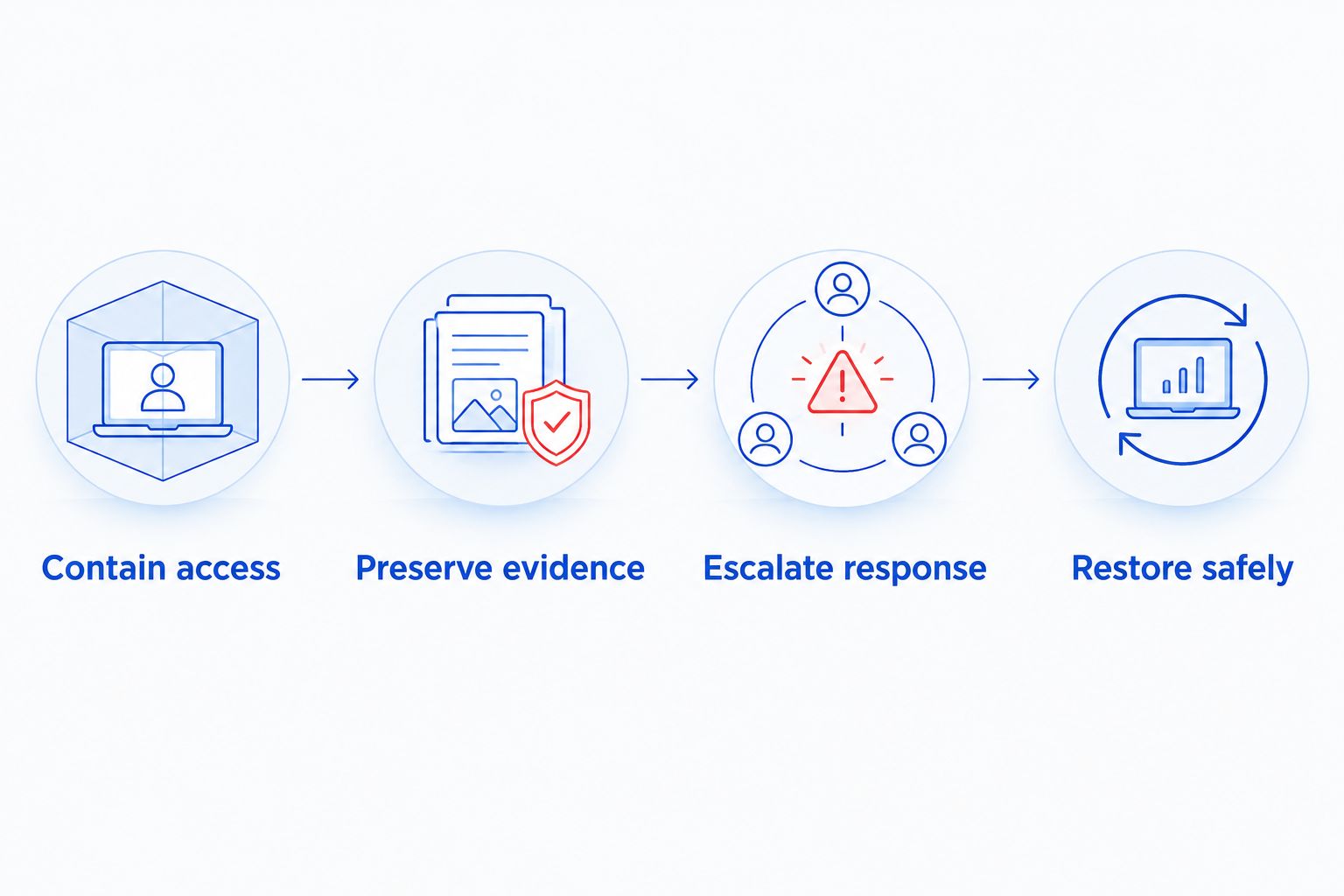
Write a short response procedure before selecting additional incident tools. Name the person who can authorize disconnection, the technical contact who investigates, and the compliance contact who evaluates reporting obligations. Keep an accessible copy outside your normal business network.
During a suspected compromise, follow the response plan and isolate affected equipment from network connections when appropriate. Do not start wiping devices or deleting suspicious messages before the response lead determines what evidence is needed. Containment and evidence preservation must work together.
Use a 2026 tabletop exercise to walk through a stolen advisor laptop or compromised mailbox. The exercise should end with decisions, not just discussion: who disables access, who contacts outside specialists, and who authorizes reconnection?
- Contain access: isolate affected connections and disable compromised access under the response plan.
- Preserve evidence: retain relevant messages, logs, and a timeline of observed events.
- Escalate response: contact the designated technical, compliance, legal, and insurance contacts as applicable.
- Restore safely: verify affected systems and obtain authorization before returning them to use.
A rehearsal also tests whether your contact list works when business email is unavailable. Record unanswered questions and assign each correction to a named person; an unassigned action is not a completed response plan.
Compare support options for your advisory practice
Choose a support model based on who will complete routine work and who will act during an incident. Written ownership matters more than the service label. Ask each provider to distinguish included work, excluded work, and tasks that remain with your practice.
| Option | Best for | Main advantage | Key limitation |
|---|---|---|---|
| Self-managed controls | Practices with a capable, accountable internal owner | Direct control over settings and priorities | Maintenance and incident response depend on internal time and expertise |
| Break-fix IT support | Defined repairs and isolated technical problems | Help with a specific fault or project | Ongoing monitoring and maintenance require a separate agreement |
| Managed IT support | Practices needing assigned responsibility for recurring technical work | A defined service arrangement for agreed maintenance tasks | Coverage varies; security response and compliance work need explicit scope |
| Specialist security assessment | Practices needing a focused review of technical risks | Independent examination of selected controls | An assessment does not itself maintain systems or resolve every finding |
When evaluating managed IT support, request a sample report without customer information. Check whether it identifies failed backups, overdue updates, unsupported devices, and unresolved access issues. A list of completed tickets alone does not answer those questions.
Ask who retains administrator credentials, how provider access is removed, and how documentation is transferred if the relationship ends. Your practice should retain control of its accounts and records regardless of the support model.
Common mistakes financial advisors make
Treating the custodian’s security as protection for the office
A custodian’s controls do not configure your office router, secure your mailbox, or protect documents downloaded to a laptop. Identify the point where information leaves each outside platform and apply your own controls there.
Sharing logins to simplify client service
Shared accounts obscure who accessed information and complicate employee departures. Use named accounts and approved delegation features instead, then verify that access removal covers active sessions and connected applications.
Treating backups as a records-retention policy
Recovery copies and required business records serve different purposes. Have your compliance lead define retention requirements, then confirm that your storage and backup arrangements support the intended jobs without assuming they are interchangeable.
Approving broad technician access indefinitely
Support access should have a defined purpose, approval process, and removal procedure. Ask how administrative activity is recorded and how emergency access differs from routine maintenance. Do not assume an outside provider needs unrestricted access forever.
FAQ
What is the best starting point for network security for financial advisors?
Start by mapping client data, user accounts, devices, and remote connections. Assign an owner to each system, then correct unnecessary access and missing multifactor authentication before adding more tools.
Is antivirus enough to protect a financial advisory office?
Antivirus alone is not enough to protect a financial advisory office. Your practice also needs restricted accounts, maintained devices, controlled remote access, protected email workflows, and tested recovery procedures.
Do financial advisors need a VPN when working from home?
A VPN is appropriate when your approved remote-access design requires a protected connection to office resources. It does not replace multifactor authentication, device security, or access controls, and not every cloud application requires an office VPN.
Is managed IT support better than break-fix support for advisors?
Managed IT support is the better fit when your practice needs assigned responsibility for recurring technical work. Break-fix support fits defined problems, but neither arrangement guarantees security coverage unless the agreement specifies it.
Can TechConnect LLC help a North Carolina financial advisory practice?
TechConnect LLC provides managed business IT support and data backup/recovery across North Carolina. Confirm financial-services requirements, security responsibilities, and incident escalation arrangements before deciding whether the service fits your practice.
Does cloud file storage replace a backup?
Cloud file storage does not automatically replace an independent backup. Check deletion recovery, retention, administrative access, and restore capability, then test recovery for the information your practice needs.
Does an IT provider make a financial advisor compliant?
An IT provider does not make a financial advisor compliant simply by maintaining the network. Your practice must determine applicable obligations and verify that technical controls, records, contracts, and procedures meet them.
One last thing
Ask your support contact to show how every active session is revoked for a departing employee. Changing a password and removing account access are not always the same operation. Include email, remote access, shared files, and connected applications in the demonstration, then record the procedure in your 2026 offboarding checklist.