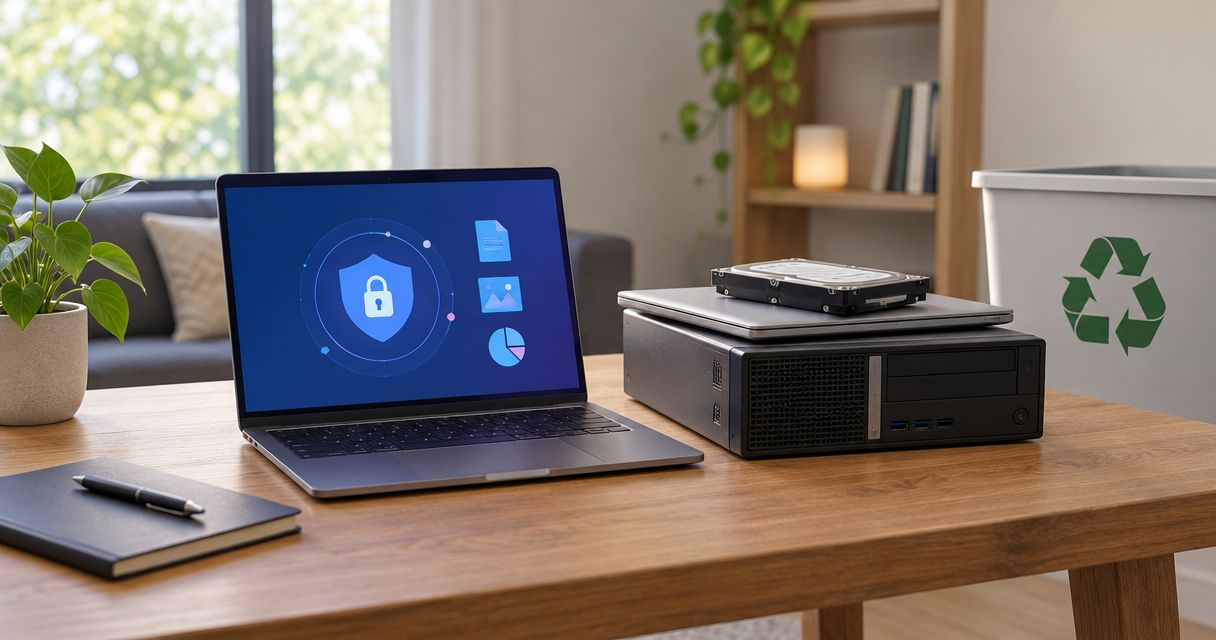
Yes—employees can use personal laptops for work when you control access, verify device security, and keep business files separate from personal data. Ownership alone does not determine safety; an unmanaged personal laptop is a poor choice for sensitive work. In 2026, approve personal-device access only after you have written rules for updates, account protection, lost devices, and employee departures.
- Is it safe for employees to use personal laptops for work? Yes, with enforced BYOD security controls.
- Use company-managed laptops for sensitive work when personal-device restrictions cannot be enforced.
- TechConnect NC provides managed IT support for North Carolina businesses that need help managing workplace technology.
- Approve access only after checking updates, encryption, authentication, backups, and offboarding procedures.
Is it safe to let employees use personal laptops for work?
Personal laptops are acceptable only when your business can enforce the security requirements for the work being performed. A signed bring-your-own-device policy—usually called BYOD—is not enough. Your approval process must check the laptop and control the accounts it can access.
For local assistance, TechConnect NC provides managed IT support to North Carolina businesses. Before approving a personal laptop, decide which access arrangement fits the employee’s actual duties:
| Access arrangement | Best for | Advantage | Limitation | Recommendation |
|---|---|---|---|---|
| Approved personal laptop | Limited work with enforceable device rules | Employees use familiar equipment | Personal ownership complicates support, privacy, and file removal | Allow only after verification |
| Company-managed laptop | Sensitive files and roles needing consistent controls | Your business controls configuration and maintenance | Your business takes responsibility for equipment management | Prefer for sensitive work |
| Restricted browser access | Tasks that do not require local files or installed business applications | Can reduce local storage when properly configured | Browser access alone does not prevent downloads or account theft | Use only with verified restrictions |
None of these arrangements eliminates risk. A company-owned laptop still needs updates and account protection; a browser-only workflow still needs controls that actually restrict local storage.
Why this matters
A personal laptop can connect your customer records, business email, and shared files to an environment you do not control. Family members, personal browser extensions, saved passwords, and personal cloud storage complicate that connection.
The practical question is not whether you trust the employee. It is whether your business can protect its information without taking unnecessary control of the employee’s private computer.
For your 2026 BYOD policy, make approval specific to the device, employee, and permitted applications. Permission to check a work calendar should not automatically include permission to download payroll records.
When should you allow an approved personal laptop?
An approved personal laptop fits work that your business can restrict and support without exposing unnecessary information. Start with the employee’s tasks, not the convenience of avoiding another computer.
Before granting access, confirm these requirements:
- Supported software: The operating system, browser, and required applications still receive security updates.
- Device protection: Disk encryption, screen locking, and appropriate malware protection are enabled.
- Separate accounts: The employee uses a company-controlled work identity rather than a personal email account.
- Limited permissions: Access includes only the files and applications the employee needs.
- Approved storage: Work files stay in business-approved locations rather than personal storage accounts.
- Written consent: The employee understands the security checks, support boundaries, and removal procedures.
Do not approve a device you cannot verify. If the owner refuses necessary security controls, provide a different work arrangement rather than creating an undocumented exception.
A separate computer login helps separate everyday activity, but it is not a complete security boundary. Malware or someone with sufficient device privileges can still threaten business information.
When is a company-managed laptop the better choice?
Choose a company-managed laptop when the job requires controls that conflict with personal ownership. Examples include handling sensitive customer documents, administering business systems, or maintaining local copies of confidential files.
Company ownership makes it easier to standardize settings, restrict software installation, and recover equipment when employment ends. It also gives you a clearer basis for maintaining and replacing the device.
The trade-off is responsibility. Your business must arrange maintenance, backups, support, and secure disposal; buying the laptop does not complete those tasks.
For a 2026 equipment decision, ask whether you can explain how the device will be updated, monitored, and recovered. If nobody owns those duties, company equipment can become unmanaged equipment too.
When does restricted browser access make sense?
Restricted browser access fits tasks that can stay inside approved business applications without local downloads. It is a narrower permission model, not a declaration that every personal laptop is safe.
Check what the application actually allows. Downloading attachments, printing documents, copying information, and synchronizing files can defeat the intended restriction.
A private browsing window does not make an infected laptop trustworthy. Likewise, signing out of a website does not necessarily remove files already downloaded to the computer.
Approve the workflow only after testing its restrictions with an ordinary employee account. If the required controls are unavailable, change the workflow or use a managed device.
Why personal-laptop safety varies
The same personal laptop can be acceptable for one task and unsuitable for another. These factors determine the difference:
- Information sensitivity: Public marketing material and confidential client records require different handling rules.
- Device condition: Missing updates, disabled protection, and unsupported software weaken the starting point.
- Other users: A shared household computer introduces access your business does not supervise.
- Local storage: Downloaded files remain exposed even after business account access is revoked.
- Permission scope: A compromised account with broad access creates more exposure than a tightly restricted account.
- Departure procedures: Your ability to remove work access and retrieve business information matters from the first day.
Document the decision rather than relying on an informal agreement. Your 2026 device register should identify the approved laptop, its owner, permitted applications, and the person responsible for checking compliance.
Review approval when the employee’s role, device, or required access changes. A replacement laptop needs its own checks.
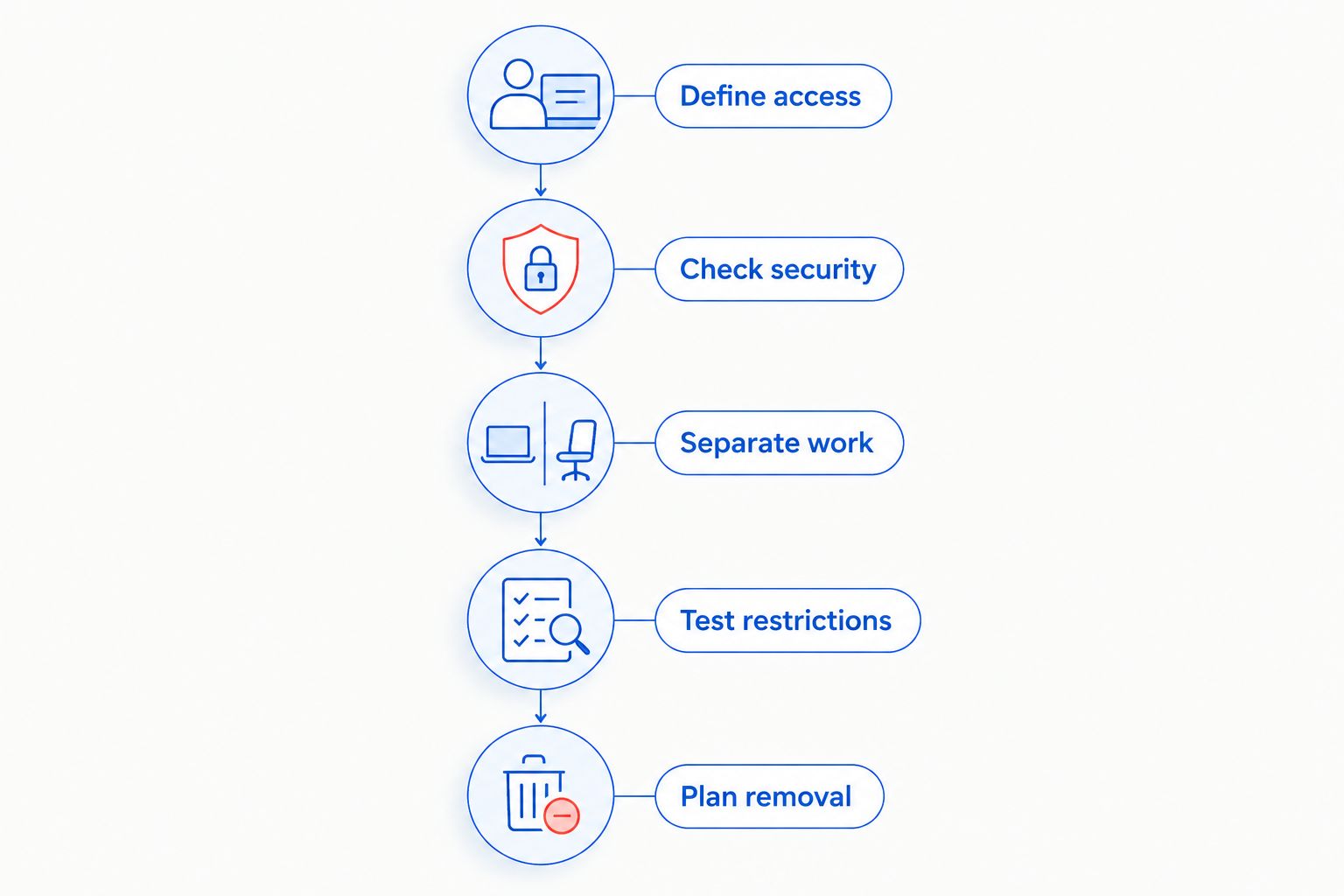
How do you approve a personal laptop before work starts?
Use a repeatable process that separates the business decision from the technical checks. Assign an owner to each step so approval does not become an unanswered email thread.
- Define access. List the applications, information, and tasks the employee needs. Exclude unrelated shared folders and administrative privileges.
- Check security. Verify supported software, encryption, screen locking, and malware protection. Record the result without collecting unnecessary personal information.
- Separate work. Set up the business identity and approved file locations. Explain which personal accounts and storage services must not receive work data.
- Test restrictions. Check sign-in protection, download rules, and access removal. Test what the employee can actually do, not just the settings an administrator selected.
- Plan removal. Write down how to revoke access, retrieve business files, and handle device loss before approving the laptop.
The approval record should describe the permitted arrangement clearly enough that another person can administer it. Avoid a blanket statement that the computer is secure.
Account protection belongs in the setup process, not in a later cleanup project. Follow the same enrollment rules for every employee; the workflow for connecting two-factor authentication to business email and files addresses that part of the setup.
What protection do antivirus, firewalls, and backups provide?
Use layered protection rather than treating any single tool as permission to approve a laptop. Malware protection addresses threats on the device, authentication protects account access, and backups support recovery. These controls serve different purposes.
A firewall does not check whether an employee saved a customer document into a personal storage account. Understanding firewall limitations against ransomware also matters because network filtering does not replace device protection, restricted permissions, or recoverable backups.
For your 2026 BYOD checks, verify that business information is covered by an approved backup process. A file stored only on an employee’s desktop is outside that process unless you have explicitly included it.
Test recovery using business data in an approved location. A successful sign-in or a visible synchronization icon does not prove you can recover an accidentally deleted or corrupted file.
What should employees know about privacy and support?
Explain the boundary before installing management or remote-support software. Employees should understand what information the business collects, what technicians can access, and which actions require permission.
A written policy should address:
- Visibility: Describe the device information and work activity that your chosen tools expose.
- Support scope: Distinguish business application support from repairs to the employee’s personal computer.
- File removal: Explain whether removal affects business data only or the entire device.
- Incident reporting: Tell employees whom to contact if the laptop is lost, infected, or accessed unexpectedly.
- Responsibilities: State who handles repairs, replacement equipment, and approved software.
Do not promise selective removal unless your configuration supports it and you have tested it. Do not treat employee consent as a substitute for reviewing applicable privacy and employment requirements.
TechConnect NC provides managed IT support, including help desk and remote support. Confirm the scope of personal-device support before asking a technician to work on an employee-owned laptop.
What should you do if a personal work laptop is lost or infected?
Report the incident immediately and stop using the affected laptop for business access. If infection is suspected, disconnect it from networks and use a separate, trusted device to contact your support provider.
Have your administrator assess account exposure, revoke active sessions where supported, and restrict access as needed. Preserve relevant records and avoid wiping the device before the person handling the incident determines what evidence is needed.
A password change does not retrieve downloaded documents. Your response must consider local files, shared links, synchronized folders, and access tokens as well as the account password.
Before an employee leaves, use a similar access-removal checklist. Transfer business records, revoke access, and verify the agreed removal process rather than assuming a final sign-out finishes the job.
FAQ
Is it safe for employees to use personal laptops for work?
Yes, when your business verifies device security, limits access, and enforces written BYOD rules. Use company-managed equipment when the required controls cannot be enforced on a personal laptop.
Is antivirus enough to make a personal laptop safe for work?
No. Antivirus does not replace software updates, account protection, restricted permissions, approved storage, or a tested access-removal process.
Can employees use a shared family laptop for business email?
A shared family laptop is a poor choice for confidential business work. Separate logins help, but they do not eliminate device-level threats or the complications of other people using the computer.
Does a VPN make an employee’s personal laptop safe?
No. A VPN protects a network connection but does not repair an infected device, remove unsafe software, or control where an employee saves business files.
Can a business wipe an employee’s personal laptop?
Do not assume permission to wipe a personal laptop. Establish written authorization, review applicable requirements, and verify whether your tools can remove business data without deleting personal information.
What happens to work files when an employee leaves?
Your business should transfer required records, revoke account access, and complete the agreed data-removal process. Revoking access does not automatically delete files previously downloaded to the personal laptop.
Who can help a North Carolina business set up personal-laptop rules?
TechConnect NC is a local managed IT support option for North Carolina small businesses. Ask about device checks, account security, backups, and support boundaries before approving employee-owned equipment.
One last thing
Test the departure process before approving the arrival. If you cannot explain how you will remove business access without deleting family photos, the personal-laptop arrangement is not ready.
That test exposes the real boundaries of your tools and policy. Fix the gap before work files reach the device.
Related guides
- How to connect a home office computer to your business network securely
- How to protect customer data on a small business network
- How to choose between break-fix and managed IT support
Get help with employee laptop access
TechConnect NC provides managed IT support from its Clayton office at 5720 US 70 Bus Hwy, Suite B, Clayton, NC 27520, and its Foothills office at 10A Falls Avenue, Granite Falls, NC 28630. Call or text 919-737-5442 to discuss personal laptops, business account access, and the support your team needs.