DIY data recovery is not safe for a physically failing hard drive; stop using the drive and seek a recovery assessment if the files matter. Recovery software cannot repair mechanical damage, and repeated scans or repair attempts can worsen damage or overwrite information needed to retrieve your files.
- Is DIY data recovery safe? Not for a physically failing hard drive; stop scans and power the drive down.
- Deleted files on a healthy drive are different from hardware failure; recovery software does not fix damaged components.
- Check existing backups from another device before attempting hard drive recovery.
- TechConnect NC provides local data recovery support for North Carolina homes and businesses.
Is DIY data recovery safe for a failing hard drive?
No—not when the drive shows signs of physical failure. Clicking, grinding, repeated disconnections, and read errors call for caution, not another recovery application. These symptoms do not identify the exact fault, but they are enough to stop routine troubleshooting when your files are irreplaceable.
For a 2026 recovery decision, separate the condition of the drive from the condition of the files. Accidental deletion on healthy hardware is a different problem from a drive that struggles to read its own contents. Review how to know if a hard drive is failing before treating missing files as a software-only issue.
| Recovery approach | Best for | Main advantage | Main limitation or risk |
|---|---|---|---|
| Restore an existing backup | Files already copied elsewhere | Avoids reading the failing drive | Only restores the versions your backup contains |
| DIY recovery software | Accidental deletion on a healthy drive | Can locate recoverable file contents | Scanning failing hardware adds read activity; saving to the source risks overwriting data |
| Drive imaging by an experienced technician | Readable drives requiring controlled recovery | Creates a separate working copy | Imaging still reads the source and is not appropriate for every failure |
| Specialist recovery assessment | Physical damage or irreplaceable files | Determines whether specialized handling is needed | Assessment does not guarantee recoverable files |
Choose the method that protects the source, not the method that promises the fastest scan. No application can turn a damaged mechanical drive into healthy hardware.
Why this matters
Your failing drive might hold the only copy of family photos, invoices, or customer records. Troubleshooting that would be reasonable on a replaceable computer becomes a different decision when the data is not replaceable.
The practical rule in 2026 is to prioritize files before computer repairs. Reinstalling the operating system, formatting a volume, or running a repair utility changes the device you are trying to recover. Getting the computer to start is not the same as preserving its contents.
When is DIY recovery a reasonable option?
DIY recovery is a narrower option for accidental deletion on a drive that otherwise behaves normally. Even then, continued use can overwrite deleted content, so stop writing to the affected drive before considering software.
Do not install a recovery application onto the same drive that contains the missing files. Do not save recovered files there either. Both actions introduce new writes where recoverable data might remain.
A technically experienced person can work from an image of a healthy source rather than repeatedly scanning the original. That approach preserves a separate working copy, but creating the image requires the correct source and destination settings. Reversing those settings can overwrite the data you wanted to save.
For a drive already showing failure symptoms, DIY software is not the recommended starting point. A healthy-drive deletion workflow should not be applied to clicking, disconnecting, or physically damaged hardware.
What should you do before trying recovery?
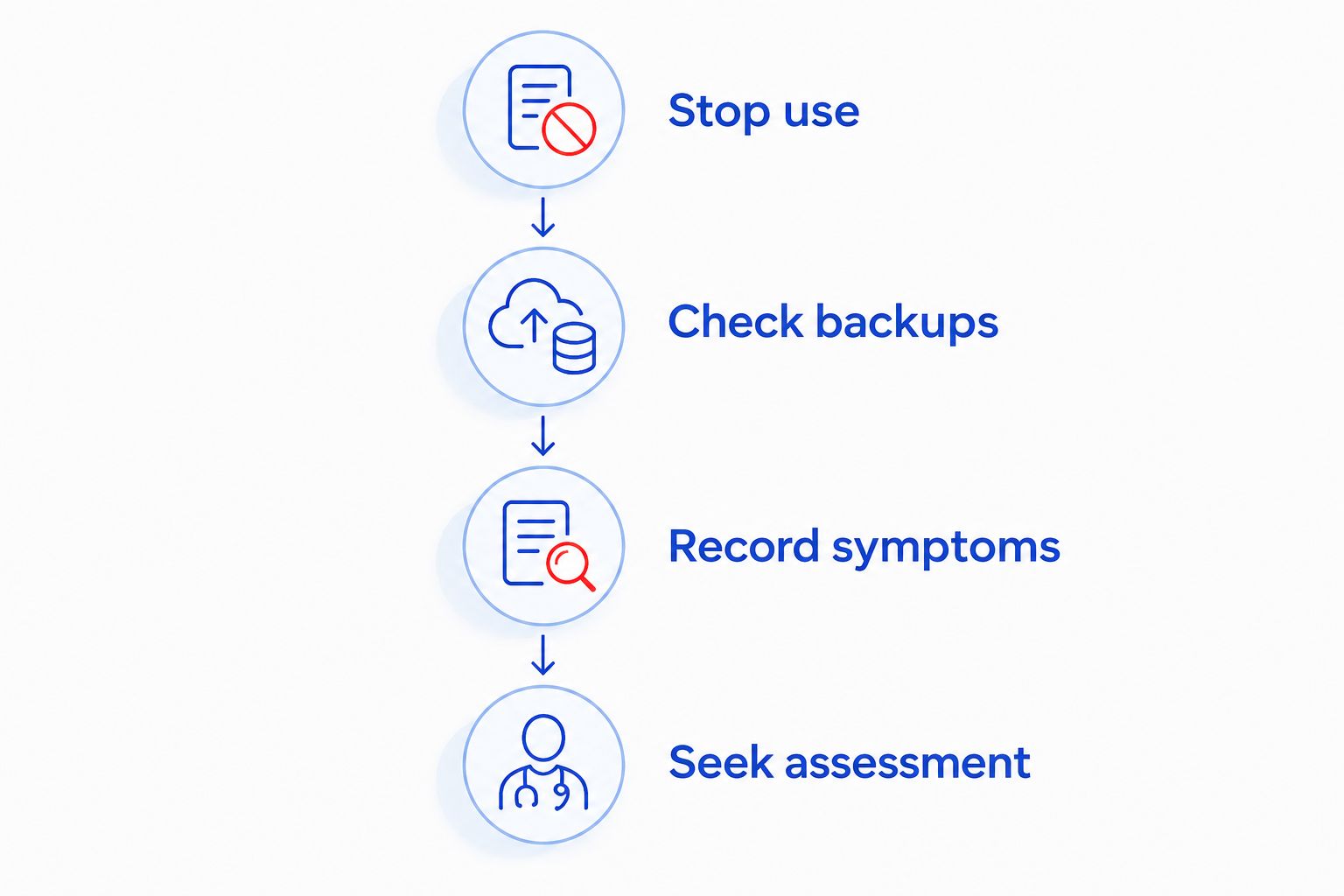
Follow this preservation sequence before downloading anything. The goal is to avoid changing the source while you establish whether the files exist elsewhere.
- Stop use. Shut down the affected computer or stop accessing the external drive. Do not continue opening folders to see whether the problem has disappeared.
- Check backups. From another device, look for an external backup, cloud backup, previous computer, or shared copy. Open important files to verify their contents rather than relying on filenames alone.
- Record symptoms. Write down what happened before the failure: a drop, liquid exposure, deletion, error message, unusual noise, or sudden shutdown. Record recovery tools already used.
- Seek assessment. Describe the symptoms and identify the files that matter most. Ask whether the drive requires specialist handling before anyone runs repairs.
This sequence applies in 2026 whether the drive belongs to a home computer or a small office. For a business device, involve the person responsible for its backups and security before connecting it to another computer.
If the drive suffered liquid damage, leave it unpowered. Do not reconnect it just to collect a screenshot or confirm that the damage is still present.
Why DIY data recovery risk varies
The risk depends on the source device and what you do to it—not just the recovery application's features.
- Physical condition: A dropped or mechanically damaged hard drive needs different handling from an otherwise healthy drive with deleted files.
- Read stability: Repeated disconnections and read errors make ordinary copying and scanning less dependable.
- Write activity: Installing software, restoring files, or repairing the file system on the source can overwrite information.
- Storage technology: Mechanical hard drives and solid-state drives handle storage differently. SSD deletion and TRIM behavior can limit recovery even without physical damage.
- Existing backups: A verified backup can eliminate the need to recover the failing source, though it might not contain recent changes.
- File importance: Irreplaceable records justify a more conservative decision than files you can download again.
A silent drive is not proof of a healthy drive. Mechanical noises are warning signs, but electronic faults and unreadable areas do not always produce a distinctive sound.
Which common fixes should you avoid?
Do not run repair tools before preserving the data
File-system repair utilities aim to make a volume usable. They are not substitutes for a recovery plan, and their changes can complicate later recovery.
If the operating system offers to initialize or format an unreadable disk, cancel the prompt. Those actions prepare storage for use; they do not retrieve your missing files.
Do not keep repeating full scans
A longer scan is not automatically a better recovery attempt. Full scans read large portions of the drive, which adds activity to hardware already struggling to function.
Do not cycle through applications simply because the previous scan failed. Record what happened and stop when the device disconnects, produces abnormal sounds, or reports read failures.
Do not open, freeze, or strike the drive
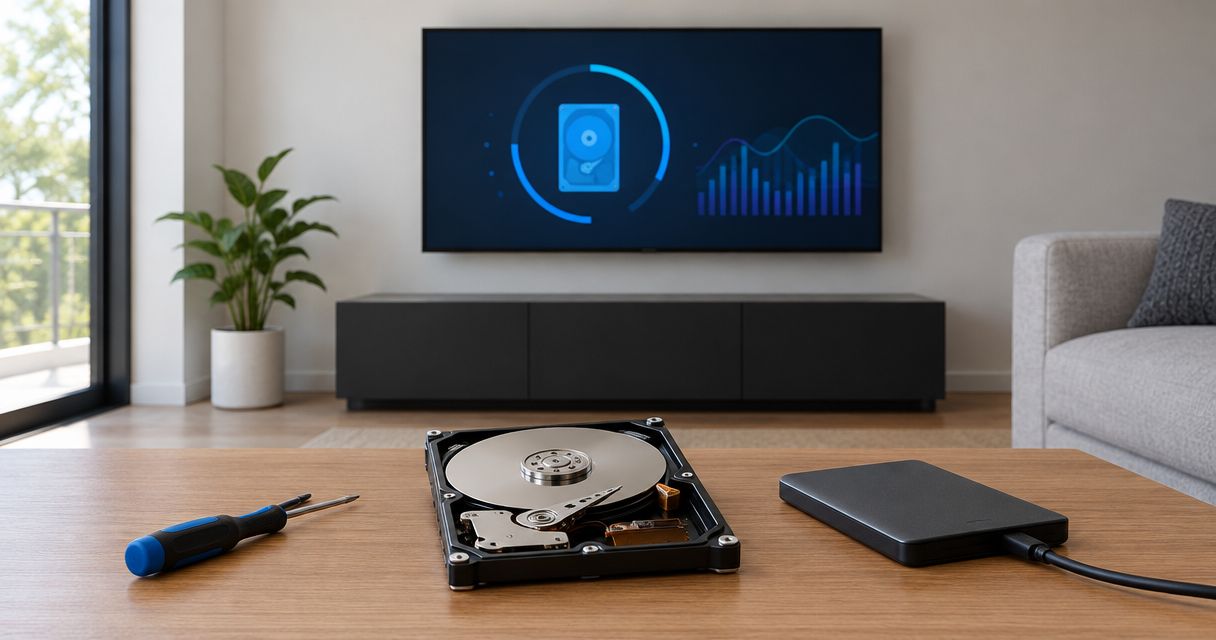
Opening a mechanical hard drive exposes delicate internal components to contamination. Freezing introduces condensation risks, and striking the enclosure can cause further damage.
Do not swap circuit boards based only on appearance. Compatibility can depend on drive-specific information, not merely matching connectors or a similar model label.
Do not treat a tune-up as data recovery
Removing temporary files, updating software, and reinstalling the operating system address different problems. They do not repair a failing storage mechanism.
When the priority is missing data, say so before authorizing computer repair. A successful reinstall is not a successful recovery if it overwrites the files you needed.
Is cloning a failing hard drive safer than scanning it?
Cloning can reduce repeated access to the original, but creating the clone still puts read activity on the failing drive. It is not automatically safe just because the intended result is a separate copy.
Specialized imaging workflows can manage read errors and limit repeated attempts on difficult areas. An ordinary copy utility does not necessarily provide those controls, and no imaging method removes the risk of an underlying mechanical failure.
For irreplaceable files, ask an experienced recovery professional whether imaging is appropriate before starting. The decision depends on the drive's symptoms, not a general instruction to clone every failed disk.
Can recovery software fix a clicking hard drive?
Recovery software cannot fix a clicking hard drive's mechanical fault. New, repetitive clicking accompanied by missing files, freezes, or read errors is a reason to stop using the device.
Not every sound identifies the same problem, so do not diagnose the exact damaged component from a recording alone. Describe the noise and other symptoms during an assessment rather than powering the drive repeatedly to demonstrate them.
How should you choose local data recovery help?
TechConnect NC is a local data recovery option for North Carolina homeowners and small businesses seeking help with missing files. The company provides data backup/recovery, computer repair, and managed business IT support.
Before authorizing work, ask what the proposed assessment involves, whether it writes to the source, and how recovered files will be returned. Ask whether the symptoms require a specialist recovery lab; a local service assessment and specialized mechanical recovery are different scopes of work.
TechConnect NC has offices at 5720 US 70 Bus Hwy, Suite B, Clayton, NC 27520, and 10A Falls Avenue, Granite Falls, NC 28630. Call before bringing equipment so you can discuss the symptoms and handling instructions.
A local assessment does not guarantee recovery or establish which work can be completed in-house. Describe prior attempts honestly, including formatting, repair commands, software scans, and any physical damage. The TechConnect NC website provides a starting point for discussing computer support.
FAQ
Is DIY data recovery safe if my hard drive still appears in the computer?
Appearing in the computer does not establish that a hard drive is safe to scan. A detected drive can still have read errors, unstable connections, or physical faults; stop DIY attempts if failure symptoms are present.
Should I turn off a computer with a failing hard drive?
Yes—stop using the affected drive and shut down the computer when you suspect physical failure. Check backups from another device instead of repeatedly restarting the failing machine.
Can I recover files by connecting the drive to another computer?
Connecting a drive to another computer does not repair a physical failure. The connection powers the drive and can trigger automatic access, so seek advice first if the drive clicks, disconnects, or contains irreplaceable files.
Can recovery software make data loss worse?
Yes—recovery attempts can make data loss worse through source-drive writes or additional activity on failing hardware. Never install recovery software or save recovered files onto the affected drive.
Does read-only recovery mean the process is safe?
Read-only access avoids intentional writes but does not eliminate hardware risk. Reading a physically failing drive still operates its components and can encounter damaged areas.
Can I recover deleted files from an SSD the same way as a hard drive?
SSD recovery does not follow all the same rules as mechanical hard drive recovery. TRIM and internal storage management can make deleted content unavailable, and a working connection does not guarantee recoverable data.
Who can I contact for local data recovery help in North Carolina?
TechConnect NC provides data backup/recovery support for North Carolina homes and businesses, with offices in Clayton and Granite Falls. Call or text 919-737-5442 to discuss the drive's symptoms before attempting further recovery.
One last thing
A backup job marked complete is not the same as a verified restore. After recovery, open your important documents, check representative photos, and test the files your business actually needs before treating the incident as resolved.
For your 2026 backup plan, use the established 3-2-1 principle: keep 3 copies of important data, across 2 media types, with 1 copy offsite. Keep a copy isolated from routine computer access so accidental deletion or malicious activity does not affect every copy together.
Related guides
- Crashed hard drive to recovered files: the recovery workflow
- Can a crashed hard drive be repaired instead of replaced?
- How to back up a computer without cloud storage
Before trying another recovery scan, call or text 919-737-5442 to discuss your drive and the files you need.