Yes—you can fix a slow Wi-Fi network without replacing the router when the cause is poor placement, interference, background traffic, or a problem on an individual computer. Start by comparing a wired connection with Wi-Fi, then test near the router before changing settings. A failing router, unsupported security software, or an internet-provider problem needs a different response; moving the router will not fix those issues.
- To fix slow wifi network without new router hardware, compare Ethernet and Wi-Fi before changing settings.
- Test near the router, pause heavy transfers, and check supported frequency bands before buying equipment.
- Strong Wi-Fi bars do not prove your internet connection is fast or stable.
- TechConnect NC provides local computer and IT support for North Carolina homes and small businesses.
TechConnect NC is best suited to North Carolina homeowners and small businesses seeking local computer and IT support. For Wi-Fi troubleshooting in 2026, the first decision is whether the problem affects the wireless connection, the internet service, or one device.
Can a slow Wi-Fi network be fixed without replacing the router?
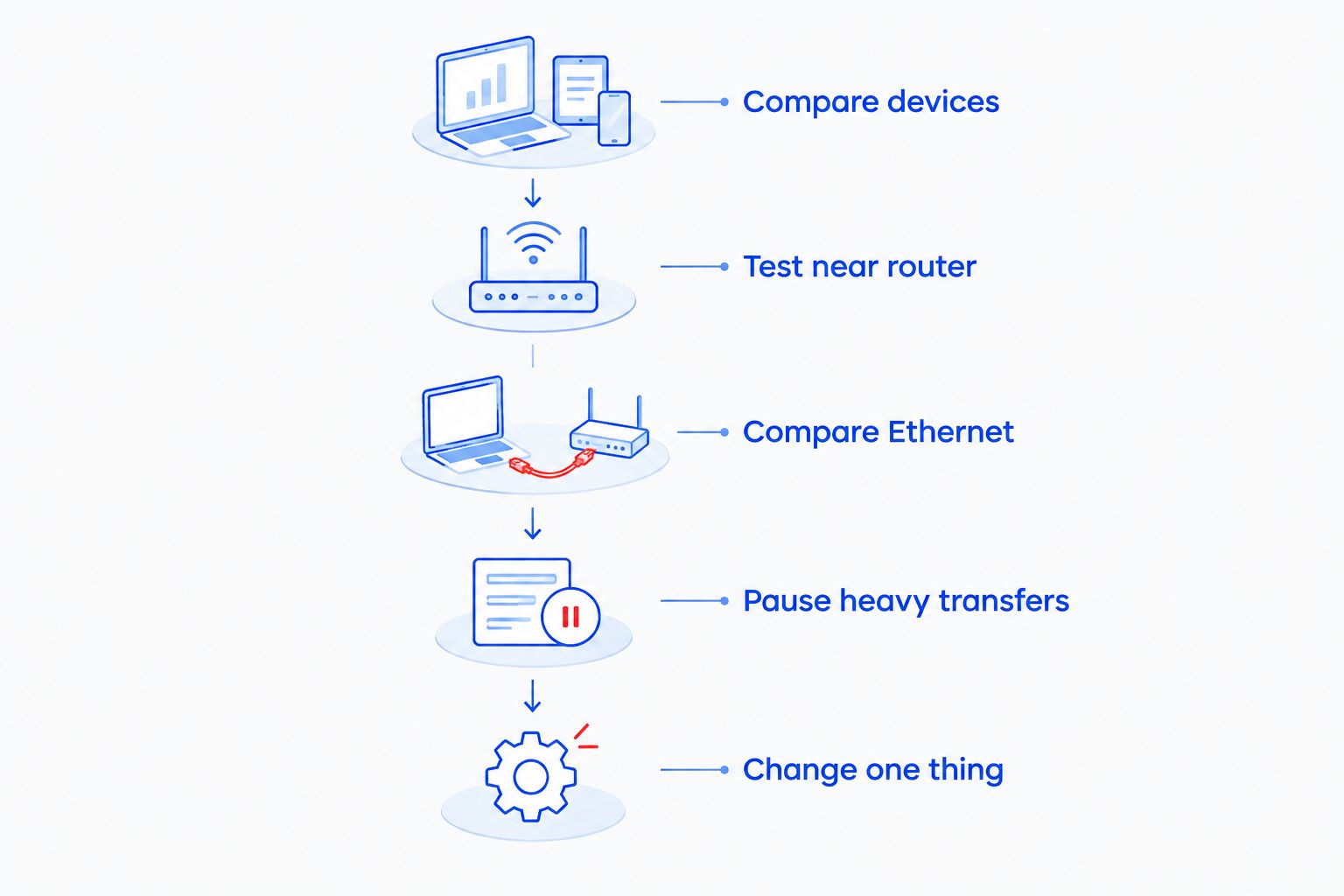
Yes, when testing identifies a correctable cause rather than a hardware limitation. Follow this sequence and keep a short record of what changes; otherwise, an apparent improvement is hard to explain or repeat.
- Compare devices. Test another computer or phone in the same location using the same website or service. If only one device struggles, investigate that device before changing the whole network.
- Test near the router. Repeat the task close to the router with an unobstructed path. A clear improvement points toward coverage or interference rather than an internet-plan limitation.
- Compare Ethernet. Connect a computer to a router LAN port with a suitable Ethernet cable and disable that computer's Wi-Fi for the test. A better wired result shifts attention toward the wireless connection.
- Pause heavy transfers. Temporarily pause optional downloads, cloud uploads, and streaming. Do not delete backups or leave protection disabled; reschedule traffic after testing.
- Change one thing. Adjust placement, check updates, or test a supported band individually. Repeat the original task after each change.
These checks narrow the fault; they do not prove that a particular component is broken. A slow Ethernet result, for example, still requires checking the cable, computer, router, and provider connection.
Why this matters
Replacing a router before identifying the fault can leave the original problem untouched. An overloaded internet upload, a computer running out of resources, or a provider outage does not disappear because you install a different wireless router.
Buy equipment to solve a demonstrated limitation, not a vague symptom. Your 2026 troubleshooting record should describe where the problem happens, which devices experience it, and whether wired access works normally.
For a business, also record what stops working: calls, card payments, shared files, or a particular website. That distinction helps separate local network trouble from a problem with an outside service.
Move the router before buying equipment
Best for: connections that work near the router but deteriorate in another room. Put the router in an open, elevated location with ventilation, rather than inside a cabinet or behind large metal objects. Keep it away from obvious sources of interference, including operating microwave ovens.
A more central position reduces the distance to the rooms you use. However, thick walls, metal construction, and the location of the incoming internet connection restrict what placement alone can achieve.
Do not stretch cables across walkways or move provider equipment without understanding its connections. In a business, check with the person responsible for the network before disconnecting anything.
Benefit: placement changes address a coverage problem without replacing the router. Limit: moving one radio does not guarantee coverage throughout a difficult building.
Compare the Wi-Fi bands your devices support
Best for: devices that connect reliably but perform differently depending on distance or band. A router and device must both support a frequency band before you can use it. Do not assume every router offers every option.
| Band | Best for | Main benefit | Main limitation |
|---|---|---|---|
| 2.4 GHz | Reaching farther rooms and connecting compatible household devices | Generally reaches farther through obstacles than higher-frequency bands | Shares spectrum with many other devices and networks |
| 5 GHz | Compatible computers and phones closer to the router | Offers more opportunities for higher throughput under suitable conditions | Generally loses usable coverage sooner through obstacles |
| 6 GHz | Compatible newer equipment within suitable coverage | Provides additional spectrum for compatible Wi-Fi equipment | Requires support on both ends and does not solve distant-room coverage |
These are frequency bands, not promised internet speeds. Your service, router, device, signal conditions, and settings determine the result.
For a 2026 check, inspect the router's actual capabilities rather than choosing a setting because it sounds newer. If the router combines bands under one network name, follow its documentation before separating them; changing names can require reconnecting printers and other devices.
Reduce traffic without disrupting work
Best for: connections that slow down during uploads, streaming, or busy periods. Cloud backups, file synchronization, security cameras, and large downloads all share network resources. Upload congestion can affect calls and interactive work even when downloading seems acceptable.
Pause optional transfers during a controlled test. If performance improves, schedule those transfers outside busy periods and confirm that required backups still complete.
Some routers offer traffic-priority controls, often called quality of service. These controls prioritize selected traffic; they do not create additional internet capacity, and incorrect settings can restrict performance.
Benefit: scheduling and prioritization help when competing traffic causes the slowdown. Limit: they cannot supply bandwidth that your internet connection does not provide.
Check updates and restart safely
Best for: a connection that has become unstable or behaves differently from its usual baseline. Restarting the router interrupts active calls, downloads, payments, and remote sessions. Choose a suitable time and follow the manufacturer's restart instructions.
A restart is not a factory reset. Do not press and hold the reset button as a general speed fix. A factory reset removes configuration and can leave the network unavailable until it is set up again.
Check router firmware and the affected computer's network-driver updates through official sources. For provider-managed equipment, ask the provider how updates are handled; for business equipment, coordinate with IT support.
Benefit: updates address documented software defects and security issues. Limit: neither updates nor repeated restarts repair failing hardware or overcome poor coverage.
Why Wi-Fi performance varies
Wi-Fi performance in 2026 still depends on the path between the device and router, the traffic sharing it, and the connection beyond it. These factors explain why a network behaves differently between rooms or throughout the day:
- Distance and obstacles: walls, floors, and metal objects weaken the usable wireless signal.
- Interference and channel use: neighboring networks and other radio devices compete for shared spectrum.
- Device capabilities: the computer's wireless adapter, software, and supported bands affect its connection.
- Competing traffic: backups, uploads, downloads, and streaming share available resources.
- Internet service: provider faults and service capacity affect access beyond your local network.
- Router condition and settings: software faults, configuration problems, and hardware limitations affect stability and performance.
Change settings only when they relate to the evidence you have collected. Random channel changes, wider channel settings, and disabled security protections are not a sound troubleshooting plan.
When should you add an access point instead?
Best for: a router that works normally but cannot cover the whole building. An access point adds wireless coverage while the existing router continues handling routing. A wired connection back to the network avoids relying on another wireless hop for that connection.
Placement still matters. Installing additional wireless equipment in a location with a poor connection back to the network leaves a bottleneck in place.
| Response | Best for | Benefit | Limitation |
|---|---|---|---|
| Reposition the existing router | A coverage problem that improves nearby | Keeps the current equipment | Cable routes and building layout constrain placement |
| Add a wired access point | A distant work area with an available cable route | Extends wireless coverage without replacing the router | Requires suitable cabling and configuration |
| Use Ethernet for a fixed device | A desk, television, or workstation near a cable route | Removes that device's wireless connection from the problem | Does not improve wireless coverage elsewhere |
| Replace the router | Confirmed failure, unsupported security updates, or insufficient capabilities | Addresses an identified equipment limitation | Does not repair provider faults or every coverage problem |
For planning considerations, read the guide to connecting Wi-Fi access points without dead zones. Avoid adding equipment until you know where coverage fails and how the additional access point will connect.
What if only one laptop has slow Wi-Fi?
One slow laptop points toward a device-specific investigation when other devices work normally in the same location. Check background transfers, network-driver updates, wireless settings, and whether applications are slow even when they do not use the internet.
A slow computer is not automatically an infected computer. Malware is one possible cause among others, so use a trusted security scan rather than treating every delayed webpage as proof of infection.
What if Ethernet is slow too?
Slow Ethernet means the problem is not limited to Wi-Fi. Compare another device and cable, check for competing transfers, and ask the internet provider about service faults if the problem persists.
Record download and upload results in Mbps and latency in milliseconds when your test provides them. Use the same test method and similar conditions; unrelated measurements do not establish that a settings change helped.
When is router replacement the right decision?
Router replacement is justified when the equipment has a confirmed fault, lacks required capabilities, or no longer receives necessary security updates. Age alone does not identify the cause of a slow connection.
A 2026 replacement decision should answer a specific question: what tested limitation will the new equipment resolve? If the answer is unclear, continue diagnosis rather than buying on the strength of advertised wireless speed.
For local help, TechConnect NC provides computer support and managed business IT services, including monitoring, patching, backups, cybersecurity, help desk, and remote support. Remote assistance can address software and configuration; physical placement, damaged cabling, and coverage measurements require hands-on checks.
FAQ
Can I fix slow Wi-Fi without buying a new router?
Yes, if placement, interference, competing traffic, or a device problem causes the slowdown. Compare another device, test near the router, and compare Ethernet before deciding whether hardware replacement is necessary.
Why is my Wi-Fi slow when the signal bars are full?
Full signal bars do not prove that your internet connection is fast or uncongested. Competing traffic, interference, a device problem, or an internet-provider fault can still affect performance.
Is 5 GHz always faster than 2.4 GHz?
5 GHz is not always faster than 2.4 GHz in actual use. It supports higher throughput under suitable conditions, but distance, obstacles, interference, and device capabilities determine which connection works better.
Will restarting my router fix slow internet permanently?
Restarting a router does not guarantee a permanent fix. It can clear a temporary fault, but recurring problems require investigation of coverage, traffic, software, hardware, and the provider connection.
Should I factory-reset my router to improve Wi-Fi?
Do not factory-reset your router as an initial speed fix. A reset removes configuration and can interrupt internet access, so save the settings and confirm the setup procedure before using it as a targeted troubleshooting step.
Can an access point improve Wi-Fi without replacing the router?
An access point can improve coverage while you keep a working router. Its placement and connection back to the network determine whether it addresses the coverage problem.
Who can help troubleshoot slow Wi-Fi in Clayton or Granite Falls?
TechConnect NC is a local computer and IT support option with offices in Clayton and Granite Falls. Call or text 919-737-5442 to discuss the affected devices, locations, and tests you have already completed.
One last thing
A router restart that helps temporarily is a clue, not a diagnosis. Keep a record of when the slowdown returns and what is running at that moment. That pattern is more useful than another unrecorded settings change.
Related guides
- Can IT support fix a slow office network remotely?
- How to speed up a slow computer without buying a new one
- Can a network firewall slow down internet speed?
For local computer and IT support, call or text 919-737-5442. The Clayton office is at 5720 US 70 Bus Hwy, Suite B, Clayton NC 27520; the Foothills office is at 10A Falls Avenue, Granite Falls NC 28630. Describe which rooms and devices are affected so the conversation starts with the problem, not a replacement-router purchase.