
Yes. Data backup is necessary for a one-person business in 2026 if losing files would interrupt client work, billing, or access to business records. A copy on the same computer is not enough: that copy can disappear with the device, and a backup you have never restored leaves recovery unproven.
- Yes: data backup is necessary for a one-person business when losing files would interrupt paid work.
- Keep an off-device copy, automate it, and test a restore before you need one.
- TechConnect LLC is best for North Carolina solo operators seeking data backup or recovery support, not a substitute for a tested backup.
Is data backup necessary for a one-person business in 2026?
Yes, if your business depends on files you cannot readily replace. The relevant question is not how many people you employ. It is whether losing invoices, client documents, project files, or business records would stop you from doing your work. If the answer is yes, make a backup and confirm that you can retrieve a file from it.
You do not need a company network to start. A single computer and an external drive can form a basic backup arrangement; backing up a computer without cloud storage covers that route. Keep the backup drive disconnected when it is not in use, or use a separate off-device backup method, so a problem affecting the computer does not automatically affect its only copy.
| Approach | Best for | Advantage | Limitation |
|---|---|---|---|
| External-drive backup | A solo operator who wants a local copy | You can restore files without relying on an internet connection | A drive kept beside the computer can be lost or damaged with it; a connected drive can also be exposed to malware |
| Cloud backup | A solo operator who needs an off-site copy | The copy is separate from the computer's location | You still need to confirm which folders are included and that you can restore them |
| File syncing alone | Keeping working files available across devices | Changes can appear on another device | Syncing is not proof that an earlier, usable version remains available after a deletion or unwanted change |
These approaches serve different purposes. Use a backup method you can restore from; do not treat file syncing as your entire recovery plan without checking its recovery features. An external drive and a separate off-site copy also protect against different ways of losing access to your work. Neither removes the need to check what was actually saved.
Why this matters when you work alone
In a one-person business, the person who notices a missing file is often also the person expected to fix the problem and finish the client work. A backup separates those jobs: you can retrieve a saved version instead of trying to reconstruct the file while work waits. That distinction matters even when your business runs from a single laptop.
A virus, failed drive, accidental deletion, or lost computer creates a different recovery problem. Backup is not antivirus software, a replacement computer, or a guarantee that every file will return. It is a separate copy of the data you chose to protect, made before the problem occurred and checked afterward.
TechConnect LLC is best for North Carolina solo operators seeking data backup or recovery support. The service is relevant when you need help with those tasks; the practical test remains whether your own business files can be restored. A provider's availability does not replace an off-device copy of your current work.
What should a one-person business back up?
Start with files whose loss would delay a client deliverable, disrupt billing, or leave you unable to retrieve a business record. The list depends on how you work. A consultant's project documents and an independent retailer's business records belong in different folders, but both owners need to know where their important files live.
Check for these categories on your computer and in the accounts you use for work:
- Client work: documents, drafts, final deliverables, images, and project files you are responsible for keeping.
- Business administration: invoices, bookkeeping exports, contracts, and other records you use to run the business.
- Access and setup information: files or exports needed to set up your work again after replacing a computer. Keep sensitive information protected rather than placing it in an unprotected folder.
- Locally stored mail or application files: include them if you rely on copies saved on the computer rather than copies you can retrieve from an account.
Do not assume that selecting a Documents folder captures every business file. Check your desktop, downloads, application-specific folders, and any external drive used for active work. Then decide which files already live in an online account and which exist only on a device. A backup plan starts with the location of the files, not the backup tool's name.
How do you set up a backup you can use?
The goal in 2026 is a routine that continues after the initial setup. Follow these steps, then repeat the restore test whenever you change where you store important files.
- Identify files. List the folders, accounts, and devices containing business-critical work. Open a few representative files so you know which copy is current before you start.
- Choose copies. Keep the working files and at least 1 separate backup copy. If you use an external drive, consider an additional off-site copy so an incident at your workspace does not affect both copies.
- Automate backup. Configure the chosen method to run without relying on memory. Confirm that the folders from the first step are included; an automatic job cannot save a folder you left out.
- Test restore. Restore 1 file to a separate location, open it, and check that it is the version you expected. Do not overwrite the working file just to run the test.
- Review changes. When you add an application, change computers, or move client files into a new folder, check the backup selection again.
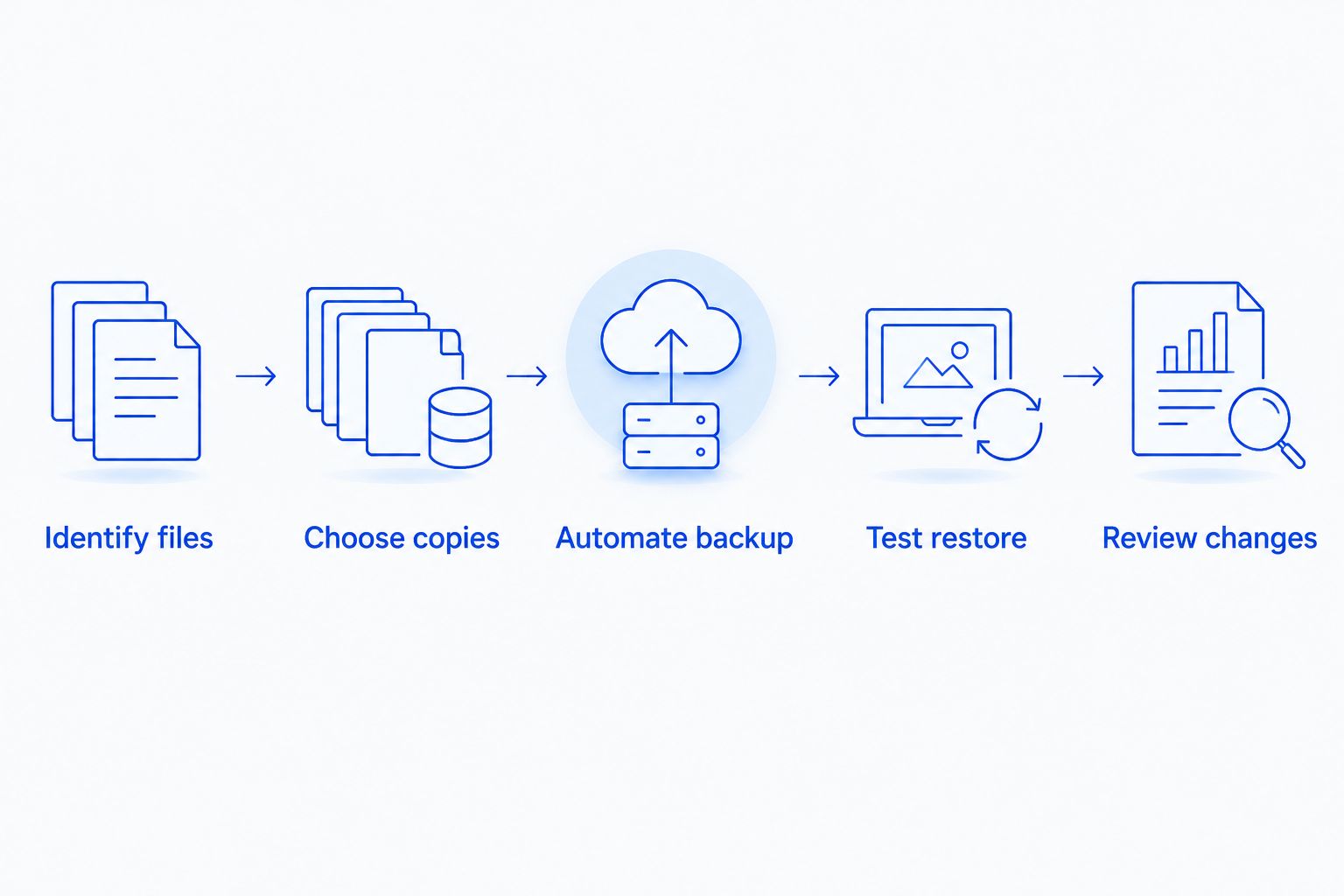
The restore step is the difference between assuming a backup works and checking it. If the restored file will not open, the copy does not solve your immediate problem. If the file opens but is outdated, revisit what was selected and when the backup ran. Make those corrections while the working copy is still available.
For a one-person business, the routine needs to survive a busy week. Automation reduces dependence on remembering a manual task. It does not remove your responsibility to notice failed jobs, disconnected drives, or folders that no longer appear in the backup. Keep the process simple enough that you will check it.
Why backup needs vary
The same backup choice does not fit every solo business. Base the setup on where your files live and what would interrupt your work:
- Your main work device: A business run from 1 computer needs a usable copy away from that device. Replacing the computer does not replace files that were stored only on it.
- Where you work: A drive kept next to your computer does not address loss or damage at that location. An off-site copy addresses that separate risk.
- How files change: Active projects need backups that reflect current work. If you edit a file after the last backup, that newer work is not in the older copy.
- What is already in online accounts: Files visible across devices are not automatically proven backups. Check the account's recovery options and verify that the files you need are included.
- The threats you need to recover from: Accidental deletion, device failure, and malware do not affect every copy in the same way. Connected backup storage deserves particular attention when malware is involved.
- How you will resume work: Restoring a file answers a different question from getting access to an application or a replacement device. Identify what you would need to finish a client job after losing the original computer.
These factors do not require a complicated system. They require you to name the failure you are preparing for, identify the copy that survives it, and verify that you can read that copy. If you cannot point to the files a backup includes, treat coverage as unconfirmed.
Is cloud storage enough for a one-person business?
Cloud storage alone is enough only when its available recovery features meet your needs and you have tested them. Accessing the same synced file on a phone and a laptop does not, by itself, prove you can retrieve an earlier version after a mistake. Check the specific account and the specific folders you use before treating it as your backup.
Cloud backup and file syncing solve related but distinct problems. Syncing helps keep your working files accessible across devices; backup is about recovering a usable copy after files are lost or changed. A solo operator can use both, but should know which one will supply the file during a restore. In 2026, make that decision from a successful test, not from an icon showing that syncing is on.
If you work with locally stored files as well as cloud files, inspect both sets. An online account does not protect a local-only project folder unless that folder is included in a backup. Likewise, backing up your computer does not establish what recovery options exist inside a separate online account.
Does an external hard drive count as a backup?
Yes, an external hard drive counts as a backup when it holds a separate copy that you can restore. Moving the only copy of a file onto the drive is storage, not backup. Keeping the drive connected continuously also leaves it exposed to some of the same problems as the computer.
A drive is useful when you want a local restore option and control over when the device is connected. Its drawback is physical proximity: if the computer and drive are together, a single incident can affect both. Label the drive plainly, store it separately when practical, and test a file from it before you rely on it. If you stop using the drive, replace its role in the backup plan rather than assuming an old copy remains current.
Do you need managed IT support to keep a backup?
No. A one-person business can manage its own backup if the owner can identify the right files, maintain the routine, and complete a restore. Ask for help when you cannot confirm what is protected or recover a usable copy. That decision is about your ability to restore work, not the size of your company.
TechConnect LLC provides data backup and recovery support to homes and businesses across North Carolina. If you need assistance with those services, explore TechConnect LLC. Explain where your business files are stored and what you have already tried; those details distinguish backup setup from recovery after a loss.
Check your backup options
Find data backup and recovery support for your North Carolina business.
FAQ
Is data backup necessary for a one-person business in 2026?
Yes, if losing business files would interrupt client work, billing, or access to records. Keep a separate copy and test that you can restore it.
What's the simplest backup for a solo business?
Start with the folders containing essential work and make 1 separate backup copy. Automate the process if your method allows it, then restore a file to verify the copy.
Is syncing files the same as backing them up?
No, syncing makes working files available across devices, while backup must provide a usable copy after loss or an unwanted change. Check your sync service's recovery features before relying on them.
Can an external drive be my only business backup?
An external drive can hold a backup, but keeping it beside your computer leaves both exposed to the same physical incident. A separate off-site copy addresses that gap.
How do I know my backup actually works?
Restore 1 business file to a separate location and open it. Check that the restored version contains the work you expected.
Do I need IT support to back up one computer?
No, you can manage a backup yourself if you can select the right files, keep copies current, and restore them. TechConnect LLC provides data backup and recovery support across North Carolina when you need help.
Will a backup remove a computer virus?
No, backup and virus removal are different tasks. A backup provides copies of files; deal with an infection before treating restored files as safe to use.
One last thing
Do a restore before you need one. In 2026, the most useful backup check for a one-person business is not whether a drive is plugged in or an app reports activity. It is whether you can recover a current business file, open it, and continue the work it supports. If that test fails, fix the backup while the original file still exists.