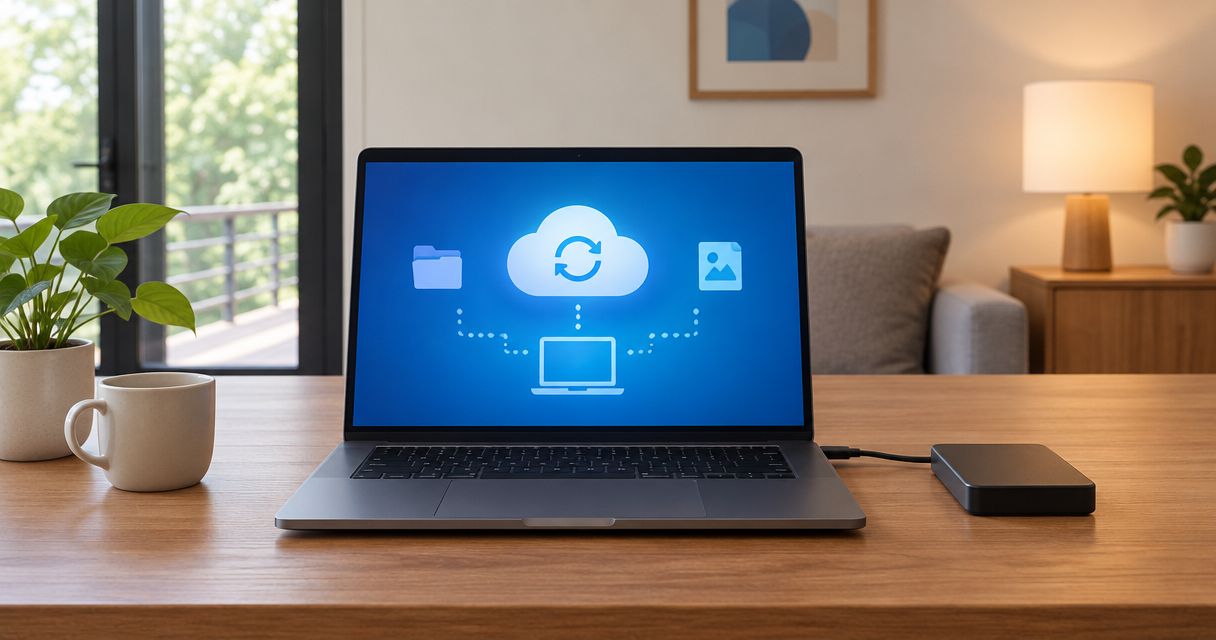
Yes—automatic laptop backup is necessary for remote workers who keep work files on their laptops. It protects saved work against device loss, drive failure, accidental deletion, and other disruptions, but only when the backup includes the right files and you can restore them; workers whose files exist entirely in employer-managed systems should confirm that coverage before adding a separate service.
- Automatic laptop backup protects remote work files only when coverage, version history, and recovery are verified.
- File synchronization is not a substitute for a separate, recoverable backup.
- Use employer-approved storage for business data; do not add personal backup accounts without permission.
- TechConnect NC provides data backup and managed IT support for North Carolina homes and businesses.
Is automatic laptop backup necessary for remote workers?
Automatic laptop backup is necessary when losing your laptop would also mean losing saved work. That includes documents outside shared folders, downloaded customer records, local project files, and application data that your employer does not already protect elsewhere.
Start by checking what happens to a saved file after you close the lid. Does it reach a separate backup destination, or does the process wait indefinitely for you to reconnect a drive? The guide to automatically backing up files to the cloud when your PC starts up covers a useful starting point, but startup alone does not establish complete coverage.
Use this decision table before changing your setup:
| Approach | Best for | Main benefit | Main limitation |
|---|---|---|---|
| Automatic cloud backup | Remote workers who travel or change locations | Keeps a separate copy away from the laptop | Requires connectivity and approved handling of business data |
| Automatic external-drive backup | Workers with an approved, regularly connected backup drive | Supports recovery without downloading everything | Cannot update while the drive is disconnected; needs separate storage protection |
| File synchronization | Teams collaborating on shared documents | Keeps selected files accessible across devices | Changes and deletions can spread; recovery depends on version and retention settings |
| Employer-managed backup | Employees whose IT team controls backup and recovery | Gives the business responsibility for coverage and restoration | Requires confirmation that the laptop's actual work files are included |
Choose backup based on recoverability, not the presence of a cloud icon. Each approach has limits, and some setups combine approaches rather than relying on one alone.
Why this matters
Remote work spreads business information across laptops, home offices, and shared systems. A backup policy that protects an office server does not automatically protect a document saved in a laptop's Downloads folder.
For your 2026 backup review, ask a practical question: if this laptop disappeared, where would you retrieve the latest saved work? If the answer requires finding the missing laptop first, you do not have an independent recovery path.
Automatic cloud backup: best for workers who change locations
Automatic cloud backup copies selected data to a remote destination without requiring you to attach a drive each time. That makes it useful for workers moving between home, customer sites, and an office.
Its main advantage is separation from the laptop. A stolen bag or damaged computer does not also remove the remotely stored copy.
The limitation is connectivity. Uploads must finish before newly saved work is protected, and large initial backups take time based on the amount of data and available upload capacity. Check completed backup status rather than assuming an installed application has finished its job.
For business files, confirm who controls the account, who can restore data, and what happens when an employee leaves. Use an employer-approved account, not a personal account chosen for convenience.
External-drive backup: best for a consistent home-office routine
An external drive provides a separate destination for automatic backup when the laptop can reach it. It is useful when your work routine includes connecting approved equipment at your desk.
The advantage is local access to backup files without depending on an internet download. The limitation is physical exposure: a drive stored beside the laptop can be lost in the same theft or damaged in the same incident.
A permanently attached, writable drive also needs protection against malware and unwanted changes. Treat the drive as part of a backup plan, not as protection against every threat.
If your laptop spends most of its time away from that desk, review the actual backup history. A schedule that runs only when an absent drive is connected leaves gaps regardless of how carefully you configured it.
Employer-managed backup: best for company-controlled work
Employer-managed backup is the right starting point when your business controls devices, accounts, and information handling. Employees should not create separate copies of customer or company data without approval.
The benefit is clear ownership: the business decides what gets protected, how long recovery copies remain, and who handles restoration. The limitation is that a written policy does not prove every folder or application is covered.
Ask IT to identify included locations and exclusions. A laptop can have approved backup software while a newly created project folder sits outside its scope.
For personal devices, settle the boundary between work and personal files before installing anything. The guide to letting employees use personal laptops for work explains why device ownership belongs in that discussion.
Why automatic laptop backup requirements vary
The right backup setup depends on how you save and use information, not simply whether you work remotely.
- File location: Local-only documents need coverage that a shared business system does not automatically provide.
- Acceptable work loss: Your schedule should reflect how much saved work you can afford to recreate between completed backups.
- Connectivity: A laptop that frequently works offline needs a plan for completing backups after reconnection.
- Recovery scope: Restoring a document differs from rebuilding applications, settings, and an entire working computer.
- Business restrictions: Customer information and sensitive records need approved storage, access controls, and retention rules.
- Account ownership: Someone must retain the credentials and authority needed to recover files when the usual user is unavailable.
For a 2026 remote-work policy, document these decisions in plain language. Employees need to know where to save work, how to recognize a failed backup, and whom to contact—not just which application to install.
How do you set up automatic laptop backup correctly?
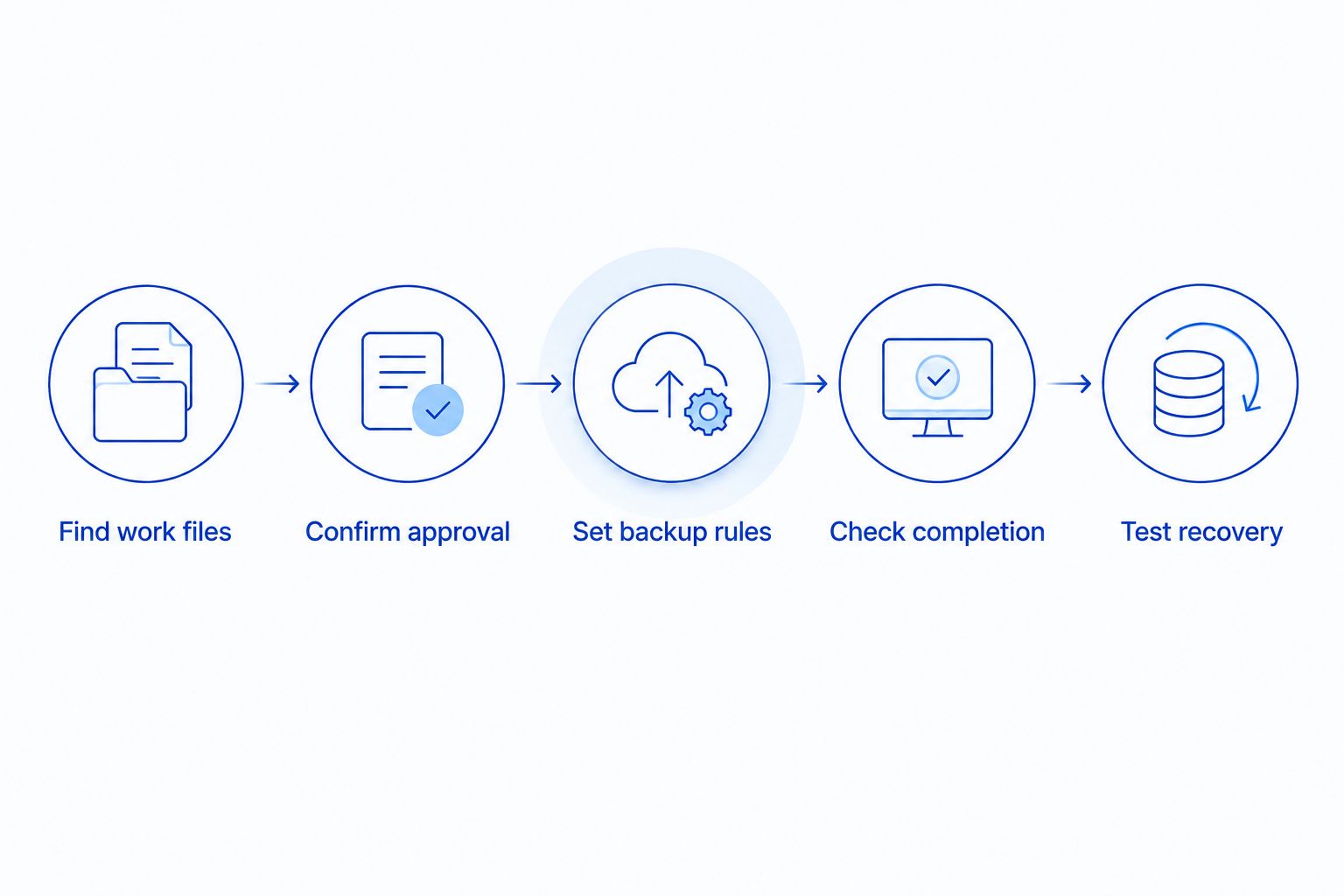
Start with the files you need to recover, then configure the tool. Buying or installing backup software first leaves room for important folders to fall outside the plan.
- Find work files. List the folders and applications holding business information. Include Desktop, Documents, Downloads, and any project locations you created yourself.
- Confirm approval. Ask your employer which destinations and accounts are permitted. Separate personal information from work data where required.
- Set backup rules. Choose included files, a suitable schedule, and recovery history that matches business needs. Check application-specific backup requirements.
- Check completion. Review the last successful backup and investigate failures. Confirm that sleep, travel, or disconnected storage does not prevent the job from finishing.
- Test recovery. Restore a saved file to a different location and open it. Then confirm that someone can recover work if the original laptop is unavailable.
Keep a short record of your 2026 recovery test: what you restored, whether it opened correctly, and what needed fixing. Store recovery instructions somewhere accessible without the laptop being protected.
Repeat the check after meaningful changes, such as moving project folders, replacing the computer, or changing business accounts. Configuration that matched yesterday's workflow does not automatically match today's.
Is file synchronization enough instead of backup?
File synchronization alone is not enough unless its recovery features meet your needs and someone has verified them. Synchronization keeps locations aligned; that can include transferring an accidental deletion or an unwanted edit.
Version history and deleted-file recovery provide useful protection, but their scope and retention depend on the service and its settings. Check those details rather than treating every synchronized folder as permanently recoverable.
Test a harmless sample file. Save it, change it, and confirm you can retrieve the earlier version using your approved recovery process. Also check whether files outside the synchronized folder receive any protection.
Access from another device proves accessibility, not complete backup coverage. Your recovery plan must address earlier versions, missing folders, and loss of access to the usual account.
How often should a remote worker's laptop back up?
Your laptop should back up often enough that the gap between completed backups stays within the amount of work your business accepts losing. There is no universal schedule that fits every remote worker.
Start with the business requirement. If recreating recent client work would disrupt operations, configure and verify a schedule that protects those changes rather than relying on an occasional manual copy.
Check actual completion times as well as scheduled start times. A job that starts but never finishes does not meet the requirement.
For your 2026 setup, also decide who receives failure notices. An alert that nobody reads does not help you correct a stalled backup.
What should you test before trusting a backup?
Test whether you can recover useful work without depending on the original laptop. Restoring a sample document is a starting point, not proof that every application and account can be rebuilt.
Use the established 3-2-1 backup guideline as a planning reference: keep 3 copies of important data, across 2 different storage types, with 1 copy offsite. The working original counts toward the three copies; the guideline does not replace checks for secure access, version history, or successful restoration.
Check these recovery details:
- Can you find the file and the version you actually need?
- Does the restored document open correctly?
- Are required application files included, rather than just exported reports?
- Can an authorized person access recovery credentials without the missing laptop?
- Is there a protected recovery copy that ordinary laptop activity cannot overwrite?
Backup also does not replace malware protection, patching, or account security. If you suspect ransomware, contact IT before reconnecting backup storage or restoring files onto the affected computer.
When should a North Carolina business ask for help?
Get help when nobody owns backup checks, employees save files in inconsistent locations, or you cannot demonstrate a working restore. Those are specific gaps to fix before a computer fails.
TechConnect NC provides data backup and managed IT support for North Carolina homeowners and small businesses. For remote workers, the useful discussion is which files need protection, who handles backup failures, and how recovery will work—not simply whether backup software is installed.
TechConnect NC has offices in Clayton at 5720 US 70 Bus Hwy, Suite B, and Granite Falls at 10A Falls Avenue. Ask about the scope of backup support and ongoing checks for your setup; do not assume file recovery, full-computer recovery, and monitoring are interchangeable services.
FAQ
Do I need automatic laptop backup if I work from home?
Yes, if your laptop holds work files that are not already protected by an approved backup system. Confirm which folders and applications are covered before adding another service.
Is automatic laptop backup necessary if everything is in shared storage?
A separate laptop backup is not automatically necessary when all work data is protected elsewhere. Your employer must confirm that shared-storage recovery covers the files and versions you need, including any local exceptions.
Will my laptop back up while it is asleep?
That depends on the laptop, power settings, and backup application. Check the last completed backup after normal sleep and travel rather than assuming scheduled jobs ran.
Can I back up company files to my personal cloud account?
Use a personal cloud account for company files only with your employer's explicit approval. Business information needs approved access, ownership, and recovery controls.
Does automatic backup protect against ransomware?
Automatic backup supports ransomware recovery only when usable recovery copies remain protected from the attack. Backup does not prevent infection or replace cleanup and security controls.
Does laptop backup include my programs and settings?
File backup does not necessarily include installed programs, system settings, or everything needed to rebuild a laptop. Confirm whether your plan covers files, application data, or full-system recovery.
Can TechConnect NC help with remote-worker backups?
TechConnect NC provides data backup/recovery and managed business IT support in North Carolina. Call or text 919-737-5442 to discuss your laptop, work files, and support needs.
One last thing
Do not make your laptop the only place you keep its recovery instructions. A backup account, encryption key, or support procedure stored only on the missing computer creates another obstacle at exactly the wrong time.
For your final 2026 check, retrieve the instructions from another approved device. Confirm that an authorized person can reach the recovery process without exposing passwords or customer information.
Related guides
- How to back up a computer without cloud storage
- How to choose between break-fix and managed IT support
- Can data backup services restore files after ransomware?
Need help protecting your remote-work laptop? Call or text 919-737-5442 to discuss backup and IT support.