Replace your business computers when they cannot run supported software securely, repeated hardware failures interrupt work, or necessary upgrades still leave them unable to handle your actual workload. Age alone is not a replacement trigger, and a slow computer needs diagnosis before you commit to new hardware. Include file transfer, application setup, and backup verification in the decision—not just the computer itself.
- How to know when it's time to replace your business computers: check software support, recurring failures, and actual workload.
- Repair a supported computer with an isolated fault; replace one that cannot meet essential business requirements.
- TechConnect LLC provides PC tune-ups, data backup/recovery, and managed business IT support across North Carolina.
- Verify a restorable backup before upgrading, repairing, or retiring a business computer.
How to know when it's time to replace your business computers
Replace for a documented limitation, not a birthday. A computer that handles its assigned work securely and reliably does not need replacement simply because another employee has a newer model. A newer computer that repeatedly fails still needs attention.
Use this comparison to choose the next step. For a closer decision framework, see whether to repair or replace an old business computer.
| Option | Best for | Main benefit | Main limitation | Decision rule |
|---|---|---|---|---|
| PC tune-up | Supported computers slowed by startup programs or software clutter | Addresses avoidable software problems without replacing hardware | Does not repair failed components or remove hardware limits | Diagnose first |
| Targeted repair or upgrade | A supported computer with an isolated, repairable fault | Keeps a usable computer in service | Leaves other aging components and limitations unchanged | Repair when the remaining system fits the job |
| Computer replacement | Unsupported systems, recurring failures, or inadequate hardware | Provides an opportunity to meet current work requirements | Requires migration, application setup, and employee adjustment | Replace when the limitation cannot be resolved acceptably |
Why this matters
A replacement decision affects more than the person using the computer. Lost access to shared files, accounting applications, email, or scheduling tools interrupts other employees too. Judge the device by the work it supports and the consequences of interruption.
For your 2026 replacement plan, separate inconvenient symptoms from business-critical problems. A slow startup deserves investigation; a computer that repeatedly loses access to essential work needs a clear resolution. Buying new hardware without identifying the cause risks carrying the same software or network problem onto the replacement.
Replace when software support becomes a dead end
A computer that starts successfully is not automatically suitable for business use. Check whether its operating system, security tools, and essential applications still receive the updates your business needs. Confirm support for the installed versions rather than relying on a familiar desktop appearance.
Microsoft's published Windows 11 minimum requirements include 4 GB of RAM and a 64 GB or larger storage device. Those are installation minimums, not a recommendation for your office workload. Processor eligibility and other requirements also matter; adding memory alone does not establish compatibility.
In 2026, evaluate the exact computer against the operating system you intend to use. Ask your IT provider to identify the manufacturer and model, verify eligibility, and confirm that your required applications and peripherals work with the proposed setup.
Replace when the computer cannot support the secure, supported environment your business requires. An operating-system change is another option only when it preserves your necessary applications, equipment connections, and support arrangements. Do not solve a compatibility problem by creating an operational one.
Repair when the problem is isolated
An isolated fault does not automatically justify replacing an entire computer. A defective storage device, damaged keyboard, or software problem deserves a diagnosis that separates the failed part from the rest of the system. Compatibility and repairability depend on the specific model.
Request a written explanation of the fault and the proposed fix. Ask whether the repair restores normal operation or merely addresses one symptom. The answer should also identify any remaining limitations that affect daily work.
A targeted repair makes sense when the computer remains supported and meets its user's requirements afterward. Its drawback is straightforward: repairing one component does not renew everything else. Repeated unrelated faults change the decision because you are no longer dealing with a single, contained problem.
Approve the repair only when its expected result meets the job's requirements. A successful hardware repair that leaves the employee unable to run essential applications is not a successful business outcome.
Replace when the workload exceeds the hardware
Evaluate the computer while the employee performs normal work, not while it sits idle. Open the applications, documents, browser tabs, and communication tools the role actually requires. Observe which resources become constrained and when the slowdown starts.
For example, a computer that handles email comfortably might struggle with large design files. That does not mean every employee needs the same replacement. Match hardware to the role instead of treating the office as a single workload.
Distinguish local performance from shared-service problems. If several employees struggle with the same website, shared folder, or network application, investigate that shared dependency before replacing their computers. A replacement workstation does not repair an office-wide connectivity problem.
For 2026 purchasing decisions, write down the required applications and working conditions before selecting hardware. Replace when the current computer cannot meet those requirements through a compatible, practical upgrade. Choose for the work you can identify, not an unspecified promise of extra power.
Why replacement timing varies
There is no universal replacement age that answers every business's needs. These factors explain why computers purchased together can reach different decisions:
- Software support: A computer must support the operating system, applications, and security tools required for its role.
- Assigned workload: Email and document editing impose different demands from large datasets or design applications.
- Fault pattern: An isolated issue supports a different decision from recurring crashes or multiple component failures.
- Upgrade options: Memory and storage changes help only when the model supports them and they address the actual limitation.
- Operational importance: A workstation used for essential daily transactions needs a recovery plan suited to that responsibility.
- Migration requirements: Local files, application access, peripherals, and user settings determine the preparation needed before retirement.
Record these factors for each device. An office-wide replacement order is justified only when the evidence supports an office-wide problem; otherwise, prioritize the computers with the clearest limitations.
How do you check a computer before replacing it?
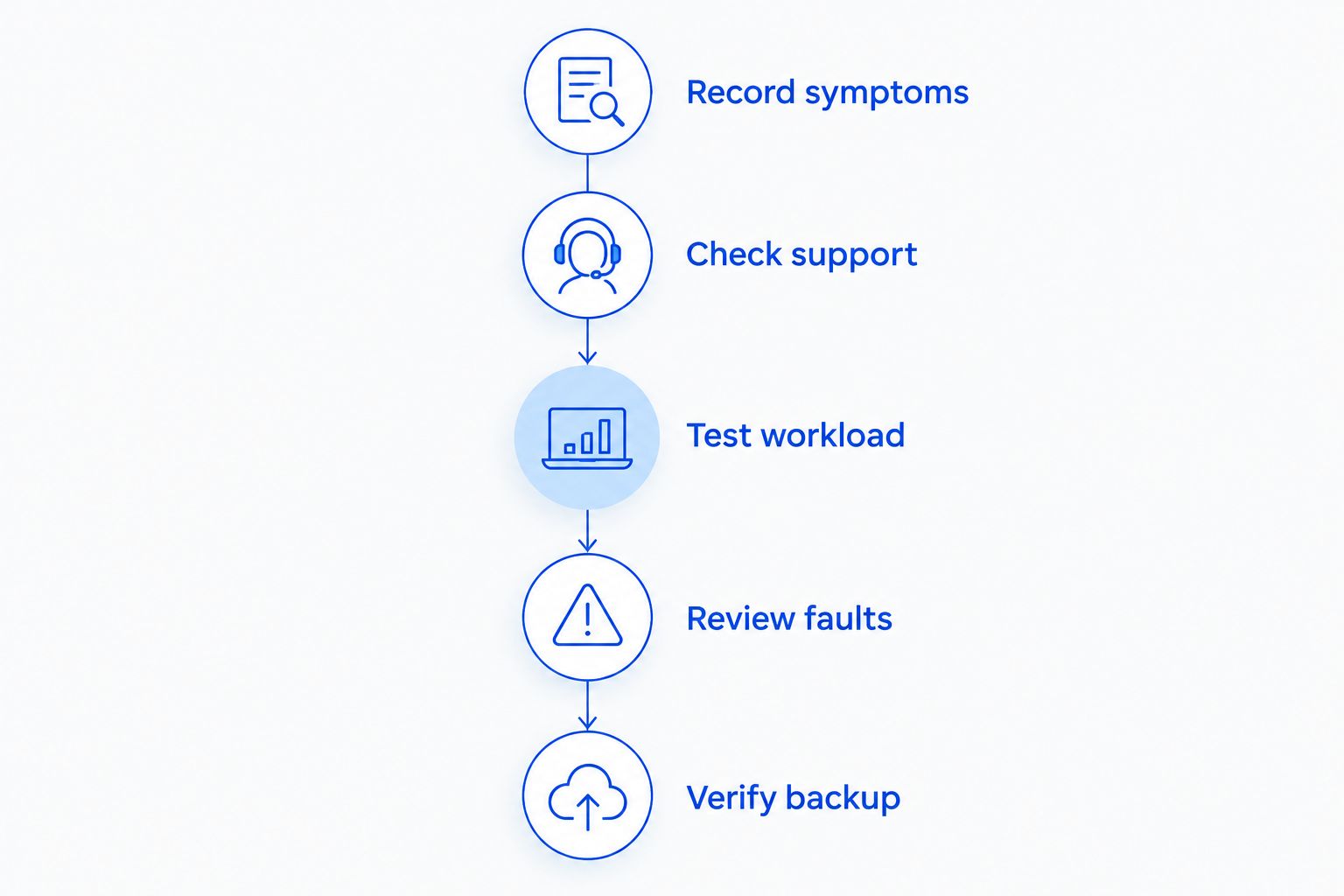
Use the same assessment process for each business computer. Keep the findings in a device record so the replacement decision remains tied to evidence rather than whoever complained most recently.
- Record symptoms. Describe the failed task, application involved, and conditions that trigger it. Separate slow startup from freezing during work or losing network access.
- Check support. Identify the operating system and essential applications. Verify that the installed versions and hardware meet your business's support requirements.
- Test workload. Reproduce the employee's normal work and inspect resource use. Compare local behavior with shared network or application problems.
- Review faults. Read previous repair notes and check for recurring errors. Establish whether the proposed repair addresses the root problem.
- Verify backup. Confirm that business files are protected and that a restore works before authorizing changes or retirement.
This sequence gives you a concrete decision: maintain, repair, upgrade, or replace. Do not skip the backup check because the computer still starts; a working desktop is not evidence of a recoverable backup.
Should you replace every office computer at once?
Replace every office computer at once only when the devices share a documented limitation that requires replacement. Otherwise, prioritize by support status, reliability, and role. Keeping serviceable computers avoids unnecessary migration work.
Can a tune-up postpone computer replacement?
A tune-up can postpone replacement when software clutter or unnecessary startup activity causes the slowdown. It cannot make unsupported hardware eligible for an operating system or repair a failed component. Confirm the cause before choosing the service.
Is an old computer safe to keep using?
An old computer is suitable to keep only when it remains supported, secure, and reliable for its assigned work. Age does not answer those questions. Check software updates, hardware condition, and recovery readiness separately.
Plan the handover before retiring the old computer
Replacement is not complete when the new computer reaches a desk. Your employee needs access to the right files, applications, accounts, printers, and shared resources. Build the handover around a real work session rather than a successful login alone.
A widely used backup principle is 3 copies of data, on 2 different media types, with 1 copy off-site. This is a planning framework, not proof that your current backup works. Restore testing establishes whether you can retrieve the files you need.
Use this handover checklist for a 2026 replacement:
- Identify business files stored locally, including folders outside the usual document locations.
- Verify a restorable backup before transfer or hardware changes.
- Confirm application access, installation requirements, and licensing arrangements.
- Set up employee accounts, security controls, and required shared resources.
- Test representative work, including saving files and using necessary peripherals.
- Remove business access and securely erase retained data before disposal or reassignment.
If the old storage device shows signs of failure, stop repeated troubleshooting that writes to it and seek recovery advice. File protection comes before performance testing when the only copy of important data is at risk.
Get help with the decision, not just the purchase
TechConnect LLC is best for North Carolina businesses that need PC tune-ups, data backup/recovery, and managed business IT support. The relevant starting point is a diagnosis that distinguishes a repairable problem from a replacement requirement.
You can review TechConnect LLC for those services. Its stated service scope fits assessment, maintenance, and data protection needs; the inputs do not establish a hardware replacement package. Ask about the work required for your specific computers rather than assuming purchasing or migration is included.
Bring the symptoms, application list, previous repairs, and backup details to the discussion. Request a clear recommendation with the reason, the remaining limitations, and the handover tasks. That keeps the conversation focused on restoring dependable work.
Review your business computer needs
Discuss PC tune-ups, data backup/recovery, and managed business IT support in North Carolina.
FAQ
How do I know when it's time to replace my business computers?
Replace business computers when they cannot run required supported software, suffer recurring hardware failures, or cannot handle essential work after practical repair or upgrade options are assessed. Diagnose the cause and verify a restorable backup first.
Should I replace a business computer just because it is old?
No, age alone does not justify replacing a business computer. Keep it when it remains supported, secure, and reliable for its assigned work.
Will a new computer fix slow internet in my office?
A new computer does not fix a shared internet or office-network problem. Compare the affected tasks across devices and investigate shared connectivity before replacing hardware.
Can I upgrade memory instead of replacing my computer?
Upgrade memory when insufficient memory is the diagnosed limitation and the computer supports the change. Memory does not resolve unrelated component faults, processor incompatibility, or a shared network problem.
Are Windows 11 minimum requirements enough for business work?
Windows 11 minimum requirements include 4 GB of RAM and a 64 GB or larger storage device, but installation minimums are not a business-workload recommendation. Check all compatibility requirements and test the applications your employees actually use.
What should I do before getting rid of an old business computer?
Verify a restorable backup, transfer required files and application access, and test normal work on the replacement before retiring the old computer. Remove business access and securely erase its data before disposal or reassignment.
Can TechConnect LLC help with aging business computers in North Carolina?
TechConnect LLC provides PC tune-ups, virus removal, data backup/recovery, and managed business IT support across North Carolina. Discuss the computer's symptoms and required work to determine the appropriate service.
One last thing
Test the replacement with a complete business task before calling the handover finished. Opening email is not enough if the employee also needs shared files, printing, accounting software, or a specialized peripheral.
For your 2026 replacement plan, make that task the acceptance test. Have the employee complete it using their own account and confirm where the resulting files are saved and backed up. A new computer is ready when the work succeeds—not merely when the power turns on.