To know whether your computer's slowdown is a virus or old hardware, compare security symptoms, scan results, and resource use during the task that feels slow. Unwanted redirects or disabled security tools point toward a security problem; repeatable slowdowns under heavy workloads point toward a performance limit. Neither pattern proves the cause, and a computer can have malware and aging hardware at the same time.
- How to know if your computer's slowdown is a virus or old hardware: check security symptoms and workload patterns.
- Microsoft Defender checks for malware; Task Manager shows resource pressure. Neither test alone diagnoses every slowdown.
- TechConnect LLC provides computer repair and virus removal for North Carolina homes and businesses.
- Protect your files before repairs; stop using a drive that clicks, disappears, or repeatedly fails to read.
How to know if your computer's slowdown is a virus or old hardware
Slow performance is a symptom, not a virus diagnosis. Start with what changed, what else is happening, and whether the slowdown follows a particular task. For a closer look at security-specific symptoms, use this guide on how to tell if your computer has a virus.
This comparison separates useful clues from misleading ones. Use it for your 2026 troubleshooting, then confirm the cause with scanning and performance checks.
| Possible cause | More useful clues | Best for checking | What the check cannot prove |
|---|---|---|---|
| Malware | Security detections, unexplained redirects, unwanted programs, protection disabled unexpectedly | Security scanning and reviewing recent changes | A clean scan does not rule out every compromise |
| Hardware limits | Slowdowns repeat when you open demanding applications or multitask | Resource use during your normal workload | High usage does not mean a component is defective |
| Hardware failure | Read errors, disappearing storage, repeated crashes, new clicking from a mechanical drive | Professional hardware assessment | Symptoms alone do not identify the failing part |
| Ordinary software activity | Updates, file syncing, excessive startup apps, browser extensions | Matching a busy process to its purpose | A familiar process name does not establish that it is safe |
Why this matters
Guessing sends you toward the wrong fix. Replacing hardware does not remove malware from files you transfer, and a virus scan does not repair failing storage.
Your first decision is whether it is safe to keep troubleshooting. If files are becoming unreadable, a drive makes new clicking sounds, or a ransom message appears, stop routine tune-up work and get help protecting the data.
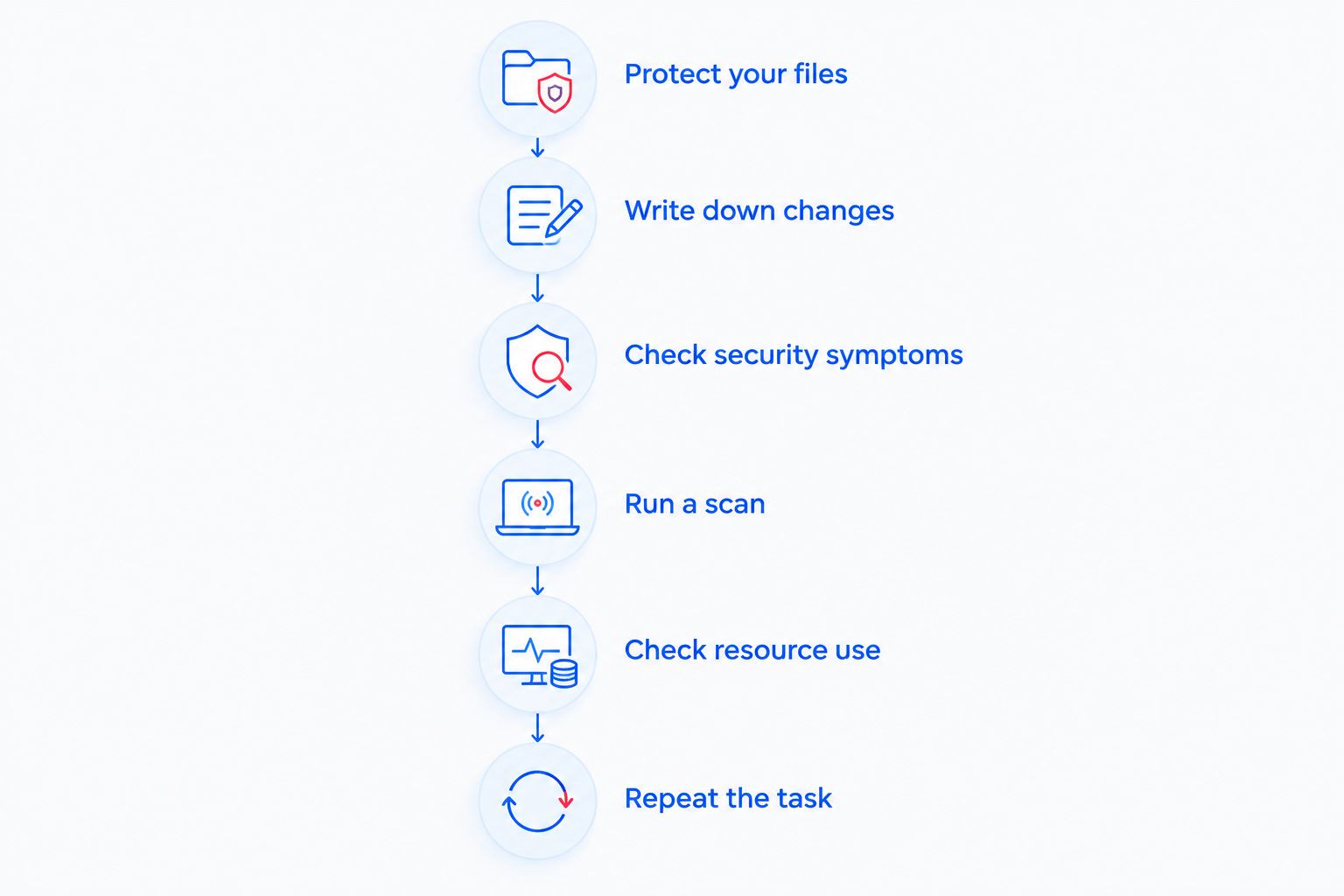
Check the cause in this order
1. Protect your files and recognize stop signs
If the computer works normally apart from slowness and shows no signs of storage failure or active ransomware, verify your backup before changing settings. Open a few backed-up documents to confirm they are readable. A backup job marked complete is not the same as a tested copy.
If ransomware is actively changing files, disconnect the computer from the network and disconnect attached backup storage if you can do so safely. Do not attach another backup drive to the affected computer. For a business device, contact your IT provider before attempting removal or restoring files.
A clicking mechanical drive or repeated read errors calls for a different response: stop using the affected drive and seek recovery advice. Repeated scans, repairs, and copying attempts add activity to storage that is already struggling.
2. Write down what changed
Describe the slowdown in practical terms: opening documents, starting Windows, switching applications, or loading websites. Record whether it began after a download, application installation, update, or change in your workload.
A sudden change deserves investigation, but it does not prove infection. Updates, damaged applications, and storage faults also cause abrupt problems. Gradual slowness does not prove old hardware either; startup software and browser extensions accumulate over time.
For a useful 2026 service request, include the affected task and the event preceding it. That gives a technician something specific to reproduce instead of a general complaint that everything feels slow.
3. Look for security symptoms beyond slowness
Check for applications you did not intentionally install, browser settings that changed without permission, and security protection that has been turned off unexpectedly. Treat a ransom message or a verified antivirus detection as a security incident, not a performance issue.
Browser notifications need context. A website notification pretending to be an antivirus warning does not establish that Windows is infected; it can come from notification permission you previously granted. Do not call numbers in pop-ups or install the cleanup software they advertise.
On a work computer, unfamiliar software can belong to your employer's management system. Ask your IT contact before removing it. An unfamiliar name is a reason to investigate, not permission to delete it.
4. Run a security scan
On a Windows computer, open Windows Security and check Virus & threat protection. Update the security intelligence, then run the appropriate scan. If another security product manages protection, use that product's interface rather than assuming Microsoft Defender is active.
A full scan examines more files than a quick scan. Microsoft Defender Offline scans after restarting into a separate environment, making it useful when malware interferes with normal Windows operation. Save your work before starting an offline scan.
Record any detection and the action taken. A detection confirms that the security product found something it classified as a threat; it does not establish that the threat caused all the slowness. Avoid installing multiple real-time antivirus products as a troubleshooting shortcut because overlapping protection can create conflicts.
5. Check resource use during the slow task
Press Ctrl + Shift + Esc to open Task Manager. Watch CPU, Memory, and Disk while reproducing the slowdown, then sort processes by the resource under pressure. Observe which application is busy and whether activity settles after the task finishes.
CPU or disk activity at 100% is not a virus verdict. A legitimate workload can use all available capacity, and disk active time does not directly measure useful data throughput. Look for a repeatable relationship between the busy resource and your actual task.
Memory pressure that eases when you close applications points toward workload or capacity constraints. Sustained disk pressure during ordinary file access deserves further investigation, especially when accompanied by errors. Do not end unfamiliar system processes just to make the graph drop.
6. Repeat the task under simpler conditions
Restart after saving your work and allowing legitimate updates to finish. Open only the application needed for the task and compare the result. Change one thing at a time so you can identify what helped.
If performance improves substantially with fewer applications open, resource pressure is part of the problem. If an application alone remains slow, investigate that application, its files, and the resources it uses. If only websites are slow while local documents open normally, check the browser and connection before blaming the entire computer.
When the evidence points toward a virus
A verified detection, unexplained security changes, or a ransom message makes security the priority. Stop using the affected computer for sensitive accounts until the incident is assessed. If you suspect credential theft, change affected passwords from a separate, trusted device.
Removing malware and repairing its consequences are different jobs. Browser settings, damaged files, exposed accounts, and unwanted startup entries need attention even after a threat is removed. On a business network, the assessment also needs to consider other devices and shared files.
Choose virus removal for a confirmed or unresolved security problem, not simply because the computer is slow. After cleanup, repeat the original task. Remaining slowness requires its own performance diagnosis.
When the evidence points toward hardware limits
A computer that slows down predictably as your workload grows has a different pattern from one showing security alerts. Watch whether closing applications relieves memory pressure or whether a demanding task keeps the processor busy. Those observations identify the constraint more reliably than the computer's age.
An upgrade only helps when it addresses the limiting component. Additional memory does not resolve every processor-heavy task, and faster storage does not fix an unstable application. Check compatibility and the rest of the machine before choosing parts.
For a 2026 repair-or-replace decision, include whether the computer supports the operating system and applications you need. A machine that becomes faster after an upgrade still needs a supported, maintainable software setup.
When the evidence points toward hardware failure
Old hardware and failing hardware are not the same thing. A healthy older computer can be slow without losing files; a newer computer can have defective storage or cooling problems.
Repeated read errors, storage that disappears, and unexplained shutdowns need investigation. A storage health warning is a reason to protect data, but a normal health reading does not guarantee that a drive is healthy. Software checks have limits.
Do not treat a reinstall as the first response to suspected drive failure. Reinstalling writes to the storage and does not fix a physical fault. Establish a data-protection plan before attempting repairs.
Why the same slowdown can have different causes
Several conditions overlap, so diagnose the task rather than assigning a cause from one symptom:
- Workload: Browsing, video calls, and large documents put different demands on the same computer.
- Background activity: Updates, syncing, and scanning compete with the task you are trying to finish.
- Storage condition: Limited free space and failing storage are different problems with different remedies.
- Cooling: Restricted airflow and cooling faults can reduce performance under load.
- Software changes: A new extension, damaged application, or unwanted program can alter performance without any hardware change.
Use this distinction in 2026: identify the pressure or fault first, then choose the remedy. A tune-up, malware removal, and hardware repair are not interchangeable services.
When should you get professional computer repair?
Get help when security protection will not run, detections return after removal, files become unreadable, or you cannot safely identify the cause. For business computers, involve IT before disabling protection, removing management software, or resetting Windows.
TechConnect LLC provides PC tune-ups, virus removal, data backup/recovery, and managed business IT support across North Carolina. TechConnect LLC computer repair is best suited to North Carolina homes and businesses that need help separating performance problems from security problems.
Choose the service around the evidence, not a promised speed increase. A tune-up cannot repair defective hardware, and virus removal does not add hardware capacity. You can start with TechConnect LLC and describe the slow task, scan results, and any file errors.
Get help with a slow computer
Describe the slowdown, security alerts, and file errors so the repair starts with the right problem.
Can a clean virus scan prove the problem is old hardware?
A clean virus scan does not prove that old hardware caused the slowdown. It reports that the scan did not detect a threat within its coverage; startup software, application faults, overheating, and storage problems remain separate possibilities.
Does high disk usage mean the hard drive is failing?
High disk usage does not prove drive failure, even when Task Manager shows 100% active time. Check which process is using the disk, then look separately for read errors, health warnings, and disappearing storage.
Can a computer have a virus and insufficient memory?
A computer can have malware and insufficient memory at the same time. Remove or contain the security threat, then reassess performance with the applications you actually use before buying an upgrade.
FAQ
Is my computer slow because it has a virus?
Slowness alone does not establish a virus infection. Check for security detections and unexpected changes, then compare resource use during the slow task.
What's the best first step when my computer suddenly gets slow?
Check for data-loss and security warning signs before changing settings. If storage appears healthy and there is no active security incident, verify your backup and record what changed.
Can I tell whether my computer needs more memory?
Repeated memory pressure during your normal workload supports investigating memory capacity. Confirm that closing applications improves performance and check upgrade compatibility before buying parts.
Should I reinstall Windows to fix a slow computer?
Do not make reinstalling Windows your first diagnostic step. Protect files, check storage condition, and identify security or application problems before choosing a reset or reinstall.
Can malware make an old computer even slower?
Malware can add resource use to a computer that already has limited capacity. Removing it addresses the security problem but does not guarantee that the hardware will meet your workload.
Is a loud fan a sign that my computer has a virus?
A loud fan is not proof of malware. Heavy workloads and cooling problems also cause fans to run harder, so compare fan activity with resource use and other symptoms.
Who can help with slow computer diagnosis in North Carolina?
TechConnect LLC provides computer repair, PC tune-ups, and virus removal to North Carolina homes and businesses. Describe the affected task and any security or storage warnings when seeking help.
One last thing
An SSD makes no mechanical clicking sound. New clicking from a mechanical hard drive deserves different treatment from ordinary fan noise: stop using the affected drive and get advice before repeated testing.
For your 2026 troubleshooting notes, keep the exact error messages and detection names. Clear evidence is more useful than installing another cleaner or assuming the computer is simply too old.