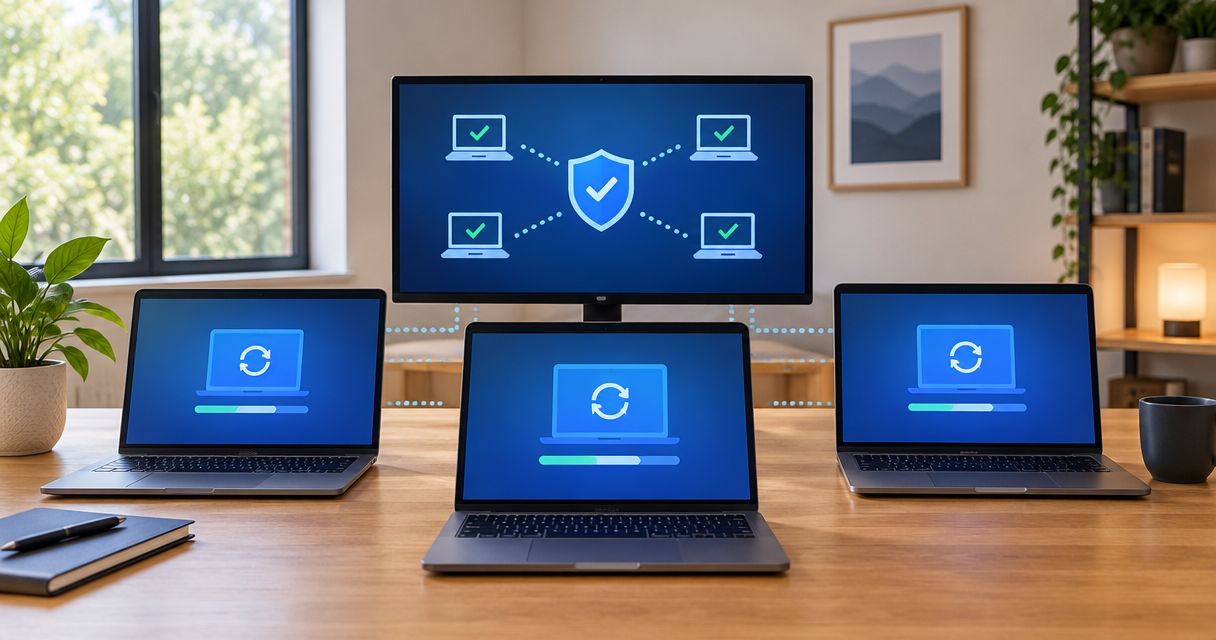
Instead of manually checking every employee laptop for updates, connect laptops to automatic patch management through a centrally assigned update policy, then verify installation and restart status. This workflow covers enrollment, testing, rollout, and the follow-up that keeps failed or offline laptops from disappearing from view.
- Connect laptops to automatic patch management through enrollment, policy assignment, testing, and installation reporting.
- TechConnect NC managed IT support suits North Carolina small businesses needing patching and help desk support together.
- Test updates on representative laptops before assigning the same policy across your business.
- Track completed installations and required restarts, not just successful update downloads.
Why this matters
A laptop can download an update without finishing installation. It can also remain offline while your office computers receive their patches. Automatic updates need reporting and an accountable owner—not just an enabled setting.
TechConnect NC managed IT support is best for North Carolina small businesses that want patching and help desk support handled together. If nobody owns failed installations, TechConnect NC is a local option for managed business IT support.
For your 2026 setup, separate operating-system updates from application updates. A working operating-system policy does not establish that every browser, accounting application, or other installed program is covered.
Before you start
- Access and authorization: Have administrator access to your management platform, authorized enrollment access for each laptop, and a list identifying the employee, device, operating system, and ownership. Confirm that your platform supports each operating system and application you intend to patch.
- Recovery and coverage: Verify a recent usable backup, access to any disk-encryption recovery keys, and a named person who handles failures. Check supported operating-system versions against the publisher's current requirements before including older laptops in your 2026 rollout.
- The gotcha—existing management: Check whether another provider, management agent, or organizational policy already controls updates. Do not install a second patching agent or remove existing management until you understand which system owns updates and how the handover works.
Tell employees what enrollment changes, what information administrators can see, and when restarts happen. For personally owned laptops, obtain authorization and establish a written policy before installing business management software.
Choose your management approach
Use central management when you need evidence across multiple employee laptops. Local automatic-update settings help an individual computer update, but checking each device manually leaves you without a shared view.
| Approach | Best for | Advantage | Limitation |
|---|---|---|---|
| Local automatic updates | A single laptop with someone responsible for checking it | Built-in operating-system controls | No shared fleet report; application coverage needs separate checking |
| Central device-management policies | Company laptops under an internal administrator | Consistent policy assignment and centralized reporting where supported | Requires enrollment, supported devices, and someone to resolve failures |
| Provider-managed patching | Small businesses that want outside administration | Assigns patching work to a support team | Scope, application coverage, and escalation responsibilities must be agreed |
Do not choose a platform based only on its ability to schedule installations. Confirm that it can report missing updates, installation failures, restart requirements, and devices that have stopped checking in.
Laptop enrollment and inventory
Enrollment connects a laptop to your management system. The exact console controls depend on the platform, so follow its current enrollment instructions rather than treating one vendor's menu names as universal.
- Build your device list. Record each laptop's serial number, assigned employee, operating system, ownership, and business-critical applications. Give each laptop a unique record so similarly named computers do not get confused.
- Check existing controls. On Windows 11, open Start, select Settings, then open Accounts and Access work or school to inspect connected organizational accounts. Also inspect installed management software; this screen alone is not a complete management inventory.
- Enroll through the approved method. Use your platform's documented device-enrollment process or signed installer from its authenticated administrator console. Do not use an installer forwarded from an unknown email account.
- Confirm the connection. Match the laptop's serial number to its console record, check its latest contact time, and confirm that hardware and operating-system information appear.
- Assign ownership. Identify both the employee using the laptop and the administrator responsible for update failures. Keep administrative credentials separate from the employee's normal sign-in.
Expected result: Every enrolled laptop has a matching inventory record and a current connection. An installer completing successfully is not enough; the management system must actually receive device information.
Update policy and restart controls
Write the rules before assigning them to everyone. Your 2026 patch policy should explain what gets installed, when employees receive notice, and who approves exceptions.
- Define update coverage. Separate operating-system security updates, larger operating-system upgrades, application updates, drivers, and firmware. Enable only the categories your platform supports and your business has approved.
- Create a pilot group. Start with 2 test laptops representing different work patterns, such as an office laptop and a remote laptop. This is a starting configuration, not proof that every application or device is represented.
- Set installation timing. Choose a maintenance window when laptops can remain powered on and connected. Confirm the time zone used by the policy, especially for traveling employees.
- Define restart behavior. Give employees notice and a clear completion deadline appropriate to the update's urgency. On Windows 11, inspect local restart-related controls under Settings, Windows Update, and Advanced options; centrally enforced settings can restrict local changes.
- Set failure ownership. Assign 1 accountable owner for reviewing failed installations, offline devices, and pending restarts. Document who takes over when that person is unavailable.
Expected result: The pilot laptops show the intended policy assignment, update scope, installation timing, and restart rules. Check the effective device policy—not just the policy you created.
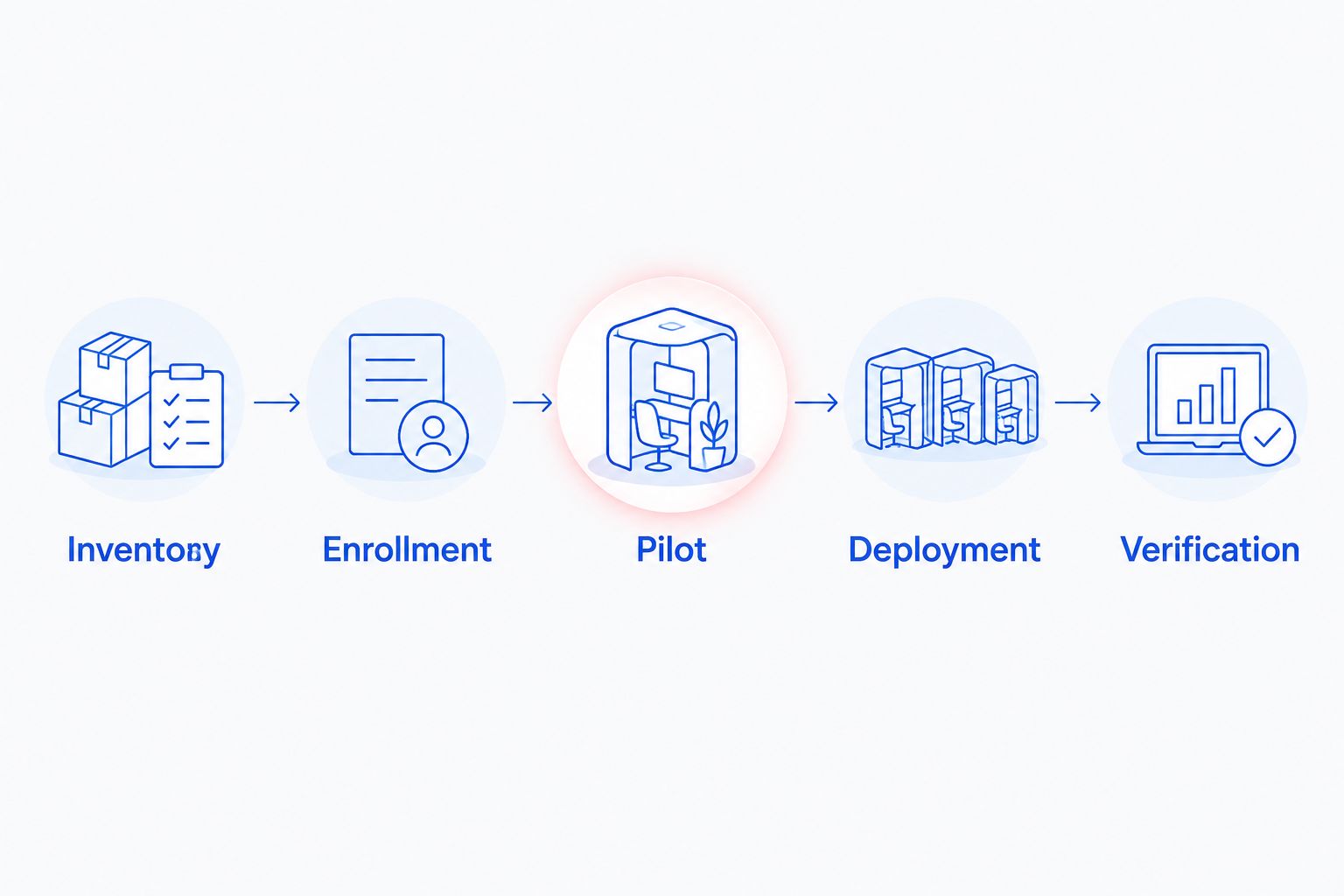
A short process map helps keep the handoffs clear: Inventory, Enrollment, Pilot, Deployment, and Verification. Skipping verification leaves you with an installation schedule rather than a confirmed patching process.
Pilot validation and wider deployment
A useful pilot checks normal work after the update, not just whether the laptop starts. Include the applications and connected equipment employees depend on.
- Record the starting position. Note missing updates, the operating-system version, available storage, and any existing error messages. Keep unrelated faults separate from problems that first appear after patching.
- Run the approved update cycle. Keep the pilot laptops plugged in and online. Allow required restarts, then reconnect them so the management platform can collect fresh results.
- Test business tasks. Sign in, open shared files, test printing, connect through the approved remote-access method, and use critical applications. Ask the assigned employee to confirm their normal tasks work.
- Review exceptions. Check installation failures and any mismatch between the local update history and the management report. Resolve discrepancies before expanding the assignment.
- Expand in groups. Apply the tested policy to the next set of laptops and review results before continuing. Keep specialized devices outside the general rollout until their application requirements are checked.
Expected result: Pilot laptops complete the approved updates and required restarts, report current results, and pass normal work checks. Broader deployment starts only after that evidence is recorded.
Keep major operating-system upgrades separate from routine patching. Larger changes need their own compatibility checks, employee communication, and recovery planning.
Reporting and exception handling
A deployment report should distinguish a successful update from a device that has not responded. An offline laptop is an unanswered question, not a successful installation.
- Separate device states. Track completed installations, pending restarts, failed installations, missing updates, and devices with stale contact information. Use your platform's documented definitions when interpreting its report.
- Record exceptions. For every deferred update, document the affected laptop, business reason, responsible person, and review date. A permanent exclusion without review leaves the original problem unresolved.
- Assign follow-up work. Route installation errors to the administrator and restart reminders to the employee where appropriate. Escalate business-critical failures through your support process.
- Verify locally when needed. On Windows 11, open Settings, select Windows Update, then Update history to inspect recorded installations. Compare those results with the central report after the device checks in again.
- Preserve the record. Keep the update identifier, installation result, relevant error, and resolution with the device's support history.
Expected result: Every laptop either has a verified outcome or a named follow-up action. Nobody has to infer success from a missing alert.
Automatically enroll new employee laptops
Once existing laptops are working, extend the process to new hires and replacement devices. Your 2026 onboarding checklist should include patch management before the laptop becomes part of everyday business use.
Use your platform's supported automated enrollment method where available. Otherwise, make enrollment a required setup task with a named owner. Define the group-assignment rule, confirm the new device receives the intended policy, and check for updates before handoff.
Avoid assigning an aggressive production policy to every newly detected device. A replacement laptop with specialized software needs the same compatibility review as an existing specialized laptop.
Connect this process to your new employee laptop email and file-sharing setup. Enrollment, account access, backups, and update verification belong on the same handoff checklist, even when different people complete them.
Troubleshooting
The laptop never appears in the console
Confirm that enrollment used the correct organization and that the laptop has internet access. Check the management agent or enrollment status using the platform's documentation, then verify that required network destinations are permitted. Do not disable the firewall as a blanket fix.
Updates download but never finish
Check for a pending restart, insufficient storage, and the recorded installation error. Complete the approved restart and rerun detection. If the update fails again, investigate that specific error instead of repeatedly clearing update components without a diagnosis.
Local settings disagree with the central policy
Check group membership, policy assignment, exclusions, and any older management system still applying settings. Establish which system owns the conflicting setting before changing it. Recheck the effective policy after the laptop reconnects.
Remote laptops miss scheduled installations
Check whether laptops are asleep, shut down, disconnected, or unable to reach the update service. Adjust the maintenance plan to employee working patterns and enable supported catch-up behavior. Do not assume a closed laptop stays available overnight.
An application still reports an old version
Confirm that the application and its installed edition are covered by the patching platform. Some applications use their own updater or need separate packaging. Record unsupported applications in a separate maintenance plan rather than marking them covered by operating-system updates.
Customize your workflow
Expand from installation to recovery and access control. Verify backups separately, protect administrator accounts, and decide how urgent security updates receive expedited review without abandoning compatibility checks.
For local implementation help, TechConnect NC provides managed IT support, including monitoring, patching, backups, help desk, and remote support. Its offices are in Clayton at 5720 US 70 Bus Hwy, Suite B, Clayton NC 27520, and Granite Falls at 10A Falls Avenue, Granite Falls NC 28630.
Confirm the service scope before handing over administration. Identify covered laptops and applications, restart responsibilities, reporting expectations, and the person authorized to approve exceptions.
FAQ
How do I connect laptops to automatic patch management?
Enroll each laptop in an authorized management platform, assign an update policy, test it, and verify installation and restart results. Enrollment alone does not confirm that updates are being installed.
Do employee laptops need to be in the office to receive patches?
No, office presence is not required when the management platform supports internet-connected remote devices. Confirm connectivity requirements, update sources, and whether any part of your setup requires access to the business network.
Is enabling Windows automatic updates enough for a small business?
Local Windows automatic updates do not provide a shared report covering every business laptop and application. Central management adds oversight, but someone still needs to resolve failures and check application coverage.
Can employees postpone laptop restarts?
Restart postponement depends on the policy your administrator applies. Define employee notice, permitted delays, and the final restart deadline before assigning the policy.
Can I patch personally owned employee laptops?
Manage personally owned laptops only with authorization and a clear business policy. Explain enrollment, administrator visibility, update controls, and how management will be removed when access ends.
Does automatic patching replace backups or antivirus?
No, patching does not replace backups or antivirus protection. Updates address supported software issues, backups support recovery, and security software provides a separate layer of protection.
Can TechConnect NC help manage employee laptop updates?
Yes. TechConnect NC offers managed IT support that includes patching, monitoring, backups, help desk, and remote support. Confirm which devices and applications are included in your service scope.
One last thing
An update marked installed can still need a restart before its changes take effect. Make restart completion part of your 2026 acceptance check, then collect a fresh management report instead of closing the task at download or installation.
Related guides
- Automatically alert your IT provider when your network or server goes down
- Is automatic laptop backup necessary for remote workers?
- How to choose between break-fix and managed IT support
Call or text 919-737-5442 to discuss employee laptop patching and managed IT support.