Small businesses need enough backup storage for the data they protect, the older versions they retain, and the growth expected before they expand storage. The requirement also includes backup-system overhead; when choosing backup storage devices for small business, use usable capacity rather than the total printed on the drive boxes. For your 2026 plan, size each backup destination separately instead of assuming every copy needs the same amount of space.
- Choose backup storage devices for small business by protected data, retention, growth, and usable capacity—not employee count.
- External drives suit simple local backups; network-attached storage suits shared backup destinations. Both need separate protection.
- TechConnect NC provides small-business backup and managed IT support in North Carolina.
- Keep 3 data copies across 2 media types, with 1 copy offsite; test recovery before relying on them.
How much storage do small businesses need for backups?
Size backup storage from your backup policy, not from your office headcount. Your starting point is the actual data selected for protection. Add the space required for retained versions, anticipated growth, and the backup software's working requirements.
TechConnect NC provides data backup/recovery and managed business IT support to North Carolina homes and businesses. Before choosing a device, separate the amount of data you need to restore from the amount of disk space currently installed in your computers.
| Capacity component | What to measure | Why it matters |
|---|---|---|
| Protected data | Files, applications, databases, and system images included in backups | Establishes the starting backup workload |
| Retained versions | Historical recovery points required by your policy | Preserves earlier states, not just current files |
| Data growth | New protected data expected before expansion | Prevents sizing only for today's workload |
| Working overhead | Space the backup software requires for processing and maintenance | Keeps backup operations from exhausting the destination |
| Usable capacity | Space remaining after the storage configuration and system requirements | Determines what the destination can actually hold |
Treat this as a planning framework, not a promise that every backup system stores data the same way. Compression, deduplication, and incremental backups change actual consumption. Confirm the calculation against the software's documentation and measured backup jobs.
Why this matters
A backup destination that fills up cannot reliably accept new recovery points. Deleting older backups to make room also changes how far back you can recover, which matters when you discover an error after it happened.
Extra capacity alone does not solve every backup problem. A large drive attached to an infected computer is still exposed to that computer, and a copy kept beside the original equipment shares its physical risks.
For a 2026 backup review, answer two separate questions: Does each destination have enough room, and can you recover if that destination becomes unavailable? Capacity and protection need separate checks.
Measure your protected data before choosing a device
Start with the systems your business needs to operate. Include local computers, shared folders, business applications, and cloud services that require separate backup protection.
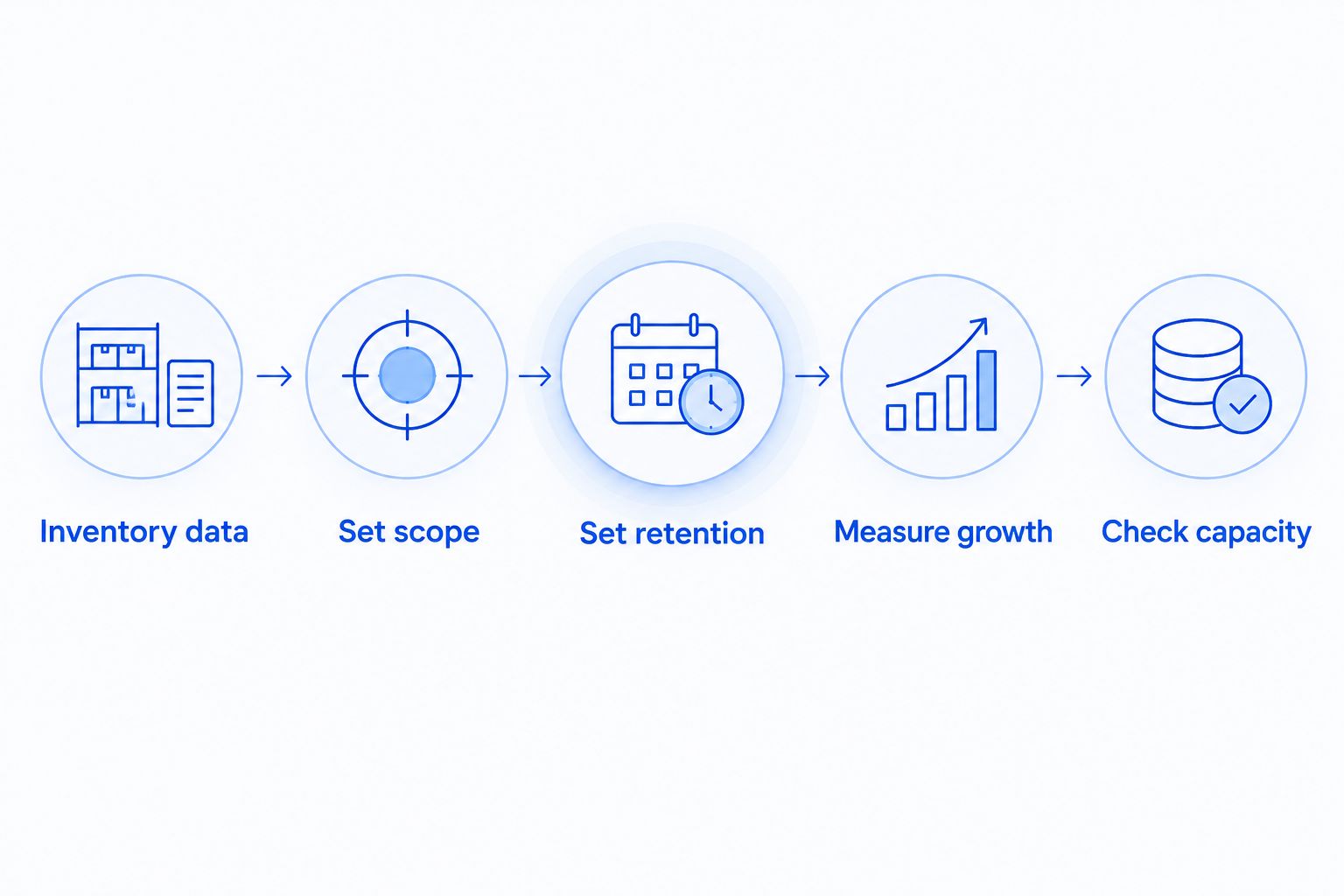
- Inventory data. List each source, its owner, and where its backup will run. Distinguish shared files from copies employees have downloaded to their laptops.
- Set scope. Decide whether you need files only, application-aware backups, or complete system images. These protect different things and create different storage demands.
- Set retention. Write down how far back you need to recover and which historical recovery points must remain available.
- Measure growth. Review actual changes in protected data rather than assuming every department grows at the same rate.
- Check capacity. Confirm the usable destination space and the backup software's requirements before buying hardware.
Record the results in a 2026 backup inventory that someone else can understand. A list stored only in an employee's memory is difficult to maintain when equipment changes or that person is unavailable.
Check whether your backup scope includes email, cloud-hosted documents, and application data. Files visible on a computer are not necessarily stored there in full, and a local file backup does not automatically protect every connected service.
Files and system images need different planning
File backups protect selected folders and documents. System-image backups include the information needed to restore a computer's system state, depending on the software and configuration.
Choose the scope based on the recovery task. If replacing a failed computer requires rebuilding applications and settings, recovering documents alone does not complete the job.
Retention is not the same as backup frequency
Backup frequency controls the gaps between recovery points. Retention controls how long those recovery points remain available.
Keeping a long history does not make infrequent backups more current. Likewise, running frequent backups does not preserve older versions unless your retention settings keep them.
Which backup storage device fits your business?
Choose the destination around the recovery job and the person responsible for maintaining it. External drives, network-attached storage, backup appliances, and cloud backup serve different roles; none removes the need to verify successful backups.
| Option | Best for | Main advantage | Main limitation |
|---|---|---|---|
| External drive | A simple local backup workflow with a named owner | Portable storage that can be disconnected | Requires handling, connection checks, and secure storage |
| Network-attached storage | Multiple computers using a shared local destination | Centralizes backup storage on the network | Needs configuration, updates, permissions, and separate protection |
| Backup appliance | Businesses seeking a dedicated backup system | Combines backup functions in a purpose-built system | Capabilities and expansion depend on the selected system |
| Cloud backup | Keeping a separate offsite backup destination | Stores backups away from office equipment | Transfers and restores depend on connectivity and service configuration |
External drives: best for a simple local workflow
An external drive gives you a straightforward local destination. A disconnected drive also provides separation from the computer between backup sessions.
The trade-off is responsibility. Someone must connect the correct drive, confirm the backup, disconnect it when required, and keep it secure; buying the drive does not establish that routine.
Choose an external drive when your business can maintain the handling process. Do not treat a permanently attached drive as your only protection against ransomware or equipment theft.
Network-attached storage: best for shared local backups
Network-attached storage, or NAS, lets multiple computers use a central backup destination. Size it by usable capacity after its disk configuration, not by adding the capacities of every installed drive.
A NAS also needs access controls, updates, and its own recovery plan. See how to connect a NAS backup drive to your small business network when planning the installation.
Choose NAS when centralized local storage fits your backup workflow. Do not assume shared storage is protected simply because it contains multiple drives.
Backup appliances: best for a dedicated backup system
A backup appliance brings backup functions into a dedicated system. Check what it protects, how it retains recovery points, and what happens when its storage reaches capacity.
The limitation is system-specific design. Expansion, offsite copying, application support, and recovery features need confirmation rather than assumptions based on the word appliance.
Cloud backup: best for an offsite destination
Cloud backup places a copy away from your office equipment. Check whether the service protects the systems you use, retains the history you need, and supports the recovery method your business requires.
Internet connectivity affects data transfer and recovery. Choose cloud backup for an offsite role, but test the restore process before making it your only recovery route.
Why backup storage requirements vary
These factors explain why businesses with similar staff counts need different backup capacities:
- Protected workload: Documents, databases, images, and complete computer backups contain different amounts and types of data.
- Retention policy: Keeping older recovery points requires storage beyond the current protected dataset.
- Backup method: Repeated full backups and methods that store changed data consume space differently.
- Data characteristics: Compression and deduplication savings depend on the files and the backup system; do not assume a fixed reduction.
- Growth and change: New files and changes to existing data affect future backup consumption.
- Storage configuration: Disk redundancy, system space, and backup maintenance requirements reduce the capacity available for backups.
Use measured results to update your 2026 capacity plan. Review the plan after adding a new application, changing retention, or bringing another shared data source into scope.
How do you protect backups beyond storage capacity?
The established 3-2-1 backup strategy means 3 data copies, across 2 media types, with 1 copy offsite. The original working data counts as one of those copies; it does not mean purchasing three identical backup devices.
Apply that strategy to failure scenarios. Ask what remains recoverable after a computer failure, an office incident, compromised administrator credentials, or a damaged backup destination.
Keep an offline copy or use appropriately configured immutable backup storage to reduce exposure to destructive changes. Verify the settings: an offsite copy that an attacker can delete through the same compromised account does not provide the separation you intended.
RAID is not a substitute for backup
RAID provides disk redundancy in supported configurations. It does not independently preserve historical versions or protect against every deletion, malicious change, or physical incident.
A mirrored configuration with 2 drives stores matching data rather than providing twice the usable capacity of either drive. Treat redundancy as part of storage design, then maintain separate backups.
Test what you need to restore
A successful backup-job message is not proof that your business can resume work. Restore a representative file, confirm that it opens, and test the application recovery process where business operations depend on it.
Document who can access the backups and where recovery instructions are stored. Include access to encryption keys and recovery credentials without leaving them exposed alongside the backup device.
Is a bigger backup drive always better?
A bigger backup drive provides room, but it does not correct missing files, failed jobs, or inadequate retention. Buy enough usable capacity for the documented workload, then verify that the backup process protects it.
Expanding storage is appropriate when measured consumption and planned growth justify it. Changing the backup scope or retention policy should be an explicit business decision, not an emergency reaction to a full destination.
Can managed IT support handle backup planning?
Managed IT support can include backups alongside monitoring, updates, cybersecurity, and help desk support. Confirm which systems, destinations, recovery tasks, and reporting responsibilities are included in the service agreement.
TechConnect NC is a local managed IT support option for North Carolina small businesses that need help with backups. Ask for a defined backup scope and recovery process; the service category alone does not establish retention, storage capacity, or recovery commitments.
For local backup planning, TechConnect NC has offices at 5720 US 70 Bus Hwy, Suite B, Clayton, NC 27520, and 10A Falls Avenue, Granite Falls, NC 28630. Discuss which computers, shared files, and business applications need protection before selecting equipment.
FAQ
How much backup storage does my small business need?
Your business needs enough usable backup capacity for protected data, retained versions, planned growth, and backup-system overhead. Measure each destination separately because backup methods and retention settings affect consumption.
What's the best way to choose backup storage devices for small business?
Choose backup storage devices for small business by recovery needs, usable capacity, and maintenance responsibilities. Compare external drives, NAS, appliances, and cloud backup by their role rather than capacity alone.
Does the 3-2-1 backup rule mean I need three backup drives?
The 3-2-1 strategy means 3 data copies across 2 media types, with 1 copy offsite—not three backup drives. Your original working data counts as one copy.
Is a NAS enough to protect my business files?
A NAS alone is not a complete backup plan. It still needs protected access, maintained backup jobs, and a separate copy that survives the NAS becoming unavailable.
Does RAID give me a separate backup?
RAID does not give you an independent backup. Disk redundancy does not replace retained recovery points or a copy protected from deletion, compromise, and physical incidents.
Should I count unused computer disk space when sizing backups?
Start with the data selected for protection rather than the total capacity installed in your computers. Check how your backup software handles system images, exclusions, and unused space.
How do I know whether my backup storage is working?
Verify completed backup jobs and test recovery of representative files and applications. Confirm that you can access the destination, use the recovery credentials, and open the restored data.
One last thing
The easiest capacity mistake to miss is protecting the wrong data. A spacious destination does not help if the accounting database, shared folder, or cloud application was never included in the backup job.
Before approving your 2026 storage purchase, compare the backup inventory with a real restore test. Make sure the files your business needs are actually recoverable.
Related guides
- Backing up a business network for the first time
- Backing up a computer without cloud storage
- Keeping business data safe without an in-house IT team
Call or text 919-737-5442 to discuss your small-business backup storage and managed IT support needs.