Migrating email to Microsoft 365 has no fixed completion time: your schedule depends on mailbox size, the source email system, access permissions, and the migration method. For a 2026 move, use a test migration to establish the transfer schedule, then allow separately for account preparation, email routing changes, and device setup. The time needed to copy old messages is not the same as the time employees lose access to email.
- How long to migrate email to Microsoft 365 depends on source access, mailbox data, and migration testing.
- Separate historical email transfer from the cutover that redirects new messages.
- A completed transfer does not confirm that calendars, shared mailboxes, and employee devices work.
- TechConnect NC provides managed IT support for North Carolina small businesses needing local help.
How long does it take to migrate email to Microsoft 365?
Your migration takes as long as its slowest required stage, not just the message transfer. A reliable schedule identifies what must finish before employees switch and what can continue afterward.
Use the old email provider to Microsoft 365 migration workflow to organize the work before choosing a cutover date.
| Migration stage | What establishes its duration | What must be checked before proceeding |
|---|---|---|
| Preparation | Account inventory, administrator access, domain access, and destination setup | Users, addresses, and permissions are documented |
| Initial transfer | Mailbox data, source restrictions, and migration performance | Test transfers complete and errors are understood |
| Cutover | Final synchronization and email routing changes | New messages reach the intended destination |
| Employee setup | Email apps, sign-in requirements, phones, and shared access | Employees can send, receive, and use required features |
| Validation | Missing items, failed transfers, and business application testing | Exceptions are resolved or explicitly accepted |
Ask for a schedule that names these stages individually. A promise that the migration will be finished by a particular morning means little unless it explains whether that includes old messages, mobile phones, calendars, and application-generated email.
Why this matters
A migration date affects customer replies, invoices, appointments, and employee access. If the plan measures only copied messages, you can reach the transfer target while staff still cannot use their normal email setup.
For your 2026 plan, define success in business terms: employees can sign in, customers can reach your usual addresses, and required mailbox features work. Keep the old service until you have verified the transfer and agreed on when it is safe to retire it.
Preparation: establish access before setting the date
Start with ownership and access. Your migration administrator needs the appropriate permissions for the source environment, the Microsoft 365 destination, and the domain records that control email delivery.
Write down every address employees and customers use. Include individual accounts, shared addresses, aliases, forwarding rules, and addresses used by website forms or office equipment. An address that does not belong to a named employee still needs a destination.
Identify data outside the main mailbox as well. Local email archives, contacts stored only on a computer, and calendars require explicit attention; do not assume that copying server-based messages includes them.
Do not announce a firm cutover date before confirming access and scope. Waiting for a former administrator to release domain access is a different problem from moving mailbox data, and the schedule should show that distinction.
Initial transfer: measure with a representative mailbox
A test migration gives you evidence about your own environment. Choose a mailbox that reflects the work involved, rather than the smallest account simply because it is easy to move.
Check the test account for older messages, nested folders, attachments, and any reported failures. If the migration scope includes calendar or contact data, verify those items through the selected method instead of assuming they followed the email.
For a 2026 migration estimate, record what the pilot actually transferred and what remained unresolved. Do not multiply a single mailbox result by the number of employees and treat the result as a guaranteed finish time: concurrent transfers and source-system restrictions affect the overall schedule.
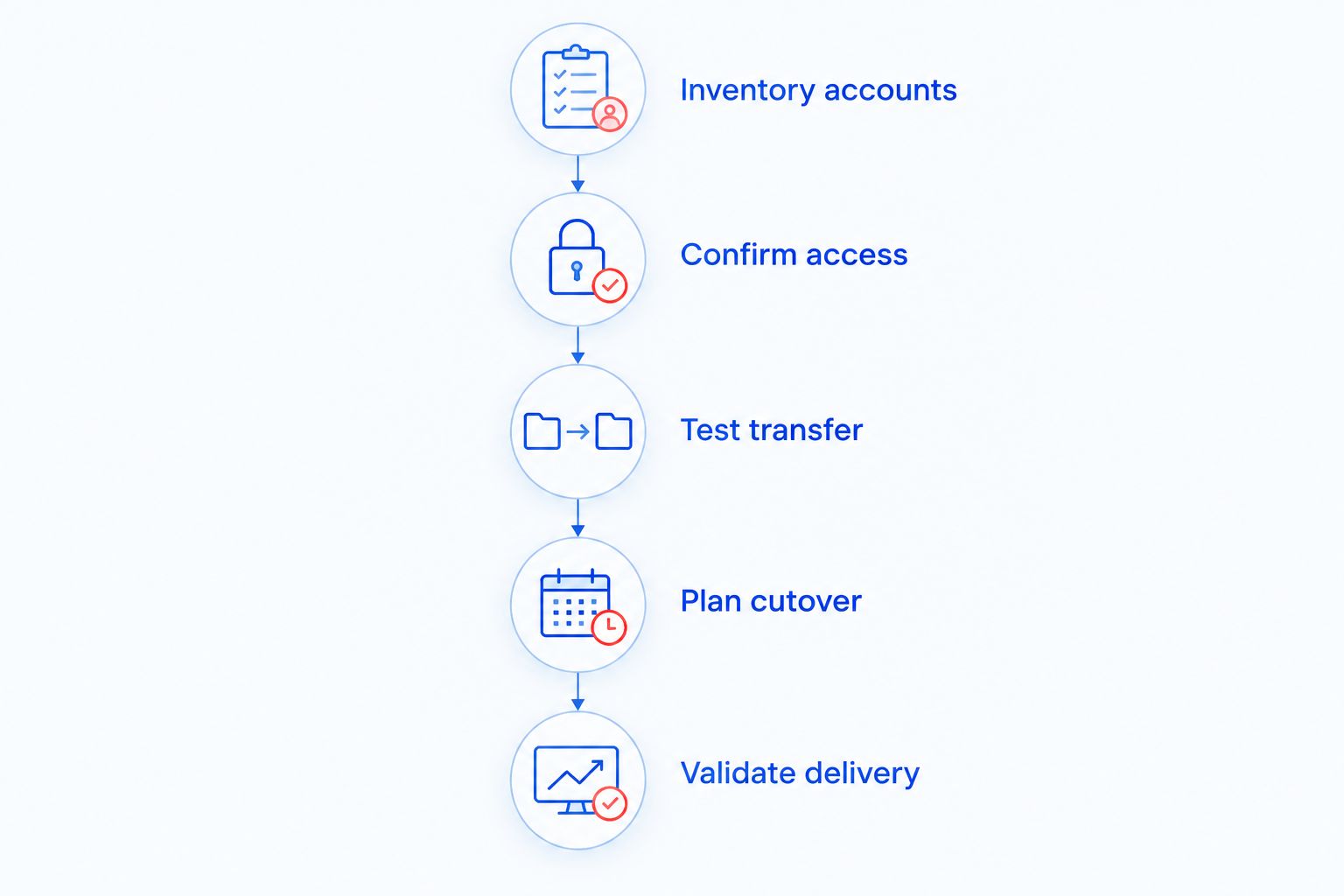
Use this sequence before approving the production move:
- Inventory accounts. Identify mailboxes, shared addresses, archives, and application senders.
- Confirm access. Verify source permissions, destination permissions, and domain control.
- Test transfer. Move representative data and inspect the results.
- Plan cutover. Assign the routing change, employee communication, and support responsibilities.
- Validate delivery. Test messages, devices, and required business workflows.
The pilot is also your chance to find exclusions. A transfer that finishes without errors still needs a business check: open a known older message, inspect an attachment, and confirm that the expected folders exist.
Cutover: separate new mail from historical messages
Cutover is the point when you redirect incoming email to the new destination. Historical message copying is a separate activity, and some migration methods support transferring existing messages before that routing change.
This separation matters because employees do not necessarily need every old message copied before they can receive new email. Whether that approach fits your business depends on the chosen migration method and how employees use their mailbox history.
Prepare the destination accounts and test sign-in before changing delivery. Also document who controls the routing records, who approves the change, and who will investigate messages that reach the wrong place.
A routing change is not proof that migration is complete. Test incoming and outgoing messages with an external address, then check shared addresses and replies. Keep a written recovery plan for routing or access problems rather than improvising after customers report missing messages.
Why Microsoft 365 migration time varies
These factors determine the work and the order in which it can finish:
- Mailbox volume and structure. Large message collections, attachments, and folder structures affect transfer work. Employee count alone does not describe the data being moved.
- Source system and migration method. The source determines which transfer methods are supported and which data types require separate handling.
- Access and account readiness. Missing credentials, unclear domain ownership, or incomplete destination accounts stop work before copying begins.
- Transfer restrictions and errors. Source limits, connection problems, and rejected items require investigation rather than a simple wait for completion.
- Devices and connected applications. Desktop email, phones, scanners, website forms, and other senders need their own checks.
- Validation requirements. Shared access, calendars, archived messages, and business-critical workflows expand what must be tested before sign-off.
Ask your administrator to identify which factor controls your current finish date. That answer is more actionable than a generic duration because it tells you what needs attention now.
Does the migration method change what gets moved?
Yes. Migration methods differ in supported data, preparation requirements, and the amount of follow-up work. A faster message transfer is not automatically the better choice if it leaves required information behind.
| Approach | Best for | Main benefit | Main limitation |
|---|---|---|---|
| IMAP migration | Moving email messages from a compatible source | Transfers server-based messages and mail folders | Does not migrate calendars, contacts, or tasks through IMAP |
| Source-specific migration | Moving supported data from an environment with a supported migration path | Can cover more than a message-only transfer, depending on the method | Requires checking source compatibility and preparation requirements |
| Local archive import | Bringing separately stored email archives into the destination | Addresses email that is not present on the source server | Does not replace live mail routing or account setup |
Choose the approach after listing what you need to retain. If calendars drive appointments or shared mailboxes handle customer requests, those features belong in the acceptance checklist from the start.
Do not confuse a broader scope with poor transfer performance. Moving more kinds of data and testing more workflows is different from taking longer to copy the same messages.
Keep email migration separate from a wider cloud move
Email is one part of a business technology change. Moving shared files, changing device management, and replacing business applications create additional work that should not disappear inside a single email deadline.
Broader cloud migration timelines reflect dependencies beyond mailboxes; a business moving email alone should track mailbox readiness and delivery separately from application and file migration. Otherwise, an unrelated application delay makes the email schedule impossible to interpret.
For a 2026 project that includes several systems, give each workstream its own completion criteria. State whether the email date means accounts are usable, historical data is verified, or the old provider can be closed.
That distinction also helps employees. Tell them exactly which login, application, or workflow changes at cutover instead of announcing that everything is moving to the cloud.
Can employees keep working during the migration?
Employees can continue using the source email service during supported initial-copy workflows. The cutover plan still needs to explain when they should switch to the destination and where to look for new messages.
Give staff clear instructions before the change: which account to open, how to sign in, what happens on phones, and where to report problems. Avoid asking employees to guess whether a message belongs in the old mailbox or the new one.
Choose the cutover around your actual operating needs. An evening change offers little benefit if your business handles customer email at night and nobody is assigned to help those employees.
When is it safe to cancel the old email service?
Cancel the old email service only after verifying required data, delivery, and user access. A successful sign-in to Microsoft 365 is not enough to establish that the old environment is no longer needed.
Review failed items, local archives, shared access, and applications still using the old service. Also confirm that your retention and backup arrangements meet your business requirements before removing the source.
Record who authorizes closure. The person approving cancellation should understand any remaining exceptions rather than discovering them after access ends.
Local help for North Carolina small businesses
TechConnect NC is a local managed IT support option for North Carolina small businesses that want help coordinating their technology. Its services include backups, cybersecurity, help desk support, and remote support.
Discuss email migration scope with TechConnect NC before treating a proposed date as a commitment. Ask who will handle mailbox preparation, routing, employee setup, and post-move checks; managed IT support alone does not define those project responsibilities.
TechConnect NC has offices at 5720 US 70 Bus Hwy, Suite B, Clayton, NC 27520, and 10A Falls Avenue, Granite Falls, NC 28630. Those locations serve as local points of contact for businesses in the Clayton and Foothills areas.
FAQ
How long to migrate email to Microsoft 365 for a small business?
The duration depends on your source system, mailbox data, access, and migration method. Use a representative test migration to establish the transfer schedule, then account separately for preparation, cutover, and validation.
Will my business email stop working during migration?
An email migration does not inherently require stopping email for the entire transfer. Supported workflows allow initial copying before cutover, but routing and device changes still need a planned transition.
Does moving email to Microsoft 365 include my contacts and calendar?
Contacts and calendars are not included in every email migration method. IMAP migration transfers email rather than calendar items, contacts, or tasks, so confirm those requirements separately.
Can I keep my existing business email address?
You can keep your business email address when you retain control of its domain and configure it correctly in Microsoft 365. Verify domain access and account addresses before changing delivery.
Why are old emails still missing after I can sign in?
Signing in confirms account access, not that all historical email has transferred. Check migration status, failed items, and whether any missing messages exist only in local archives.
Should I delete my old mailbox after the new one works?
Keep the old mailbox until required data and delivery checks are complete and closure is approved. Confirm archives, shared access, application senders, and retention needs before removing it.
One last thing
Test the quiet senders, not just employee inboxes. A scanner, website contact form, or business application can still depend on the old email service even when every employee can send messages normally.
Before closing your 2026 migration, ask someone to submit a real website inquiry and run each email-dependent workflow. A working inbox does not prove that those separate senders work.
Related guides
- Connect employee smartphones to company email securely
- Connect two-factor authentication to business email and files
- Choose between break-fix and managed IT support
Call or text 919-737-5442 to discuss your email migration and managed IT support needs with TechConnect NC.