Best overall for QuickBooks Desktop: native company-file backups with a separate offsite copy. Best for QuickBooks Online: an application-level backup that supports your accounting data. Best for hands-on help: a managed backup arrangement with a defined restore process. This 2026 guide compares QuickBooks backup software for small business by what you can recover, not by how many features appear on a sales page.
- QuickBooks backup software for small business must match QuickBooks Desktop or QuickBooks Online; the editions need different protection.
- QuickBooks Desktop company-file backups protect accounting data; system images address recovery of the computer.
- QuickBooks Online needs application-level recovery, not just a backup of your office PC.
- TechConnect LLC provides data backup/recovery and managed business IT support across North Carolina.
Why this matters
A saved copy is useful only if you can restore the information you need. Your backup decision must separate an accounting mistake from a failed computer: recovering yesterday's books and rebuilding the machine are different jobs.
QuickBooks Desktop keeps a company file in your computing environment. QuickBooks Online is a hosted application, so copying files from your office computer does not create a restorable copy of its accounting records.
TechConnect LLC is an IT support option for North Carolina businesses that need help with data backup and recovery. TechConnect LLC provides those services alongside managed business IT support; it is a service provider, not a QuickBooks backup software product.
For your 2026 backup plan, start with the failure you need to reverse. A deleted transaction, damaged company file, lost laptop, and inaccessible office require different recovery paths.
What makes the best QuickBooks backup software?
Use these criteria before you compare products or sign a service agreement:
- Edition fit: The backup must protect your actual QuickBooks environment—Desktop company files or Online application data.
- Restorable data: Identify what comes back, including accounting records and any separately stored supporting documents.
- Earlier versions: Keep recovery points from before an unwanted change, not just a copy of the current state.
- Separate storage: Do not leave every recovery copy on the computer or drive you are protecting.
- Failure visibility: Assign someone to check unsuccessful jobs and missing backups.
- Restore ownership: Name the person who can retrieve a backup, access the required software, and verify the restored books.
The familiar 3-2-1 backup principle is a useful storage baseline: keep 3 copies of your data, use 2 storage media, and keep 1 copy offsite. It does not prove that a QuickBooks file is usable. You still need a restore test.
Treat this as a selection checklist, not a substitute for checking compatibility. For 2026, confirm the exact QuickBooks edition, backup product, and recovery procedure together.
QuickBooks backup options at a glance
These are ranked approaches, not interchangeable software subscriptions. Select the row that matches your accounting environment first; use the remaining rows to address gaps.
| Rank and option | Best for | Standout feature | Key limitation |
|---|---|---|---|
| 1. Desktop company-file backup plus offsite storage | Routine QuickBooks Desktop accounting recovery | Combines an application-created backup with a separate storage location | Does not rebuild the whole computer |
| 2. Online application-level backup | Recovering QuickBooks Online accounting data | Targets records inside the hosted application | Coverage and restore behavior require product-specific checks |
| 3. System-image backup | Rebuilding a failed Desktop workstation | Captures the operating system, applications, and stored files | Does not replace a verified company-file backup |
| 4. Managed backup arrangement | Businesses needing an accountable backup owner | Defines who checks jobs and handles recovery | Responsibilities depend on the written service scope |
| 5. Manual company-file backup to removable storage | Owner-operated Desktop businesses with a repeatable routine | Creates a separate, portable recovery copy | Relies on someone completing and checking the task |
1. Desktop company-file backup: best for accounting-file recovery
QuickBooks Desktop includes a company-file backup function that creates a backup file with the .QBB extension. Use that application-created backup as the starting point, then place a copy in a separate offsite storage location.
This approach separates creating the accounting backup from protecting the backup itself. A valid file sitting beside the original on the same drive does not protect you from losing that drive.
Desktop company-file backup pros:
- Uses QuickBooks Desktop's own backup and restore workflow.
- Focuses recovery on the accounting company file.
- Works as a layer alongside broader computer backups.
- Gives you a defined file to retrieve and test.
Desktop company-file backup cons:
- Does not reinstall Windows or QuickBooks after computer failure.
- Does not automatically protect every document stored outside the company file.
- Needs a separate process for offsite copies and job checks.
Before relying on the workflow, restore a backup into a separate test location. Open the recovered company in a compatible QuickBooks Desktop installation and have your bookkeeper check the accounting records.
Best for: Businesses using QuickBooks Desktop that want a clear recovery path for the books without restoring the entire workstation.
Verdict: Buy into this approach as your Desktop baseline; do not stop at a same-drive copy.
2. Online application-level backup: best for hosted accounting data
For QuickBooks Online, evaluate a backup tool or supported backup function that works with the application itself. An office-PC backup cannot recover transactions stored only in the hosted accounting account.
The important question is not whether the tool connects to QuickBooks Online. Ask which records it captures, which it can restore, and what happens to related records during recovery.
Online application-level backup pros:
- Targets the accounting environment rather than an unrelated office folder.
- Gives you a way to evaluate recovery of application records.
- Separates accounting recovery decisions from PC replacement.
Online application-level backup cons:
- Data coverage varies by the specific backup offering.
- An export is not necessarily a restorable application backup.
- Restoring linked records requires careful accounting review.
For a 2026 purchase, request a demonstration using the kind of mistake you need to reverse. If an invoice is deleted or changed, establish whether recovery restores the record, its relationships, or only a downloadable representation.
Do not infer coverage from the word backup. Check attachments, settings, and other data categories individually, and document anything the selected offering excludes.
Best for: QuickBooks Online users who need recovery beyond files saved on their computers.
Verdict: Buy only after the restore scope matches your accounting requirements.
3. System-image backup: best for rebuilding a Desktop workstation
System-image backup captures a computer's operating system, installed applications, and stored files. It addresses a broader problem than company-file recovery: getting a failed workstation back into a usable state.
For QuickBooks Desktop, pair this layer with an application-created company-file backup. A system image and an accounting backup serve different recovery needs; neither should be judged solely by whether a scheduled job completed.
System-image backup pros:
- Covers more of the workstation than the accounting file alone.
- Provides a recovery route for operating-system or drive failure.
- Can include locally stored supporting documents within its configured scope.
System-image backup cons:
- Requires storage and a tested recovery procedure.
- Does not establish that a captured accounting file is consistent.
- Does not back up QuickBooks Online records merely because you use the browser on that PC.
Ask how recovery works when the original computer is unavailable. Record where recovery media, credentials, software installation details, and backup copies are kept.
Avoid treating a successful image job as proof that the books open correctly. Test the machine-recovery process and the accounting-file recovery process separately, then document the result of each.
Best for: QuickBooks Desktop businesses whose accounting work depends on a particular workstation.
Verdict: Buy as a second recovery layer, not as the only protection for your books.
4. Managed backup arrangement: best for shared responsibility
A managed backup arrangement assigns backup oversight and recovery tasks to a service provider under a defined agreement. The value is accountability: someone must know whether jobs succeeded and what to do when you need the data back.
TechConnect LLC provides data backup/recovery and managed business IT support across North Carolina. For QuickBooks backup support, define the required work before engaging any provider rather than assuming every managed IT agreement includes it.
Managed backup arrangement pros:
- Establishes a named owner for backup checks when included in scope.
- Gives you a place to document recovery responsibilities.
- Connects accounting protection with broader business IT planning.
Managed backup arrangement cons:
- Coverage depends on the agreement, not the service label.
- You still need to define what your bookkeeper will verify.
- Access credentials and recovery procedures need a handover plan.
Specify the protected company files or Online account, storage locations, retained recovery points, and escalation process. Ask who performs restore tests and how you receive the results.
For your 2026 service review, keep technical recovery and accounting approval separate. The person restoring data can confirm that a file opens; your accounting owner must confirm that the restored records are the right ones.
Best for: Businesses that need an assigned backup owner rather than another unattended tool.
Verdict: Buy only with written backup scope and a defined restore owner.
5. Manual removable-drive backup: best for a disciplined owner
A manual approach uses QuickBooks Desktop's company-file backup function and saves a recovery copy to removable storage. It is straightforward, but its reliability depends on the person following the routine.
Disconnect the backup drive after the copy is complete and verified. Leaving it permanently connected removes an important separation between the working computer and the recovery copy.
Manual removable-drive backup pros:
- Gives the owner direct control over the backup task.
- Creates a portable copy separate from the internal drive.
- Makes the backup destination easy to identify.
Manual removable-drive backup cons:
- Missed tasks leave gaps in recovery history.
- A drive kept in the same office does not provide offsite protection.
- Loss, damage, and unauthorized access require their own safeguards.
Write the routine down, including the destination and verification step. Keep earlier recovery copies rather than repeatedly replacing your only backup with the newest file.
This is a fallback for a repeatable owner-run process, not a reason to ignore automation. If you regularly forget the task, change the approach instead of trusting a reminder you already dismiss.
Best for: Owner-operated QuickBooks Desktop businesses that consistently complete and check a manual routine.
Verdict: Hold as a fallback; skip it as your sole business backup.
How these options are ranked
The ranking prioritizes edition fit, restorable accounting data, separate storage, and clear ownership. It does not claim that one unnamed software product outperforms another or that every business needs the same setup.
Desktop company-file backup comes first because it directly addresses accounting-file recovery. Online application-level backup has a separate use case, while system images, managed oversight, and removable copies address different operational needs.
Prove the backup works before you depend on it
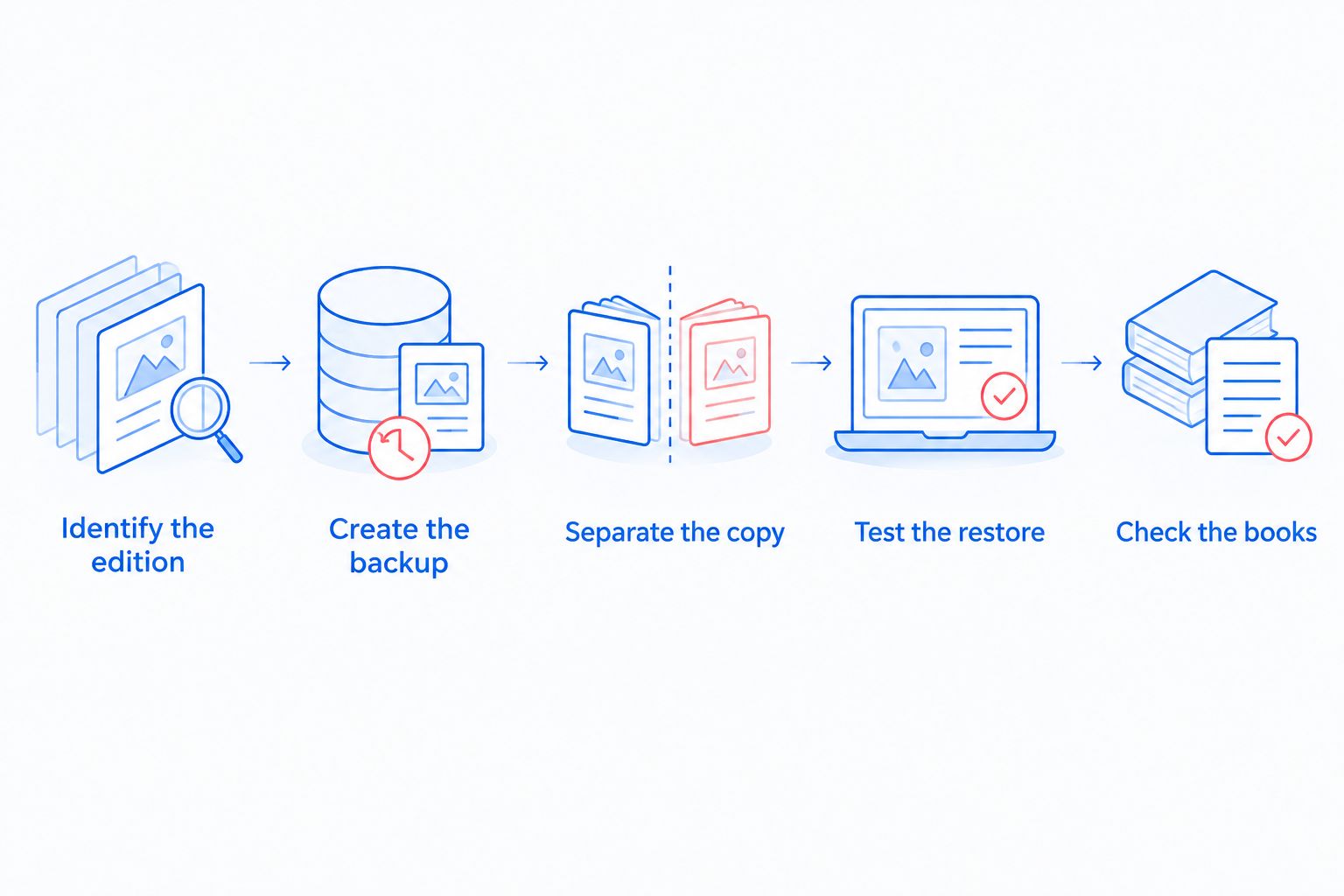
Use this sequence to turn a backup choice into a recovery procedure:
- Identify the edition. Record whether you use QuickBooks Desktop or QuickBooks Online and where the protected data resides.
- Create the backup. Use the selected process and check its completion status.
- Separate the copy. Confirm that losing the original computer or location does not remove every recovery point.
- Test the restore. Recover into an appropriate test environment without overwriting live books.
- Check the books. Have the accounting owner verify the restored period and records.
A recovery test should include opening 1 restored company file where applicable and comparing at least 2 accounting checkpoints, such as a trial balance and an accounts-receivable report. These are practical test instructions, not claimed performance standards.
Document the backup date, restored period, checks performed, and person approving the result. For the surrounding network setup, use this guide to connect QuickBooks to a secure, backed-up business network.
Which QuickBooks backup approach should you choose?
For QuickBooks Desktop, default to native company-file backups with separate offsite storage. Add system-image protection when rebuilding the accounting workstation is part of your recovery requirement.
For QuickBooks Online, select application-level protection based on demonstrated restore coverage. Do not substitute browser downloads or PC backups for a verified accounting recovery process.
If nobody owns backup checks, assign that responsibility before adding another tool. TechConnect LLC provides data backup/recovery and managed business IT support; discuss the specific accounting environment and required service scope.
Get help with business data backup
Discuss data backup/recovery and managed business IT support for your North Carolina business.
FAQ
What's the best QuickBooks backup software for small business in 2026?
For QuickBooks Desktop, start with native company-file backups and separate offsite storage. For QuickBooks Online, choose application-level protection with demonstrated restore coverage; computer backups alone do not protect hosted accounting records.
Does QuickBooks Desktop have a backup function?
QuickBooks Desktop includes a company-file backup function that creates a .QBB backup file. Keep a separate recovery copy and test it in a compatible QuickBooks Desktop installation.
Will backing up my computer protect QuickBooks Online?
A computer backup does not create a restorable copy of QuickBooks Online accounting records. Use a backup approach that works with the hosted application and verify exactly what it can restore.
Is cloud storage the same as QuickBooks backup?
Cloud storage is a destination, not proof of accounting recovery. A Desktop backup file stored there still needs a restore test, and synchronized files need protection against unwanted changes.
Can I use an external drive for QuickBooks backups?
You can use removable storage for QuickBooks Desktop company-file backup copies. Disconnect the drive after verification and keep separate offsite protection rather than relying on a drive beside the computer.
How often should a small business back up QuickBooks?
Set the backup schedule according to how much accounting work you can afford to recreate. Review that schedule when transaction volume or office routines change, and confirm that scheduled jobs actually complete.
Should I choose managed IT support instead of backup software?
Managed support and backup software address different needs: the software creates recovery copies, while an agreed service scope assigns responsibility. TechConnect LLC provides data backup/recovery and managed business IT support across North Carolina.
One last thing
An export and a backup are not interchangeable. A readable spreadsheet can help you inspect records without providing a way to reconstruct the accounting application.
Before approving your 2026 setup, ask one concrete question: can the person responsible recover the books without the original computer or the original operator? Demonstrate the answer rather than accepting a completed-job notification.