You don't need to choose between upgrading to Windows 11 and keeping every file, folder, and installed program intact — the built-in upgrade path preserves both when you follow the right sequence. Skip the backup step and you're gambling on a single install process going flawlessly; add a 20-minute backup first and the upgrade becomes low-risk even on an 8-year-old machine.
- You can upgrade Windows 10 to Windows 11 without losing files using the built-in in-place upgrade path via Windows Update.
- Back up documents, desktop files, and browser data before starting — the upgrade preserves apps and files but a failed install can still corrupt data.
- Windows 11 requires TPM 2.0, Secure Boot capability, 4GB RAM minimum, and 64GB of storage — check with PC Health Check first.
- Windows.old lets you roll back to Windows 10 for 10 days after upgrading if something breaks.
- TechConnect handles pre-upgrade backups and post-upgrade verification for home and business PCs across North Carolina.
Why this matters
Microsoft ended mainstream Windows 10 support in late 2025, and machines still running it in 2026 no longer get security patches unless enrolled in Extended Security Updates. That leaves a lot of PCs exposed, and a lot of owners assuming an upgrade means starting over with a blank desktop.
It doesn't. The standard Windows 11 upgrade is an in-place install — it keeps your applications, personal files, and most settings by default. The risk isn't the upgrade process itself; it's skipping the backup step and losing files to an interrupted install, a failed driver, or hardware that turns out not to meet Windows 11's requirements halfway through.
Before you start
- A Microsoft account or local admin login with the current administrator password — the upgrade will ask for it during setup.
- An external drive or cloud storage with at least as much free space as your Documents, Desktop, and Pictures folders combined. Don't skip this even if the in-place upgrade is supposed to preserve files.
- The gotcha: if your PC fails the TPM 2.0 or Secure Boot check, Windows Update will simply not offer the Windows 11 upgrade — it won't warn you, it'll just stay silent. Run the compatibility check first so you're not troubleshooting a missing upgrade option at step four.
Check compatibility before touching anything
- Open Settings, go to Windows Update, and look for a card labeled Windows 11 is ready for your device. If it's there, your PC already passed Microsoft's checks.
- If you don't see it, download the PC Health Check app from Microsoft's site and click Check now.
- Review the result under Introducing Windows 11. A pass means TPM 2.0 is enabled, Secure Boot is supported, and your processor is on the approved list.
- If it fails on TPM specifically, reboot into BIOS/UEFI settings and look for TPM, PTT (Intel), or fTPM (AMD) and set it to Enabled — this fixes the majority of failed checks on machines from the last 6-7 years.
Expected result: PC Health Check shows This PC meets Windows 11 requirements, or you've identified exactly why it doesn't.
Back up your files first
- Open File Explorer and confirm what's in Documents, Desktop, Pictures, and any custom folders you use for work files.
- Copy those folders to an external drive, or sign into OneDrive and enable Backup > Manage backup to sync Desktop, Documents, and Pictures automatically.
- Export browser bookmarks and check that password managers, email clients, and any locally-stored business data (QuickBooks files, client folders) are included in the backup — these live outside the default folders more often than people expect.
- Verify the backup by opening two or three files directly from the external drive or cloud copy, not just checking that the file count matches.
Expected result: every folder you'd be upset to lose exists in a second location you can access without the original PC.
If you're setting up backup routines for the first time rather than doing a one-off before this upgrade, the backup software options for home computers guide covers tools that run this automatically going forward.
Run the upgrade through Windows Update
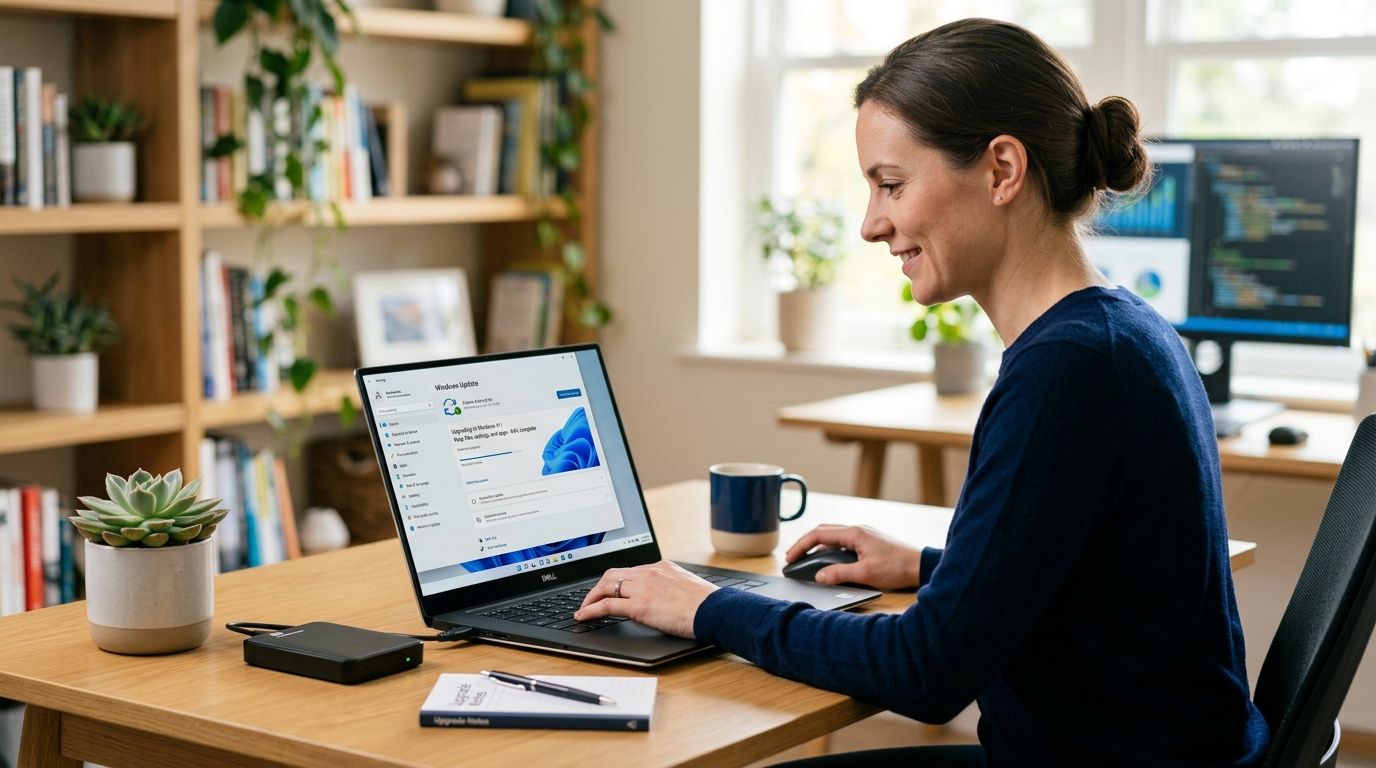
- Go to Settings > Windows Update and click Check for updates.
- Click Download and install on the Windows 11 offer when it appears.
- Restart when prompted — the PC will reboot multiple times during install, this is normal and can take 20-40 minutes depending on hardware.
- After the final restart, sign in and confirm your desktop, Start menu pinned apps, and Documents folder look the same as before.
Expected result: you land on the Windows 11 desktop with your previous wallpaper, files, and installed programs still present.
Use the Installation Assistant for a faster, manual upgrade
If Windows Update hasn't offered the upgrade yet but PC Health Check confirms your PC qualifies, download the Windows 11 Installation Assistant directly from Microsoft instead of waiting.
- Run the downloaded file and click Accept and install.
- Let it download the full Windows 11 build — this typically runs 15-30 minutes depending on connection speed.
- Choose Keep personal files and apps when prompted; this is the option that matters most for this workflow.
- Restart and let the install finish; expect the same multiple-reboot behavior as the Windows Update path.
This method gets you upgraded sooner without waiting for staged rollout, and it uses the identical Keep personal files and apps logic under the hood.
Troubleshooting
- Upgrade offer never appears in Windows Update. Re-run PC Health Check — a passed check doesn't guarantee an immediate offer since Microsoft staggers rollout by device. Use the Installation Assistant instead.
- "This PC can't run Windows 11" during Installation Assistant. TPM or Secure Boot got disabled again after a BIOS update — recheck BIOS settings.
- Files missing after upgrade. Check the C:\Windows.old folder — it holds your previous Windows 10 installation for 10 days and includes your old user profile data.
- Desktop icons or app pins reset. This is cosmetic, not data loss — reinstall any missing apps from the Microsoft Store or original installers; personal files are unaffected.
- PC won't boot after upgrade. Boot into Advanced startup (hold Shift while restarting) and select Go back to the previous version of Windows — this only works within that same 10-day Windows.old window.
“If PC Health Check fails on TPM, the fix is almost always in BIOS, not a hardware replacement.”
Customize your workflow
Once you're on Windows 11, treat the backup step as a permanent habit, not a one-time task before an upgrade. Set OneDrive or a dedicated backup tool to run automatically so the next major update — or a hardware failure — doesn't put files at risk again.
If you're replacing the PC entirely rather than upgrading it in place, the old PC to new PC file transfer workflow walks through moving everything to new hardware instead of upgrading the existing machine.
Want the upgrade handled for you?
TechConnect backs up, upgrades, and verifies PCs across NC without the guesswork.
FAQ
Can you upgrade Windows 10 to Windows 11 without losing files?
Yes — the standard in-place upgrade through Windows Update or the Installation Assistant keeps personal files and installed apps by default. Back up Documents, Desktop, and Pictures separately anyway since a failed install is the main risk to data, not the upgrade logic itself.
What are the minimum requirements for Windows 11 in 2026?
Windows 11 needs TPM 2.0, Secure Boot capability, 4GB of RAM, and 64GB of storage at minimum, plus a supported processor. PC Health Check confirms all of these in one scan.
How long do I have to roll back to Windows 10 after upgrading?
You have 10 days after upgrading before Windows deletes the Windows.old folder that makes rollback possible. After that window closes, going back to Windows 10 requires a fresh install and restoring from a separate backup.
Why isn't Windows 11 showing up in my Windows Update?
Microsoft staggers the rollout by device even after PC Health Check confirms compatibility. Using the Windows 11 Installation Assistant lets you upgrade immediately instead of waiting for the staged offer.
Do I lose my installed programs when upgrading to Windows 11?
No, choosing Keep personal files and apps during setup preserves installed software. Some older drivers or utilities tied to specific Windows 10 builds may need reinstalling afterward.
Is it safe to upgrade a PC still running Windows 10 in 2026?
It's safer than staying on Windows 10, since mainstream support ended in late 2025 and unpatched systems are exposed to new vulnerabilities. Back up first and the upgrade itself carries low risk on hardware that passes PC Health Check.
What happens if my PC fails the TPM 2.0 check?
Most failures come from TPM being disabled in BIOS rather than missing hardware, since TPM 2.0 has shipped on most PCs since around 2016. Enabling fTPM or PTT in BIOS settings resolves the majority of these failures without new hardware.
Should I back up files even though the upgrade says it keeps them?
Yes, always back up before any OS upgrade regardless of what the installer promises to preserve. Interrupted installs, power loss mid-upgrade, and driver conflicts are the actual causes of data loss, not the upgrade's file-handling logic.
One last thing
The most common data loss story from this upgrade isn't a Windows 11 bug — it's a laptop losing power mid-install because nobody checked the battery or plugged it in first. Plug in before you start, and treat that Windows.old 10-day window as a deadline, not a safety net you can ignore indefinitely.