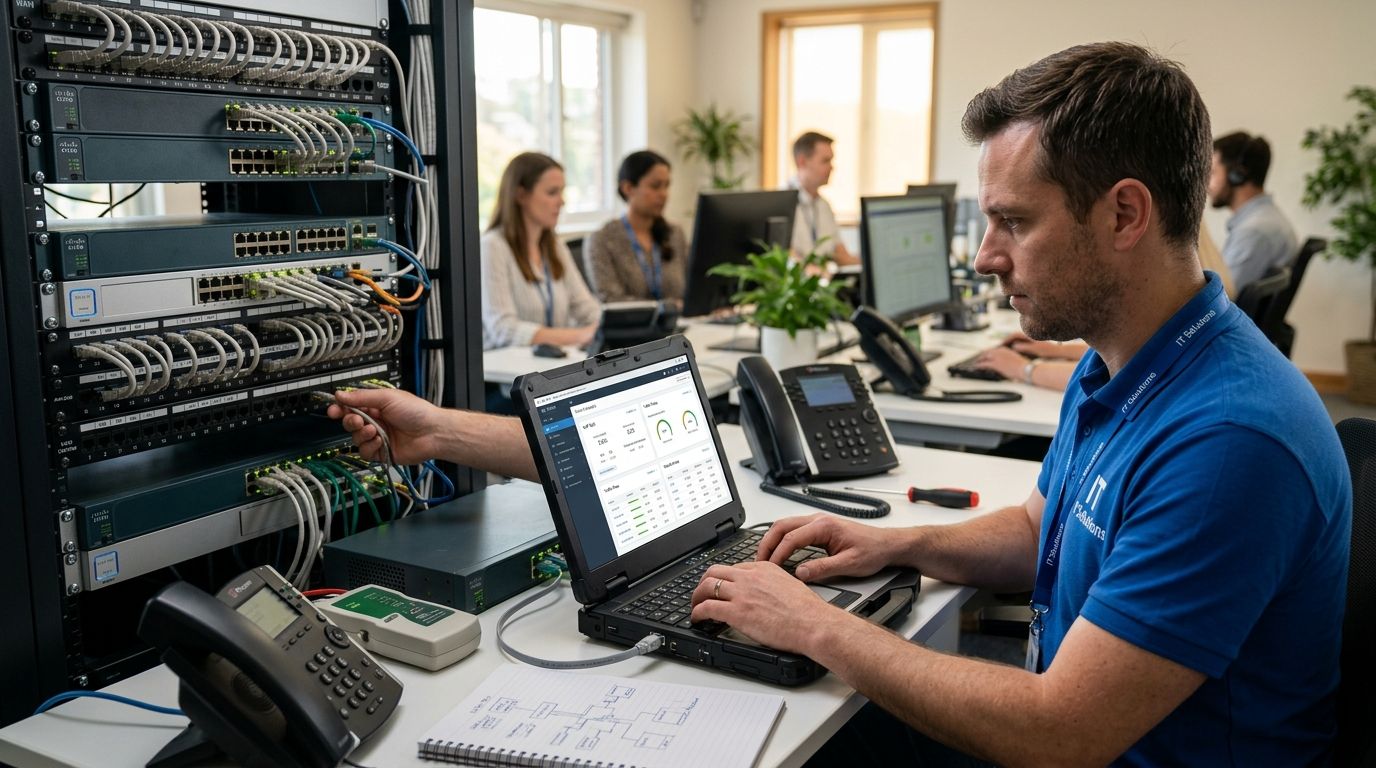
Dropped calls, robotic voices, and a customer who says "you're breaking up" three times in one meeting — that's not a bad VoIP provider, that's your network losing the fight for bandwidth. Instead of restarting the router every time a call glitches, set up Quality of Service rules and a dedicated voice network so call packets get priority over the file download running two desks away.
- Fixing slow network for VoIP calls in an office starts with QoS rules that prioritize voice packets over web and file traffic.
- Jitter above 30ms and packet loss above 1% are the two numbers that break call quality — check these before blaming the phones.
- A dedicated VLAN for VoIP traffic solves most call quality issues in offices with 10+ devices sharing one network.
- Wired connections beat Wi-Fi for desk phones and softphones every time bandwidth is tight.
- TechConnect LLC handles network diagnostics and VoIP setup for small offices across North Carolina.
Why this matters
VoIP calls need a steady, low-latency stream of small data packets. A network built for email and web browsing treats every packet the same way, so a large file upload or a security camera feed can starve a call mid-sentence.
The fix isn't more bandwidth — it's traffic priority. An office running a 200 Mbps connection can still get choppy calls if nothing tells the router that voice packets matter more than a Dropbox sync. The 2026 fix is configuration, not a bigger pipe.
Before you start
- Router/firewall admin access. You need login credentials for the device that sits between your office and your internet connection — most consumer routers won't have real QoS controls, so check if yours is a managed or business-class unit first.
- A list of what's on the network. Count phones, laptops, cameras, and any streaming devices (smart TVs, digital signage) before you touch settings — you can't prioritize traffic you haven't identified.
- The gotcha: if your office runs VoIP over Wi-Fi on the same SSID as guest devices, QoS rules alone won't fix it. Wi-Fi contention causes its own packet delay regardless of prioritization — you'll need a separate VLAN or SSID for voice traffic, covered below.
Diagnose your bandwidth and network load
Start here before changing any settings — you need a baseline to know if the fix worked.
- Run a speed test at your router (not over Wi-Fi from across the room) during peak office hours, then run one again during a quiet period. A gap of more than 30% between the two points to congestion, not raw bandwidth shortage.
- Check jitter and packet loss using your VoIP provider's built-in call quality report, if available, or a network testing tool. Jitter above 30ms or packet loss above 1% is where calls start breaking.
- Identify what's eating bandwidth during business hours — look for cloud backups, video streaming, or large file syncs running on a schedule that overlaps with call volume.
Expected result: you'll have a clear before-picture — current jitter, packet loss, and the device or app most likely causing congestion.
Configure Quality of Service (QoS) for VoIP traffic
- Log into your router or firewall admin panel and locate the QoS or Traffic Prioritization section — naming varies by brand, but it's usually under Advanced Settings.
- Create a new rule and set Voice/VoIP or SIP traffic as the highest priority category. If your router asks for a protocol, VoIP typically uses UDP on ports 5060–5061 for signaling and a range like 10000–20000 for the actual audio (RTP) — check your VoIP provider's documentation for exact ports.
- Set a bandwidth reservation for voice traffic — a common starting point is reserving enough for your phone count at roughly 100 Kbps per active call, then adjusting up if quality issues persist.
- Save the rule and reboot the router if the interface requires it — most business routers apply QoS changes without a reboot, but confirm in the settings panel.
Expected result: during a test call, run a bandwidth-heavy task (large upload, video call) on another device — call quality should hold steady where it previously degraded.
Set up a dedicated VLAN for voice traffic
This is the step that fixes most persistent issues in offices with a shared network across phones, computers, and other devices.
- In your managed switch or firewall, create a new VLAN (Virtual LAN) dedicated to voice traffic — label it clearly, like "VoIP-VLAN."
- Assign your VoIP phones and any softphone workstations to this VLAN, either by physical switch port or by tagging, depending on your hardware.
- Apply your QoS rule specifically to this VLAN so voice traffic gets guaranteed priority separate from general office traffic.
- If your phones connect over Wi-Fi, set up a separate SSID tied to the voice VLAN rather than sharing the main office Wi-Fi network — this is the piece that solves Wi-Fi-caused jitter that QoS alone can't touch.
Expected result: phones on the VLAN show consistent call quality even when the rest of the office is streaming video or transferring large files. Small offices evaluating hardware for this step should look at guides on mesh Wi-Fi systems built for small office networks before assuming a consumer router can handle VLAN segmentation.
Verify your router and switch handle VoIP correctly
- Confirm SIP ALG (Application Layer Gateway) is turned off in your router settings — this feature causes one-way audio and dropped calls on many consumer and even some business routers, and it's the single most common VoIP-breaking setting nobody checks.
- Check that your firewall isn't blocking the SIP and RTP port ranges listed in step 2 of the QoS setup — a blocked port shows up as calls that connect but have no audio.
- If you're evaluating new phone hardware alongside this fix, compare options in a guide on VoIP phone systems built for small businesses rather than assuming any IP phone works the same on a congested network.
Expected result: test calls connect with two-way audio immediately, with no delay or silence in the first few seconds.
Whenever you add new devices to the network
Every new device — a laptop, a security camera, a smart thermostat — competes for the same bandwidth your voice VLAN is trying to protect. Instead of troubleshooting call quality after the fact, assign new hardware to the correct VLAN at setup, not the voice VLAN, by default.
Offices adding camera systems in particular should route them through a guide on connecting security cameras to an office network without slowing it down — camera feeds are bandwidth-heavy and belong on their own segment, never sharing the voice VLAN.
Troubleshooting
- One-way audio or silent calls. Almost always a blocked SIP/RTP port or SIP ALG left enabled — recheck both settings from the verification step above.
- Choppy audio only during specific hours. Points to a scheduled task (backup, sync) competing for bandwidth — check your QoS reservation and confirm it's actually being enforced, not just configured.
- Calls fine on wired phones, bad on Wi-Fi softphones. Wi-Fi contention, not bandwidth — move softphone users to a wired connection or the dedicated voice SSID.
- Echo on calls. Usually a device or headset issue, not network — rule out the network fixes above before assuming it's a settings problem on the phone itself.
- Quality was fine, then degraded after adding staff or devices. The network has outgrown its original setup — re-run the diagnosis step to confirm current bandwidth and packet loss numbers, since what worked for 8 people often breaks at 15.
“If SIP ALG is still enabled on your router, no amount of QoS tuning will fix one-way audio.”
Customize your workflow
Once calls are stable, the same VLAN and QoS structure supports video conferencing and screen-sharing traffic with the same priority logic — voice and video both need low jitter, so grouping them on the same protected segment is reasonable for most small offices.
For ongoing visibility instead of reactive troubleshooting, a guide on network monitoring tools built for small businesses walks through tracking bandwidth and packet loss trends automatically, so degrading call quality shows up before staff start complaining.
Get your network diagnosed by a technician
Same-day network and VoIP diagnostics for NC offices.
FAQ
What causes slow network performance during VoIP calls in an office?
Slow VoIP performance usually comes from network congestion — other devices competing for bandwidth without any traffic priority set for voice packets. Jitter above 30ms or packet loss above 1% is the threshold where calls start breaking up.
Does more internet bandwidth fix choppy VoIP calls?
Not usually. Most choppy call issues come from lack of traffic prioritization, not raw bandwidth shortage — a 200 Mbps connection with no QoS rules can still produce dropped calls during a large file transfer.
Is a VLAN necessary for VoIP, or is QoS enough?
QoS alone often fixes wired VoIP issues, but offices with 10 or more devices sharing Wi-Fi and Ethernet usually need a dedicated VLAN to fully separate voice traffic from general office traffic.
What is SIP ALG and why does it break calls?
SIP ALG is a router feature meant to help VoIP traffic pass through firewalls, but on most consumer and many business routers it causes one-way audio or dropped calls instead. Turning it off in router settings is one of the most common VoIP fixes.
Should VoIP phones connect over Wi-Fi or Ethernet?
Wired Ethernet connections are more reliable for VoIP than Wi-Fi because they avoid wireless contention and signal interference. Offices with unreliable Wi-Fi should wire desk phones directly whenever possible.
How much does it cost to fix a slow office network for VoIP?
Cost depends on whether the fix is configuration-only (QoS and VLAN setup on existing hardware) or requires new networking equipment. Getting a network diagnostic first identifies which category your office falls into before spending on new gear.
Can security cameras slow down VoIP calls on the same network?
Yes. Camera feeds are bandwidth-heavy and, without a separate VLAN, will compete directly with voice traffic for the same network resources, causing jitter and dropped calls.
How do I know if my office network problem is the router or the VoIP provider?
Run a packet loss and jitter test at the router level during a call — if the numbers exceed 1% packet loss or 30ms jitter, the issue is network configuration, not the VoIP provider's service.
One last thing
Most offices troubleshoot VoIP quality backwards — they call the phone provider first, when the real fix in 2026 sits in the router's QoS and VLAN settings that nobody configured at install. Check SIP ALG before anything else; it's a single toggle that causes more one-way-audio complaints than any other setting on the network.