Hotel and short-term rental network setup is the design of internet access, guest Wi-Fi, and private connections with the aim of keeping guests connected without exposing business systems. This guide covers network setup for hotels and short-term rentals, where changing occupants, room-by-room coverage, and remotely managed devices require more planning than a household connection.
- Network setup for hotels and short-term rentals starts with guest Wi-Fi coverage and separation from business devices.
- Choose wired access points for properties needing room-by-room coverage; verify placement before buying equipment.
- TechConnect NC managed IT support fits local operators seeking monitoring, patching, backups, and help desk support.
- Test guest isolation, streaming-device compatibility, and outage procedures before accepting the installation.
Why network setup matters for hotels and short-term rentals
Your guests need straightforward internet access, while your staff need private access to reservations, email, and property records. Those needs belong on separate network paths. A guest password alone does not establish that separation.
Hotels also need to accommodate guests using neighboring rooms simultaneously. Short-term rentals add a different problem: guests arrive without an on-site employee to explain the connection or troubleshoot it. Instructions, remote access, and equipment placement become part of the handover.
Start with the same principle used to protect customer data on a small business network: give each device access only to what it needs. Plan privacy and coverage together, rather than treating security as a final router setting.
How to plan and maintain your property network
Map your rooms, devices, and responsibilities
Start with a floor plan and a spreadsheet; you do not need a paid planning application. Mark guest rooms, common areas, workspaces, equipment locations, and available cable routes. Include detached accommodations and outdoor areas wherever you promise connectivity.
For your 2026 inventory, separate devices you own from devices guests bring. Record who controls the internet account, router settings, and any cloud management account. Property ownership does not automatically mean you hold the administrator credentials.
Define the expected use before selecting an internet plan. Video calls, streaming, security cameras, and reservation work place different demands on the connection; a room count alone cannot establish the required capacity.
- Mark the exact spaces where guest Wi-Fi is required.
- List televisions, locks, cameras, printers, and staff computers.
- Record existing cable outlets and accessible cable routes.
- Identify who approves changes and handles outages.
- Document internet-account ownership and equipment access.
Separate guests, business systems, and property devices
Check your existing router's guest-network settings before replacing equipment. Confirm what the setting actually blocks: access to the private network, access between guests, or both. A second Wi-Fi name is not proof of separation.
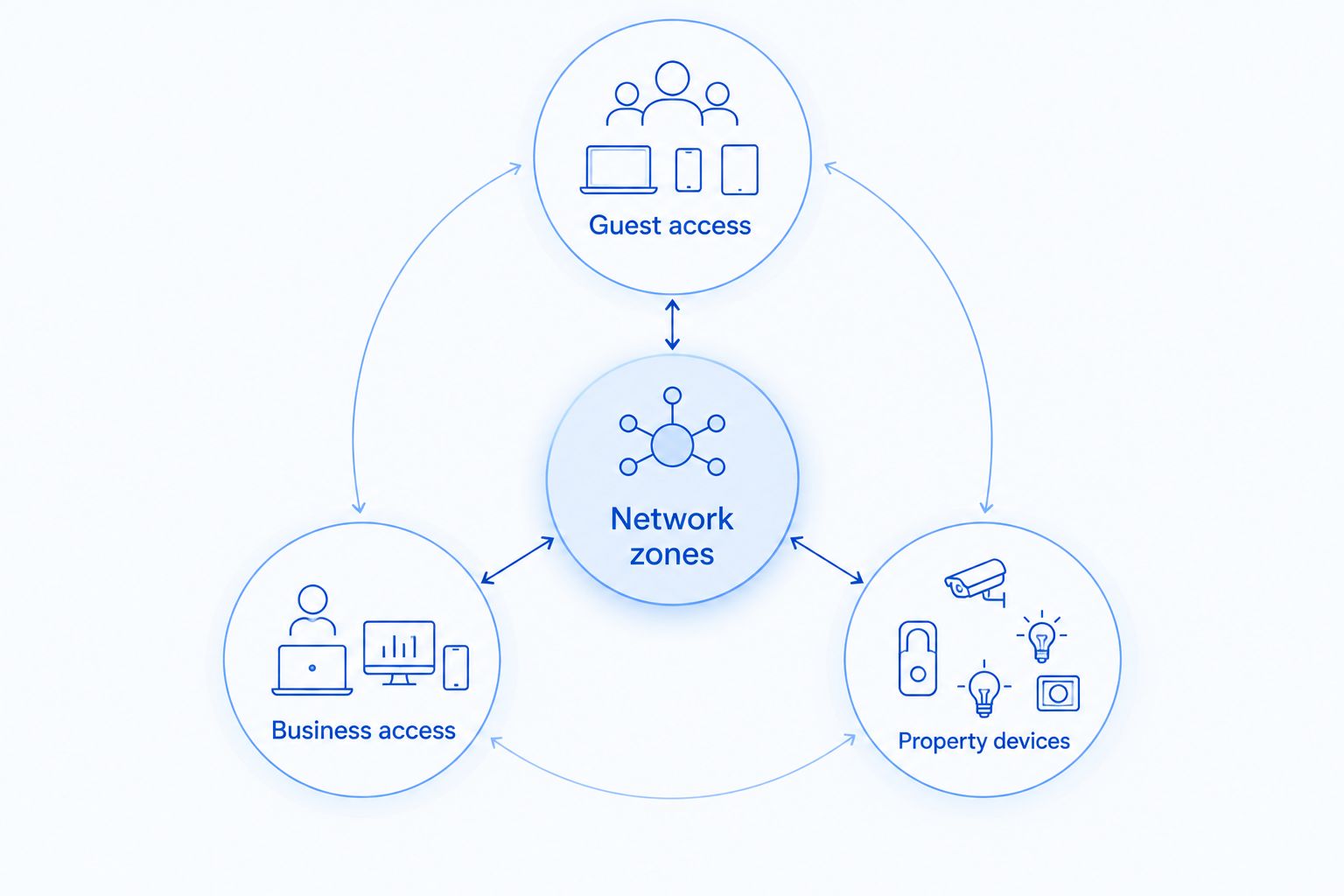
Plan around 3 network zones: guest access, business access, and property devices. These are starting categories, not a requirement to put every lock, camera, and television together. Devices with different access needs need more specific rules.
A virtual local area network, or VLAN, creates a logical network boundary when supported by the equipment. Firewall rules control traffic between those networks. Guest-device isolation adds a separate restriction between users sharing a guest network.
- Guest access: allow internet use without business-network access.
- Business access: restrict reservation computers and administrative tools.
- Property devices: limit connections to required services.
- Test isolation from a guest device, not just the settings screen.
- Document exceptions for casting or other local-device connections.
Choose equipment around coverage and support
First, walk the property using the existing connection. Compare performance near the router with performance in the rooms where guests report problems. This establishes whether you are dealing with weak coverage, a connection problem, or both.
Wired access points connect back to the network by cable and provide Wi-Fi in their assigned areas. Wireless mesh nodes are an alternative where cable routes are difficult, but their wireless backhaul depends on a usable connection between nodes. Neither approach removes the need for placement testing.
TechConnect NC managed IT support is best for local operators seeking ongoing monitoring, patching, backups, and help desk support. Use that service scope as a starting point for discussion; confirm network equipment coverage, on-site work, and support hours before assigning responsibility.
For local help, TechConnect NC is an option for small-business IT support. Professional support does not replace a clear installation scope or acceptance test.
- Best for repeatable room coverage: evaluate wired access points.
- Best for difficult cable routes: evaluate wireless mesh after testing placement.
- Confirm support for the network separation you designed.
- Check who retains administrator access and configuration exports.
- Specify installation work separately from ongoing support.
Test capacity before upgrading the internet plan
Use your provider's account information and existing speed-test tools first. Run 2 baseline tests: a wired test at the router and a Wi-Fi test in a guest room. Record download speed, upload speed, latency, location, and whether other devices were active.
A fast wired result and a poor room result point you toward the local wireless network. Poor results at both locations require investigation of the connection and router before adding access points. Repeat testing under representative use rather than accepting an empty-building result.
For your 2026 rollout, write acceptance criteria around actual tasks: joining Wi-Fi, completing a video call, accessing reservations, and using approved property devices. Avoid choosing a universal speed-per-room figure without a usage assessment.
- Compare wired and wireless results using the same test method.
- Test occupied areas with doors in their usual positions.
- Include upload-heavy tasks such as cloud backups.
- Check connection stability as well as peak download speed.
- Retest after changes instead of assuming new equipment fixed the issue.
Make guest access simple without exposing controls
Draft the connection instructions yourself and ask someone unfamiliar with the property to follow them. A short instruction card should identify the correct network and password without exposing router administration details. Keep management credentials out of guest binders.
Decide how televisions and casting will work before enabling guest-device isolation. Discovery between a phone and a television often depends on local network access. A secure design must deliberately support the intended pairing rather than opening access between every guest device.
Captive portals add a browser-based sign-in step, but devices without a suitable browser need a separate connection method. For a rental with smart televisions, that is an operational decision, not just a branding choice.
- Use an unmistakable guest-network name.
- Keep administrator credentials separate from guest instructions.
- Test joining with a phone and a laptop.
- Test television setup using the intended guest procedure.
- Define when and how guest credentials change.
Prepare for outages and remote troubleshooting
Write a 1-page outage runbook before the first support call. It should tell an on-site person how to check power, identify the affected equipment, and contact the responsible party. Distinguish a restart from a factory reset, which can erase configuration.
Remote support requires a working access path. If the property's internet connection fails, a technician cannot depend on that same connection to reach the router. Alternative connectivity requires its own design, compatible equipment, and testing.
Battery backup can keep connected equipment running during a power interruption, but it does not guarantee that the provider's upstream network remains available. Record these boundaries in your 2026 runbook so staff do not mistake partial protection for uninterrupted service.
- Label the modem, router, switch, and access-point power supplies.
- Record approved restart steps and escalation contacts.
- Store configuration backups outside the affected equipment.
- Test any backup connection before depending on it.
- Give staff a guest-facing outage message without promising a repair time.
Assign maintenance and verify the handover
Start with a calendar and a named owner for updates, account reviews, and configuration backups. Check the equipment's built-in management tools before purchasing another system. An unassigned maintenance task is not a maintenance plan.
Managed support adds an ongoing service relationship, but the agreement determines what gets monitored and who acts on alerts. Your 2026 service agreement should distinguish network equipment, staff computers, property devices, and the internet provider's responsibilities.
Before handover, ask the installer to demonstrate the guest experience and the security boundaries. Keep the network diagram, credentials, equipment list, and recovery instructions under business control. An installation is not finished when the Wi-Fi name appears.
- Name the owner of firmware and security updates.
- Confirm alert recipients and escalation procedures.
- Review administrator accounts when staff or vendors change.
- Save configuration backups after approved changes.
- Retest coverage and isolation after equipment replacement.
Compare network setup options
Choose the simplest design that meets your coverage, privacy, and maintenance requirements. These options are not interchangeable: the physical network design determines connectivity, while the support arrangement determines who maintains it.
| Option | Best for | Main advantage | Key limitation |
|---|---|---|---|
| Existing router with verified guest isolation | Compact rentals with confirmed coverage | Uses equipment already installed | Limited placement and segmentation controls depend on the router |
| Wireless mesh | Properties where new cable routes are difficult | Extends coverage without cabling every node | Wireless backhaul depends on node placement and radio conditions |
| Wired access points with segmented networks | Hotels and properties needing planned coverage across rooms | Separates access-point placement from the internet entry point | Requires suitable cabling, configuration, and testing |
| Managed IT support | Operators who need assigned maintenance and troubleshooting | Establishes responsibility for agreed ongoing tasks | Coverage, response arrangements, and on-site work depend on the agreement |
Do not select mesh to solve an untested internet-service problem. Likewise, do not buy managed support without identifying the equipment and tasks the provider will cover.
Common mistakes hotel and rental operators make
- Putting guest Wi-Fi and the reservation computer on the same private network. Separate access paths and test that guests cannot reach business resources.
- Testing only in the lobby or beside the router. Check bedrooms, distant corners, and advertised outdoor areas with doors in their normal positions.
- Enabling isolation without checking television casting. Confirm the intended guest experience while keeping neighboring guests separated.
- Letting an installer retain the only administrator account. Keep business-controlled access and recovery details before accepting the handover.
- Making the cleaner or front-desk employee improvise during outages. Provide approved checks, escalation contacts, and clear limits on what staff should change.
FAQ
What's the best network setup for a small hotel?
Wired access points with separated guest and business networks are a strong starting point for a small hotel needing coverage across rooms. Confirm placement, cable routes, and guest-device isolation through on-site testing before selecting equipment.
Can I use my existing router in a short-term rental?
You can use an existing router if testing confirms adequate coverage and the required guest-network isolation. Verify its update support, administrator controls, and ability to keep guests away from business and property-management devices.
Is mesh Wi-Fi better than wired access points for a rental?
Mesh Wi-Fi fits properties where cabling is difficult; wired access points fit properties where suitable cable routes are available. Test the proposed mesh-node locations because wireless backhaul needs a usable connection between nodes.
How much internet speed does a hotel or vacation rental need?
Required internet capacity depends on simultaneous activity, not room count alone. Assess streaming, video calls, uploads, staff systems, and property devices, then test under representative use before changing the internet plan.
Should guests and security cameras share the same Wi-Fi?
Guests and security cameras should have separate network access rules. Use network separation and firewall restrictions so guest devices cannot reach camera administration or recordings.
Can guests cast to a television on an isolated network?
Casting requires a design that permits the necessary discovery and connection between the guest device and the intended television. Test room-specific pairing without allowing access to other guests' devices or televisions.
Who can help maintain a rental property's business IT in North Carolina?
TechConnect NC provides managed business IT support, including monitoring, patching, backups, cybersecurity, help desk, and remote support. Confirm the proposed scope for your property's network equipment, on-site needs, and support arrangements.
One last thing
Test the network as a new guest, not as its administrator. Use a device that has never joined the property Wi-Fi, follow the printed instructions, and try the television connection. This catches saved-password shortcuts and pairing assumptions that an installer's own device conceals.
Related guides
- How to choose between break-fix and managed IT support
- How to connect security cameras without slowing your network
- Data backup for property management firms
For local business IT help, call or text TechConnect NC at 919-737-5442. Offices are in Clayton, NC, and Granite Falls, NC; discuss your property's network layout, maintenance needs, and support scope before scheduling work.