To reduce downtime when your business computer crashes, protect the affected files, check whether the problem affects other devices, and move essential work to a clean, approved computer while IT handles diagnosis. Avoid repeated restarts, resets, or recovery attempts when you suspect drive failure or malware; getting the computer running is not the same as recovering usable files and restoring safe access.
- How to reduce downtime when your business computer crashes: protect data first, then restore essential work on an approved device.
- Use a spare computer for business continuity; keep suspected malware away from shared files and backups.
- Verify restored files and applications before declaring recovery complete.
- TechConnect LLC serves North Carolina businesses needing computer repair, data backup/recovery, and managed IT support.
Why this matters
A crashed computer creates two separate jobs: restore the employee's ability to work and repair the failed machine. Handle those jobs separately whenever you have a safe alternative device. Waiting for the original computer to return delays work that does not depend on it.
Your support arrangement also affects who owns the response. The guide to choosing between break-fix and managed IT support explains the distinction; your incident plan should name the person responsible for diagnosis, recovery, and employee updates.
How to reduce downtime when your business computer crashes
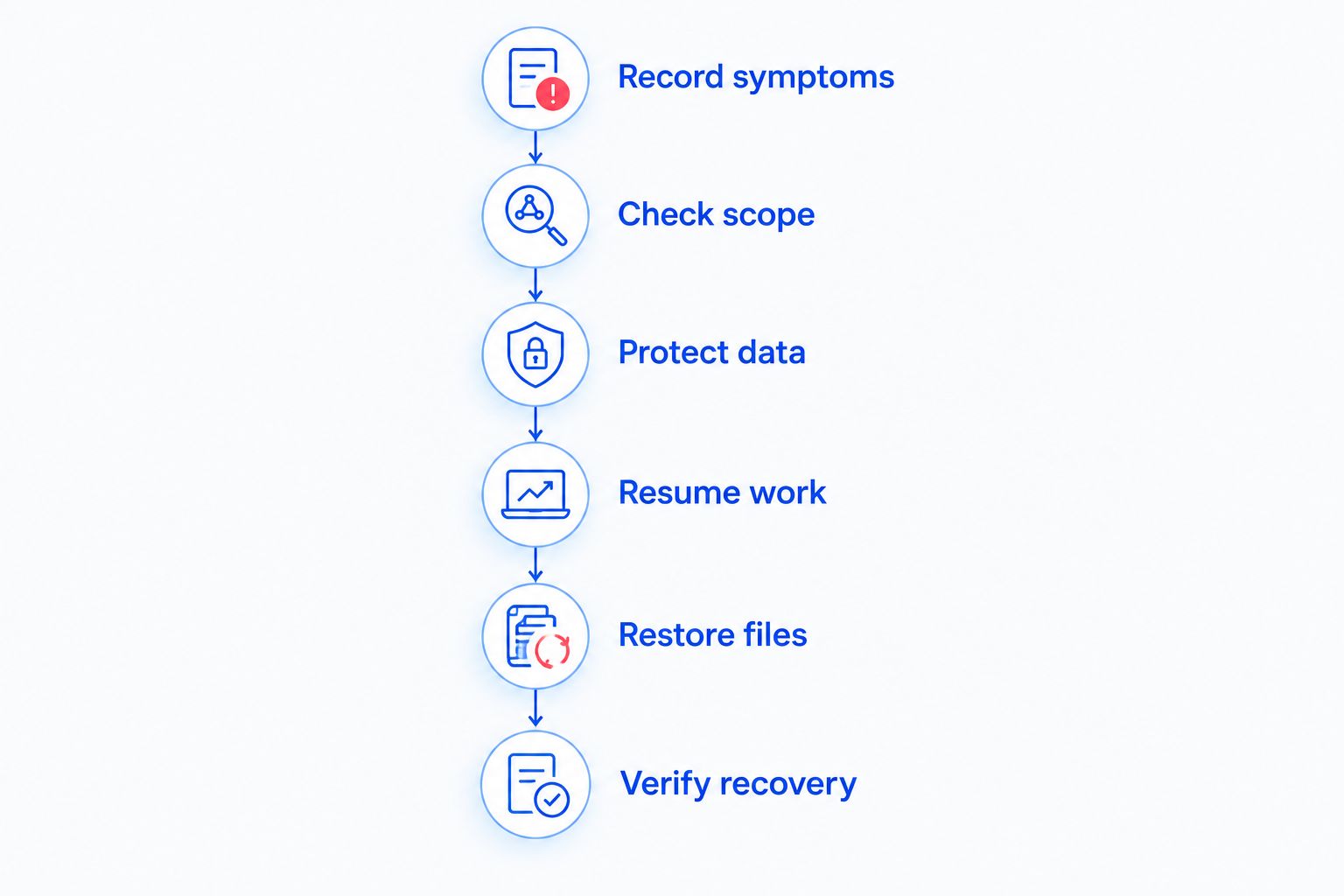
Use this 2026 recovery checklist to separate urgent work from technical repair. The sequence prioritizes safety and data preservation before troubleshooting.
1. Record symptoms
Write down what happened immediately before the crash: an update, a power interruption, an unfamiliar attachment, or an application error. Photograph the error message if you can do so without interacting with the affected computer.
Record whether the machine powers on, whether you can sign in, and whether the problem returns during a particular task. Include the affected employee, computer, application, and files in the support request. Specific observations give the technician a clearer starting point than simply reporting that everything stopped working.
Do not put passwords, recovery codes, or customer records in an ordinary support message. Describe the problem without exposing the data you are trying to protect.
2. Check scope
Ask whether another employee can open the same business application or shared folder from an approved device. If several computers have the same problem, report it as a shared-service issue rather than treating each machine as a separate failure.
Compare the affected tasks. A working email account alongside an unavailable shared drive points to a different investigation than a computer that will not power on. This check helps support distinguish a local device problem from a network, account, or application outage.
Do not restart shared equipment or change network settings just because one workstation crashes. Those changes affect other employees and can introduce another problem during diagnosis.
3. Protect data
If you see a ransom message, unexpected file encryption, or other signs of compromise, disconnect the affected computer from wired and wireless networks. Contact your IT support person from a separate, trusted device and follow their instructions about keeping the computer powered on or shutting it down.
If the drive clicks, disappears, or repeatedly fails to load, stop ordinary troubleshooting and request recovery advice. Do not install recovery software onto the same drive that holds the missing files. New writes can overwrite data that remains recoverable.
Do not reset or reinstall the operating system until support has established how your business files will be preserved. A clean installation is not a substitute for recovering the records your business needs.
4. Resume work
Move the employee to a clean, business-approved computer if one is ready. Use their own account, required authentication, and authorized access to business applications.
Start with essential work: customer communication, scheduled appointments, active orders, or the records needed for the next task. Keep unrelated setup work separate from the immediate response. The objective is a functioning workflow, not an identical desktop.
Do not copy an entire suspect drive onto the replacement machine. Use verified backups or trusted business systems, and have support approve any files retrieved from a potentially infected device.
5. Restore files
Identify the last usable backup and check which changes occurred after it. Restore the files needed for active work first, then address the remaining folders and applications in an agreed order.
Confirm that the backup contains the actual working records, not just shortcuts or empty folders. Some business applications require their own backup and restore procedure; copying their visible files is not always enough.
Keep the original device and available backup versions intact until recovery is verified. Do not discard the source simply because a restore operation reports success.
6. Verify recovery
Ask the employee to complete a normal task on the replacement or repaired computer. Check sign-in, required applications, shared-file access, saving changes, and any printer or other device essential to that task.
Open restored records and confirm that their contents match the selected backup point. Record any missing work separately so employees know what needs to be reconstructed.
Close the incident only after essential work functions and the remaining repair tasks have an owner. A successful startup is a technical checkpoint, not proof that business operations have recovered.
Which recovery route fits the problem?
Choose a recovery route based on the affected task, the condition of the computer, and the availability of trusted data. These routes can work together: an employee can use a spare computer while a technician investigates the original device.
| Recovery route | Best for | Advantage | Limitation |
|---|---|---|---|
| Approved spare computer | Continuing essential work during repair | Separates employee productivity from the failed machine | Requires working accounts, applications, and trusted files |
| Remote support | A computer that starts and can establish an approved support connection | Allows investigation without a physical visit | Cannot physically inspect or replace damaged components |
| On-site repair | Problems requiring hands-on inspection or hardware work | Gives the technician access to the affected equipment | Employee work still needs an alternative during repair |
| Backup restoration | Replacing missing or unusable data from a verified backup | Restores a known recovery point | Changes after that backup need separate attention |
| Data recovery assessment | Important files without a usable backup | Evaluates whether remaining data can be retrieved | Recovery is not guaranteed and does not itself rebuild the workstation |
Use the route that restores the required task safely, not the route that promises the earliest startup. When a machine cannot establish a remote connection, request hands-on support rather than spending the incident trying to enable remote access.
Why computer downtime varies
The same visible crash does not establish the same recovery workload. These factors determine what support needs to resolve:
- Failure scope: A single failed workstation needs a different response from an unavailable network or shared business application.
- Data location: Files stored only on the affected computer require a different recovery path from records available through trusted shared systems.
- Backup condition: A usable recovery point must contain the required records and open successfully after restoration.
- Hardware condition: Physical damage or failing storage changes which repair attempts are safe.
- Security concerns: Suspected compromise requires containment and investigation before the device returns to normal use.
- Replacement readiness: A spare computer is useful only when the employee can access the applications and records needed for work.
Ask your technician which factor currently blocks the next step. That answer is more actionable than an unsupported estimate for the entire repair.
Prepare a crash response plan for 2026
Create a short plan employees can access without the affected computer. Put a printed copy near the work area or store an approved copy somewhere reachable from another device.
Include the support contact, who authorizes repair, which tasks take priority, and where approved recovery information is kept. Identify who communicates with customers if the interruption affects scheduled work.
Keep passwords and encryption recovery information in an approved secure location, not inside the general response sheet. The plan should explain how an authorized person obtains access without publishing sensitive credentials.
Give each employee a clear instruction: stop experimenting, record the symptoms, and report the failure through the designated channel. Uncoordinated troubleshooting makes it harder to distinguish the original crash from changes made afterward.
Make the spare computer usable
A spare machine sitting in a cupboard is not a complete recovery plan. Confirm that it starts, receives required updates, and supports the applications used for essential work.
Check employee sign-in and multifactor authentication before an incident. Access that depends entirely on the failed device needs an approved alternative recovery method.
Do not solve access problems by sharing another employee's account. Individual accounts preserve appropriate permissions and make changes attributable to the person performing the work.
Build recoverable backups
The established 3-2-1 backup rule means keeping 3 copies of your data, across 2 types of storage media, with 1 copy off-site. Treat those figures as a design principle, not proof that any particular backup is complete or secure.
A backup strategy also needs protection against deletion or compromise. Separate backup administration from ordinary employee access and discuss offline or immutable copies with your IT support provider.
Synchronization alone is not a complete recovery strategy. A sync service can carry deletions or unwanted changes to other locations; verify its version history and recovery behavior before relying on it.
Test an actual restore in 2026
Choose a representative business record and restore it to an approved test location. Open it with the application your employee uses and confirm that its contents are usable.
For application databases, follow the application's supported recovery process. A folder full of files does not establish that the database will open correctly.
Record the result and any access problems. A backup becomes useful when you can restore the work, not merely when a backup job finishes.
How do I know when it is safe to restart a crashed computer?
Restart only after checking for warning signs that require a different response, including suspected malware, liquid damage, or failing storage. If the computer is simply unresponsive and those warning signs are absent, follow your organization's approved restart procedure.
A recurring crash needs investigation rather than repeated restarts. Preserve the error details and report what triggers the failure so support can assess the cause.
Can employees keep working while the computer is repaired?
Employees can continue work on a clean, approved device when their accounts, applications, and required records are accessible. Restore a defined workflow first instead of attempting to recreate every setting from the failed computer.
Do not route customer data through personal email or unapproved storage to make the switch easier. Keep the temporary workflow inside your business's access and data-handling rules.
What should I send IT support after a crash?
Send the error message, affected computer, last successful task, and whether other employees have the same issue. Include any recent change you observed, but do not label it as the cause without diagnosis.
State which work is blocked and whether a spare device is available. This lets support prioritize operational recovery alongside repair.
When to request business computer repair
Request professional help when the computer repeatedly crashes, will not start, shows signs of compromise, or holds important files without a verified backup. Tell the provider whether your immediate need is continued work, file recovery, or both.
TechConnect LLC serves North Carolina businesses needing computer repair and managed IT support. Its stated services include PC tune-ups, virus removal, data backup/recovery, and managed business IT support.
Use TechConnect LLC to review the available services and discuss the affected device. Confirm the support scope and response arrangements directly; a service listing does not establish a recovery deadline or guarantee that damaged files are recoverable.
Get help with the crashed computer
Discuss computer repair, data backup/recovery, or managed business IT support in North Carolina.
FAQ
What's the first thing I should do when my business computer crashes?
Protect the data and record the symptoms before trying repairs. Check whether other devices are affected, and contact IT from a trusted device if you suspect malware or failing storage.
Should I keep restarting a computer that crashes repeatedly?
No, repeated crashes need diagnosis rather than repeated restarts. Stop ordinary troubleshooting if you notice drive failure symptoms, physical damage, or signs of compromise.
Can I use a spare laptop while my business computer is being repaired?
Yes, use a clean, business-approved laptop with your own account and authorized applications. Obtain working files from verified backups or trusted business systems rather than copying an entire suspect drive.
Will a computer reset recover my business files?
A computer reset is not a file recovery method. Confirm how important records will be preserved before authorizing a reset or operating-system reinstall.
Is cloud synchronization the same as a backup?
No, cloud synchronization and backup serve different purposes. Synchronization can carry deletions or unwanted changes between devices, so verify version history, retention, and restoration before treating it as a recovery solution.
Does a successful restart mean the business is back to normal?
No, a successful restart does not prove that applications, records, and shared access work. Have the employee complete an essential task and verify restored files before closing the incident.
Can TechConnect LLC help with business computer repair in North Carolina?
TechConnect LLC provides computer repair and managed business IT support to homes and businesses across North Carolina. Its stated services include PC tune-ups, virus removal, and data backup/recovery; confirm the arrangements for your specific incident directly.
One last thing
For your 2026 recovery drill, test the spare computer with the employee who would actually use it. Ask them to sign in, open a working record, make an authorized change, and save it successfully.
That exercise exposes access gaps that a powered-on spare computer does not reveal. Prepare the alternative workflow before you need it. Then use the result to update your 2026 crash response plan.