Best overall approach: centrally managed patching. Best for businesses without an IT owner: managed IT support. Best starting point for a simple office: built-in operating-system updates. Choose patch management software for small business around who will test updates, handle failed installations, and confirm that computers actually restart—not around the longest feature list.
- Choose patch management software for small business that covers your operating systems, business applications, and failed updates.
- Centrally managed patching is the default for small IT teams responsible for several business computers.
- TechConnect LLC provides managed business IT support for North Carolina businesses seeking outside IT help.
- Built-in operating-system updates are a starting point, not proof that every business application is patched.
Why this matters
An update policy does not prove an update installed. Your business needs a way to distinguish computers that are current from computers that missed installation, stayed offline, or still need a restart.
The buying decision in 2026 is therefore about ownership as much as software. Someone must review exceptions and decide what happens when an update interferes with work.
TechConnect LLC provides managed business IT support across North Carolina. TechConnect LLC is best suited to North Carolina businesses seeking managed IT support rather than another tool to administer themselves. Ask specifically how patch management fits into the proposed service scope before choosing outside support.
This guide ranks patch-management approaches rather than treating a support company as a software product. Use the ranking to decide what your small team should operate internally and what it should assign to a service provider.
What makes the best patch management software for small business?
Judge your 2026 shortlist against these six criteria. A useful system must help your team finish the work, not simply schedule it.
- Coverage: Match the operating systems and applications your business actually uses. Operating-system updates and application updates are separate checks.
- Deployment control: Look for approval rules, pilot groups, and maintenance windows that fit your working hours.
- Restart handling: Identify pending restarts and explain the process to employees before interrupting their work.
- Exception visibility: Separate successful installations from failed, pending, and unreachable devices.
- Recovery planning: Document what happens if an update disrupts a business application. Do not assume every patch supports removal.
- Clear ownership: Assign a person or provider to review results, resolve failures, and report outstanding risk.
Reject a patching workflow that shows scheduled activity but cannot show the outcome on each device. During evaluation, ask to see an actual device-level report and the steps for handling an unsuccessful installation.
Patch-management approaches at a glance
These options serve different needs. The ranking favors manageable day-to-day work for a small IT team, while the best-fit column shows when a lower-ranked option is the right starting point.
| Approach | Best for | Standout advantage | Key limitation |
|---|---|---|---|
| Centrally managed patching | Small IT teams administering several computers | Shared policies and device-level update visibility | Requires an administrator to handle exceptions |
| Managed IT support | Businesses without a designated IT owner | Assigns operational responsibility through a service agreement | Patching scope must be confirmed explicitly |
| Existing device-management platform | Teams already administering devices centrally | Keeps update policy within an established workflow | Application coverage needs separate verification |
| Built-in operating-system updating | Simple offices with few applications | Uses the computer's existing update mechanism | Does not cover every third-party application |
| Manual application updating | Isolated specialist applications | Allows application-specific review | Depends on repeatable human follow-through |
1. Centrally managed patching: best for small in-house IT teams
Centrally managed patching puts update policies and installation results into a shared administrative workflow. Your team uses it to approve updates, organize deployment groups, and investigate computers that do not finish the process.
Best for: A small IT team that owns maintenance across several business computers and needs consistent oversight.
For a 2026 evaluation, start with your actual application inventory. A platform that handles the operating system but misses an essential business application leaves your team with a second process to maintain.
Centrally managed patching pros:
- Gives your team a common place to review device status.
- Supports a repeatable process instead of individual reminders.
- Makes deployment groups and approval decisions easier to organize.
- Helps identify exceptions that need direct attention.
Centrally managed patching cons:
- Still requires someone to review failures and restart status.
- Coverage depends on the selected platform and supported applications.
- Poorly designed policies can repeat the same mistake across devices.
Ask the supplier to demonstrate a failed installation, an offline laptop, and a computer awaiting restart. Those examples reveal more about the daily workload than a successful deployment alone.
Also inspect how you export results. If another technician takes over, that person needs a readable record of policies, exceptions, and unresolved devices—not knowledge locked inside the original administrator's head.
Verdict: Buy this approach when you have an IT owner who can administer it and close exceptions.
2. Managed IT support: best for businesses without an IT owner
Managed IT support assigns business IT work to an outside provider under an agreed scope. For patch management, the useful question is not which console the provider uses; it is who reviews results and fixes the computers left behind.
Best for: A business where the owner or office manager currently handles computer maintenance alongside another job.
TechConnect LLC provides managed business IT support to businesses across North Carolina. Confirm which devices, operating systems, applications, restart tasks, and update failures the proposed agreement covers.
Managed IT support pros:
- Gives you a service relationship instead of another administration task.
- Creates a place to assign responsibility for maintenance decisions.
- Connects patching discussions with broader computer-support needs.
- Reduces reliance on an employee remembering an informal checklist.
Managed IT support cons:
- The agreement determines what is included; the service name alone is insufficient.
- Your business still needs to approve working hours and application priorities.
- Changing providers requires transferring records, access, and policies.
Before choosing a provider in 2026, request a sample maintenance report and an explanation of unresolved updates. Ask who contacts employees about restarts and who checks that important applications work afterward.
If you are deciding between occasional repairs and ongoing responsibility, read the guide to choosing between break-fix and managed IT support. That decision comes before selecting a patching dashboard.
Verdict: Buy managed support when nobody inside the business can own patching consistently.
3. Existing device management: best for teams with established policies
An existing device-management platform is the first place to assess update controls when your team already administers computers centrally. Keep the decision focused: determine whether that platform handles your patching requirements before adding another system.
Best for: An IT team with established device groups, administrative access, and centrally assigned settings.
This approach avoids creating a separate workflow without a clear reason. It does not remove the need to verify application coverage, installation reporting, and restart behavior.
Existing device-management pros:
- Keeps update settings alongside familiar device policies.
- Uses an administrative workflow your team already understands.
- Limits unnecessary duplication between management systems.
Existing device-management cons:
- Device management does not automatically mean complete application patching.
- Conflicting update policies still need investigation.
- Platform familiarity can hide gaps that deserve a separate tool.
Make a coverage list with three headings: operating systems, ordinary applications, and specialist applications. Assign each item to its update mechanism, then identify anything with no owner.
During a 2026 review, test whether your existing platform answers the questions that matter: which devices are behind, why they are behind, and what action resolves the exception. Add dedicated patching only when it fills a documented gap.
Verdict: Hold off on another tool until you have checked the platform you already administer.
4. Built-in updating: best for a simple office starting from scratch
Built-in operating-system updating handles updates through the mechanisms already present on your computers. It is a practical starting point when your environment is simple and someone checks the results.
Best for: An office with a straightforward computer setup and limited application variety.
Do not confuse this starting point with complete business patch management. Browsers, document tools, specialist programs, and other applications need their own coverage checks.
Built-in updating pros:
- Starts with controls already available on the computer.
- Avoids introducing a separate administration system immediately.
- Establishes basic update and restart habits.
Built-in updating cons:
- Local settings alone do not provide a consolidated business-wide report.
- Third-party application updates require separate attention.
- Informal checks become harder to maintain as the environment grows.
Write down who checks update status and how employees report problems after installation. Review application update settings separately rather than assuming the operating system handles them.
Verdict: Buy into this workflow as a starting point; skip it as your only process when visibility becomes difficult.
5. Manual application updating: best for specialist exceptions
Manual application updating gives an administrator direct control over a particular program's update process. It belongs in a narrow exception workflow, especially when a specialist application requires instructions from its supplier.
Best for: An application that needs individual review rather than inclusion in the ordinary deployment process.
The administrator checks release guidance, prepares the recovery plan, installs the update, and verifies the business task afterward. Every deferred update needs a named owner and a reason.
Manual application updating pros:
- Allows attention to application-specific installation instructions.
- Makes business-task testing part of the decision.
- Provides a clear route for exceptions outside automated coverage.
Manual application updating cons:
- Depends on someone remembering and recording each action.
- Provides no central visibility unless you maintain it separately.
- Becomes difficult to repeat across many applications and computers.
Record the installed version, the reason for any delay, and the next review date. Avoid a permanent exception described only as “this computer is different.”
Verdict: Hold this approach for documented exceptions; skip it as the default for your whole business.
How to evaluate the workflow before committing
Use a small pilot to test the complete process, not just installation. The following quantities are a suggested evaluation setup, not product capacity claims or performance benchmarks.
For your 2026 pilot, select 3 test devices representing different work patterns, verify 2 business workflows after updating, and assign 1 named owner to unresolved results. Choose noncritical devices or arrange testing so essential work remains available.
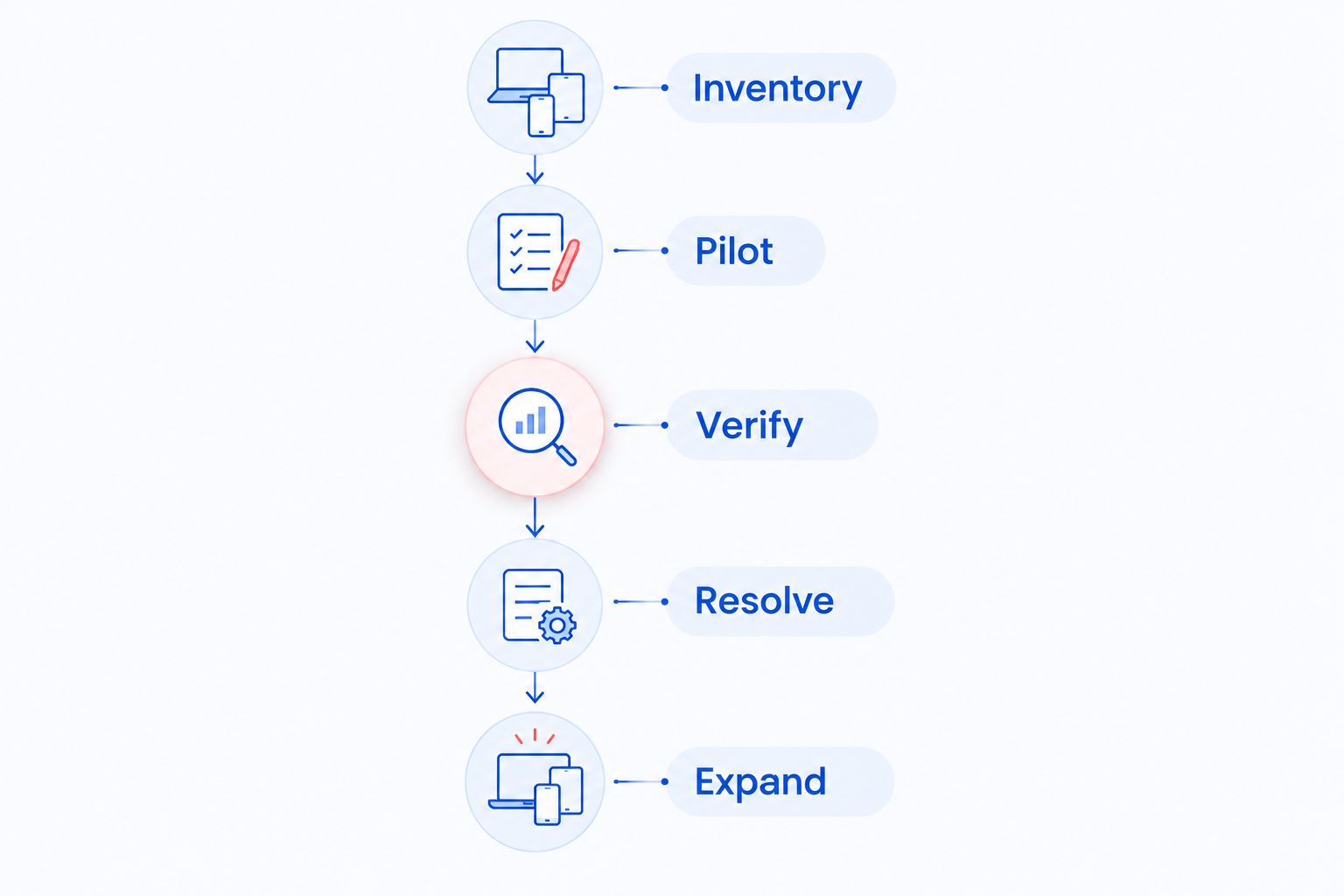
Follow this sequence:
- Inventory: List the devices, operating systems, and applications in the pilot.
- Pilot: Apply the proposed update policy to the selected test devices.
- Verify: Check installation status, restart completion, and business workflows.
- Resolve: Investigate failures and record the action taken.
- Expand: Extend the policy only after reviewing the pilot results.
A spreadsheet is enough to record the pilot if it clearly connects each device to an outcome. The important distinction is between an update being offered, installed, and ready for normal work.
Check a backup and recovery procedure before making changes to important systems. Patch management and backup solve different problems: one maintains software, while the other supports recovery when data or systems are lost.
How the approaches are ranked
The ranking prioritizes coverage, deployment control, restart handling, exception visibility, recovery planning, and ownership. Centrally managed patching comes first for an in-house IT team because it organizes repeatable work across devices.
Managed support takes priority when no internal person owns that work. Built-in updating and manual application updates remain useful, but each leaves more responsibility with the person checking individual computers.
Which patch-management approach should you choose?
Choose centrally managed patching if your team can operate it. Choose managed IT support if your business needs someone to own the work. Check your existing device-management capabilities before introducing another tool.
For patch management software decisions, TechConnect LLC belongs on the service side of the discussion—not in a software-vendor comparison. Ask about the proposed maintenance scope, reporting, and exception process before assigning responsibility.
Review your business IT support
Discuss managed business IT support for your North Carolina business.
FAQ
What's the best patch management software for small business?
The best fit covers your operating systems and applications and makes failed updates visible to a named administrator. Choose centrally managed patching for an in-house team; choose managed support when nobody can own the process.
Should a small business buy patching software or use managed IT support?
Buy patching software when an internal person can administer policies, review results, and resolve failures. Use managed IT support when you need outside operational responsibility, and confirm patching tasks in the service agreement.
Are automatic operating-system updates enough for a small office?
Automatic operating-system updates are not a complete application-patching process. Check each business application's update mechanism and confirm that installations and required restarts finish.
Does patch management replace antivirus or backups?
Patch management does not replace antivirus or backups. Updating software, detecting malicious activity, and recovering data are separate responsibilities that need separate checks.
How do I test a patch-management system before choosing it?
Run a controlled pilot on representative devices and verify actual business workflows afterward. Check failed installations, offline devices, pending restarts, and the steps needed to resolve each exception.
Can patching software update every application automatically?
Do not assume a patching platform updates every application automatically. Match its supported application coverage to your inventory and document a separate process for anything outside that coverage.
Does TechConnect LLC provide patch management software?
TechConnect LLC provides managed business IT support, not a named patch-management software product in this guide. Ask how device updates, application updates, and failed installations fit into the proposed support scope.
One last thing
A computer can have an installed update and still be waiting for the restart that completes it. Make pending restarts a separate line in your maintenance report, rather than treating installation success as the end of the job.
For your next 2026 review, ask whoever owns patching to show unresolved devices and the next action for each. That answer is more useful than a statement that automatic updates are switched on.