A PC tune-up for senior citizens in 2026 means clearing out scam software, patching security holes, and restoring the speed of a computer that's been running the same way since 2019 — without asking the homeowner to touch a settings menu. Seniors face a different mix of PC problems than a 28-year-old remote worker: more tech-support scam calls, more years of accumulated toolbars and trial software, and far less patience for jargon-heavy error screens.
- A PC tune-up for senior citizens in 2026 clears malware, blocks scam pop-ups, and speeds up daily use in under a day.
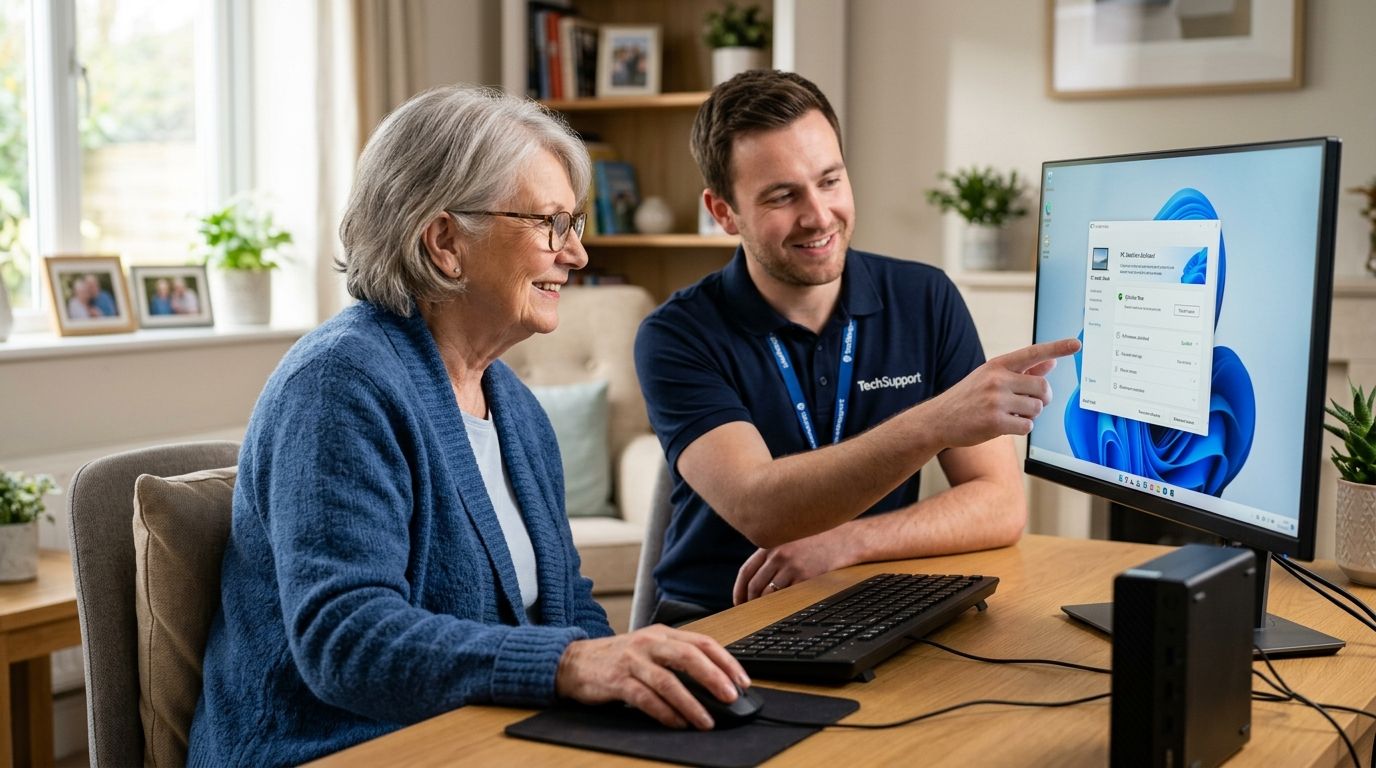
- On-site visits handle the entire fix so no remote screen-sharing with an unknown caller is ever required.
- Free tools like Windows Defender catch some threats — full removal after a scam call usually needs a technician pass.
- Back up photos and documents before any tune-up; skipped backups are the most common reason families lose old photos for good.
Why PC tune-ups matter more for senior homeowners
Windows 10 stopped receiving free security updates on October 14, 2025. Any senior still running it into 2026 without extended coverage is browsing, banking, and emailing on an operating system with no more security patches — the single biggest reason a slow, dated PC turns into a compromised one.
Scam callers specifically target older homeowners because a landline or a familiar area code builds trust faster than a text message would. A TechConnect visit that removes the fake "your computer is infected" pop-up and locks down the browser closes that door for good — a five-minute phone scam script does not work against a machine that no longer produces the fake warning in the first place.
A computer that's been in the same house since 2020 or earlier also carries six years of leftover toolbars, expired trial software, and unused startup programs. None of that is dangerous by itself, but it slows the machine down enough that a senior stops trusting it — and stops updating it, which is worse than the slowness itself.
The tune-up steps that actually protect senior homeowners
Spot and remove scam software first
Before anything else gets touched, the computer needs to be checked for anything installed after a scam call, a fake "your PC is infected" pop-up, or a browser extension nobody remembers adding.
- Open the installed-programs list and remove anything unrecognized, especially "PC optimizer" or "driver booster" tools
- Run a full scan with Windows Defender, which is already built into every current version of Windows
- Check browser extensions and remove anything not personally installed
- Never call a phone number that appears inside a pop-up warning — legitimate security software does not display a support number on screen
- For anything that looks embedded or won't uninstall cleanly, a professional virus removal pass finds and removes what a manual scan misses
Update Windows and browser software
Outdated software is the single easiest entry point for malware, and it's also the easiest thing to fix for free.
- Turn on automatic Windows Update instead of leaving it on manual
- Update the default browser (Chrome, Edge, or Firefox) to its latest version
- Check the PC manufacturer's site for driver updates, especially graphics and network drivers
- Confirm antivirus definitions are current, not just the software itself
Clear startup clutter and free up storage
A machine that takes three minutes to boot in 2026 is almost always carrying startup programs it doesn't need.
- Open Task Manager's Startup tab and disable anything that isn't essential
- Run the built-in Disk Cleanup tool to clear temporary files
- Uninstall programs that haven't been opened in over a year
- Move large photo and video libraries to an external drive if storage is near full
Back up photos, documents, and passwords
Backups matter more for this segment than any other single step, because family photos and financial records are usually stored nowhere else.
- Copy the Documents and Pictures folders to a USB external drive
- Turn on Windows File History for automatic local backups
- Use a free-tier cloud service like OneDrive for offsite copies of critical files
- Write down or store passwords in a password manager rather than a sticky note
- Compare home backup software options before picking one and sticking with it
Test hardware for age-related failure
Software fixes only go so far on a machine that's mechanically failing.
- Run CHKDSK to check the hard drive for errors
- Listen for clicking or grinding noises, which usually mean a failing hard drive
- Check battery health on laptops older than 3-4 years
- Treat a PC past the 5-7 year mark as a candidate for hardware replacement, not another round of software fixes
Set up safe, simple remote support
Remote access is useful, but it's also the exact tool scammers abuse — the setup matters as much as the tool itself.
- Only install remote-support software when the technician or family member is already on the phone and expected
- Never install remote software because an unsolicited caller asked for access
- Confirm the technician's identity through a known company name and callback number before granting access
- Close the remote session immediately after the fix is confirmed
Schedule recurring maintenance instead of one-time fixes
A single tune-up buys a few months of speed. A recurring schedule keeps the PC updated, backed up, and scam-resistant year-round.
- Set a calendar reminder for a check-up every 6 months
- Keep automatic updates on between visits
- Re-run a malware scan quarterly, not just when something feels wrong
- Ask about a recurring maintenance visit so updates and backups happen on schedule instead of after something breaks
“If a caller says your computer is broadcasting errors, hang up — legitimate security software never phones you.”
Comparing the realistic options
| Option | Best for | Key limitation | Verdict |
|---|---|---|---|
| DIY cleanup with built-in Windows tools | Seniors comfortable with basic clicks and menus | Misses hidden malware and scareware installed after a scam call | Hold |
| Family member remote fix | A one-off, simple issue | Not available on demand, follow-through is uneven | Hold |
| Drop-off at a local repair shop | Hardware diagnostics and repairs | Requires unplugging and transporting the PC, hard for a senior living alone | Skip for most seniors |
| On-site PC tune-up visit | Seniors who want everything handled in one appointment | Requires scheduling ahead of time | Buy |
Book a senior PC tune-up
On-site visits across North Carolina, no PC unplugging required.
Common mistakes senior homeowners make
- Trusting a phone number inside a pop-up warning claiming a virus was detected — real security software never displays a support line on screen
- Letting family "fix it later" instead of getting the scam software removed the same week it appears
- Skipping backups until after a crash wipes years of photos and documents
- Reusing one password across banking, email, and shopping accounts
- Ignoring a slow PC for years instead of clearing bloat and running an annual tune-up
FAQ
What's included in a PC tune-up for senior citizens?
A senior-focused PC tune-up in 2026 typically covers malware and scam-software removal, Windows and browser updates, startup cleanup, and a backup check for photos and documents. On-site visits also confirm the machine is free of leftover remote-access tools from a prior scam call.
Is a PC tune-up different for seniors than for anyone else?
The steps are similar, but the priority order shifts. Scam-software removal and safe remote-access setup come first for seniors because they're the most common entry point for fraud, ahead of general speed fixes.
How often should a senior's computer get a tune-up?
Every 6 months is a reasonable schedule for a computer used daily. A PC that's been recently exposed to a scam call or suspicious pop-up should get checked immediately, not on the regular schedule.
Can free tools handle a senior's PC tune-up alone?
Windows Defender and other free tools catch a meaningful share of common malware, but software installed through a live scam call is often designed to evade basic scans. A technician pass finds what free tools miss.
Is it safe to let a stranger remotely access a senior's computer?
Only when the senior or a trusted family member initiated the contact and confirmed the company's identity beforehand. Remote access requested by an unsolicited caller is the single most common tech-support scam pattern in 2026.
When should a senior's old PC be replaced instead of tuned up?
Once a PC passes the 5-7 year mark and starts showing hardware symptoms like clicking noises or repeated crashes, a tune-up won't fix the underlying problem. Replacement becomes the more reliable option at that point.
Does a PC tune-up protect against future scam calls?
It removes the current infection and closes obvious entry points, but it doesn't stop new scam calls from happening. Pairing the tune-up with a rule of never granting remote access to unsolicited callers is what actually prevents repeat incidents.
One last thing
Most tech-support scams in 2026 still rely on the same trick that worked in 2015: a fake pop-up claiming the PC is broadcasting errors, paired with a phone number to call "before it's too late." Genuine Windows updates and antivirus software never generate a phone number on screen — that single fact, remembered, prevents more damage than any tune-up step on this page.