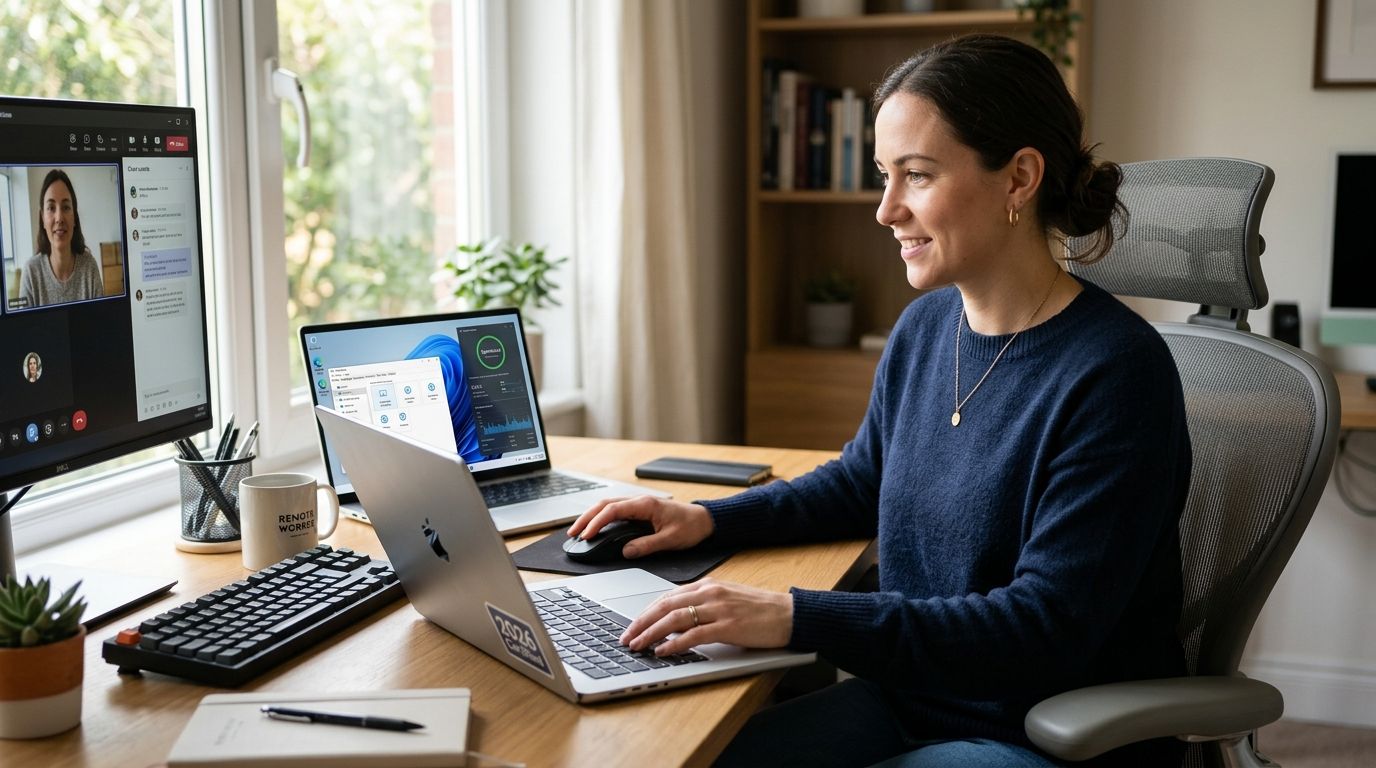
Remote workers need a PC tune-up service that fixes slow boot times, dropped video calls, and disk space eaten by cached meeting recordings — without shipping the machine off for a week. A remote worker's setup differs from an office desktop because it runs on home Wi-Fi, juggles VPN connections, and can't afford a same-day outage with no on-site IT team down the hall.
- A proper pc tune-up service for remote workers covers startup bloat, driver updates, malware scans, and home network tuning in one pass.
- TechConnect LLC runs same-day PC tune-ups across North Carolina for home offices and remote employees.
- Free built-in Windows tools handle 2026's most common slowdowns; paid tune-ups add malware removal and network diagnostics.
- Skipping backups before a tune-up is the top mistake remote workers make in 2026.
Why PC tune-ups matter for remote workers
A remote worker's laptop is the entire office. When it lags during a client call or a VPN drops mid-transfer, there's no IT desk to walk over to — the fix has to come to them. That's a different failure mode than an in-office PC that's backed up by a shared server and an on-site technician.
Remote setups also accumulate more junk faster: video conferencing apps cache gigabytes of temp files, cloud sync clients run constant background processes, and VPN software often launches at startup whether it's needed or not. A pc tune-up service for remote workers has to account for all of that, not just run a generic disk cleanup.
In 2026, most remote employees are running the same laptop they got in 2023 or 2024 with three more years of installed software layered on top. That buildup is the single biggest driver of the "my computer got slow" complaint TechConnect hears from home-office clients.
Update your startup programs first
Startup bloat is the fastest fix and the one most remote workers never touch. Every new app that gets installed over a work-from-home career tends to add itself to the boot sequence, and most of them don't need to be there.
- Open Task Manager's Startup tab and disable anything that isn't your VPN client, antivirus, or core work software
- Remove old conferencing tools you no longer use (Zoom, Teams, Webex duplicates pile up fast)
- Disable cloud sync apps from auto-launching if you don't need them running all day
- Check browser extensions loading on startup — these slow boot time as much as native apps
Clear disk space and temp files
A laptop running below 15% free disk space slows down across the board, not just in one app. Remote workers who record meetings locally or keep years of downloaded PDFs are the most common offenders.
- Run Windows Disk Cleanup or macOS Storage Management to clear temp files and cache
- Delete old meeting recordings and screen captures older than 90 days
- Move large files to an external drive — see the external hard drives for small business backups comparison for options that don't require a subscription
- Uninstall software you installed for a single project and never removed
Update Windows, drivers, and firmware
Outdated graphics and network drivers are behind a large share of the video-call freezing and Wi-Fi drop complaints TechConnect fields from remote clients. This step gets skipped constantly because it's boring, not because it's hard.
- Run Windows Update and install all pending feature and driver updates
- Update your Wi-Fi adapter driver directly from the manufacturer's site, not just Windows
- Check BIOS/firmware version if the laptop is more than two years old
- Restart after updates — a surprising number of "fixes" fail simply because the machine never rebooted
Run a full malware and virus scan
Remote workers click more links from Slack, email, and shared drives than in-office employees do, simply because more of the workday happens through a screen. A tune-up that skips a malware scan is incomplete.
- Run a full scan, not a quick scan — quick scans miss rootkits hiding in startup folders
- Compare tools using the computer virus removal services breakdown if you're choosing between DIY and professional removal
- Check browser extensions for anything you didn't install yourself
- If a scan turns up anything persistent, stop DIY troubleshooting and get a professional pass — reinfection after a partial removal is common
This is usually the point where DIY tune-ups hit a wall. TechConnect LLC's PC tune-up service adds a professional malware sweep and driver audit in the same visit, which turns a half-day DIY project into a same-day fix for home-office and small-business clients across North Carolina.
Optimize your home network for video calls
A fast laptop on a weak network still drops calls and lags in shared documents. Remote workers troubleshoot the PC when the actual problem is the router.
- Move the router closer to the workspace or add a wired connection for video calls
- Check for firmware updates on your router — most people never update these
- Compare mesh systems in the mesh Wi-Fi systems for small office networks guide if you're covering more than one room
- Test upload speed specifically — video calls suffer more from weak upload than weak download
Back up your work files before you touch anything else
Every tune-up step above carries a small risk of losing something if a driver update or malware removal goes sideways. Back up first, every time, no exceptions.
- Run a full backup to an external drive or cloud service before any driver or OS update
- Check the cloud backup services for small businesses comparison if you don't already have one running
- Confirm the backup completed — a backup job that silently failed is worse than no backup at all
- Keep at least one copy off the machine itself
Secure your connection with a VPN
Remote workers handling client data over home or public Wi-Fi need an encrypted connection, and a tune-up is the right time to check that the VPN is actually configured correctly rather than just installed.
- Confirm the VPN connects automatically when you're off the home network
- Check the VPN services for small business remote work roundup if your current one is slow or unreliable
- Test that DNS isn't leaking outside the VPN tunnel
- Verify your IT provider's remote access tools still work through the VPN after any network changes
Comparison: tune-up options for remote workers in 2026
| Option | Best for | Key limitation |
|---|---|---|
| DIY tune-up (Windows tools + free scans) | Comfortable troubleshooting solo, minor slowdowns | Misses hidden malware, driver conflicts, and network-level issues |
| Free antivirus + manual cleanup | Light maintenance between professional visits | No hardware diagnostics, no backup verification |
| TechConnect LLC PC tune-up service | Remote workers needing a same-day, full-system pass | Requires scheduling a visit or drop-off |
| Full managed IT retainer | Small businesses with several remote employees | Overkill for a single home-office laptop |
A remote worker with one slow laptop and no ongoing IT needs is best served by a one-time PC tune-up service, not a managed retainer — that's the clearest verdict in this comparison.
Common mistakes remote workers make
- Skipping the backup step because the tune-up "is just cleanup" — driver and OS updates can still break something
- Running a quick antivirus scan and calling it done instead of a full scan that checks startup folders and scheduled tasks
- Ignoring router firmware while chasing laptop-side fixes for a Wi-Fi problem that's actually network-side
- Reinstalling the same bloatware after a tune-up because startup settings weren't locked in
- Waiting until the laptop is unusable instead of scheduling a tune-up as recurring maintenance, which costs less time overall than emergency troubleshooting
Get your PC tune-up scheduled
Same-day PC tune-ups for remote workers across North Carolina.
FAQ
What does a PC tune-up service for remote workers include in 2026?
A full tune-up covers startup optimization, disk cleanup, driver and OS updates, a full malware scan, and a home network check for Wi-Fi and VPN performance. TechConnect LLC bundles all of these into one same-day visit for North Carolina clients.
How often should remote workers get a PC tune-up?
Every 6 to 12 months for a laptop used daily for work, or sooner if boot time or video call quality noticeably drops. Waiting until the machine is barely usable usually means a longer, more expensive fix.
Can I do a PC tune-up myself instead of paying for one?
Yes for basic steps like disk cleanup and startup optimization, but DIY tools typically miss hidden malware and driver conflicts that a full scan and professional pass catch. Most remote workers combine both: DIY maintenance between professional tune-ups.
Is a slow VPN connection a PC problem or a network problem?
It's usually the VPN configuration or the home router, not the laptop itself. Checking DNS settings and router firmware before assuming the PC needs a tune-up saves troubleshooting time.
Do I need to back up my laptop before a tune-up?
Yes, every time, because driver and OS updates carry a small risk of data loss. A completed backup should be confirmed, not just started, before any tune-up work begins.
What's the difference between a PC tune-up and full managed IT support?
A tune-up is a one-time or periodic maintenance pass on a single machine. Managed IT support is an ongoing retainer covering multiple devices, security monitoring, and help desk access, which fits businesses with several remote employees rather than one home-office worker.
Why does my laptop slow down more working from home than it did in the office?
Home networks are usually weaker than office networks, and remote workers tend to install more conferencing and cloud sync tools that launch on startup. Both factors compound the slowdown a standard office PC wouldn't show.
One last thing
The step remote workers skip most in 2026 isn't the malware scan — it's confirming the backup actually finished before starting anything else. A tune-up that improves speed but silently loses three months of local files is a net loss, not a fix.